
A student left, or a class is finished — how to remove it (archive or delete)
A student has left but their name is still in the daily attendance and fee lists? Marking them as departed (an "ex" student) is already in the app — take the name off without losing a single record. Read this before you delete anything.
The screenshots show the app in Bangla, its main language. The buttons sit in the same places in English.
-
Find the class you want to put away on the home screen and tap "এডিট" (Edit) on its card. Check the name first — every card has an "এডিট".
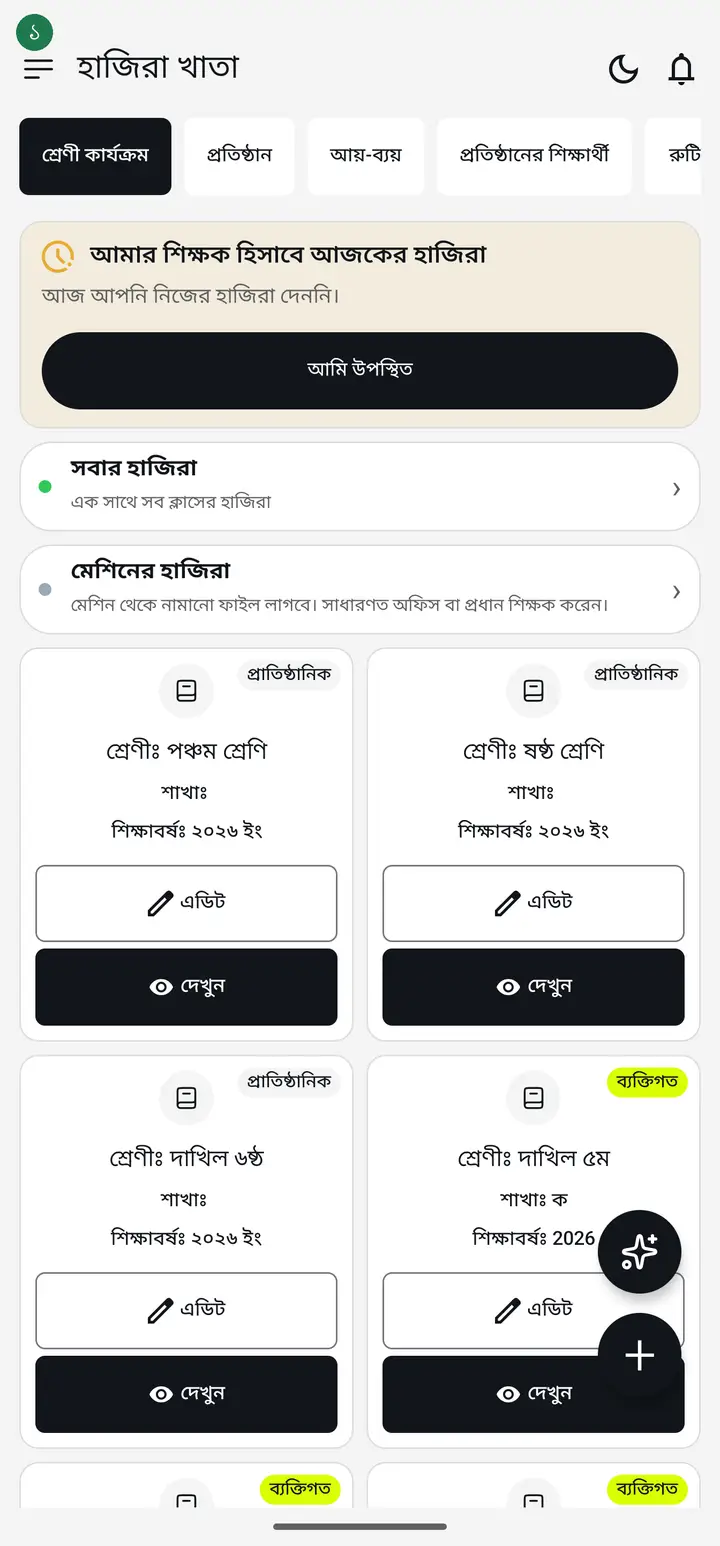
Know this before you start, or you can lose a lot. There are two different ways to put something away — "আর্কাইভ" (Archive) moves it out of sight but keeps every record and can be undone any day. "ডিলিট" (Delete) erases it for good, taking attendance, fees and results with it. At year end, archive is almost always what you want.
-
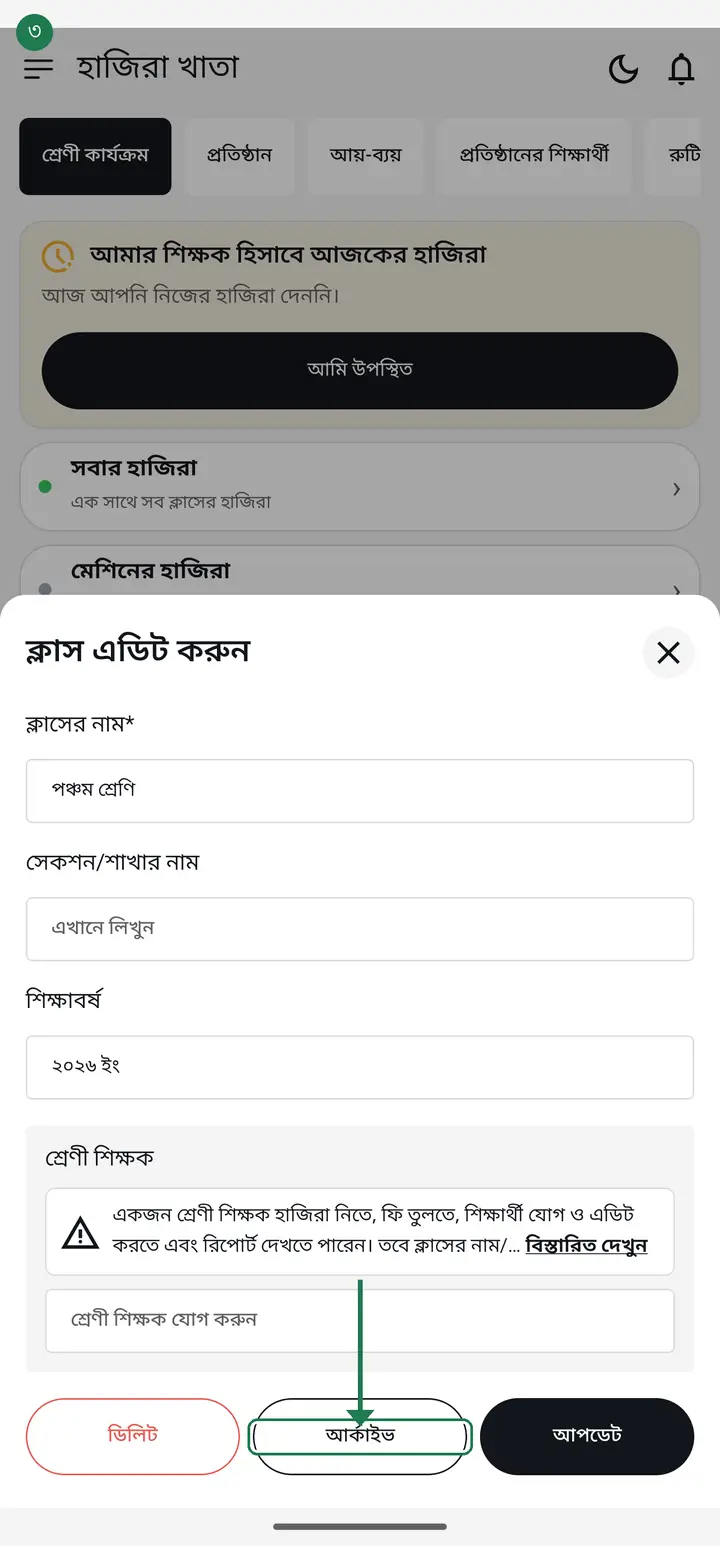
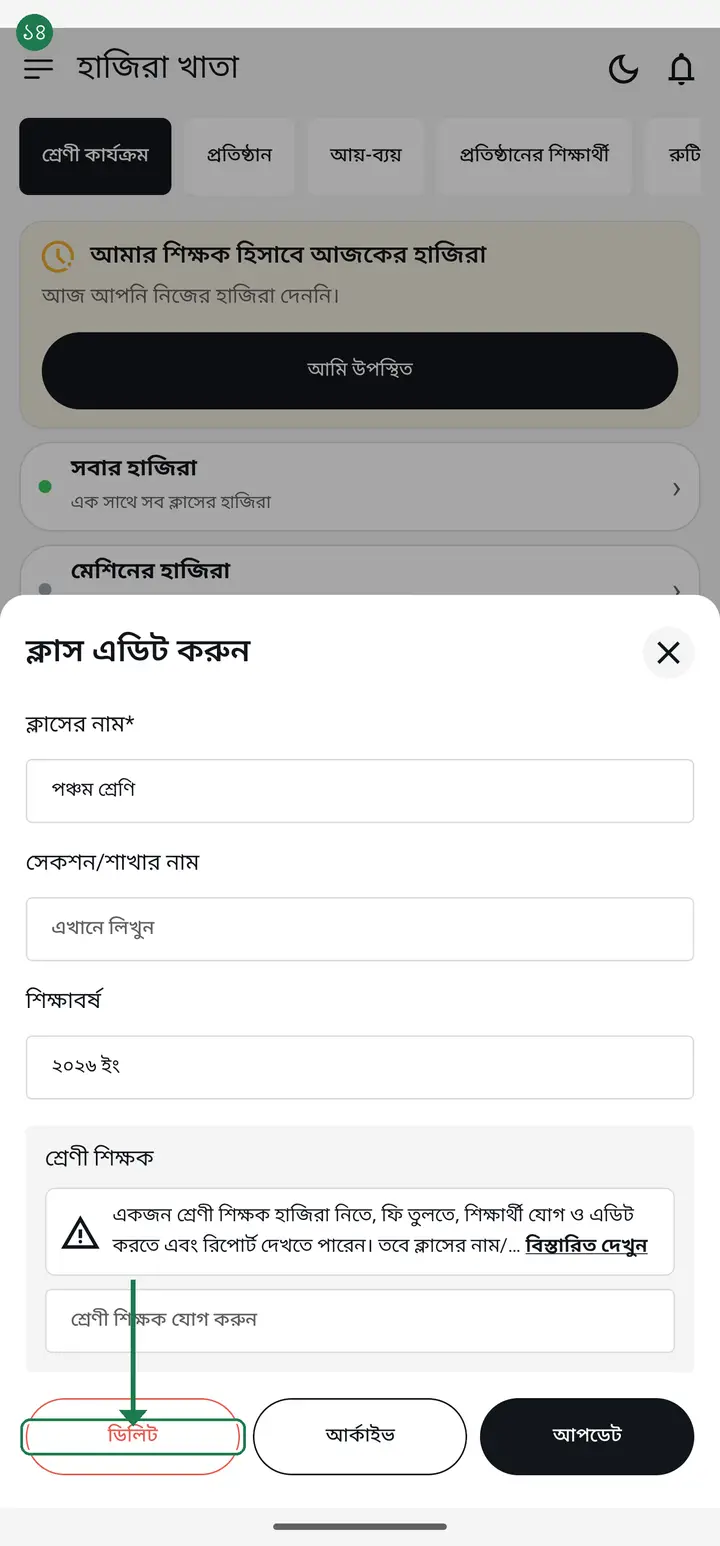
At the very bottom are three buttons — "ডিলিট" (Delete), "আর্কাইভ" (Archive), "আপডেট" (Update). To put an old class away, tap "আর্কাইভ". You will see "ক্লাসটির অবস্থা আপডেট হয়েছে" (Class status updated).
-
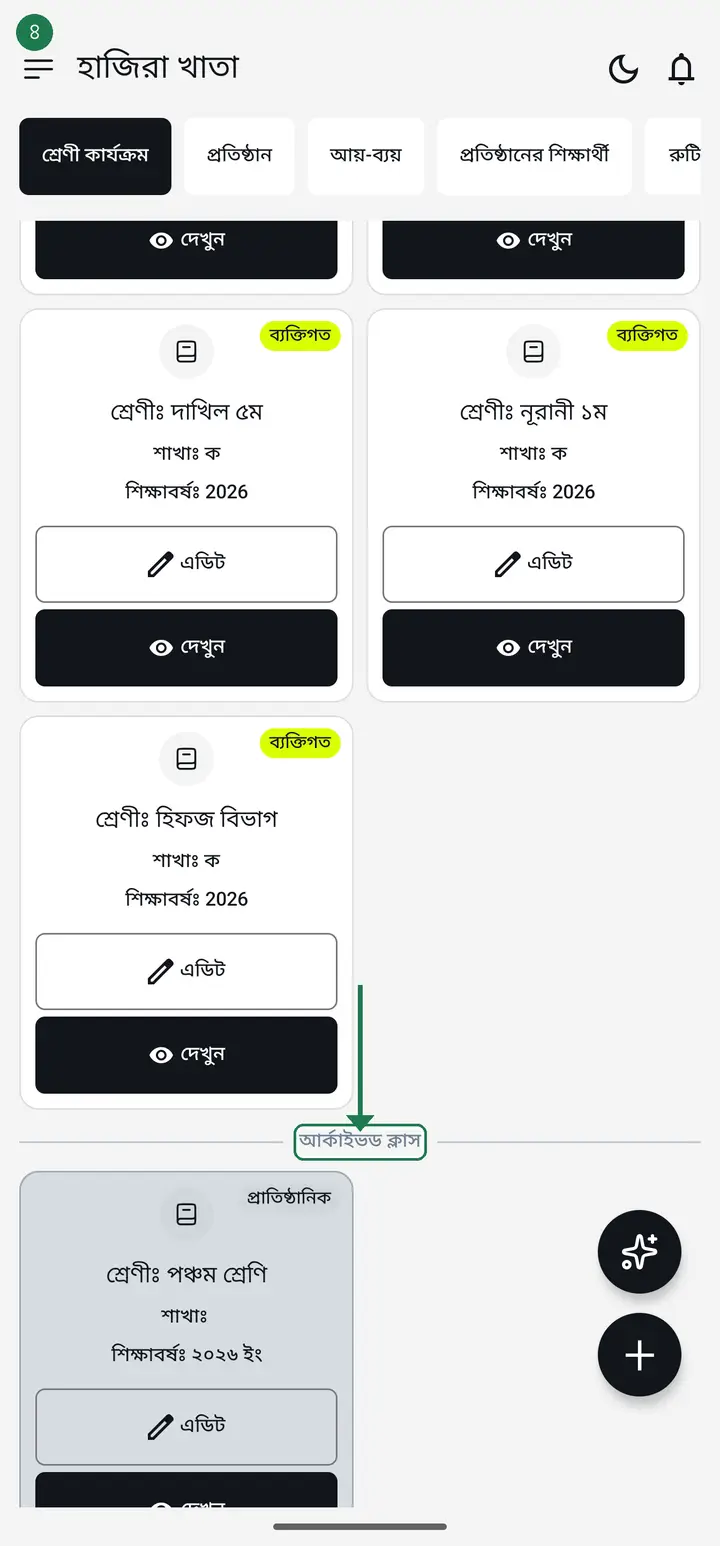
An archived class leaves your home list but is not deleted. You will find it under "আর্কাইভড ক্লাস" (Archived classes).
-
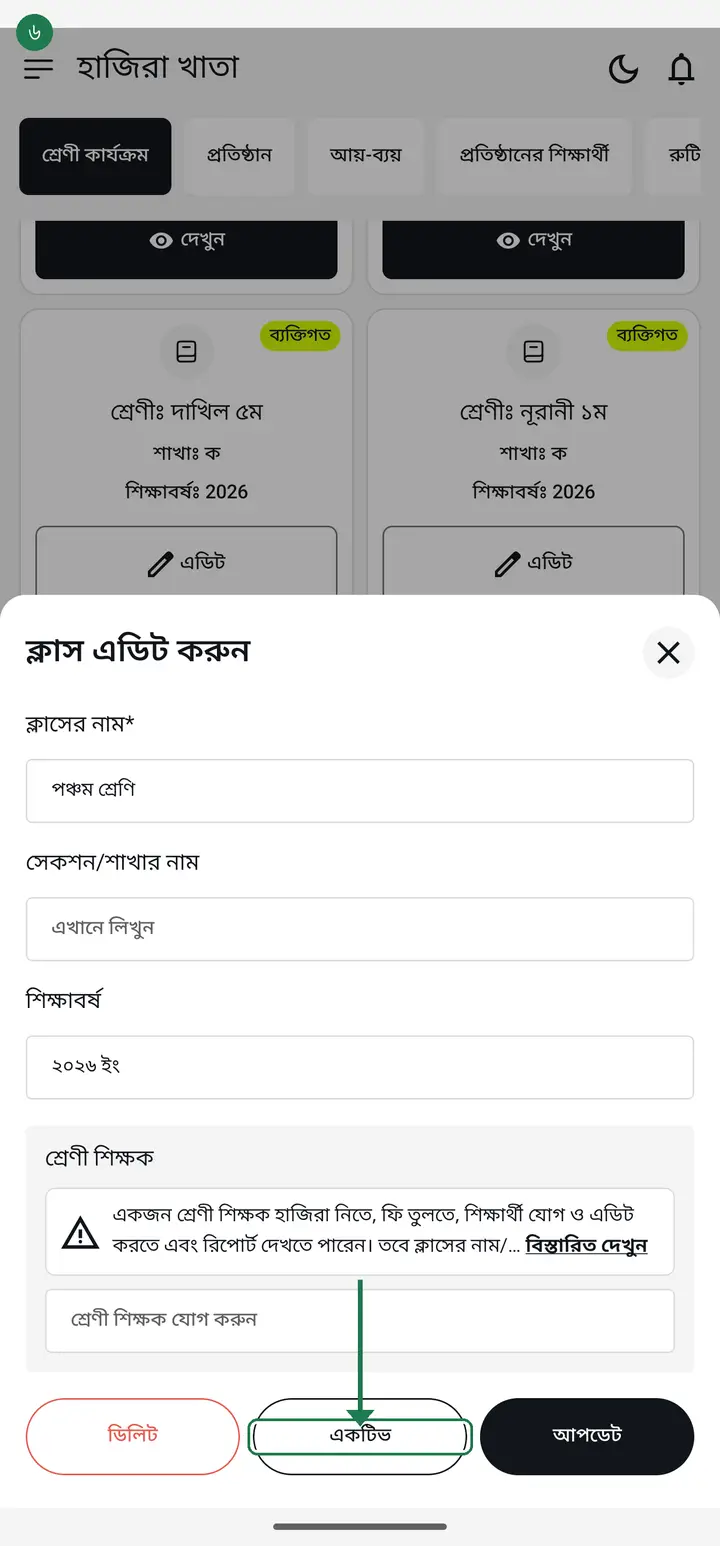
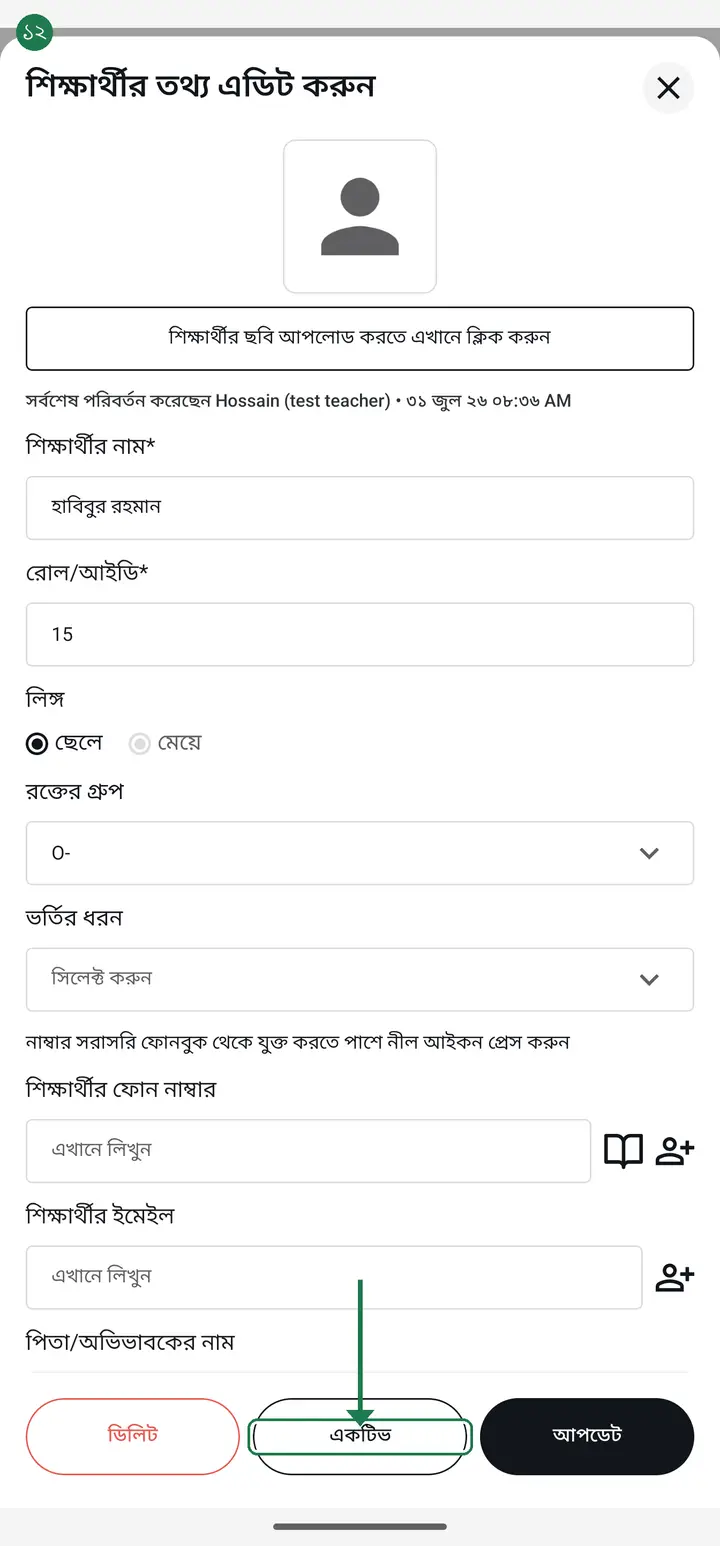
To bring it back, open "এডিট" on the archived class — the button now reads "একটিভ" (Active). Tap it and the class returns to its place with everything intact.
-
Now for a student. When a student leaves, do not delete them — archive them. Their past attendance and fee records stay in your reports; only their name leaves the daily attendance list.
Deleting a student also removes their earlier fee records. For a student who left mid-year, archiving is the right choice.
-
Tap "দেখুন" (View) on the class card, then "শিক্ষার্থীদের প্রোফাইল" (Student profiles). To the right of each student are two small buttons — "প্রোফাইল" (Profile) and "এডিট" (Edit). Tap "এডিট".
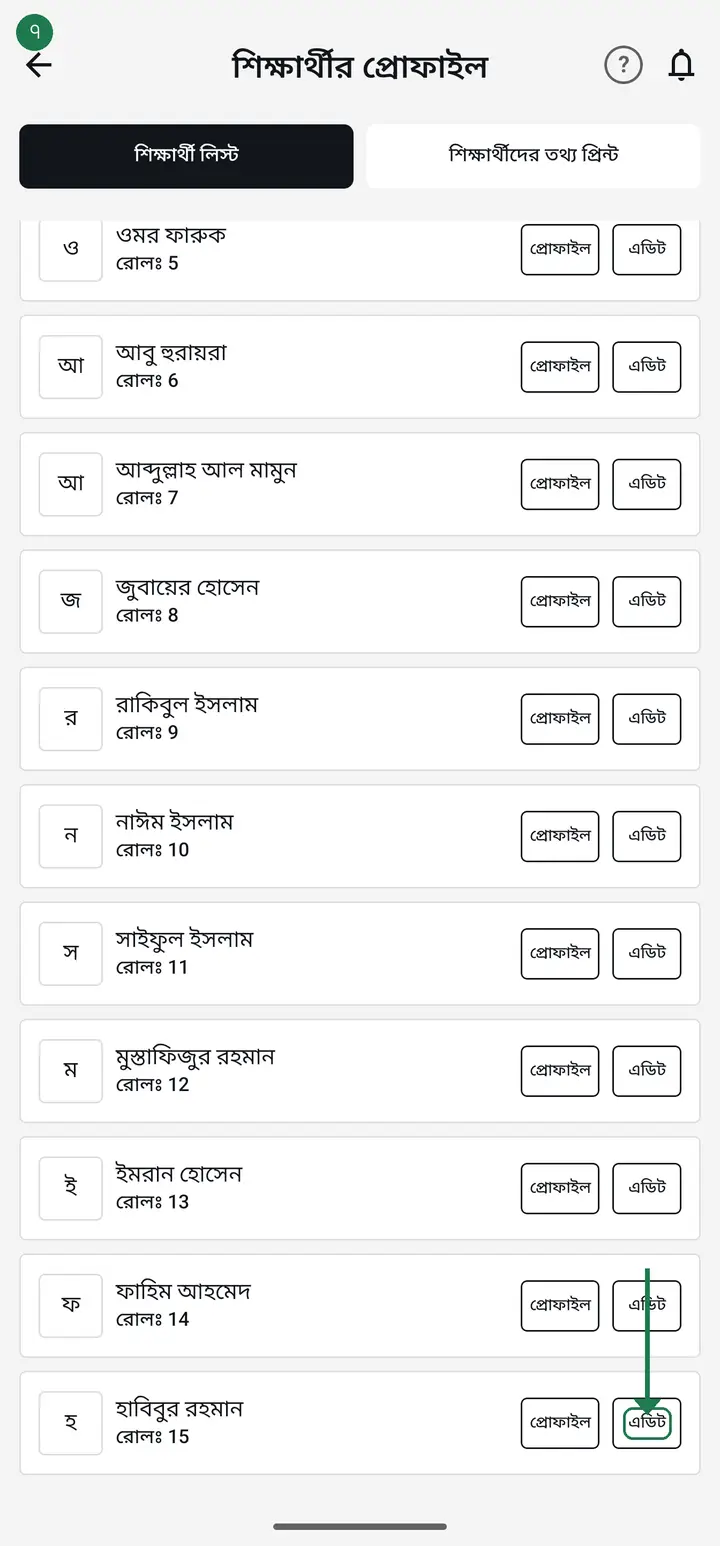
-
At the very bottom are the same three buttons as a class. The middle one is what you want — on newer versions it reads "চলে গেছে" (Left), and on older versions the same button reads "আর্কাইভ" (Archive). They are the same thing; only the wording changed so it is easier to find. Tap the middle button.
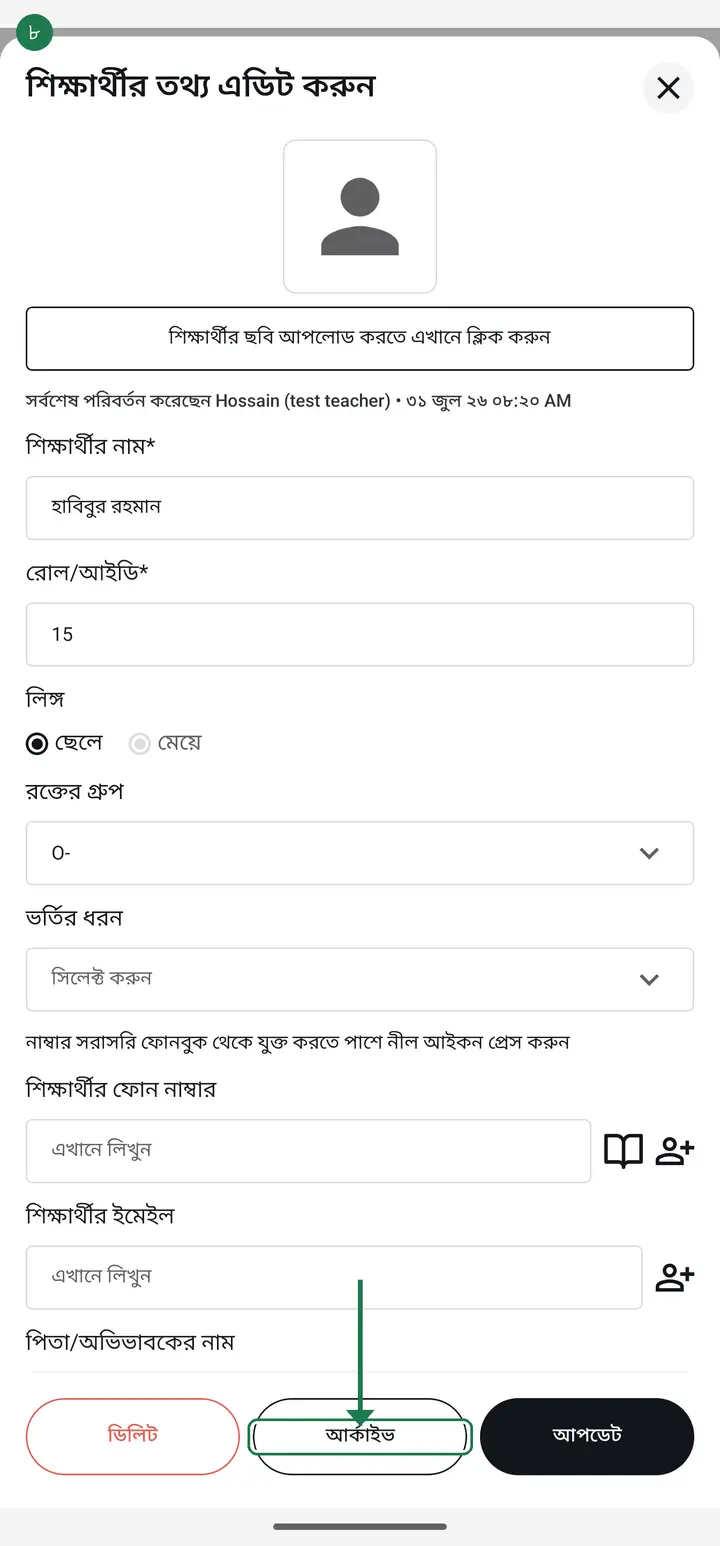
A word on why the label changed — many people did not realise "আর্কাইভ" (Archive) was the option for a student who had left, and wrote in asking for it as a new feature. The capability was always there and works exactly the same; only the name is clearer now.
-
Here one thing differs from a class — a small box appears under the heading "সতর্কতা" (Warning). On newer versions it spells out what will happen: from today the name leaves the attendance and fee lists, and no past attendance, fee or result is deleted. On older versions it only asks "আপনি কি এই শিক্ষার্থীকে আর্কাইভ করতে চাচ্ছেন?" (Do you want to archive this student?). Nothing to fear — both do the same thing. Tap "ওকে" (OK). When you see "শিক্ষার্থীর তথ্য আর্কাইভ স্ট্যাটাস আপডেট হয়েছে।" it is done.
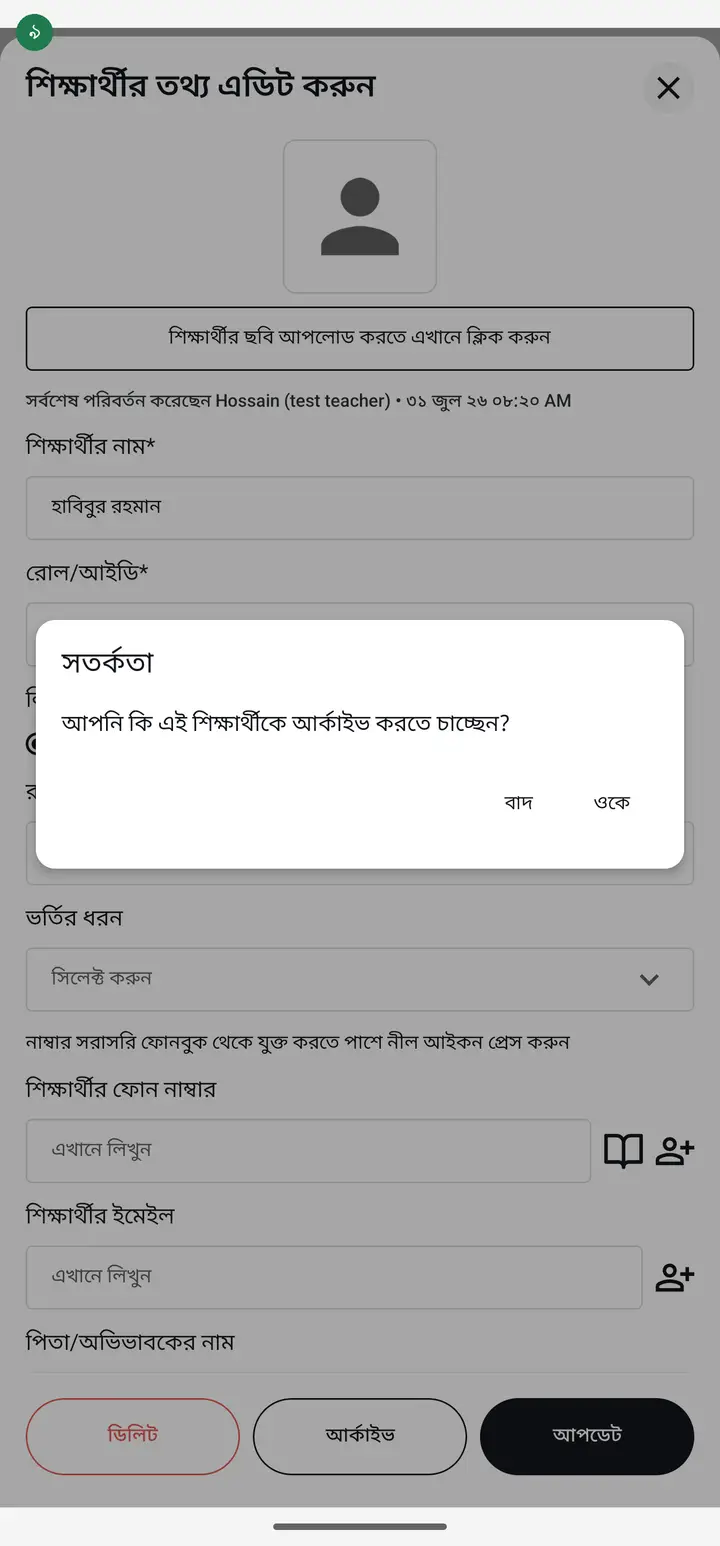
Tapping "ওকে" already saves it. You do not need to tap "আপডেট" as well. Tapping "বাদ" (Cancel) does nothing — the student stays as they were.
-
A student put away this way does not move to a separate page. Further down the same list there is a divider — "চলে যাওয়া শিক্ষার্থী" (Students who left) on newer versions, "আর্কাইভড শিক্ষার্থী" (Archived students) on older ones — with their names below it in a faded colour. They no longer appear in daily attendance, and are not counted in a new month's fee.
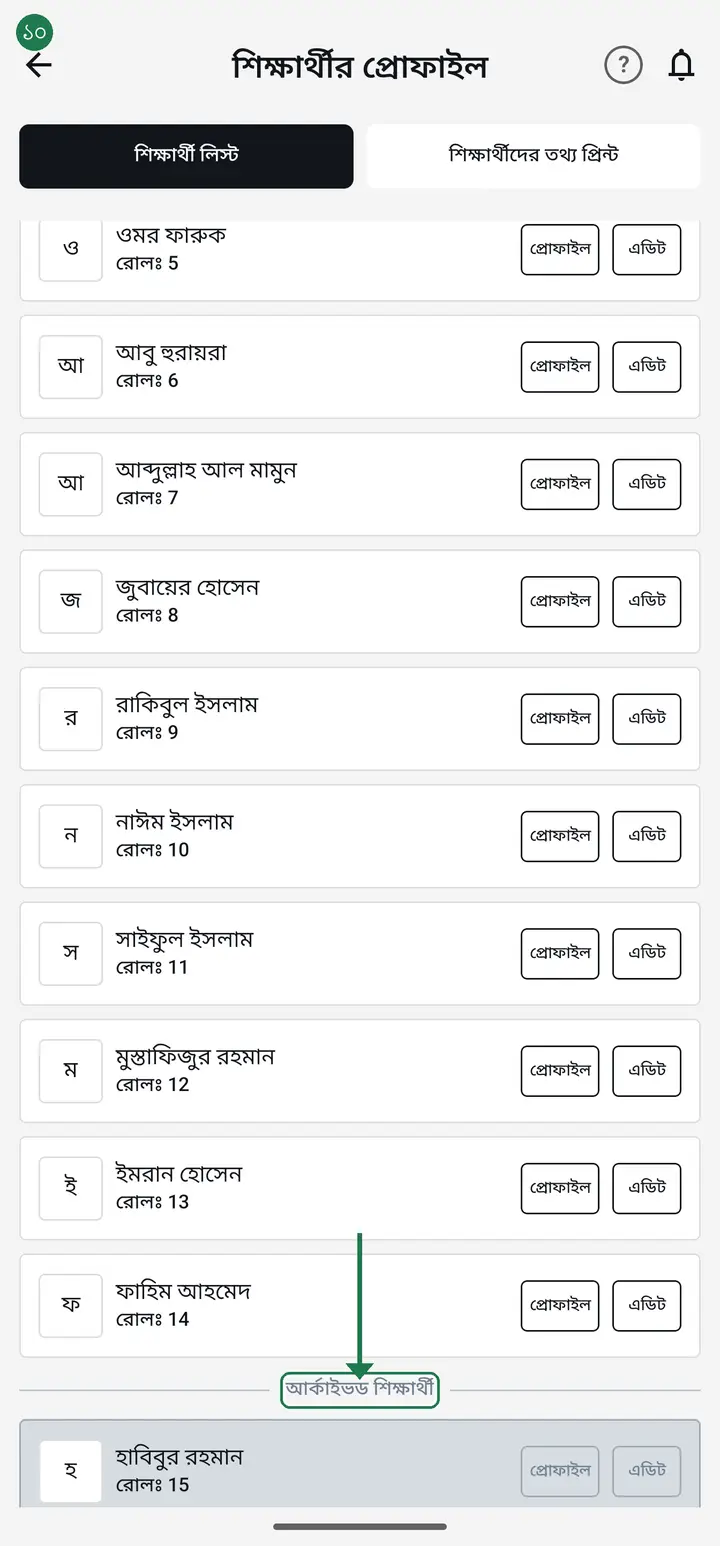
-
To bring them back, tap "এডিট" on the faded name — the middle button now says the opposite: "ফিরে এসেছে" (Returned) on newer versions, "একটিভ" (Active) on older ones. Tap it, confirm with "ওকে", and the student is back where they were with every record intact.
-
Now deleting. If you truly mean it, tap "ডিলিট". The app asks "আপনি কি আসলেই ক্লাসে সকল তথ্য ডিলিট করতে চান?" (Do you really want to delete everything in this class?) and gives you a box.
-
In that box you must type **DELETE in English capital letters** — exactly like this: DELETE. Switch your keyboard to English, use capitals, then tap "ডিলিট করুন".
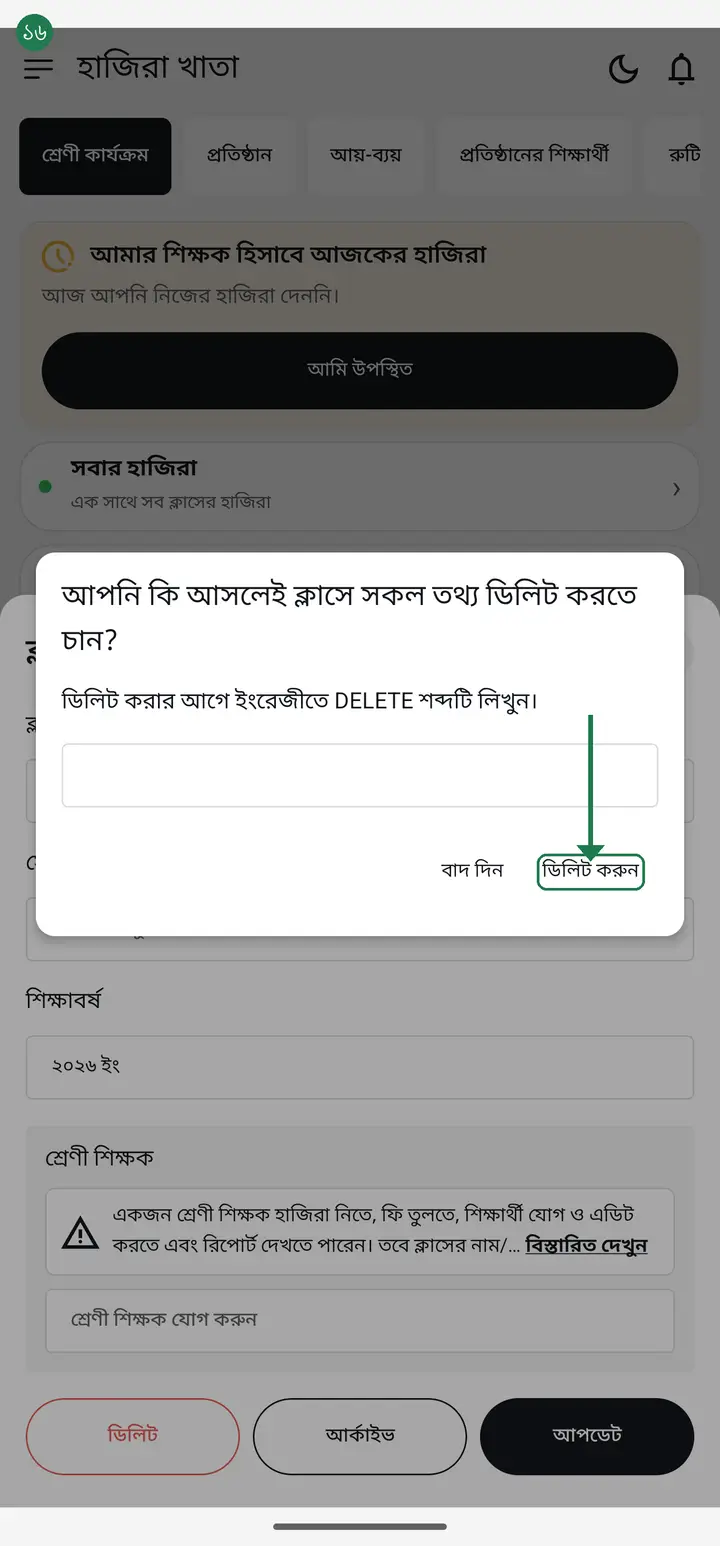
This is where most people get stuck. Lowercase delete, Bangla ডিলিট, or any small difference and the button simply does nothing — no error appears, it just sits there and feels broken. It is not broken; the letters must be exactly DELETE.
Common questions
Is there a way to take a student off the attendance and fee lists when they leave — mark them as an "ex" or former student?
Yes, and it is already in the version you have — there is nothing to wait for. This is the single most-asked question here, because the button used to be called "আর্কাইভ" (Archive) and many people did not realise that was the option for a student who had left. Do this: student list → "এডিট" (Edit) next to the name → the middle of the three buttons at the very bottom ("চলে গেছে" / Left, or "আর্কাইভ" on older versions) → "ওকে" (OK). From then on the name is gone from daily attendance, gone from the fee list, and not counted in a new month's fee — while all past attendance, fees and results stay in your reports. Never use "ডিলিট" (Delete); that erases the old records for good.
Will a departed student still appear in next month's fee?
No. Once they are marked "চলে গেছে" (or "আর্কাইভ" on older versions) they are not counted when a new month's fee is generated, and their old dues are not carried forward either — so no new money is raised against a student who is gone. Earlier months are left exactly as they were, because that is your record.
Do an archived student's fee dues remain?
Yes. Archiving only takes the name off the daily list — it does not touch the money. Past dues and payments still show in your reports exactly as before.
Does archiving delete anything?
No, nothing at all. Archiving only moves it out of sight — attendance, fees and results all stay exactly as they were. Tap "একটিভ" any day to bring it back.
Can I undo a delete?
No. Deleting removes that class's data from the database and we cannot restore it either. That is exactly why the app makes you type DELETE — so nobody loses everything with an accidental tap.
I am typing DELETE and the button still does nothing.
Check three things: (1) is the keyboard in English? (2) are all the letters capitals — DELETE, not delete? (3) is there a stray space or extra character before or after it? With all three right, the button works.
What should I do with last year's classes?
Archive them. Your home screen stays clean and last year's attendance or fee records are one tap away if you ever need them. When you create the new year's class, "শ্রেণী মাইগ্রেশন" copies the student list across from the old one.
Can I take attendance in an archived class?
No. While archived, the app says "ক্লাসটি আর্কাইভ অবস্থায় আছে" (This class is archived) and the feature is unavailable. Make it "একটিভ" again first.
Ask AI about this page
Ask an AI app to explain this page in simple language.
Copied — now paste it
Get Hazira Khata free on Google Play
More tutorials
- How to sign in Signing in for the first time with your phone number. No email or password needed.
- Add a second way to sign in to one account Add Gmail to an account created with a phone number. It stays one account and nothing inside it changes.
- How to mark your own attendance As a teacher you can record your own daily attendance — it takes one tap.
- Check your salary and sign "received" When your school records your salary, the app tells you. Check the receipt and tap "বেতন বুঝে পেয়েছি" (Salary received) to leave your own digital signature — proof for both sides.
- How to create a class Before you can take attendance you create the class once. A one-time job.
- Putting your classes in your own order — press, hold and drag KG Two showing before KG One? Classes appear in the order you created them. On the "শ্রেণী কার্যক্রম" page, press and hold a card and drag it where you want — no need to rename anything.
- Make receipts and results look right — font and size Documents printing in an ugly font? Change it in one place and the receipt, result slip and certificate all change together.
- How to add students Enter each student's name and roll once. After that, daily attendance is just ticking boxes.