
Make receipts and results look right — font and size
After sending a receipt it looks less tidy than the app itself. Many think the app is broken. In fact the app forces no font — until you pick one, documents come out in the phone's own font. Pick once and every document follows.
Documents printing in an ugly font? Change it in one place and the receipt, result slip and certificate all change together.
The screenshots show the app in Bangla, its main language. The buttons sit in the same places in English.
-
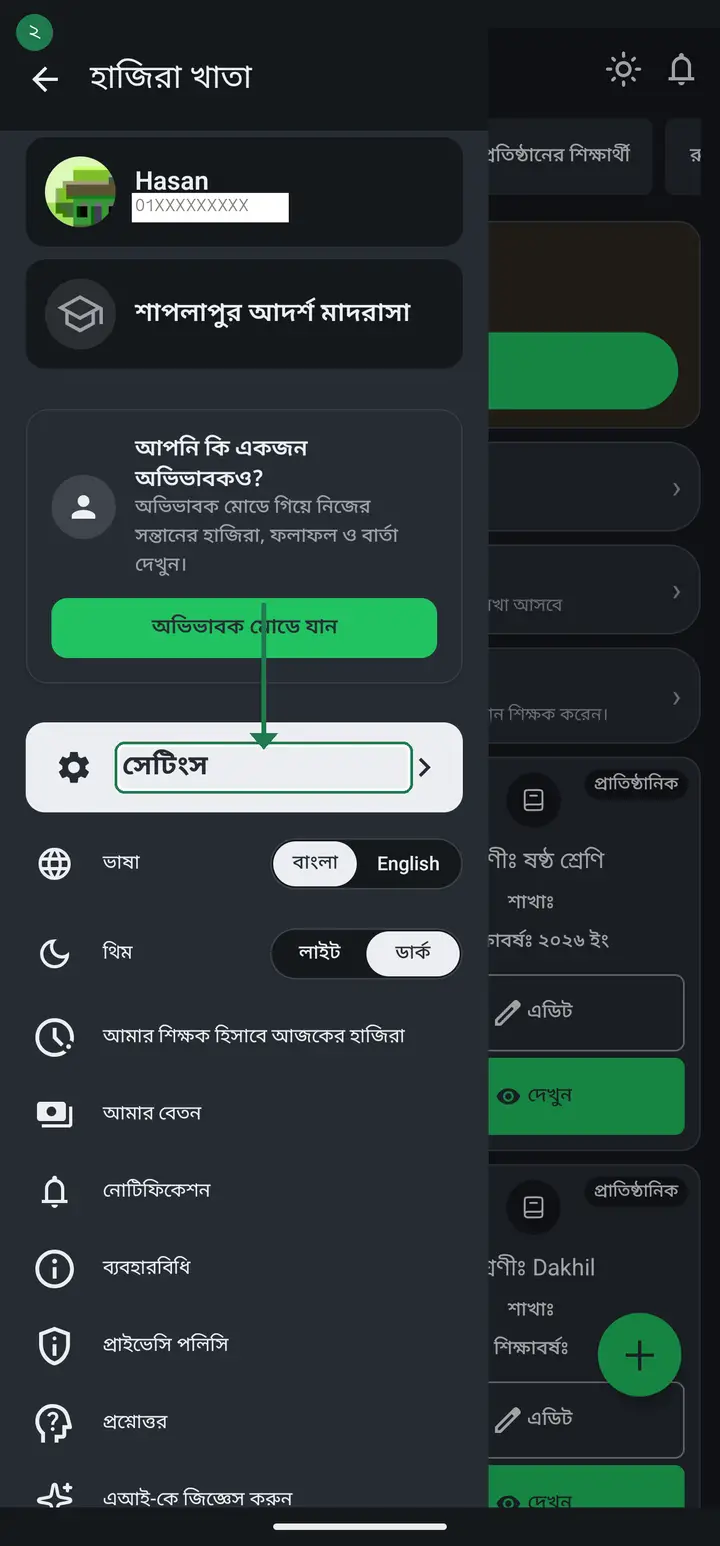
Tap the three lines at the top left to open the menu, then tap "সেটিংস" (Settings).
-
Scroll down and you will find two font rows. They are not the same thing — this is what most people mix up.
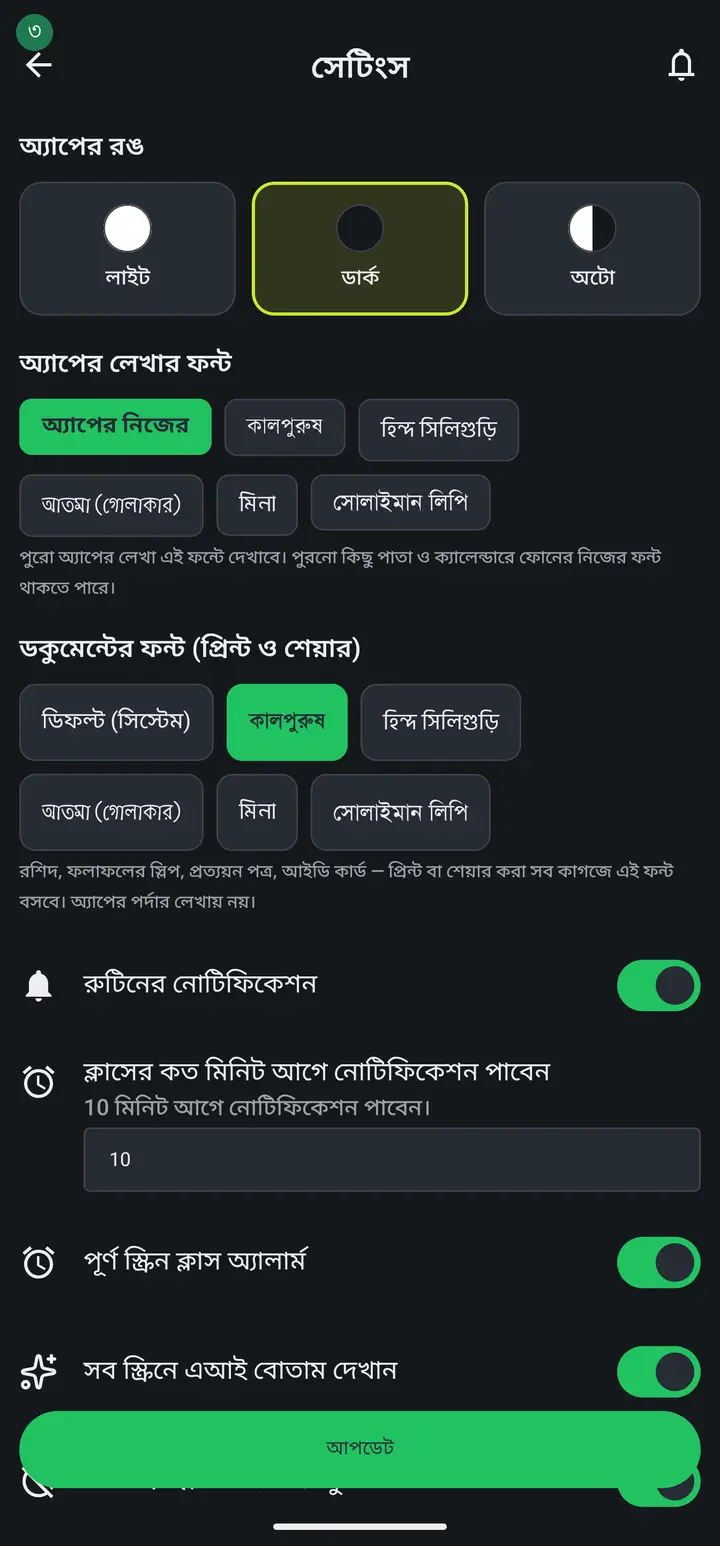
"অ্যাপের লেখার ফন্ট" is the app's own screens. "ডকুমেন্টের ফন্ট (প্রিন্ট ও শেয়ার)" is what gets printed on receipts, result slips, certificates and ID cards. Changing the screen one does not change the paper.
-
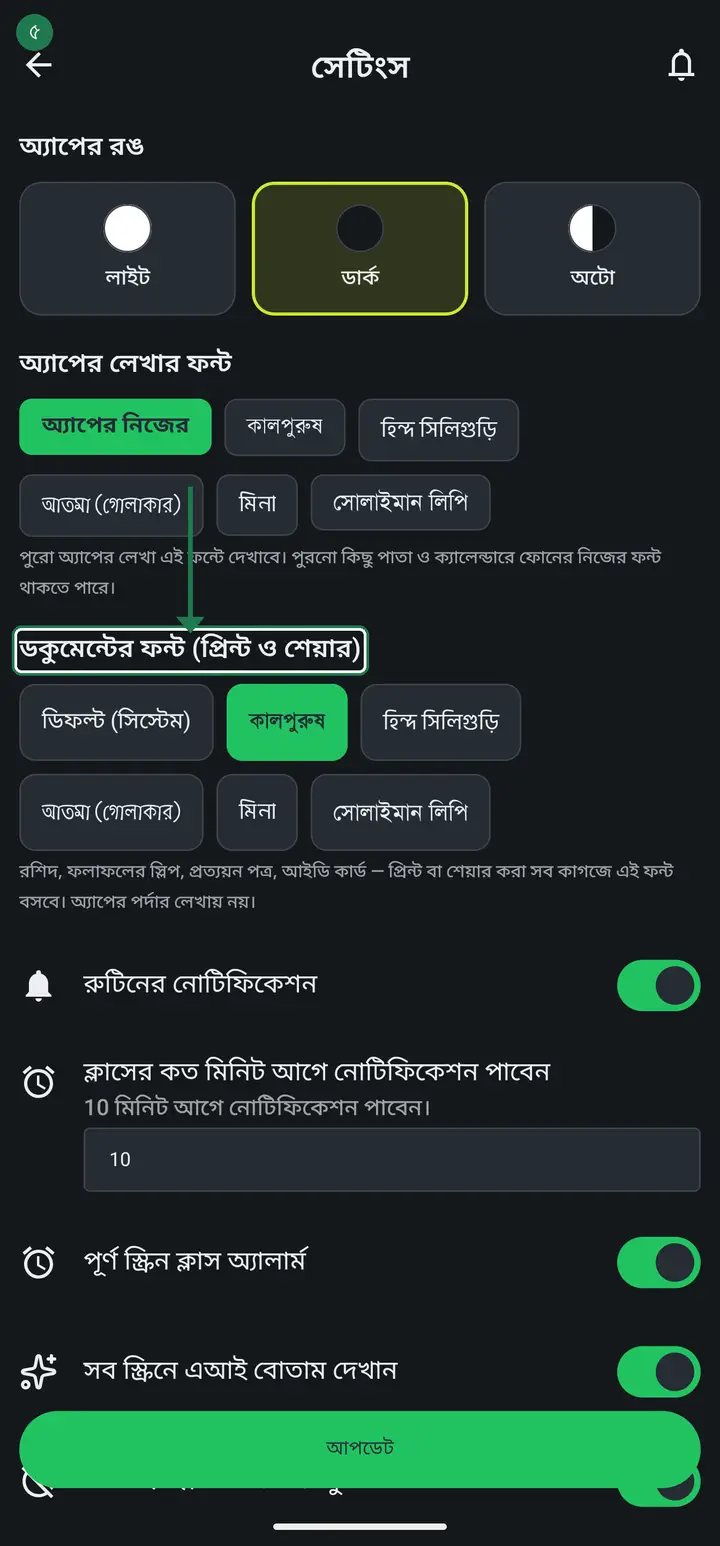
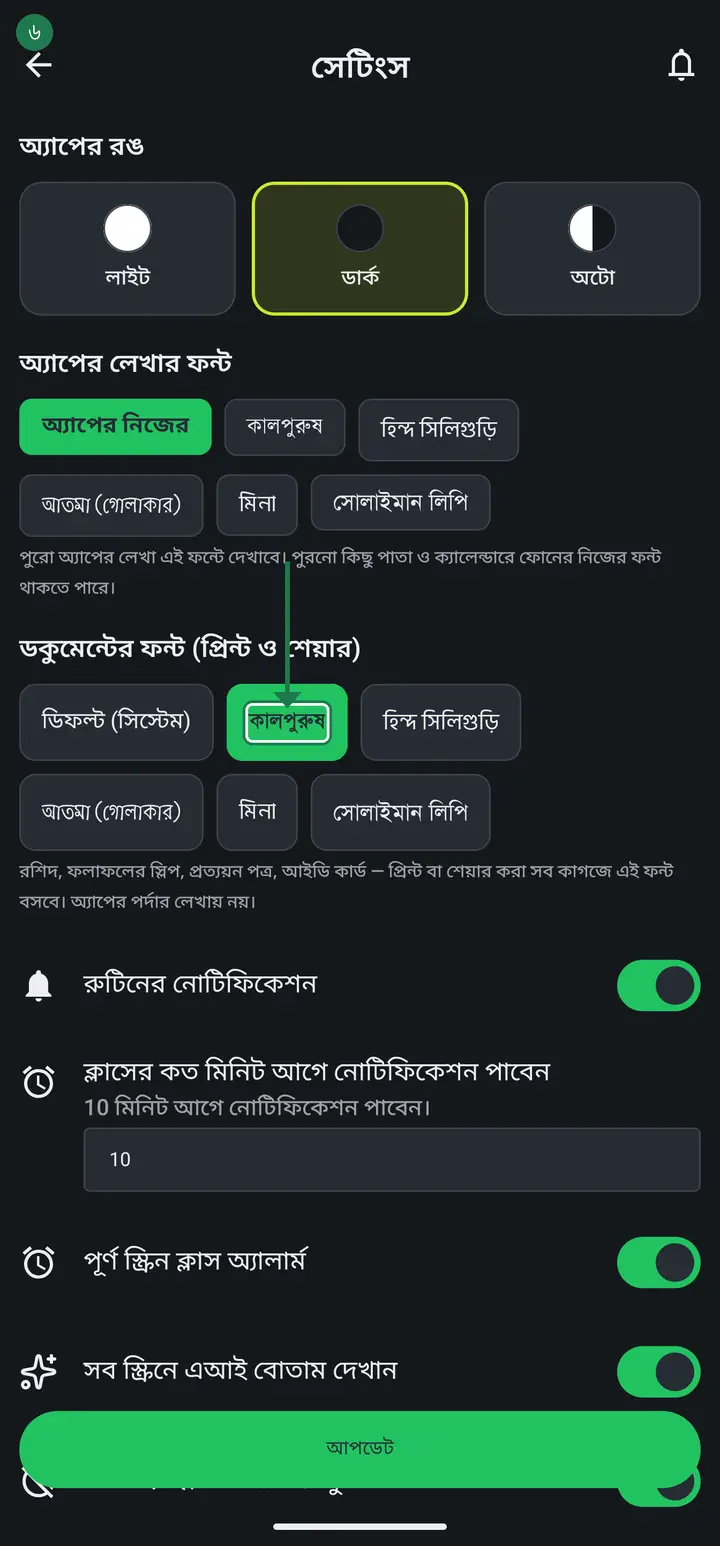
Under "ডকুমেন্টের ফন্ট (প্রিন্ট ও শেয়ার)" tap one of the names — কালপুরুষ, হিন্দ সিলিগুড়ি, আতমা, মিনা or সোলাইমান লিপি. Each name is written in its own font, so you can see it before choosing.
-
It saves the moment you tap — there is no separate save button. Every receipt or result you produce from now on uses this font.
-
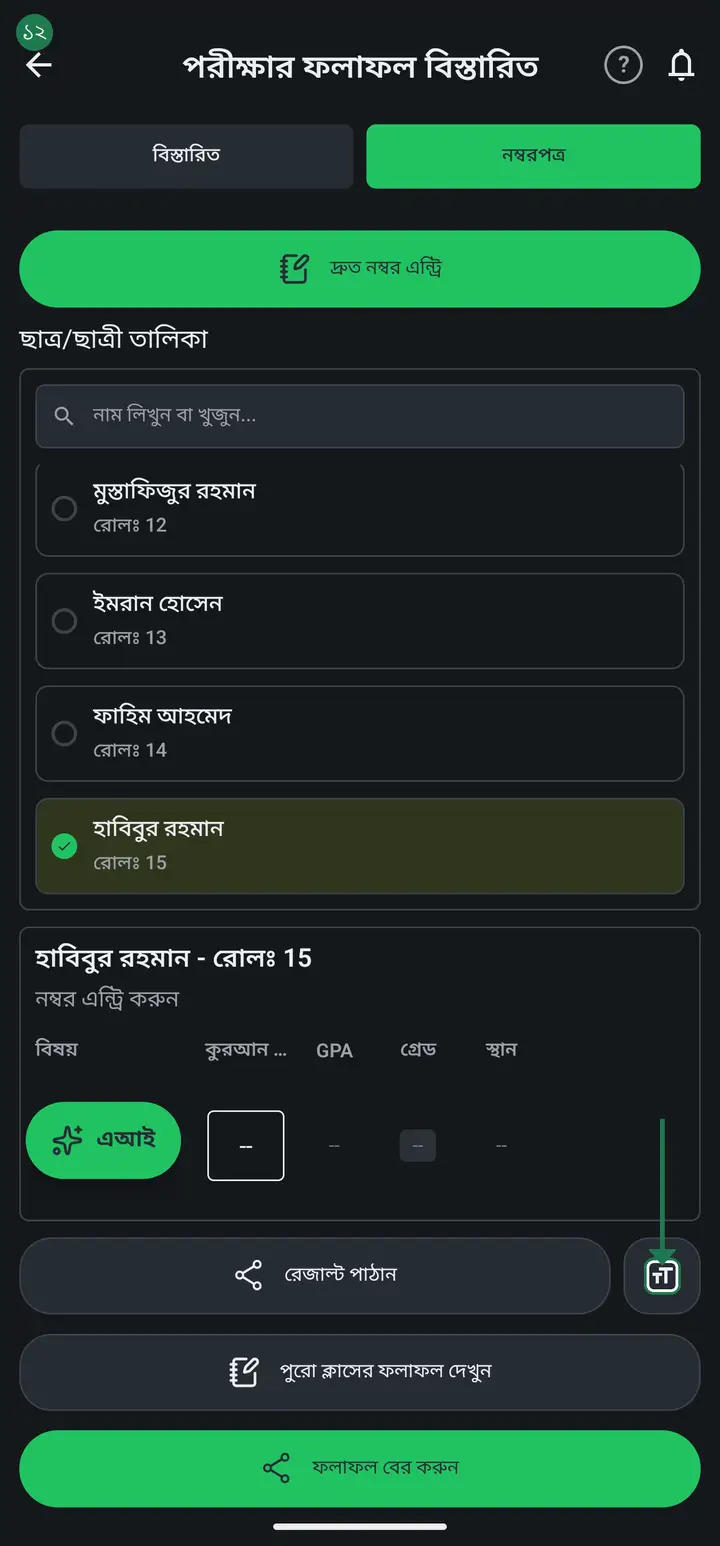
You can also change it from the screen where you are making the document. Next to the share or print button there is a small "Aa" button — it opens "প্রিন্টের সেটিংস" (Print settings).
-
The same box has "লেখার আকার" (Text size) below — minus for smaller, plus for bigger. 100% is the original size. Tap "শেষ" (Done) when it looks right.
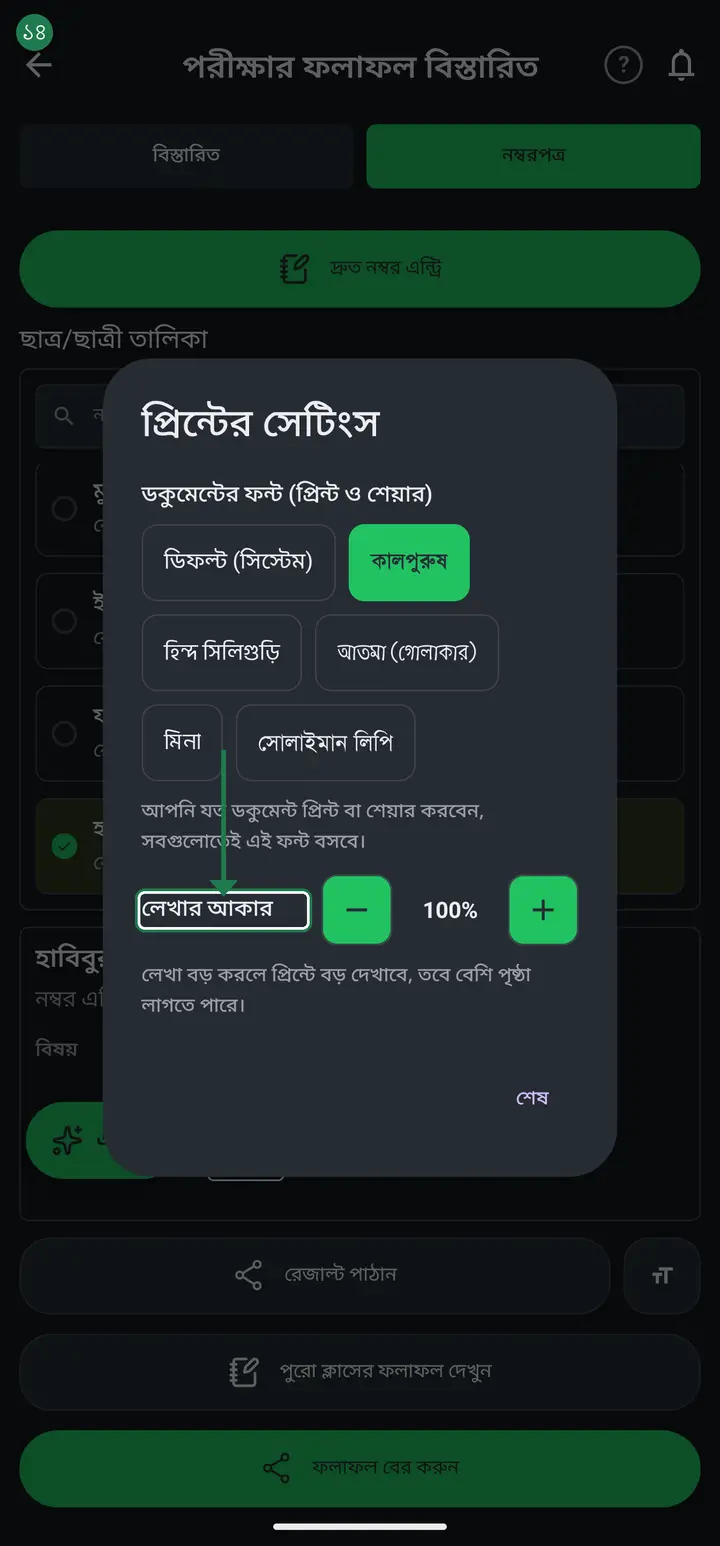
The font is shared by every document — change it once, it changes everywhere. The text SIZE is per document: making the receipt bigger does not change the register or the result slip; each is set from its own screen.
-
Check it — produce a receipt or result slip again and it comes out in the new font. Images you already sent do not change; newly generated ones do.
Common questions
I never changed the font — what was being used all this time?
"ডিফল্ট (সিস্টেম)", your phone's own font. That is not wrong, but it differs by phone: the same receipt from two teachers' phones can look different. Pick a font from the list and it stops depending on the phone.
Which font should I choose?
For Bangla, কালপুরুষ or সোলাইমান লিপি are the most familiar in print. হিন্দ সিলিগুড়ি looks more modern; আতমা is rounded and suits younger children's documents. Try one, generate a receipt, and change it again if you do not like it — there is no harm in switching.
Will Arabic text use this font?
No. The bundled fonts cover Bangla, English, digits and ৳ but not Arabic script, so any Arabic runs fall back to the phone's font while the rest uses your choice. That is expected, nothing is broken.
If one teacher changes it, does every teacher''s document change?
No. It is a per-phone setting, so it only affects documents made on your phone. To keep the whole institution consistent, ask everyone to pick the same font.
Ask AI about this page
Ask an AI app to explain this page in simple language.
Copied — now paste it
Get Hazira Khata free on Google Play
More tutorials
- How to sign in Signing in for the first time with your phone number. No email or password needed.
- Add a second way to sign in to one account Add Gmail to an account created with a phone number. It stays one account and nothing inside it changes.
- How to mark your own attendance As a teacher you can record your own daily attendance — it takes one tap.
- Check your salary and sign "received" When your school records your salary, the app tells you. Check the receipt and tap "বেতন বুঝে পেয়েছি" (Salary received) to leave your own digital signature — proof for both sides.
- How to create a class Before you can take attendance you create the class once. A one-time job.
- How to add students Enter each student's name and roll once. After that, daily attendance is just ticking boxes.
- How to add a whole class at once You do not have to type 40 names one by one. Type or paste the list and add everyone at once — no computer needed.
- How to take attendance Daily attendance takes less than a minute. Follow the pictures.