
Check your salary and sign "received"
When your school records your salary, the app tells you. Check the receipt and tap "বেতন বুঝে পেয়েছি" (Salary received) to leave your own digital signature — proof for both sides.
The screenshots show the app in Bangla, its main language. The buttons sit in the same places in English.
-
When your school records your salary you get a notification — tap it to go straight to the receipt. If you miss it, tap the Menu (☰) icon on your home screen instead.
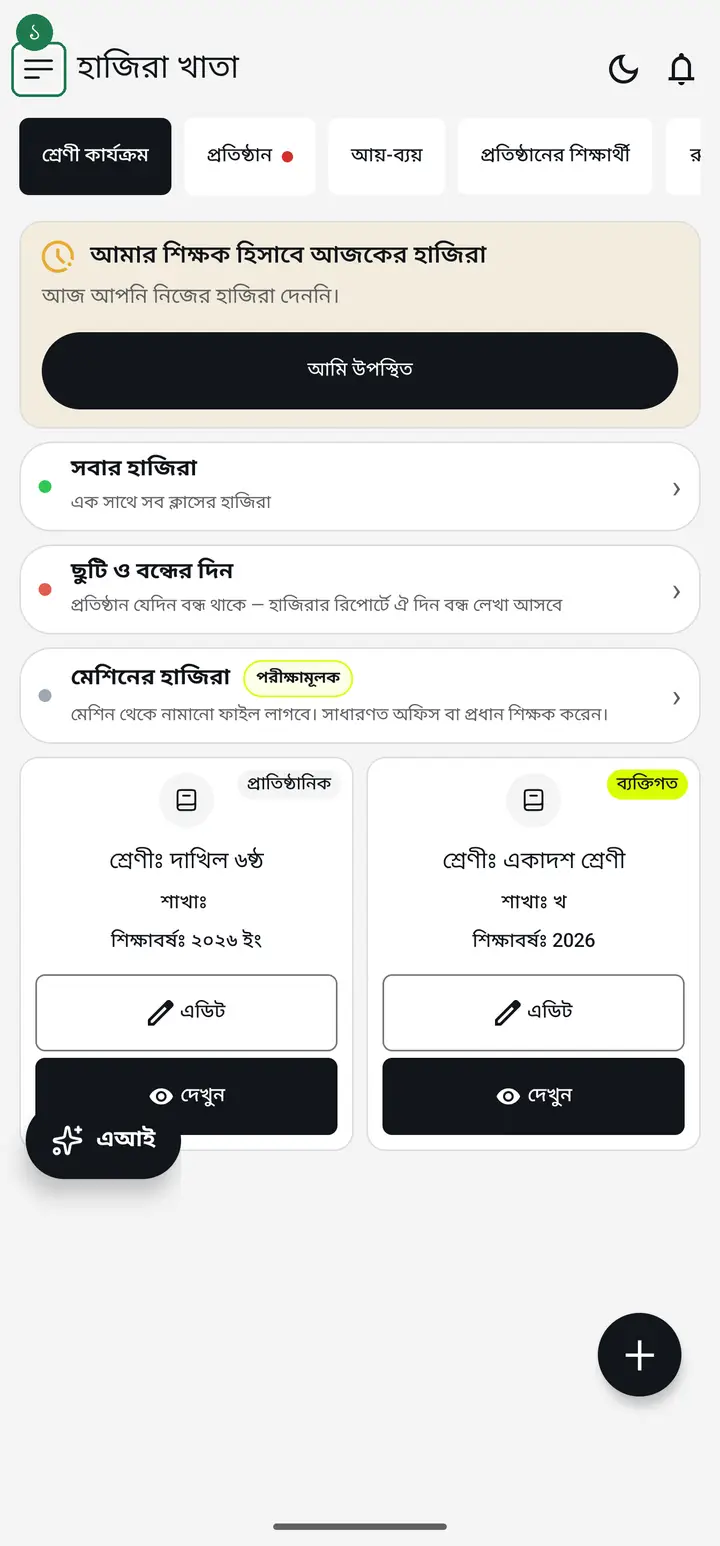
-
Tap "আমার বেতন" (My salary).
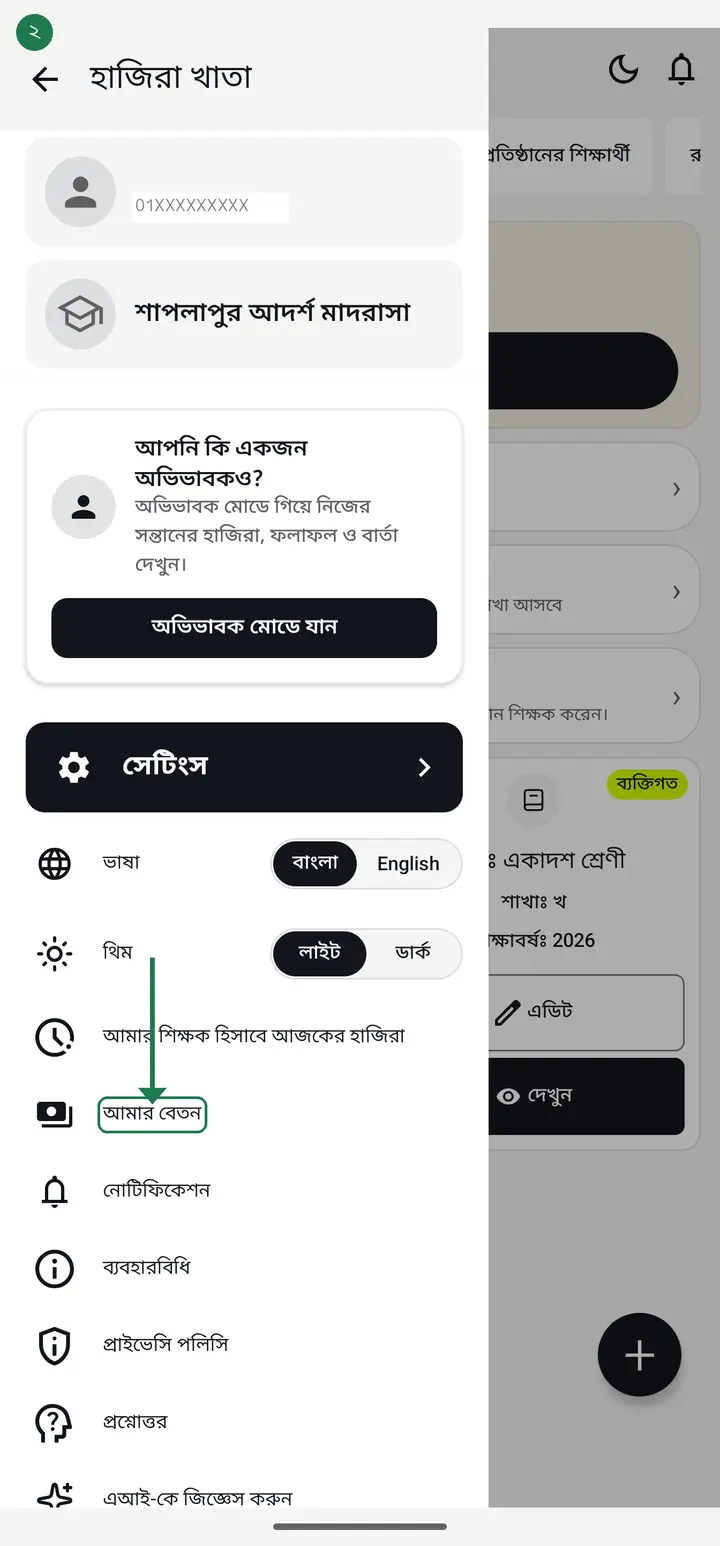
-
Every month your school has recorded appears here, newest first.
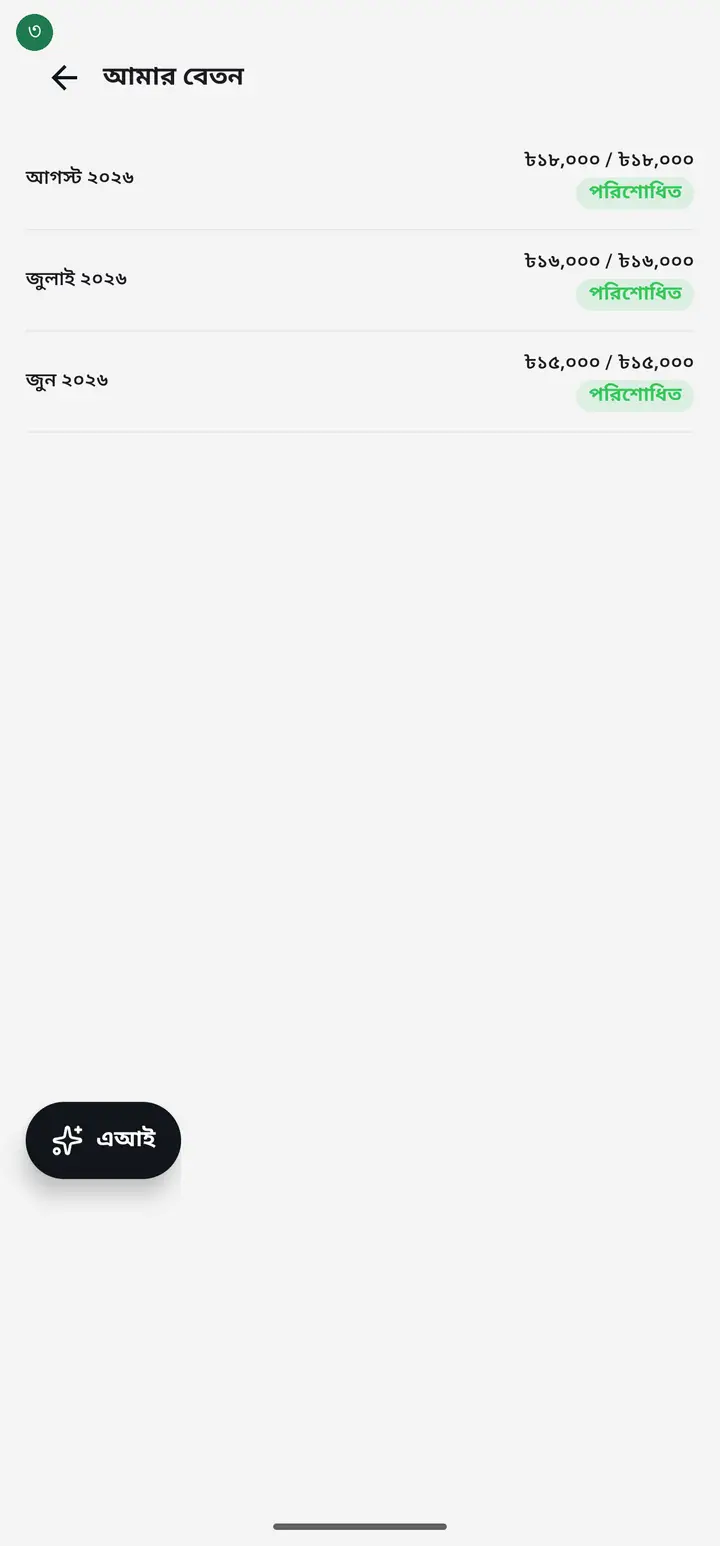
-
Tap the month you want to open.
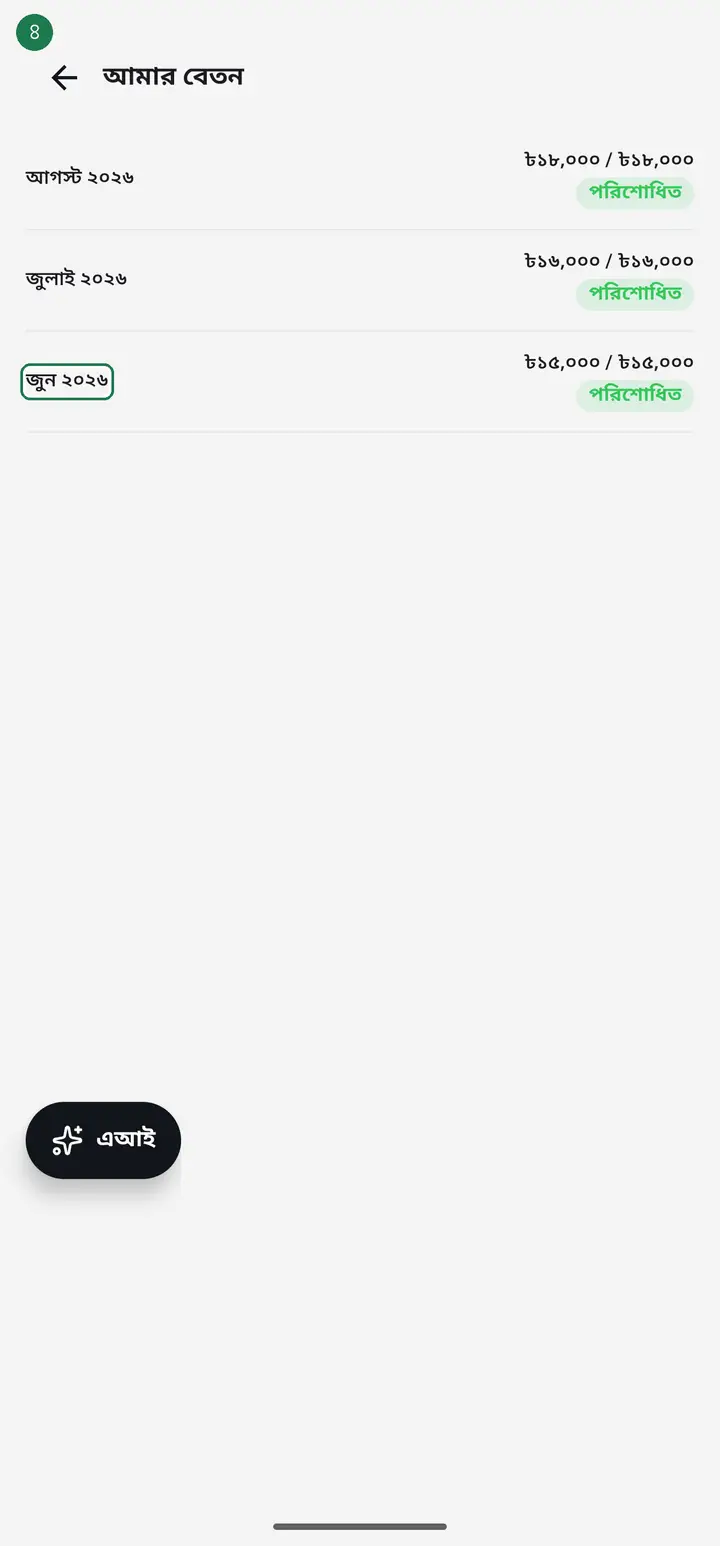
-
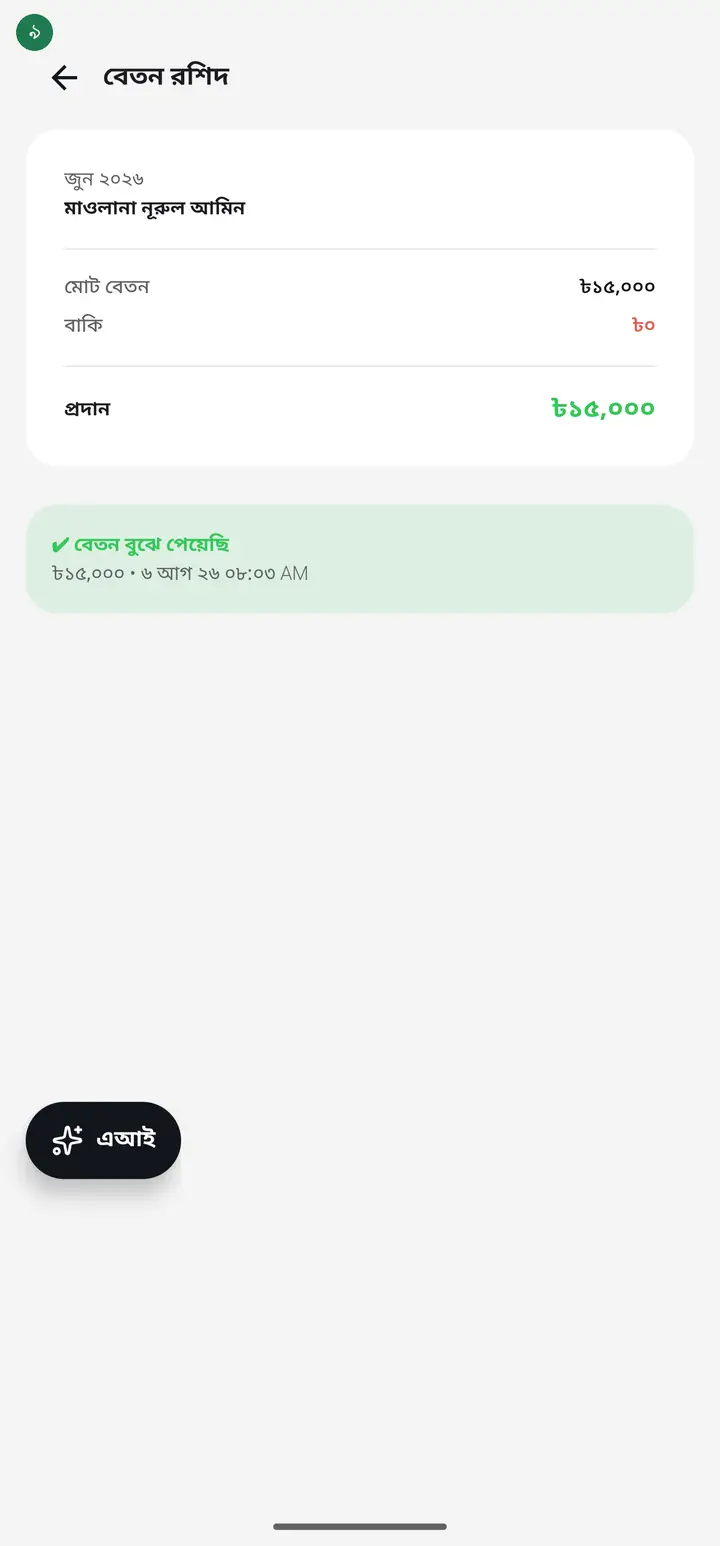
The receipt shows the gross, due and paid amounts. Once something has actually been paid, a button to acknowledge it appears below.
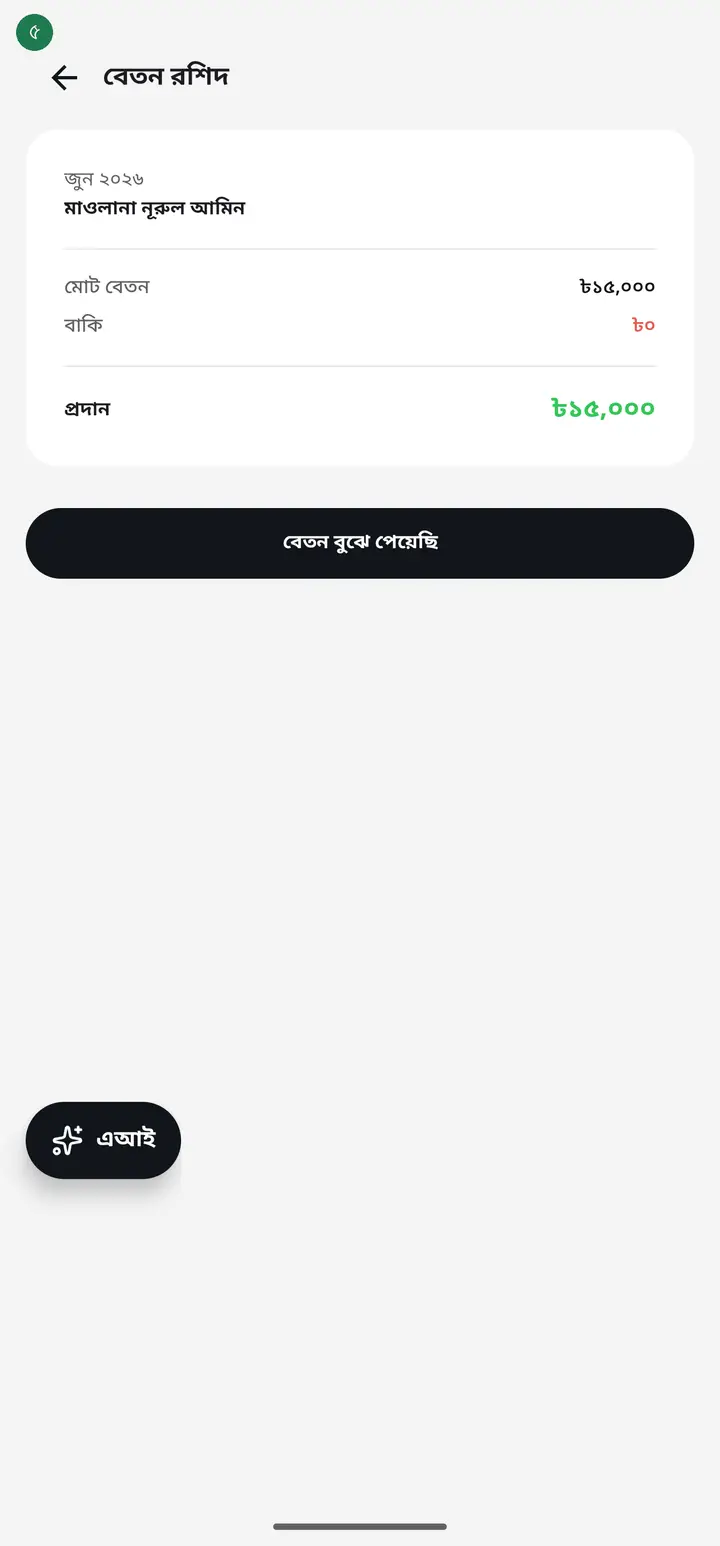
If nothing has been paid yet, you see "এখনো কিছু প্রদান করা হয়নি" (Nothing paid yet) instead of the button — that is not an error, there is simply nothing to sign for until the school actually pays.
-
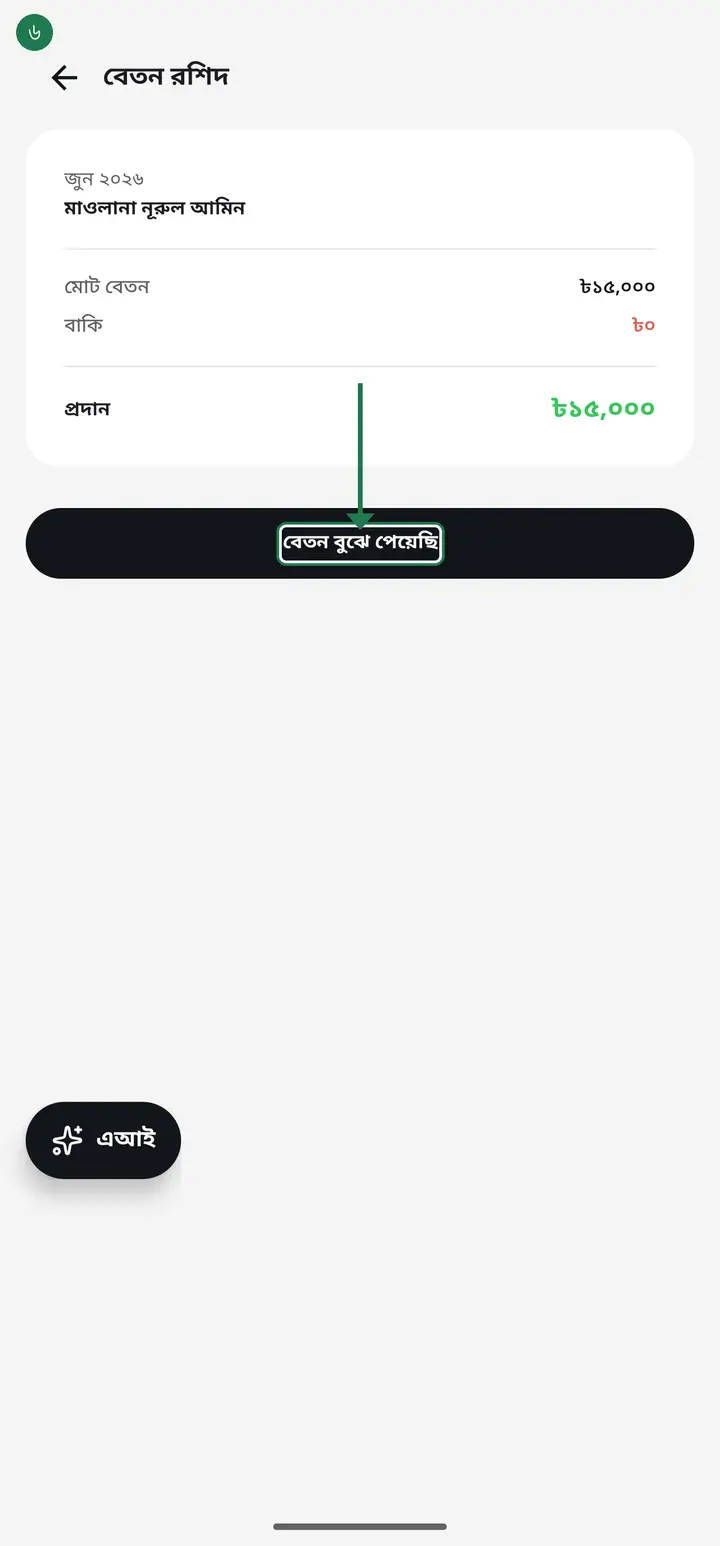
If you have actually received the money, tap "বেতন বুঝে পেয়েছি" (Salary received).
-
A confirmation message names the exact amount you are acknowledging, and warns that it cannot be changed afterwards.
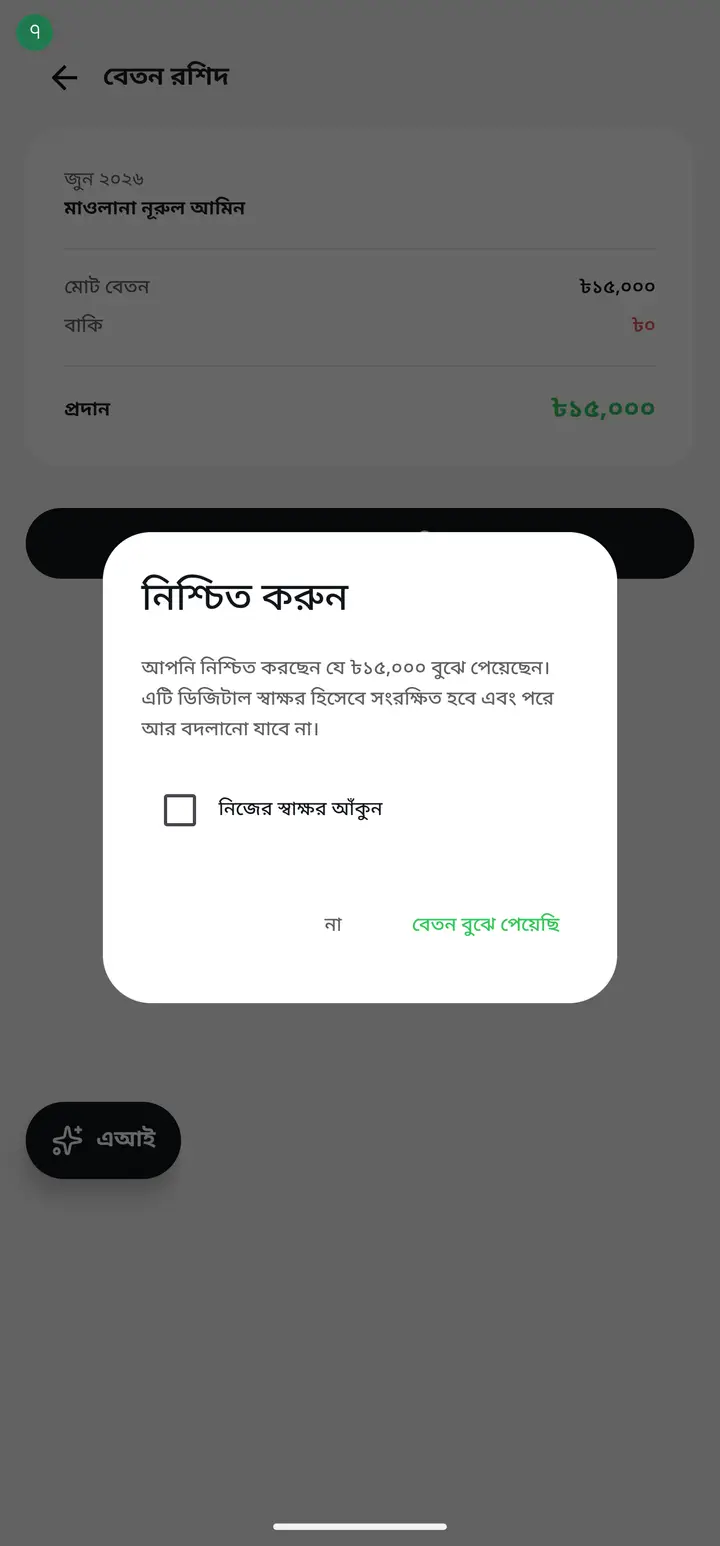
This is a digital signature — once made, neither you nor the school can delete or change it later. Do not tap it unless you have actually received the money.
-
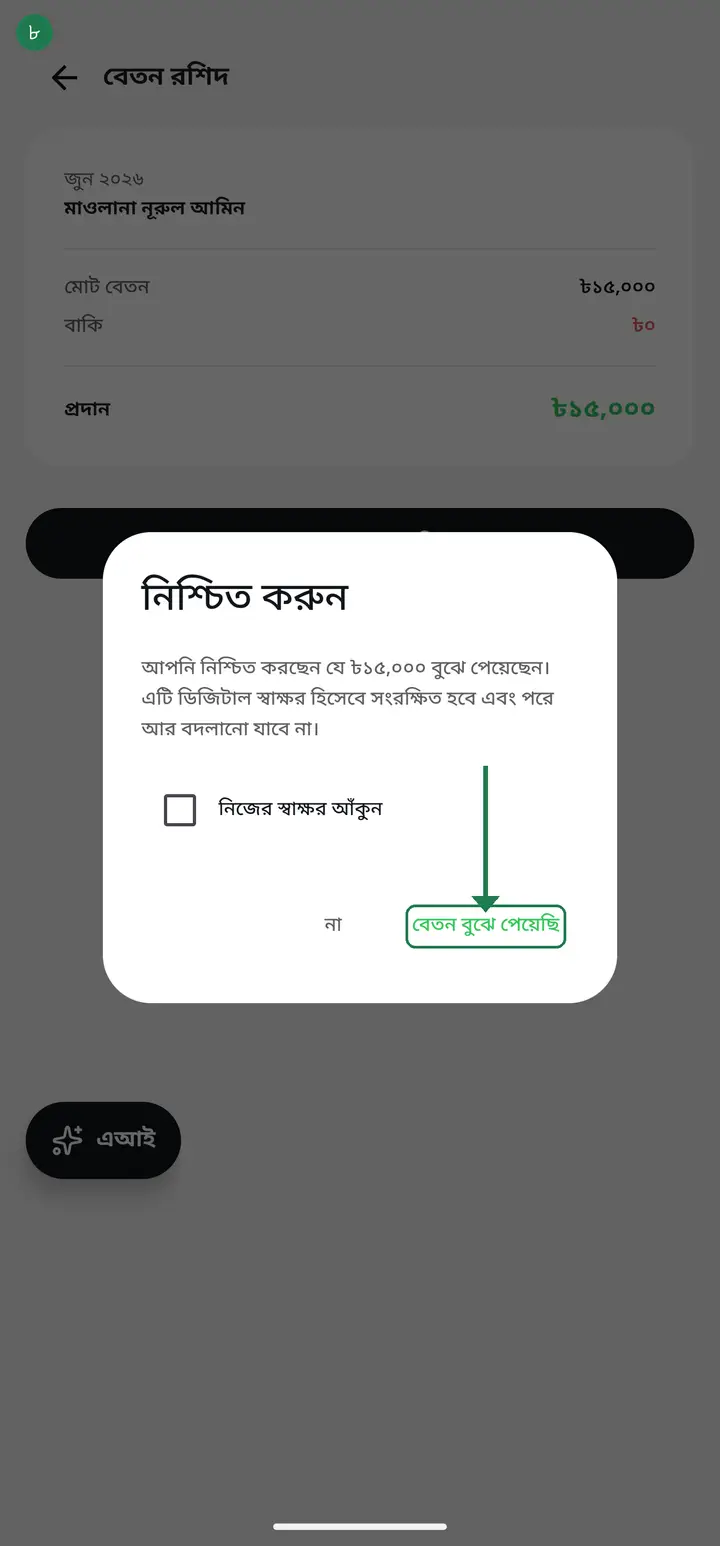
Tap "বেতন বুঝে পেয়েছি" again inside the confirmation to save the signature. You can tap it even with no internet — it saves itself as soon as you are back online.
-
Once signed, a green ✔ shows the amount and when you signed. Your school's own payroll list now shows "✔ স্বাক্ষরিত" (Signed) next to this entry too.
Common questions
I tapped it by mistake — can it be undone?
No. It is a digital signature; once made, nobody — not even the school — can change or delete it afterwards. That is exactly why the confirmation message pauses you before it happens.
Why is "আমার বেতন" (My salary) empty?
Two possible reasons — either the school has not recorded any salary for you yet, or it was recorded by typing your name by hand instead of picking you from the staff list (which does not link to your account). Ask your school to record it by picking your name from the list.
What happens to my signature if the school later changes the amount?
Your signature stays exactly as it was for the amount you signed — it never changes. But if the school edits the amount afterwards, your receipt shows "signed for the earlier amount", so a mismatch stays visible to both sides rather than being hidden.
Ask AI about this page
Ask an AI app to explain this page in simple language.
Copied — now paste it
Get Hazira Khata free on Google Play
More tutorials
- How to sign in Signing in for the first time with your phone number. No email or password needed.
- Add a second way to sign in to one account Add Gmail to an account created with a phone number. It stays one account and nothing inside it changes.
- How to mark your own attendance As a teacher you can record your own daily attendance — it takes one tap.
- How to create a class Before you can take attendance you create the class once. A one-time job.
- Putting your classes in your own order — press, hold and drag KG Two showing before KG One? Classes appear in the order you created them. On the "শ্রেণী কার্যক্রম" page, press and hold a card and drag it where you want — no need to rename anything.
- Make receipts and results look right — font and size Documents printing in an ugly font? Change it in one place and the receipt, result slip and certificate all change together.
- How to add students Enter each student's name and roll once. After that, daily attendance is just ticking boxes.
- How to add a whole class at once You do not have to type 40 names one by one. Type or paste the list and add everyone at once — no computer needed.