
How to use an AI app
Rahima was stuck on one screen in Hazira Khata. She read the tutorial but it still was not clear. So she tapped the "এআই" button in the corner of the screen — and an AI app explained it back to her, in her own words.
Tap the "এআই" (AI) button on any screen in Hazira Khata to ask a question — the app builds it and hands it straight to Gemini or ChatGPT, no technical background needed.
The screenshots show the app in Bangla, its main language. The buttons sit in the same places in English.
-
A small "এআই" (AI) button sits in the bottom-right corner of every screen. Tap it whenever you are stuck.
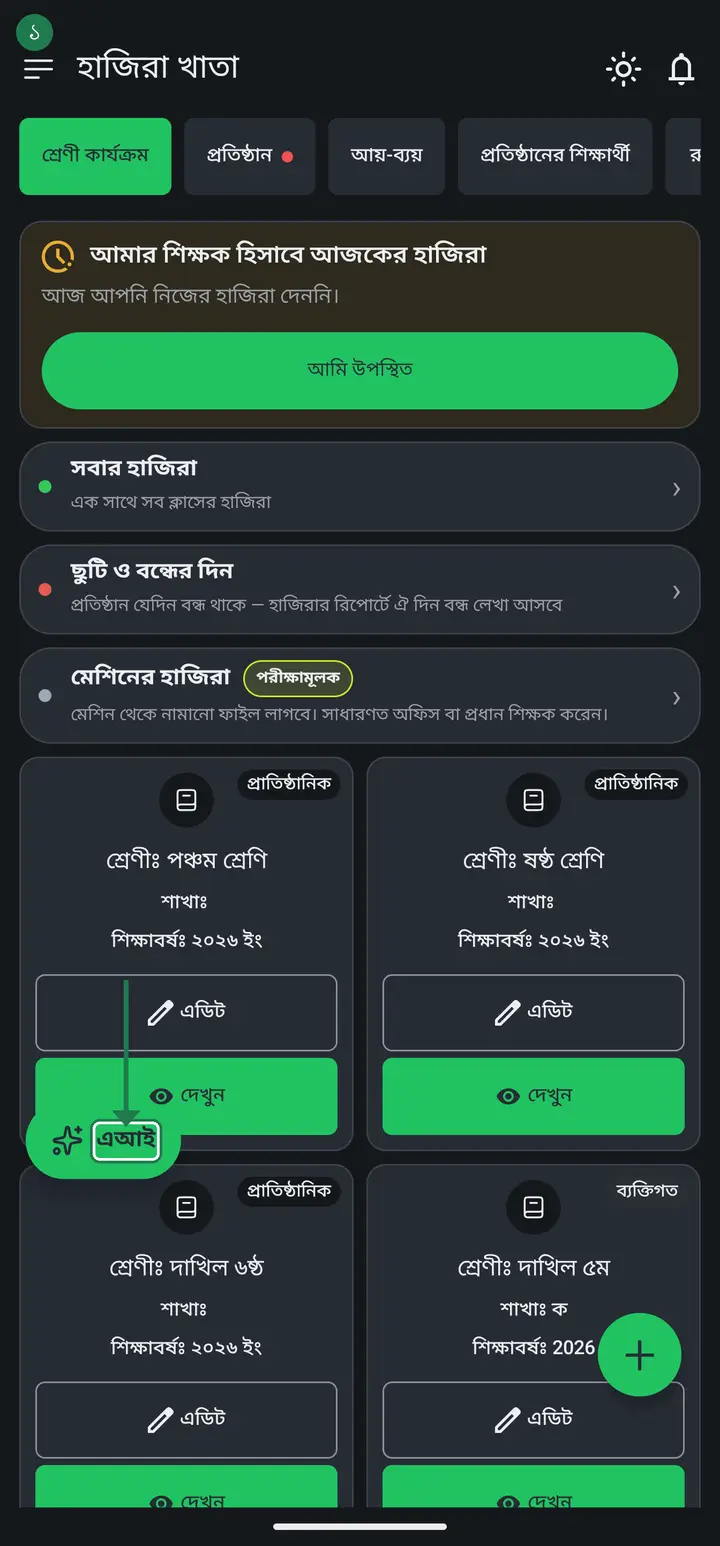
-
Two options appear — "AI inside your phone" (not on every phone) and "Ask an AI app" (uses Gemini or ChatGPT, works on every phone).
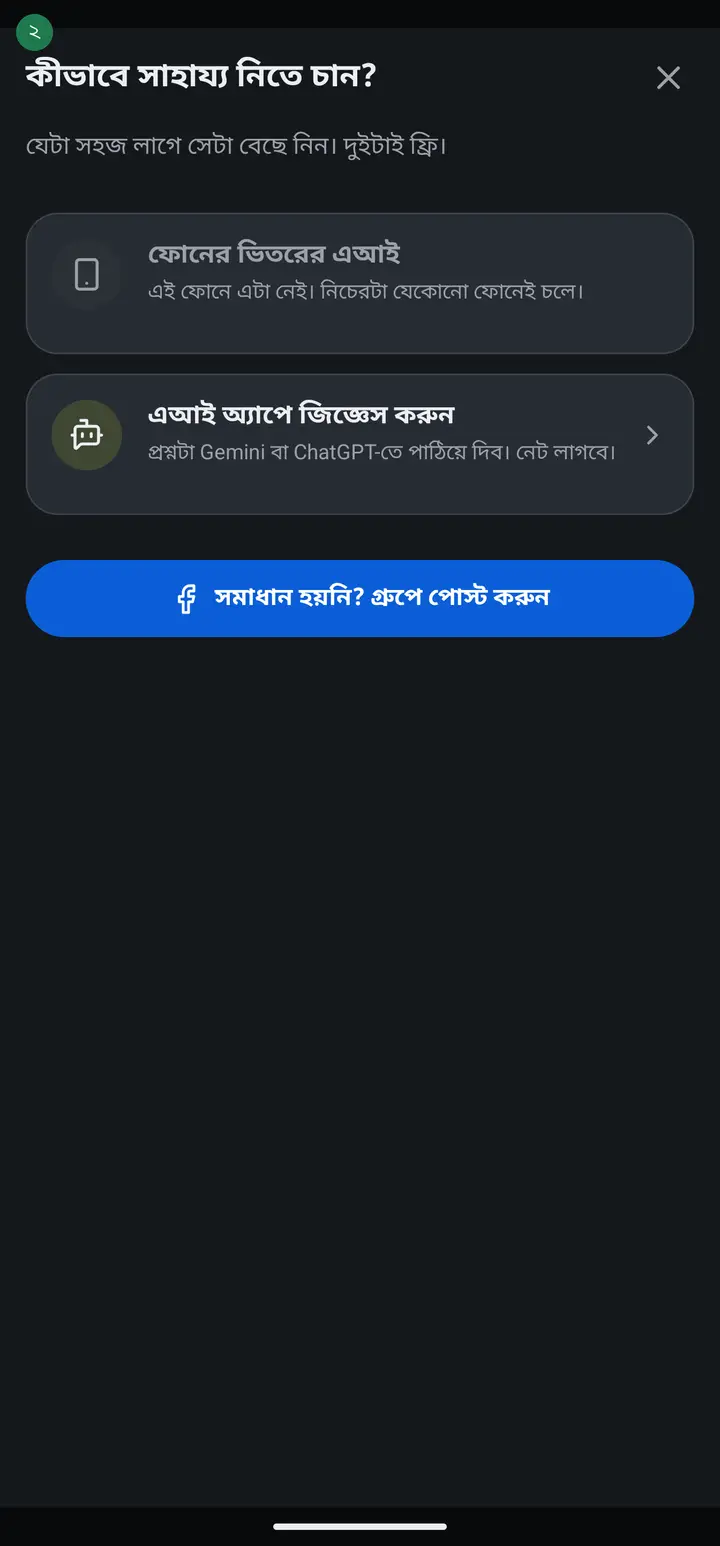
-
Tap "এআই অ্যাপে জিজ্ঞেস করুন" (Ask an AI app). The app already builds the question for you — it adds the screen name and a tutorial link automatically.
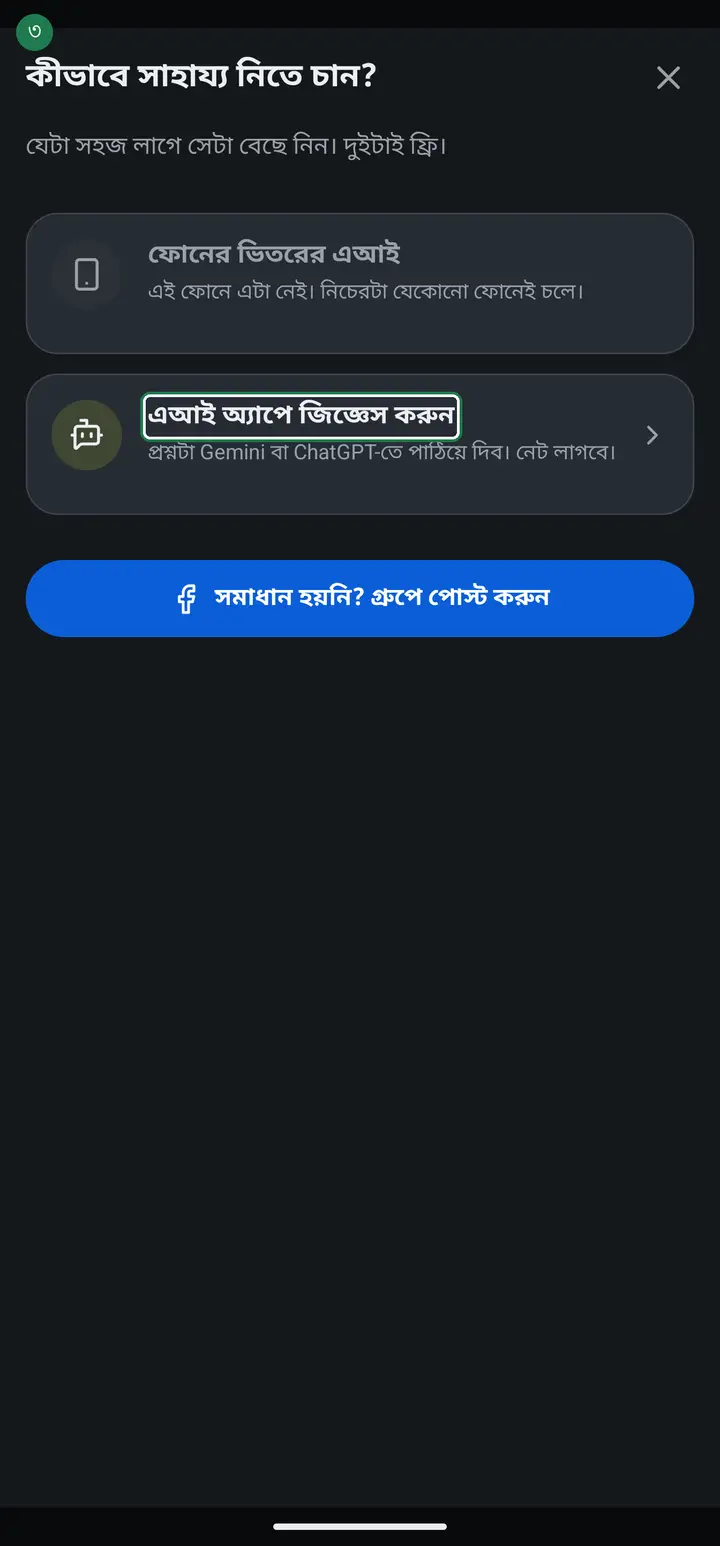
-
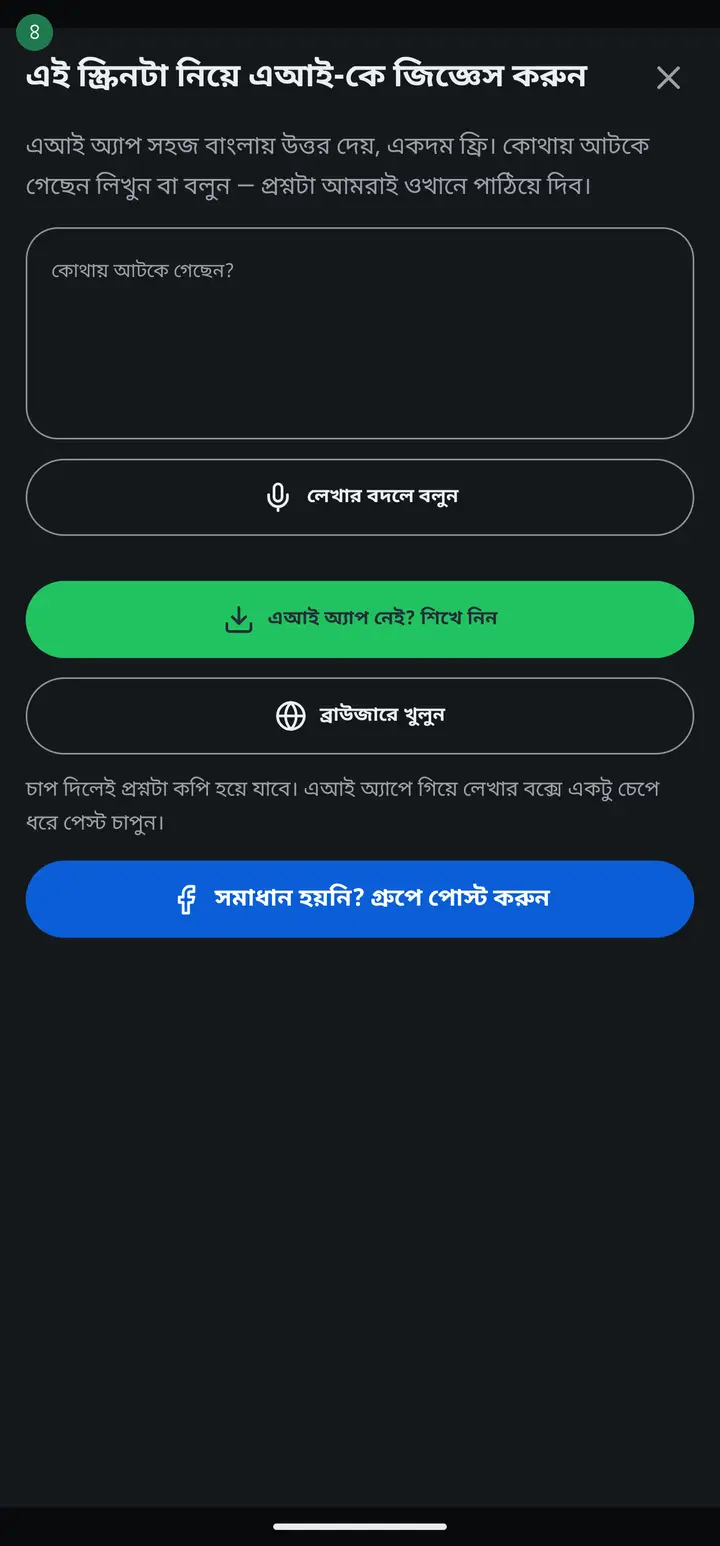
Type your own question if you want, or just leave the ready-made one as it is.
-
Do not want to type? Tap the microphone button and speak instead — this mic is built into Hazira Khata itself, nothing extra to install.
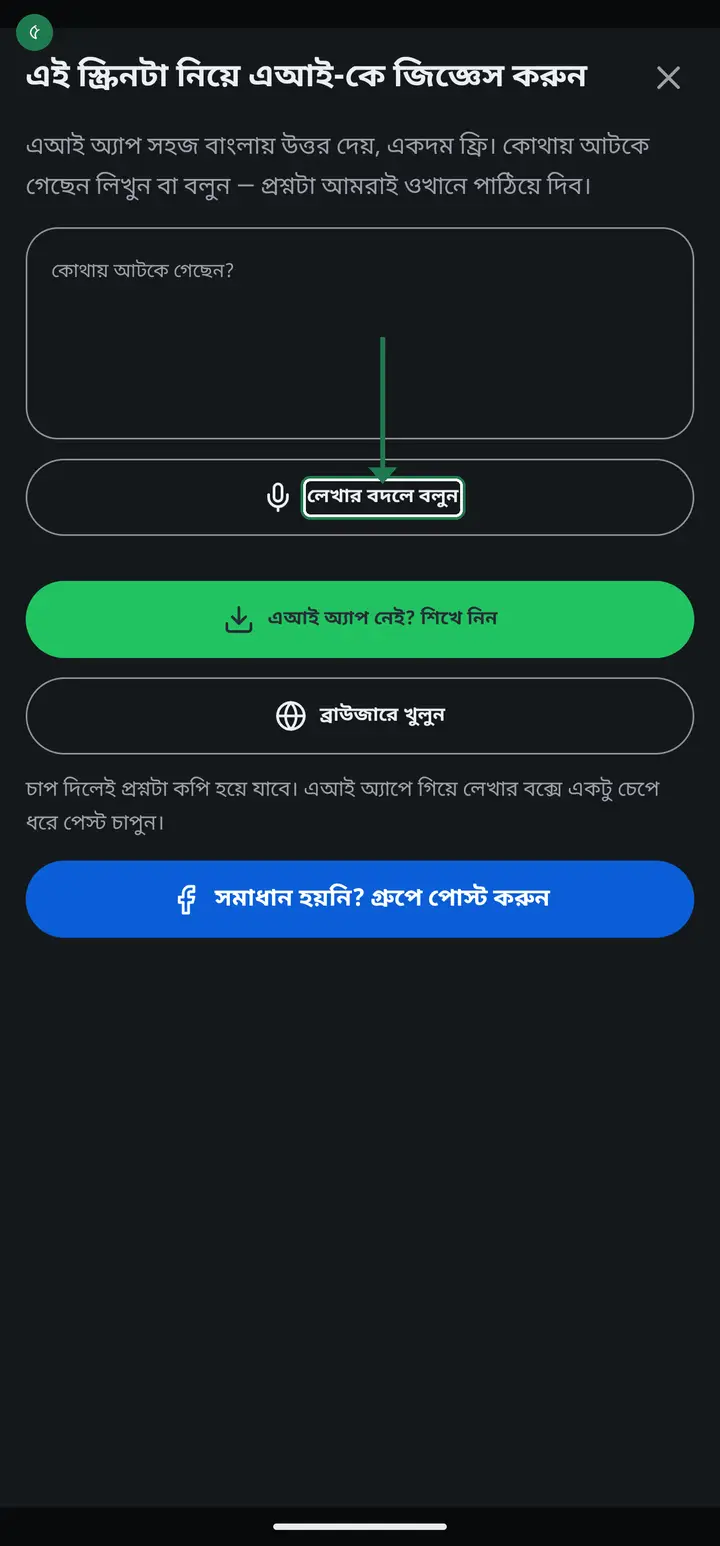
-
If neither Gemini nor ChatGPT is on your phone, you will see "এআই অ্যাপ নেই? শিখে নিন" (No AI app yet? Learn how) — it has the whole install process.
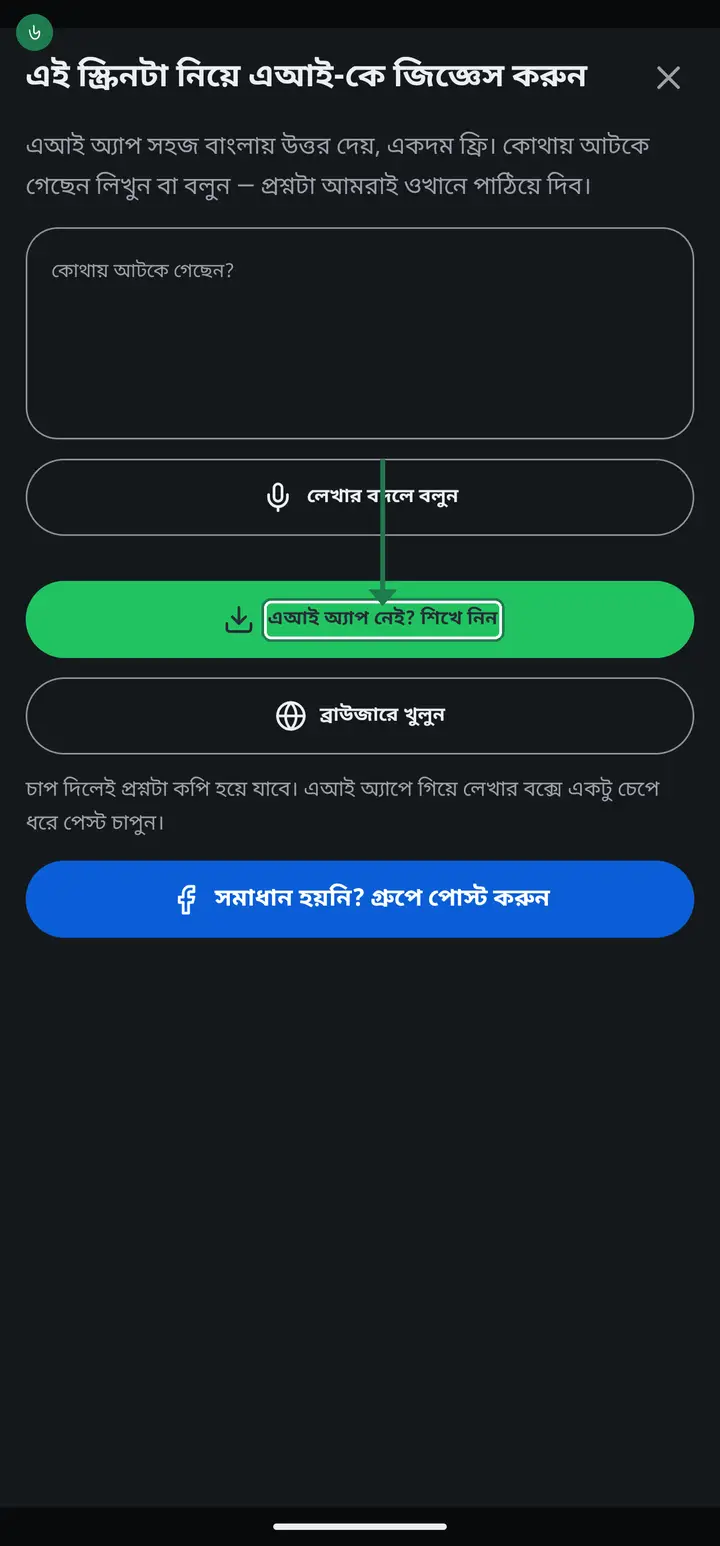
-
If even the AI cannot solve it, that is fine — the "গ্রুপে পোস্ট করুন" (Post in the group) button is right there, where real people answer.
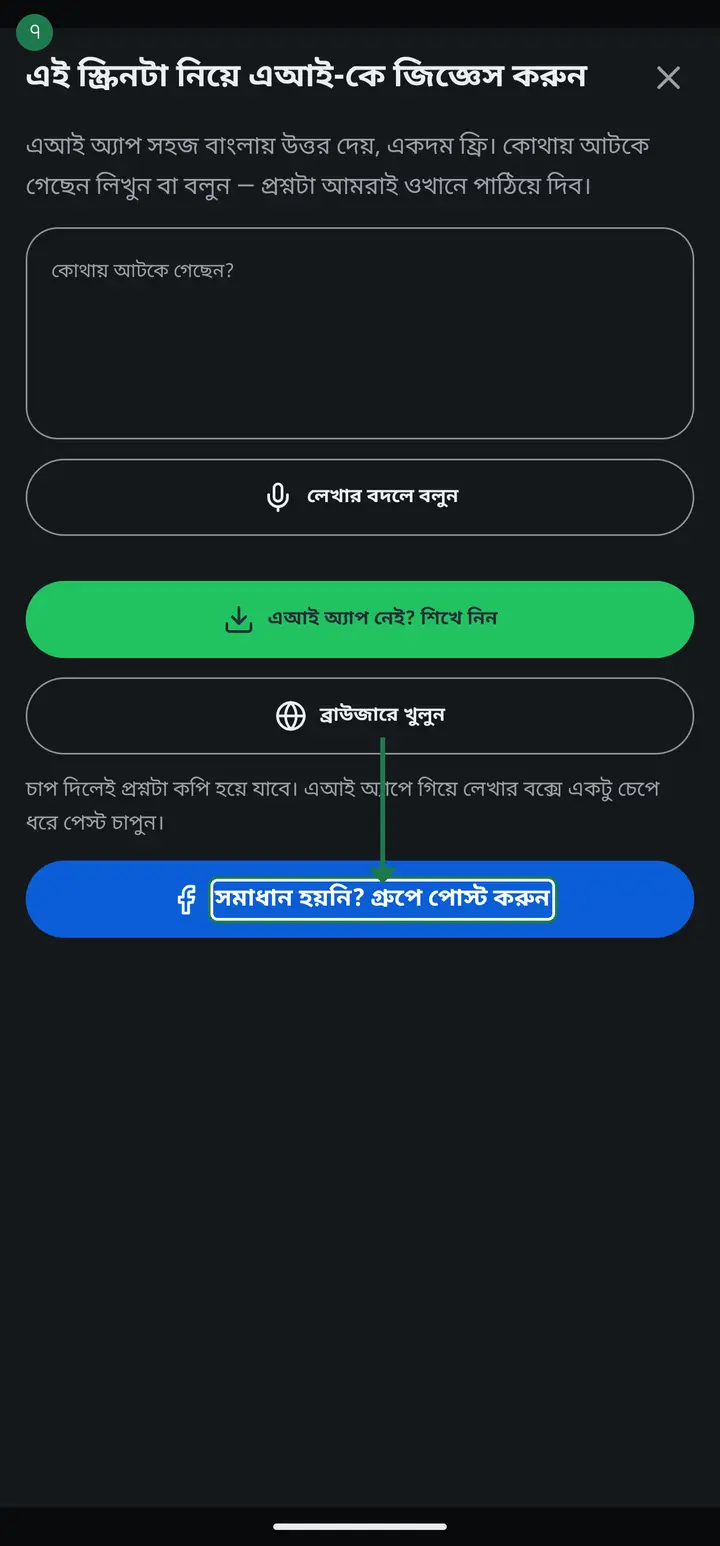
-
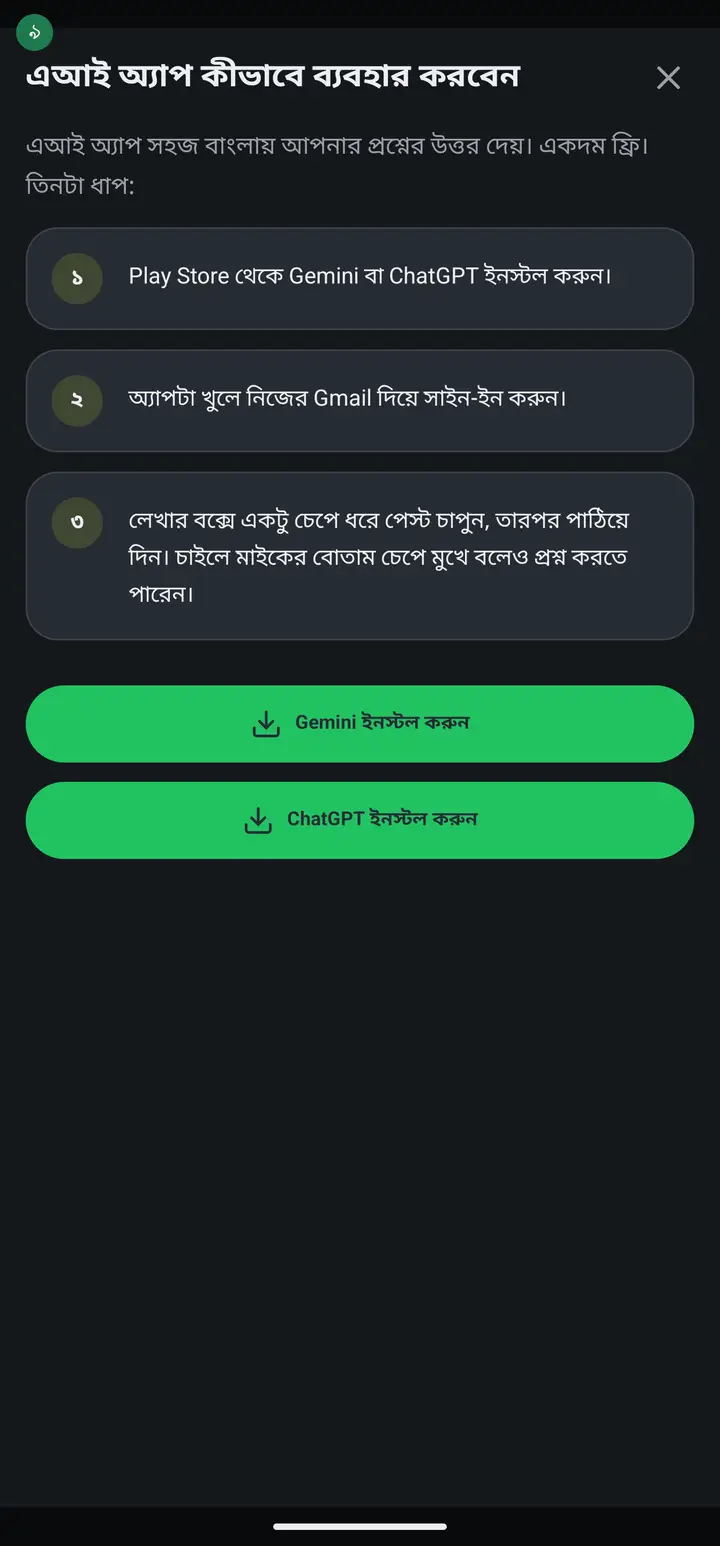
Tap "এআই অ্যাপ নেই? শিখে নিন" and you will see three steps, plus buttons that jump straight to the Play Store.
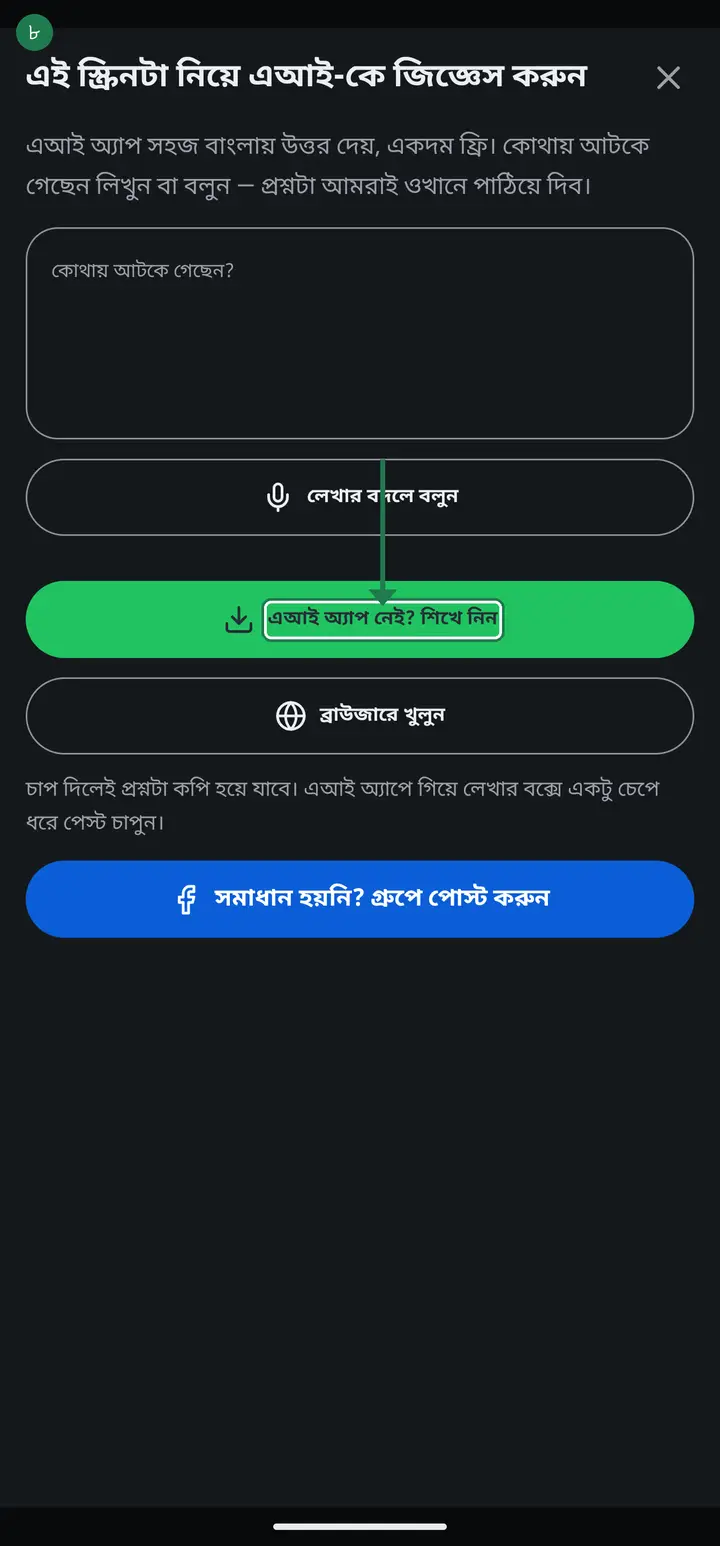
-
1) Install Gemini or ChatGPT from the Play Store. 2) Sign in with your own Gmail. 3) Tapping the Gemini or ChatGPT button already copies the question for you — just go to the AI app, press and hold the text box, choose "Paste", then send. There is no separate copy button to look for.
Common questions
Does the question fill in by itself, or do I have to paste it?
If it opens ChatGPT in the browser, the question is already typed in. With Gemini or an installed app, you usually need to paste it yourself — it is already copied, just press and hold the text box and choose Paste.
Does using an AI app cost money?
No, both Gemini and ChatGPT are free for normal use. There is no cost to install them or ask a question.
I do not have a Gmail account on my phone — what do I do?
Getting into the Play Store already needs one, so your phone almost certainly has one. Check Settings → Accounts, or create a new one in a few minutes.
Is whatever the AI says always correct?
It is usually helpful, but it can be wrong — especially about something very specific or new. If you are unsure about something regarding Hazira Khata, double-check by asking in the group.
Ask AI about this page
Ask an AI app to explain this page in simple language.
Copied — now paste it
Get Hazira Khata free on Google Play
More tutorials
- How to sign in Signing in for the first time with your phone number. No email or password needed.
- Add a second way to sign in to one account Add Gmail to an account created with a phone number. It stays one account and nothing inside it changes.
- How to mark your own attendance As a teacher you can record your own daily attendance — it takes one tap.
- Check your salary and sign "received" When your school records your salary, the app tells you. Check the receipt and tap "বেতন বুঝে পেয়েছি" (Salary received) to leave your own digital signature — proof for both sides.
- How to create a class Before you can take attendance you create the class once. A one-time job.
- Putting your classes in your own order — press, hold and drag KG Two showing before KG One? Classes appear in the order you created them. On the "শ্রেণী কার্যক্রম" page, press and hold a card and drag it where you want — no need to rename anything.
- Make receipts and results look right — font and size Documents printing in an ugly font? Change it in one place and the receipt, result slip and certificate all change together.
- How to add students Enter each student's name and roll once. After that, daily attendance is just ticking boxes.