
Viewing and sharing the attendance report
See who attended how many days on one page — and share it as a file when you need to.
The screenshots show the app in Bangla, its main language. The buttons sit in the same places in English.
-
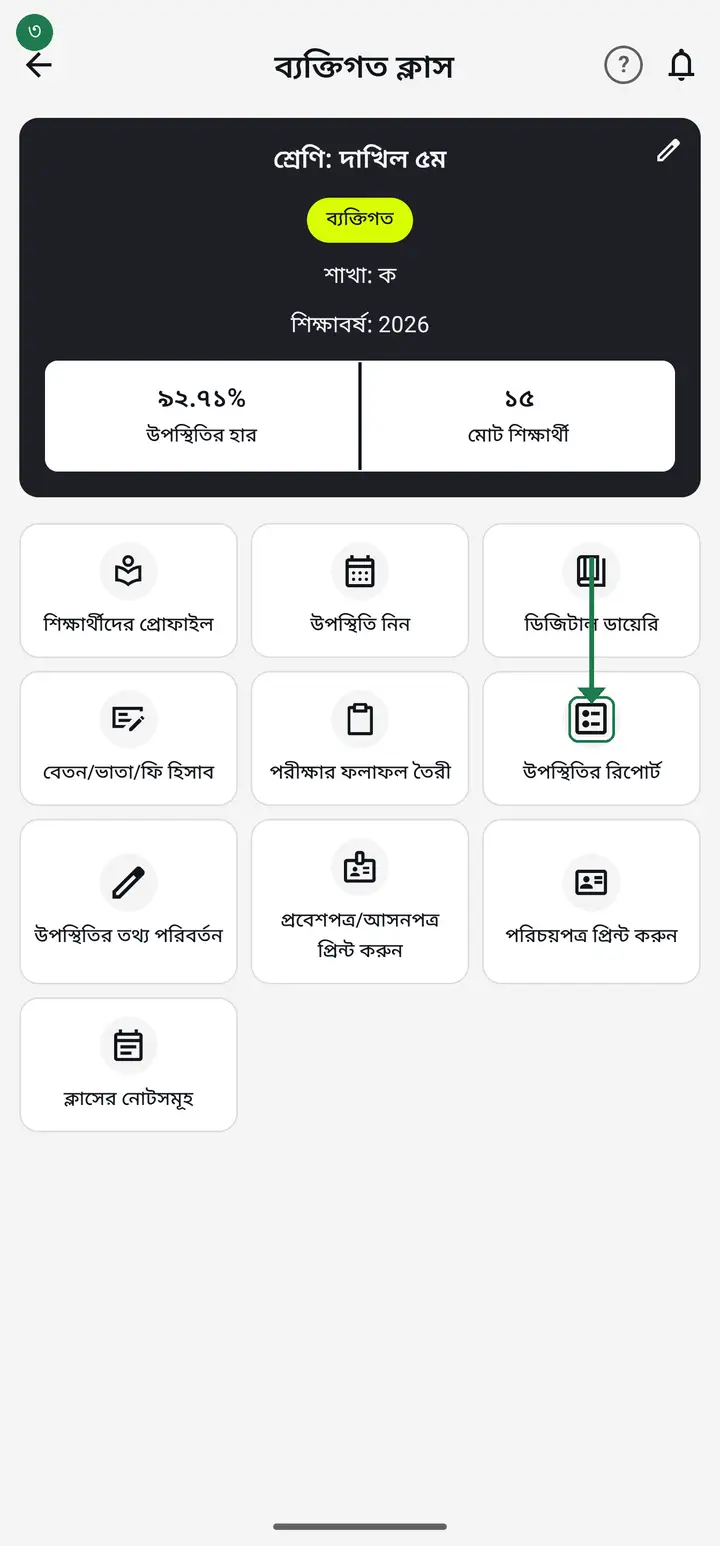
Tap "দেখুন" (View) on the class card, then tap "উপস্থিতির রিপোর্ট" (Attendance report).
-
Tap "আজকে" (Today), "গতকাল" (Yesterday) or "এই সপ্তাহ" (This week). For any other range, set "শুরুর তারিখ" (Start date) and "শেষের তারিখ" (End date) yourself.
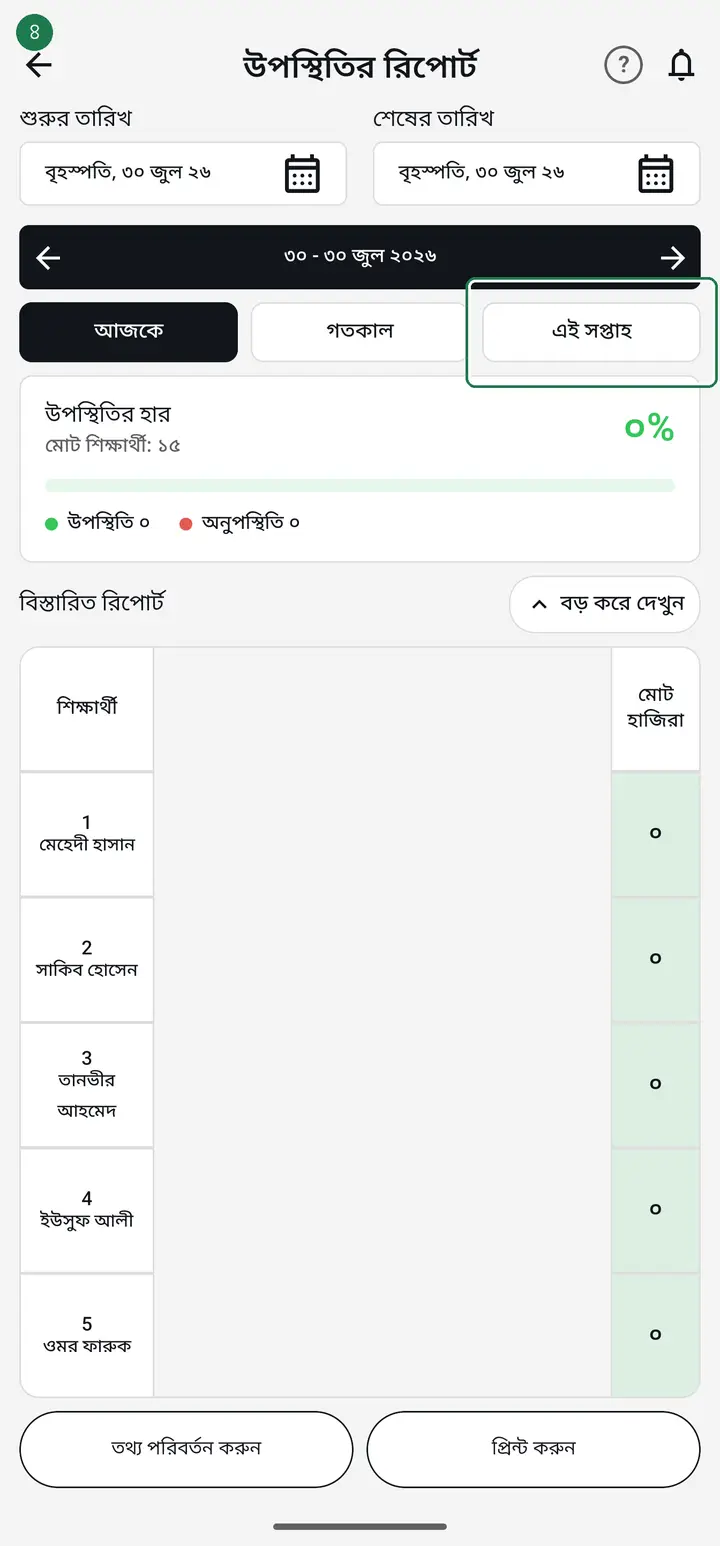
If the start date is after the end date the app blocks it. Put the earlier date first.
-
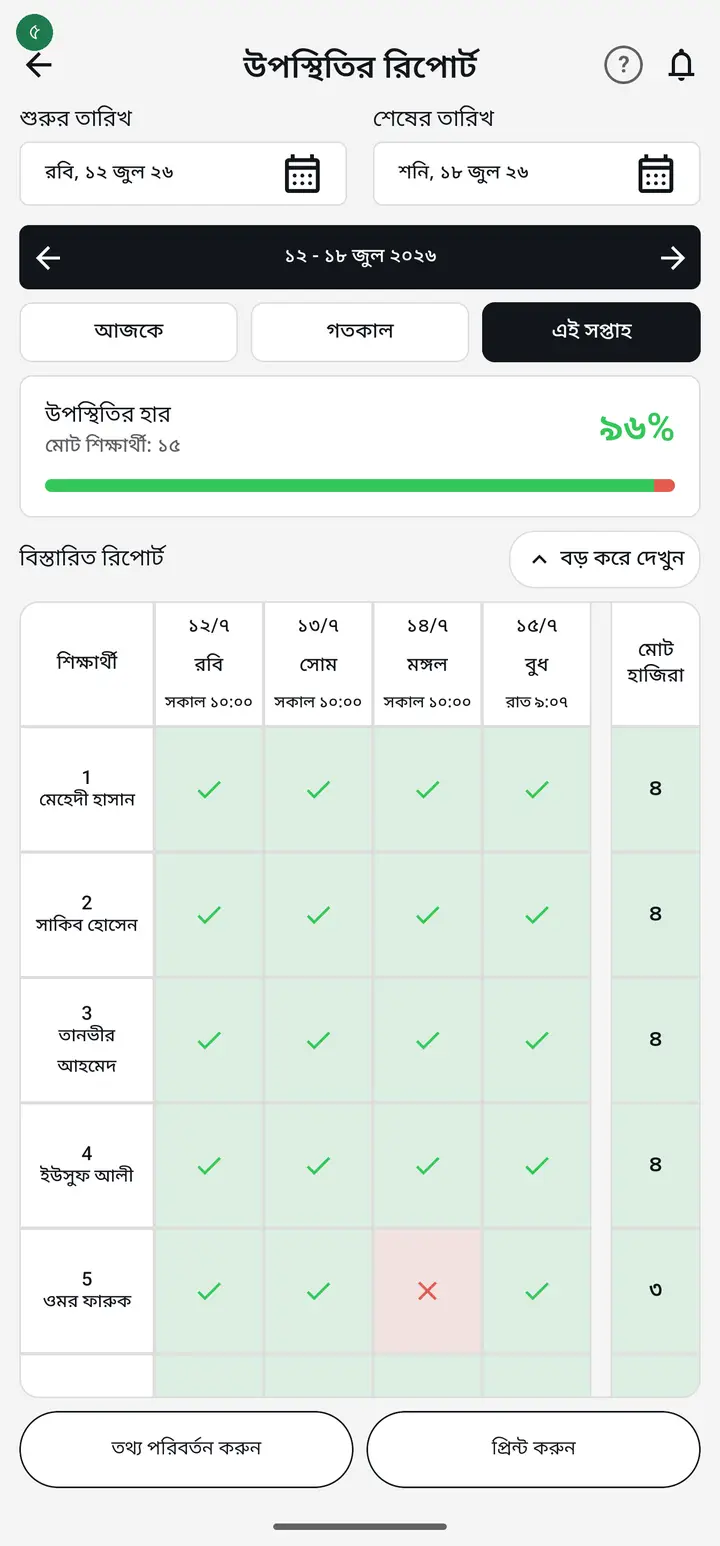
The green card at the top shows "উপস্থিতির হার" (Attendance rate) — the whole class at a glance.
-
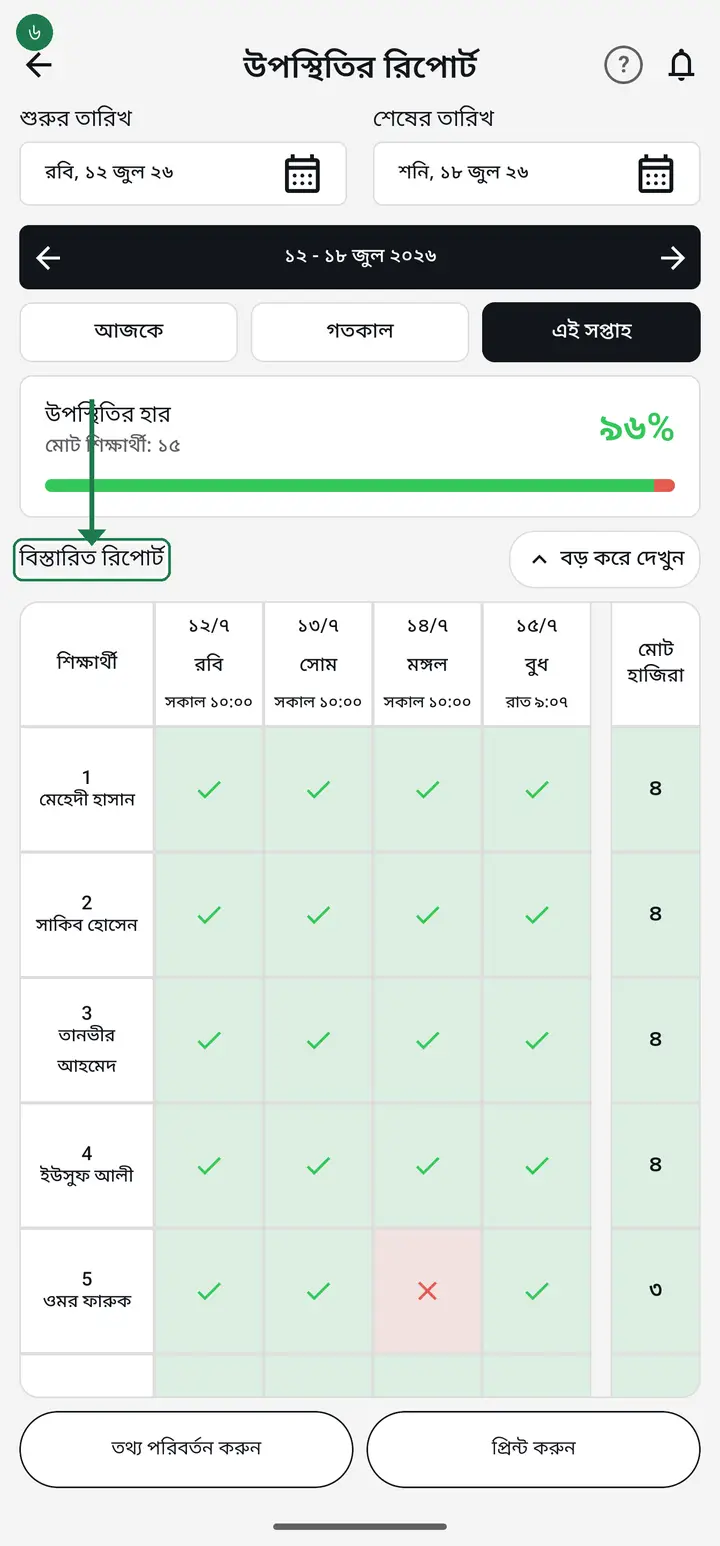
The table below shows each student day by day. ✓ means present, ✗ means absent. The right-most "মোট হাজিরা" (Total present) column adds up the whole range.
-
Swipe the table sideways to see the remaining dates.
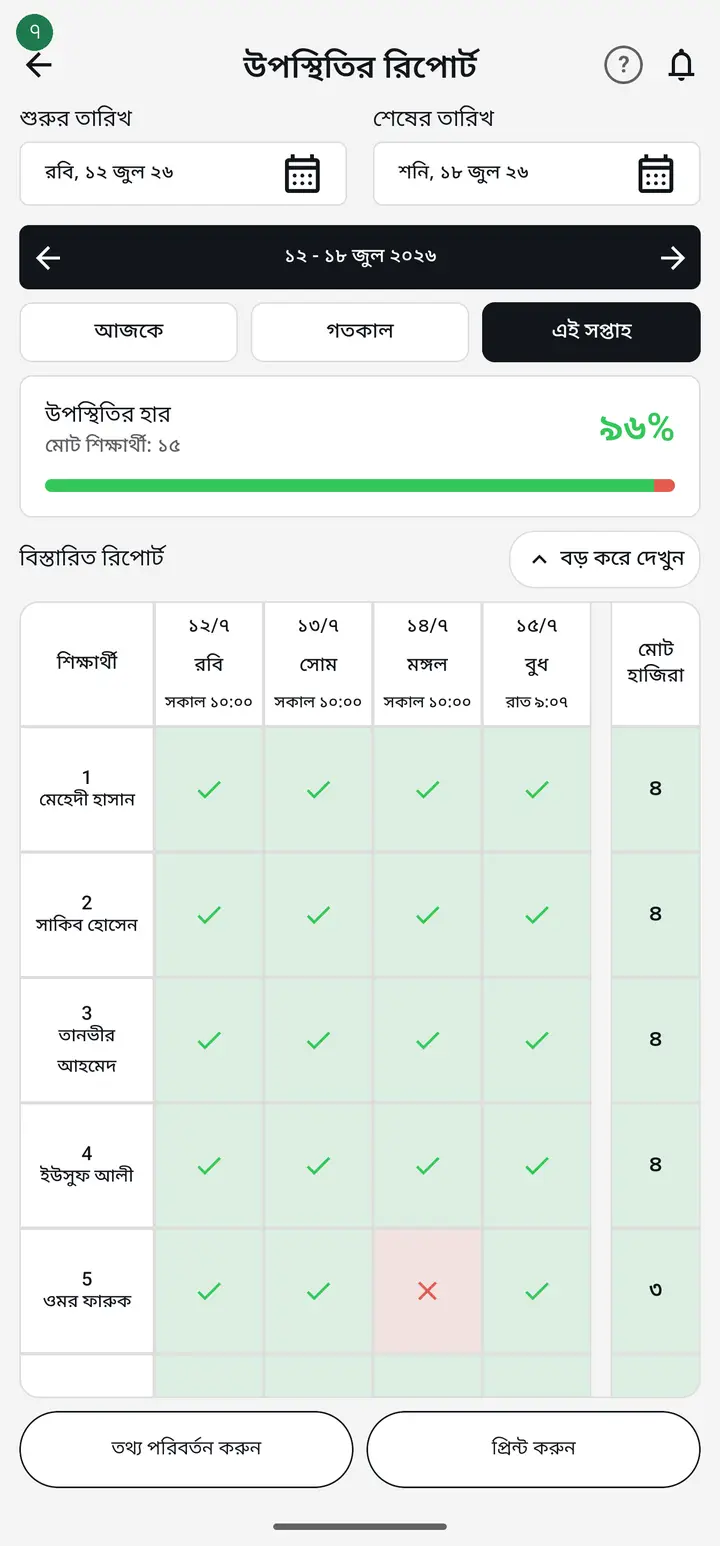
A `--` in a cell means attendance was taken that day but this student was left unmarked. Worth checking whether they were missed.
-
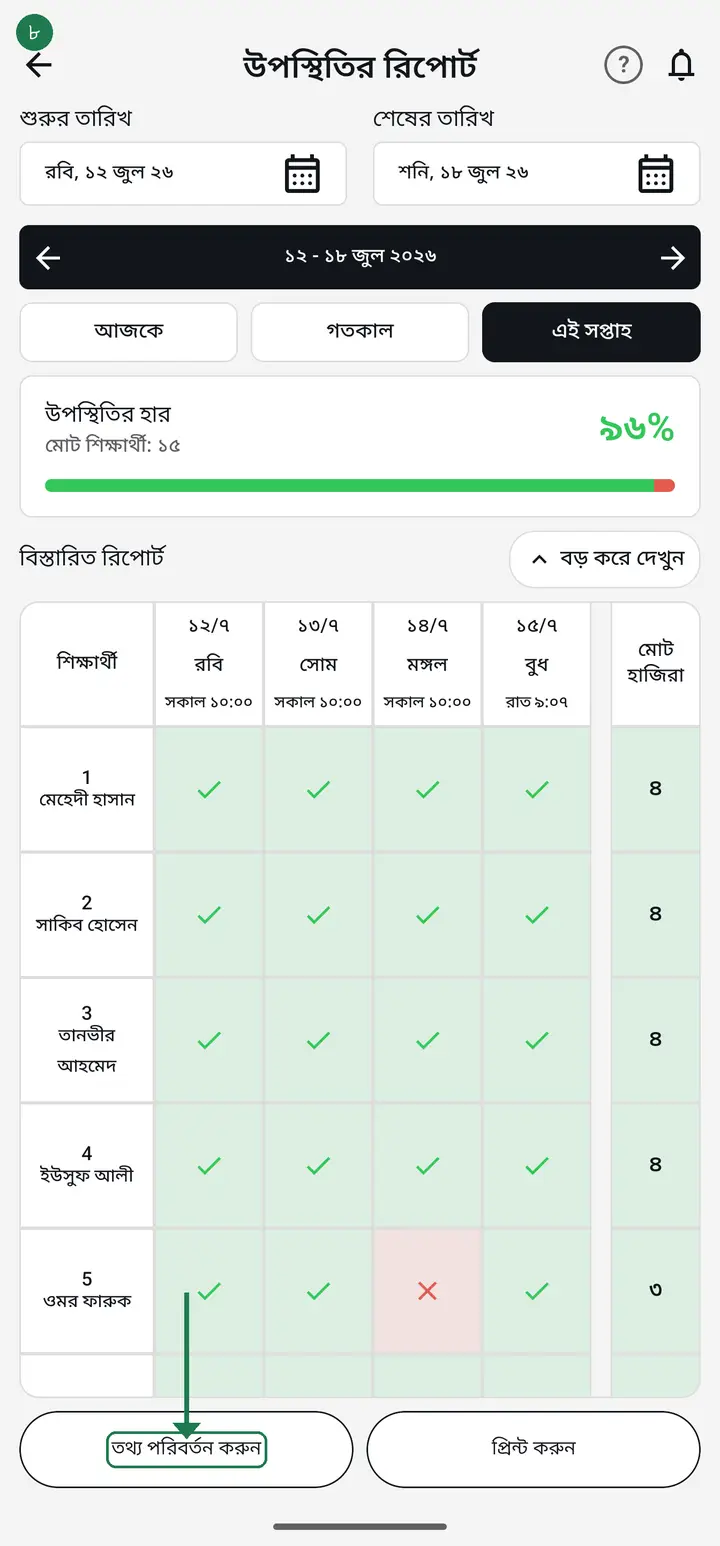
If you spot a mistake, tap "তথ্য পরিবর্তন করুন" (Change information) to fix it.
-
To send it to someone, tap "প্রিন্ট করুন" (Print). You now pick one of two — "অনুপস্থিতদের তালিকা (PDF)" (Absentee list) or "পুরো হাজিরা (Excel)" (Full attendance).
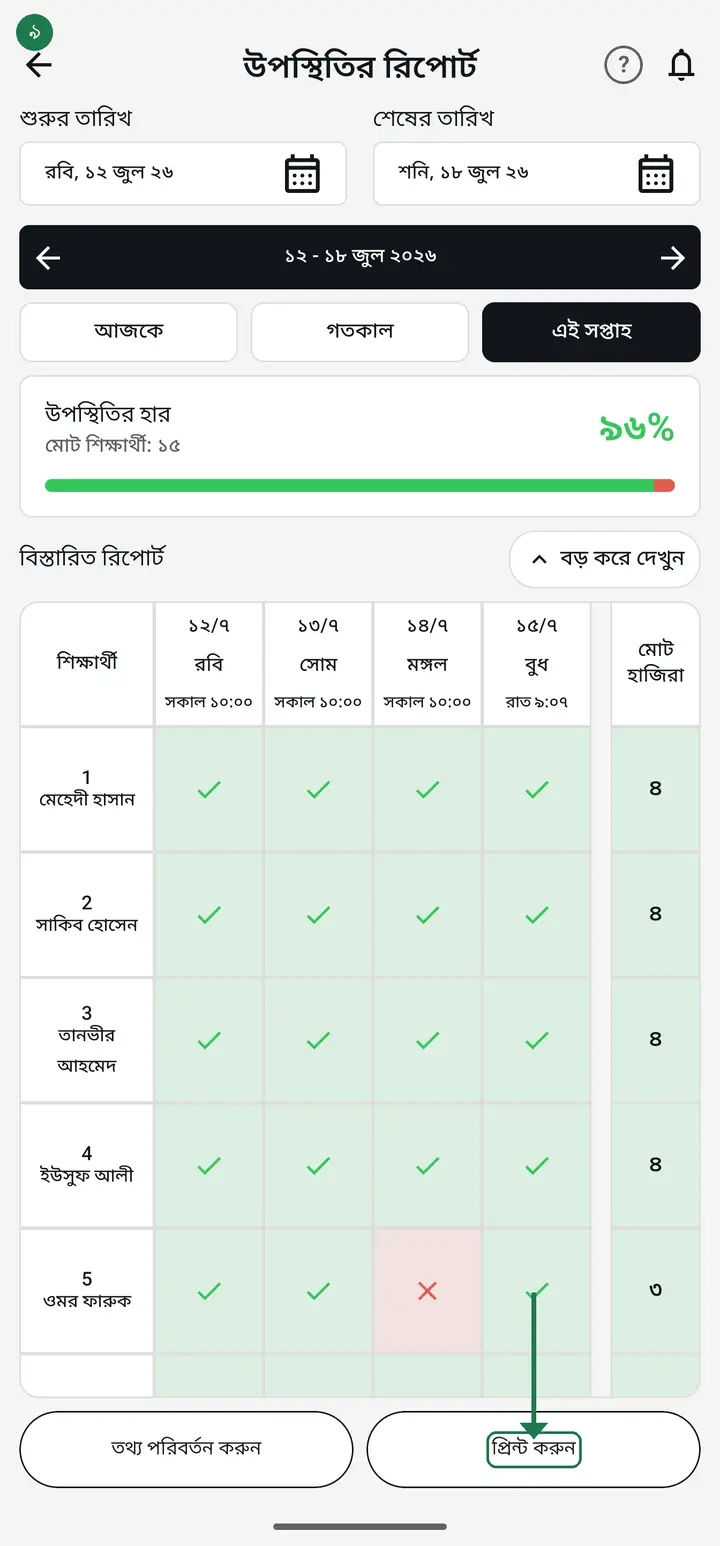
If you do not see the two choices, your app is an older version. Update from the Play Store and try again.
-
"অনুপস্থিতদের তালিকা (PDF)" (Absentee list) gives only the students who did not come, day by day, on your institution's own letterhead. This is the sheet to hand to the office or pin on the board.
A small line reads "মার্ক হয়নি ২ জন" (Not marked: 2). That means the teacher left those students unmarked that day — it does NOT mean they were absent. Closed days never appear on this sheet at all.
-
"পুরো হাজিরা (Excel)" (Full attendance) is the old behaviour — every student, every day, ✓ / ✗ in one file, and it takes you to the "এক্সপোর্ট" (Export) page.
Despite the label, the Excel file does not go to a printer. The PDF, however, can be printed directly.
-
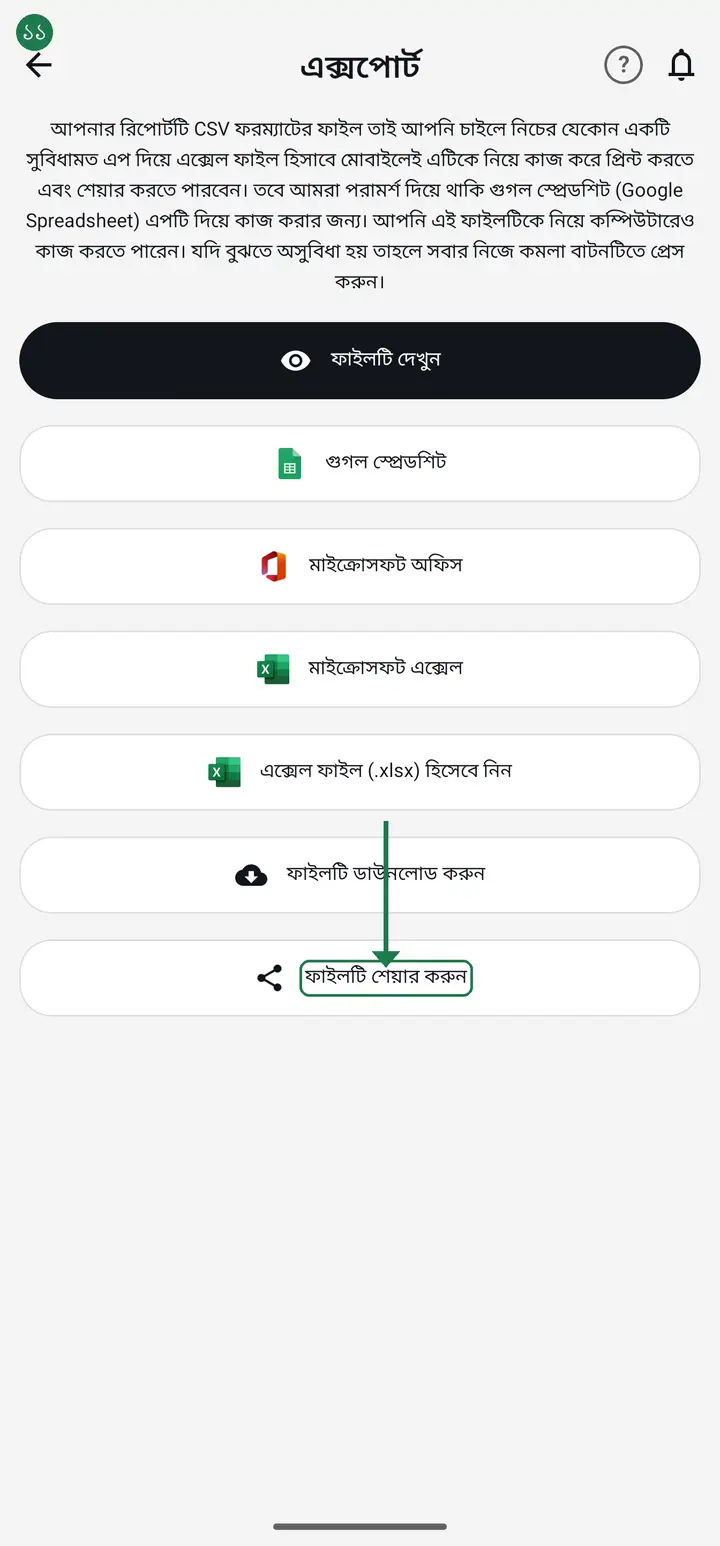
On the Export page tap "ফাইলটি শেয়ার করুন" (Share the file) to send it on WhatsApp, or "ফাইলটি দেখুন" (Preview the file) to look at it first.
Common questions
Where do I see how many days a student was present in total?
On screen the register has a "মোট হাজিরা" column pinned at the far right, showing each student's total present days; it stays put while the date columns scroll. The printed and Excel copies did not carry that number — only the per-day P and A. The newer update adds two columns at the end of the exported sheet, "মোট উপস্থিত" and "মোট অনুপস্থিত", so you no longer count by hand.
Do holidays count as absences?
No. Days you entered under holidays print as "বন্ধ" and count as neither present nor absent. A day nobody took attendance on is not counted against anyone either — an empty cell means attendance was not taken, not that the student was away.
It says I have not taken any attendance yet.
No attendance exists in that date range, so there is nothing to show. Take attendance first, or change the range to days when you did take it.
Do I need internet for the report?
Yes. Taking attendance works offline, but the report is calculated from the server, so this screen needs a connection.
Nothing happens when I tap "তথ্য পরিবর্তন করুন".
For an institutional class only an institution admin can change attendance. In your own personal classes you always can. Ask your admin to fix it.
Ask AI about this page
Ask an AI app to explain this page in simple language.
Copied — now paste it
Get Hazira Khata free on Google Play
More tutorials
- How to sign in Signing in for the first time with your phone number. No email or password needed.
- Add a second way to sign in to one account Add Gmail to an account created with a phone number. It stays one account and nothing inside it changes.
- How to mark your own attendance As a teacher you can record your own daily attendance — it takes one tap.
- Check your salary and sign "received" When your school records your salary, the app tells you. Check the receipt and tap "বেতন বুঝে পেয়েছি" (Salary received) to leave your own digital signature — proof for both sides.
- How to create a class Before you can take attendance you create the class once. A one-time job.
- Putting your classes in your own order — press, hold and drag KG Two showing before KG One? Classes appear in the order you created them. On the "শ্রেণী কার্যক্রম" page, press and hold a card and drag it where you want — no need to rename anything.
- Make receipts and results look right — font and size Documents printing in an ugly font? Change it in one place and the receipt, result slip and certificate all change together.
- How to add students Enter each student's name and roll once. After that, daily attendance is just ticking boxes.