
How to issue a character certificate
Set the wording once and save it. After that, issuing a certificate is just picking the student.
The screenshots show the app in Bangla, its main language. The buttons sit in the same places in English.
-
Tap "দেখুন" (View) on the class card.
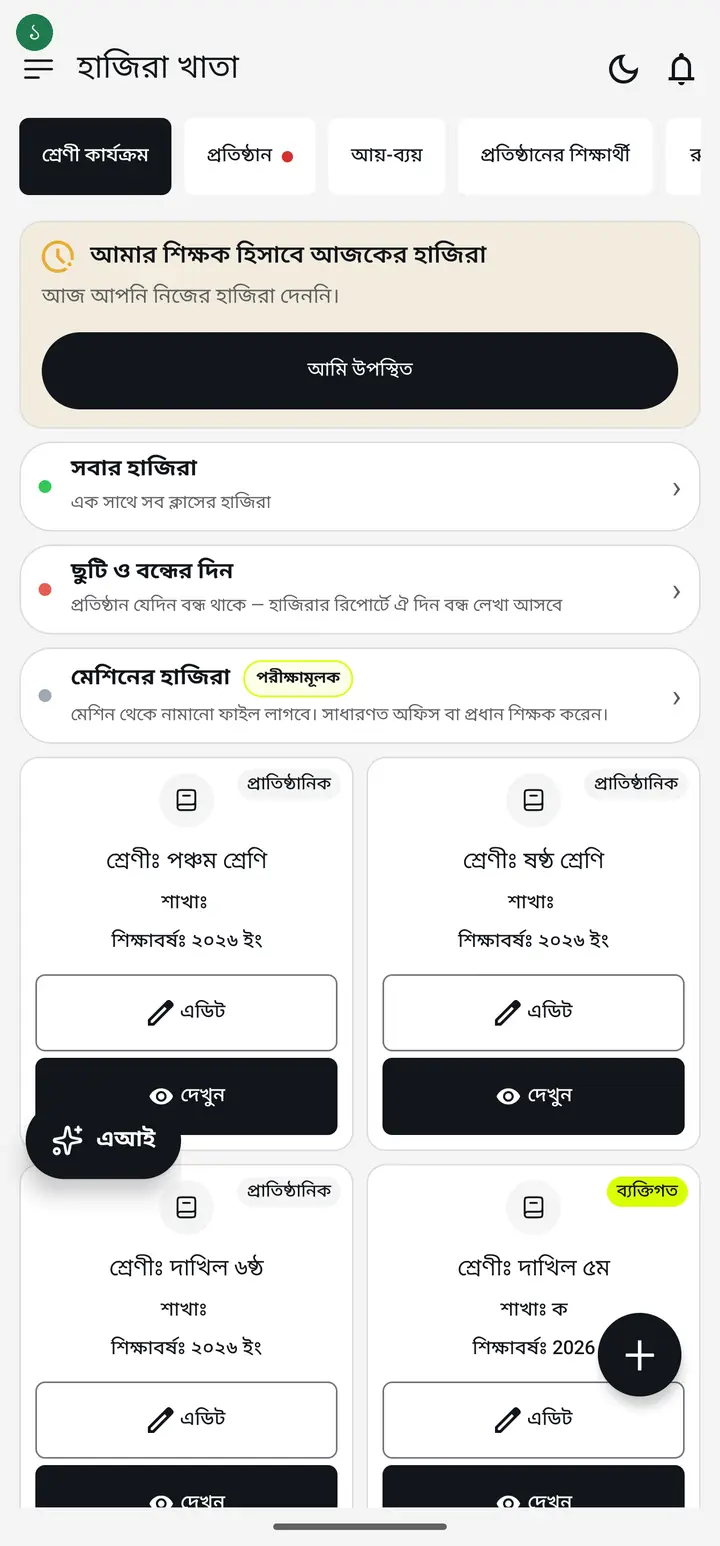
-
Tap "প্রত্যয়ন পত্র" (Character certificate) — it sits next to পরিচয়পত্র প্রিন্ট করুন.
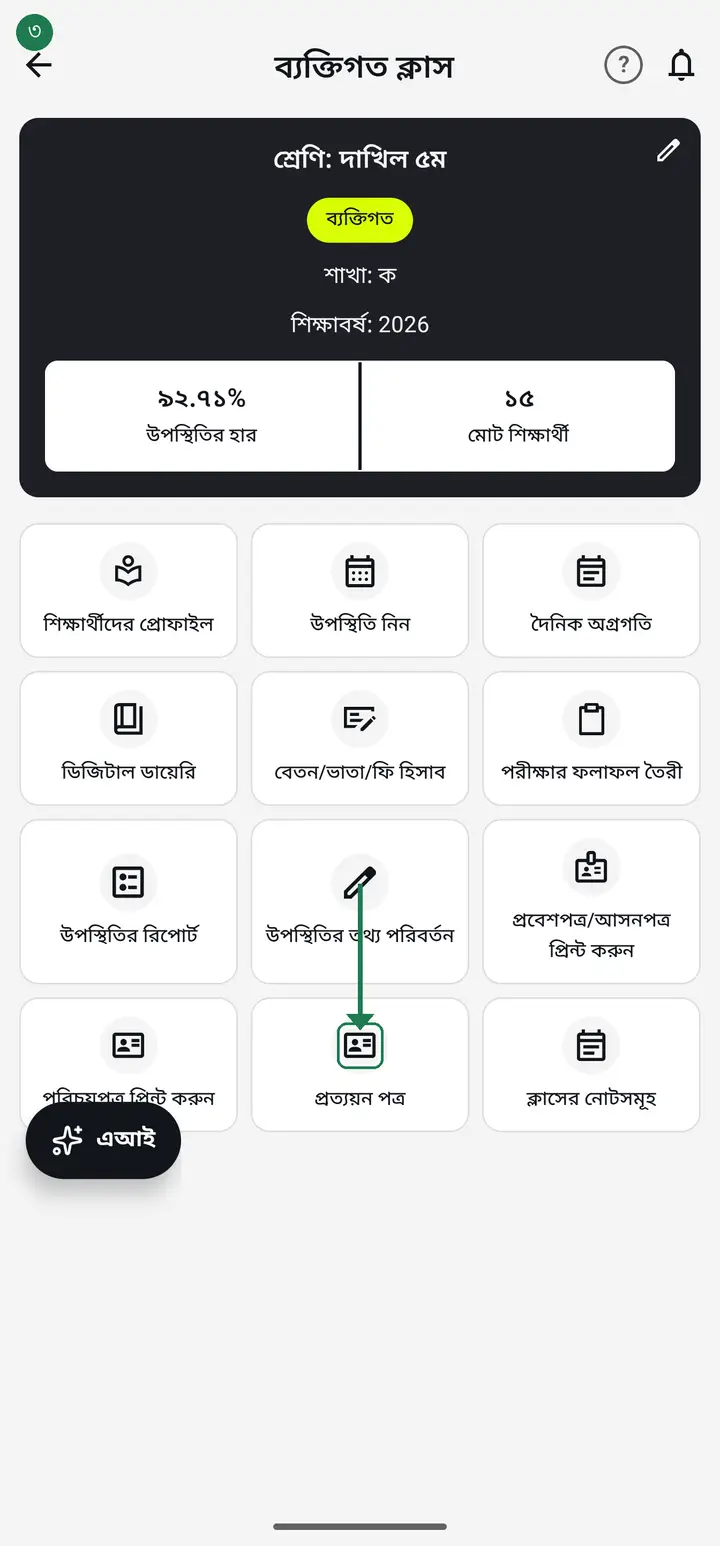
-
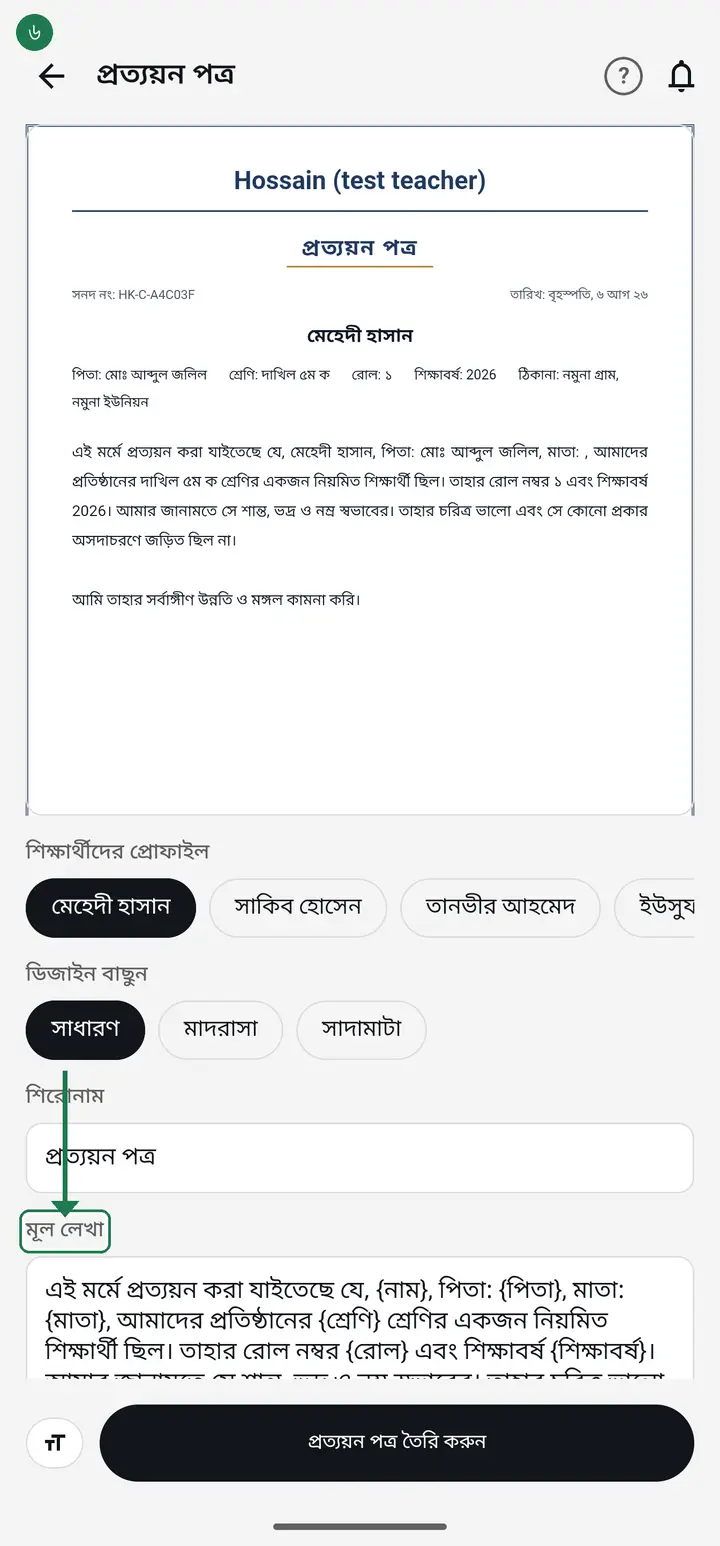
What you see at the top is exactly what will print. Pick the student below it.
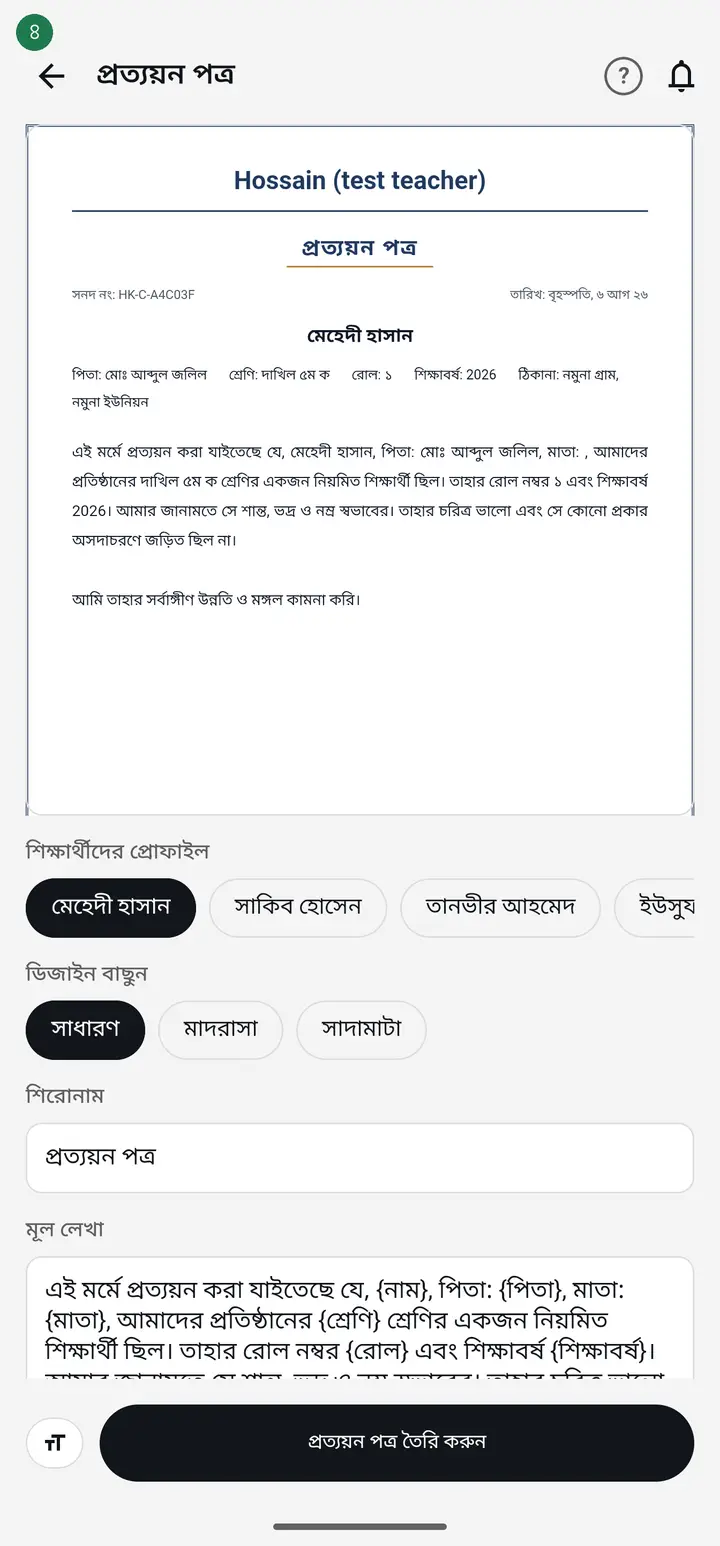
-
Choose a design — সাধারণ (Classic), মাদরাসা (Madrasa) or সাদামাটা (Minimal).
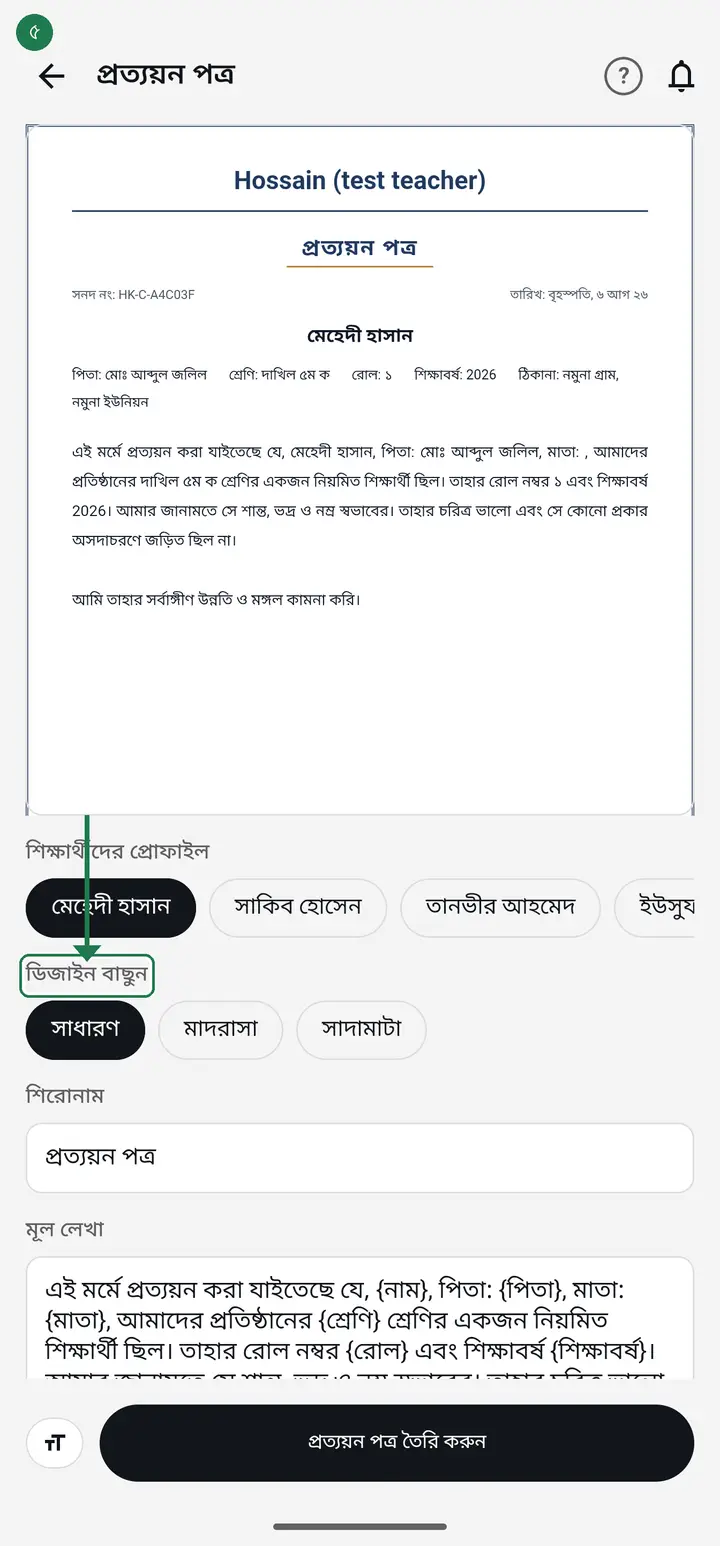
-
Write the paragraph the way your institution words it. Any of {নাম} {পিতা} {মাতা} {শ্রেণি} {রোল} {শিক্ষাবর্ষ} {প্রতিষ্ঠান} {ঠিকানা} {জন্ম তারিখ} inside it fills in that student's details automatically — the full list is printed under the box.
-
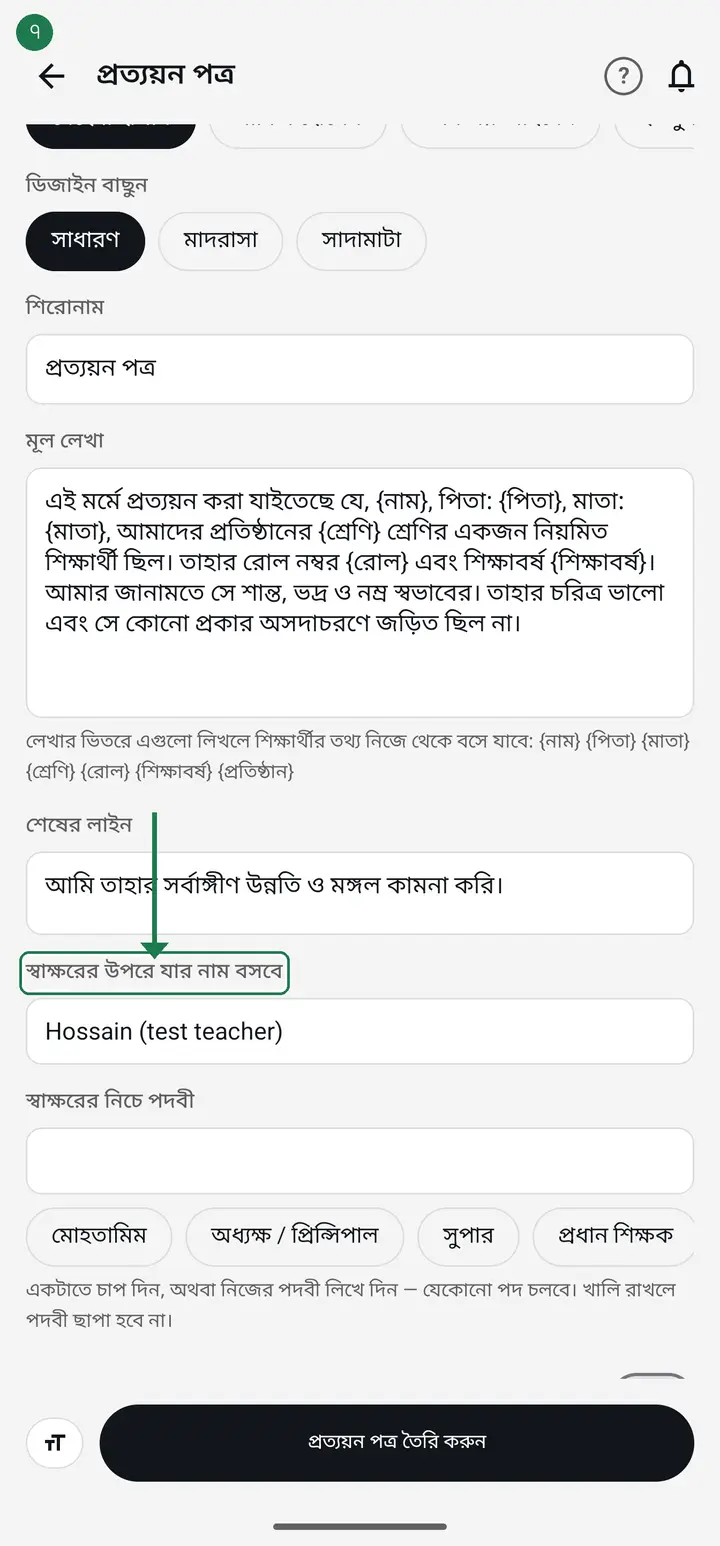
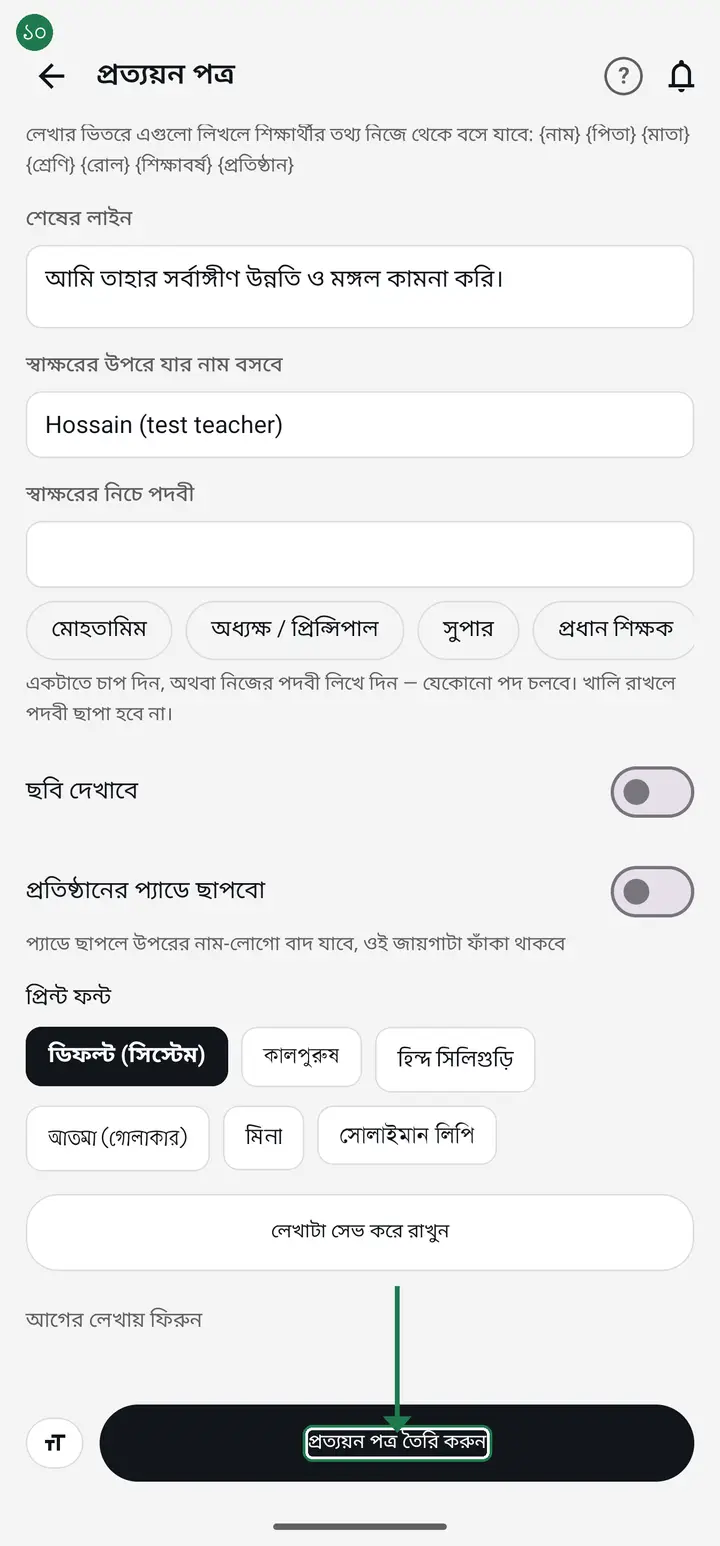
Scroll further to "স্বাক্ষরের উপরে যার নাম বসবে" (Name above the signature) and type the name of the person who signs. Left empty it uses the signed-in account's name, which on a shared office phone may be someone else — so check it once.
-
Just below it is "স্বাক্ষরের নিচে পদবী" (Post under the signature). Tap one of the chips — মোহতামিম · অধ্যক্ষ / প্রিন্সিপাল · সুপার · প্রধান শিক্ষক — or type your own; any post is allowed. Left empty, no post line prints at all.
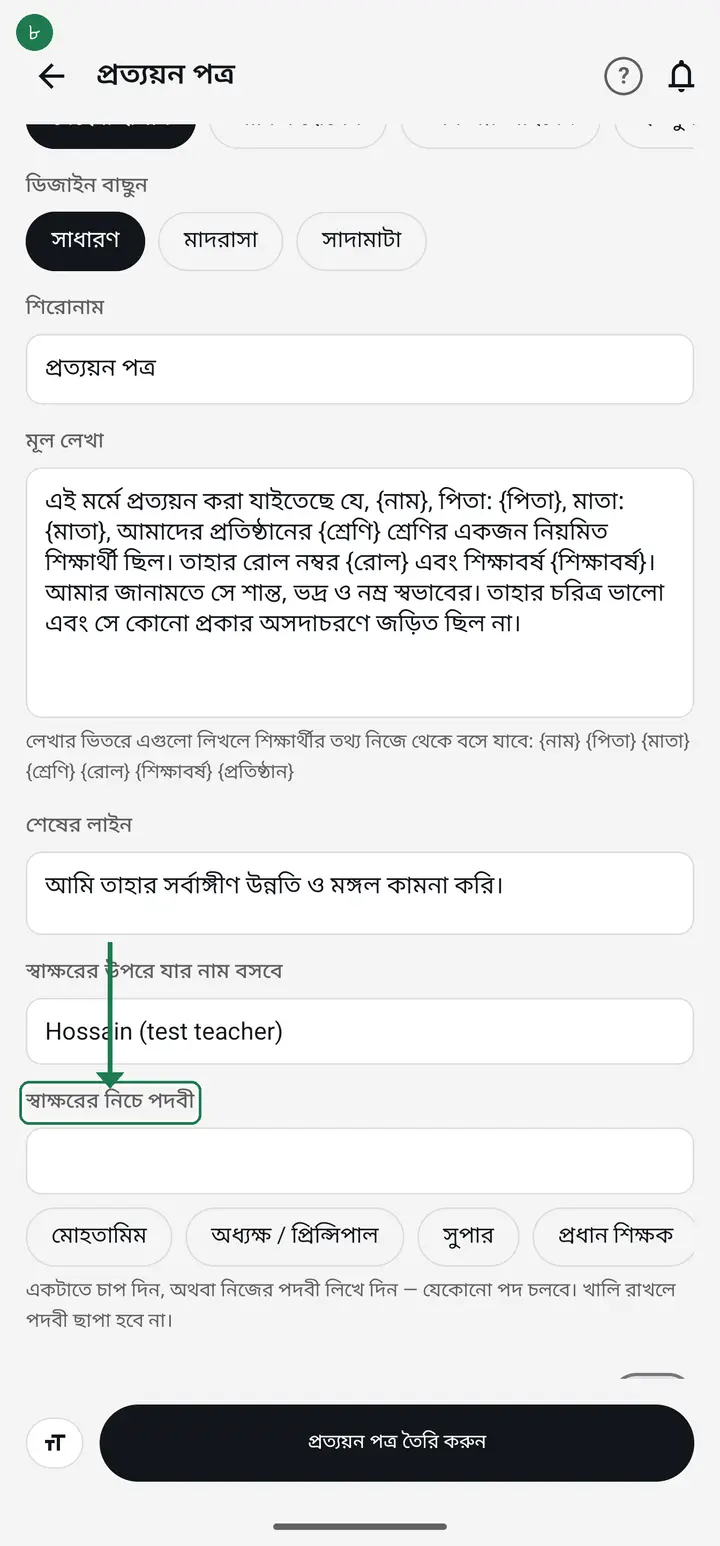
These two boxes arrived in app version 3.2.171. If you cannot see them, update the app first.
-
Two switches sit further down. Turn on "স্বাক্ষর ফাঁকা রাখবে (হাতে সই করবো)" (Leave the signature blank — I will sign by hand) and the saved signature image is left out while the space stays empty, which is what you want if you sign the certificate yourself.
-
The other is "শিক্ষার্থীর তথ্য আলাদা লাইনে দেখাবে" (Show student details on a separate line). It stays off, and off is usually right — father, mother, class and roll are already inside the paragraph below, so turning it on prints them a second time and makes the text smaller. Only turn it on if you have shortened the paragraph yourself.
Both switches arrived in app version 3.2.175. Before that the separate line always printed, which is why the parents' names appeared twice. If you cannot see them, update the app.
-
Certificates are usually printed landscape. Turn on "পাতা আড়াআড়ি (ল্যান্ডস্কেপ)" (Landscape page) and the sheet turns sideways, with the preview above updating straight away so you can judge it before printing. Leave it off to keep the upright page.
This switch arrives in 3.2.177. Whichever you leave on is remembered, so you do not pick it every time, and the PDF is made in that same shape — nothing extra to change at the printer.
-
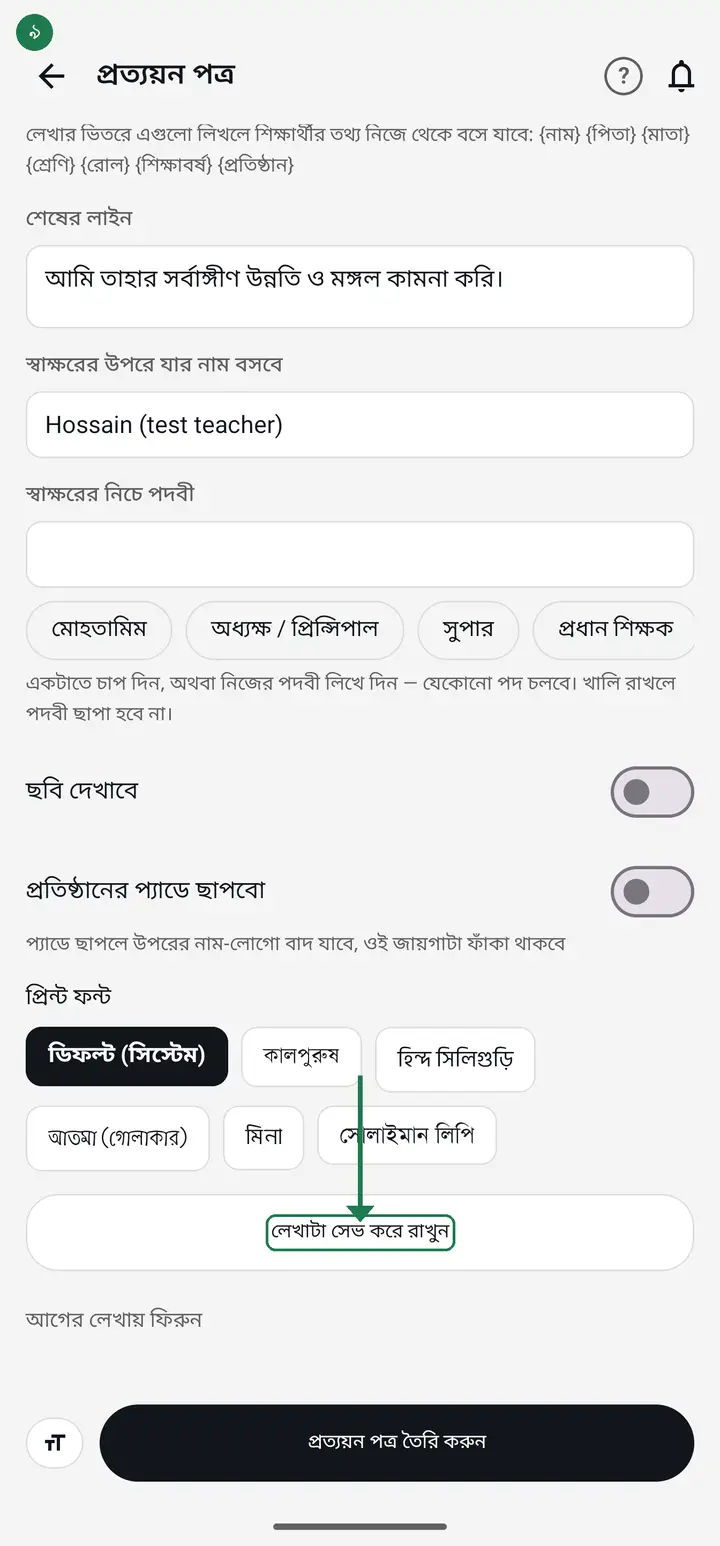
Tap "লেখাটা সেভ করে রাখুন" (Save this wording). This is the important step — the name and the post are saved with the paragraph, so you never retype any of it. Leave without tapping it and the post is not kept.
-
Tap "প্রত্যয়ন পত্র তৈরি করুন" (Create the certificate). A PDF is made, which you can then send on WhatsApp or print.
Common questions
Whose name is printed under the certificate, and what if the institution has two heads?
The head of the institution, not whoever is producing the paper. It used to print the name of the person pressing print, so one man''s name sat above another man''s signature image; that is fixed. When more than one person holds the head-master designation the app picks one and picks the same one every time. On the newer build you choose which — প্রতিষ্ঠান → "কাগজে কার নাম ও স্বাক্ষর থাকবে". Older builds have no such row, and there the only lever is to change the designation of whoever should not be named.
Can I put the institution's logo as a watermark, and what if it looks too small or too faint?
Yes. On the certificate screen turn on "প্রতিষ্ঠানের লোগোর জলছাপ" and the logo from your institution profile sits faintly in the middle of the page. If no logo is uploaded the app says so — add it first. Below it are two controls, "জলছাপ কত গাঢ়" (how dark) and "জলছাপ কত বড়" (how large); raise the percentage if it is too faint or too small. Follow the hint the app itself gives: photocopy one page before printing a batch — if the watermark disappears in the copy raise the darkness, and if the text over it looks muddy lower it.
The parents' names, class and roll are printing twice — how do I fix it?
Update the app to 3.2.175 or later and it fixes itself. Previously a separate line at the top printed father, mother, class and roll, while the paragraph below named the same things — so each appeared twice on one page and the text looked small. That line is now off by default. If you do want it, the "শিক্ষার্থীর তথ্য আলাদা লাইনে দেখাবে" switch brings it back.
I want to sign the certificate by hand instead of printing a signature image.
Turn on the "স্বাক্ষর ফাঁকা রাখবে (হাতে সই করবো)" switch (from 3.2.175). The saved signature image is left out, but the space above the name stays blank so you can sign with a pen. The name and post lines print as before.
I want the student's date of birth on the certificate — families need it for birth registration.
From 3.2.217 it fills in by itself — you type nothing. The one condition: the date of birth must be saved on the student's profile. For a student who has none, that whole sentence is left out rather than printing an empty label. On an older version, or if you already saved your own wording, type {জন্ম তারিখ} wherever you want it in the main text box and tap Save once.
Some students do not have a detail, and it leaves an empty gap on their certificate.
Put that part inside square brackets — for example "[ তাহার জন্ম তারিখ {জন্ম তারিখ}।]". A student who has the detail gets the whole sentence; a student who does not loses the sentence entirely, with no label and no blank left behind. The same works for {ঠিকানা} or {মাতা}. Brackets with no {…} inside are left exactly as you typed them, so your own "[অত্র প্রতিষ্ঠান]" still prints.
Do I have to write the text for every student?
No. Once you tap Save, that wording comes back every time. You only pick the student, and the {নাম} {পিতা} {শ্রেণি} spots fill in with that student's details.
Can I make the text bigger or smaller?
Yes — tap the small "T" button at the bottom left. The preview at the top changes immediately, so you can check before spending paper.
If the text is long, will it get cut off?
No. The app shrinks the type a little so the whole paragraph fits on one page. Still, check the preview to be sure.
Can the heading say something other than প্রত্যয়ন পত্র?
Yes. Whatever you type in the Heading box is what prints — for example চারিত্রিক সনদপত্র.
How do I go back to the original wording?
Tap "আগের লেখায় ফিরুন" (Restore the original wording).
Can the post — মোহতামিম, অধ্যক্ষ / প্রিন্সিপাল — print under the name? Just the bare name looks unfinished.
Yes. Scroll to "স্বাক্ষরের নিচে পদবী" (Post under the signature) and tap one of the chips — মোহতামিম · অধ্যক্ষ / প্রিন্সিপাল · সুপার · প্রধান শিক্ষক — or type your own post; any is allowed. Then tap Save so it comes back every time. Added in app version 3.2.171.
Does the head master's signature appear?
A signature space prints at the bottom right, the name under it, and the post under the name. You choose both the name and the post yourself (see the steps above). If a signature image is set on the institution profile, it appears there too.
Can the certificate print in landscape?
Yes, from 3.2.177. Turn on the "পাতা আড়াআড়ি (ল্যান্ডস্কেপ)" (Landscape page) switch near the bottom. Both shapes ship, so each school uses the one it prefers rather than being given one. The preview updates immediately and your choice is remembered.
Ask AI about this page
Ask an AI app to explain this page in simple language.
Copied — now paste it
Get Hazira Khata free on Google Play
More tutorials
- How to sign in Signing in for the first time with your phone number. No email or password needed.
- Add a second way to sign in to one account Add Gmail to an account created with a phone number. It stays one account and nothing inside it changes.
- How to mark your own attendance As a teacher you can record your own daily attendance — it takes one tap.
- Check your salary and sign "received" When your school records your salary, the app tells you. Check the receipt and tap "বেতন বুঝে পেয়েছি" (Salary received) to leave your own digital signature — proof for both sides.
- How to create a class Before you can take attendance you create the class once. A one-time job.
- Putting your classes in your own order — press, hold and drag KG Two showing before KG One? Classes appear in the order you created them. On the "শ্রেণী কার্যক্রম" page, press and hold a card and drag it where you want — no need to rename anything.
- Make receipts and results look right — font and size Documents printing in an ugly font? Change it in one place and the receipt, result slip and certificate all change together.
- How to add students Enter each student's name and roll once. After that, daily attendance is just ticking boxes.