
Marking holidays and closed days
Eid, an exam break, a flood — write the closed days down once and the report and printout say "বন্ধ" for those days instead of counting everyone absent.
The screenshots show the app in Bangla, its main language. The buttons sit in the same places in English.
-
On the app's home screen there is a row called "ছুটি ও বন্ধের দিন" (Holidays and closed days), with a small line under it reading "প্রতিষ্ঠান যেদিন বন্ধ থাকে — হাজিরার রিপোর্টে ঐ দিন বন্ধ লেখা আসবে". Tap that row.
-
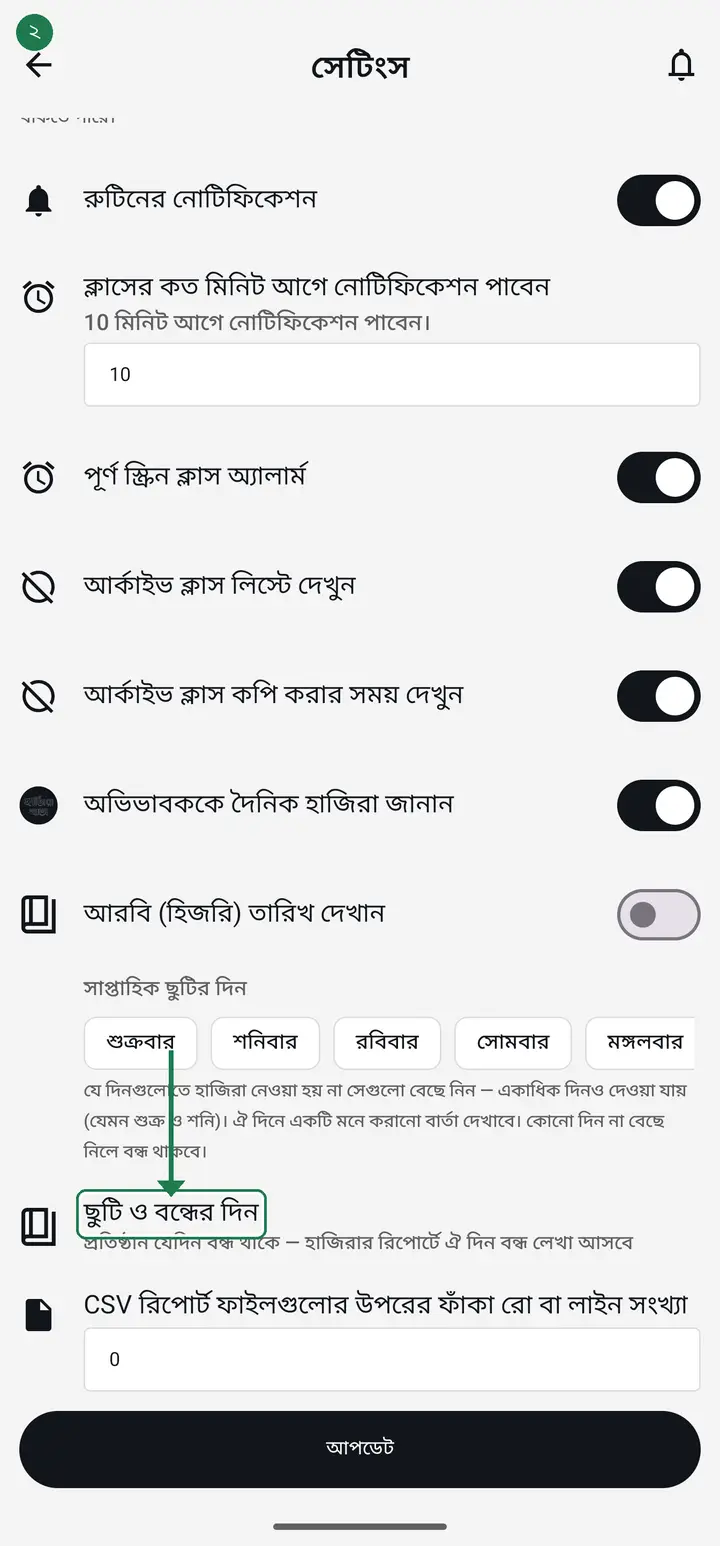
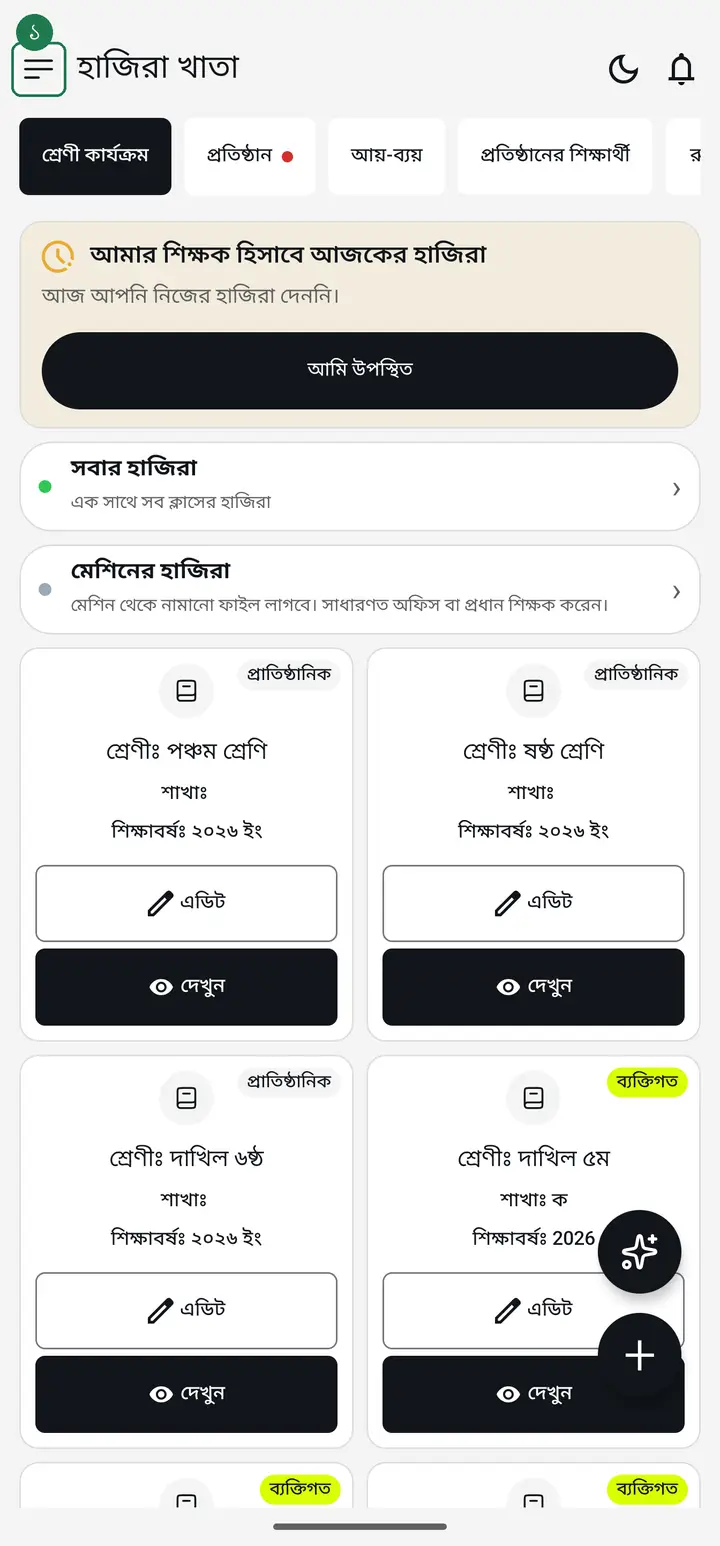
If the row is not on the home screen your app is older — then use the three-line menu at the top left → "সেটিংস" (Settings) → "ছুটি ও বন্ধের দিন" further down. Both doors open the same page; the Settings one has not gone anywhere.
-
Once the page opens there is a "?" at the top right — tap it for a short written summary of what this page does. It works without internet.
For an institution's classes only the head teacher or an admin can add closed days; other teachers can see them but not change them. For your own personal classes, the closed days are yours alone.
-
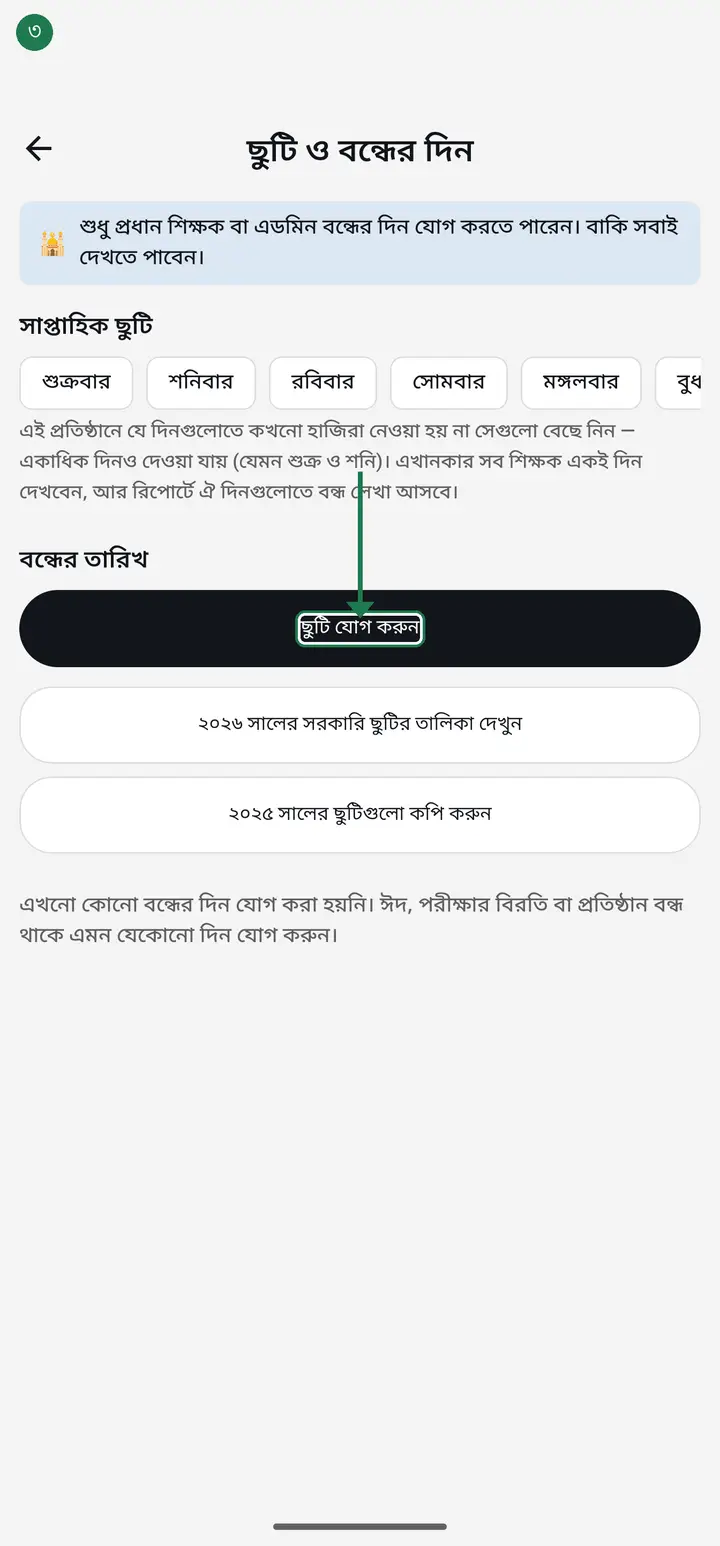
Tap "ছুটি যোগ করুন" (Add a holiday).
-
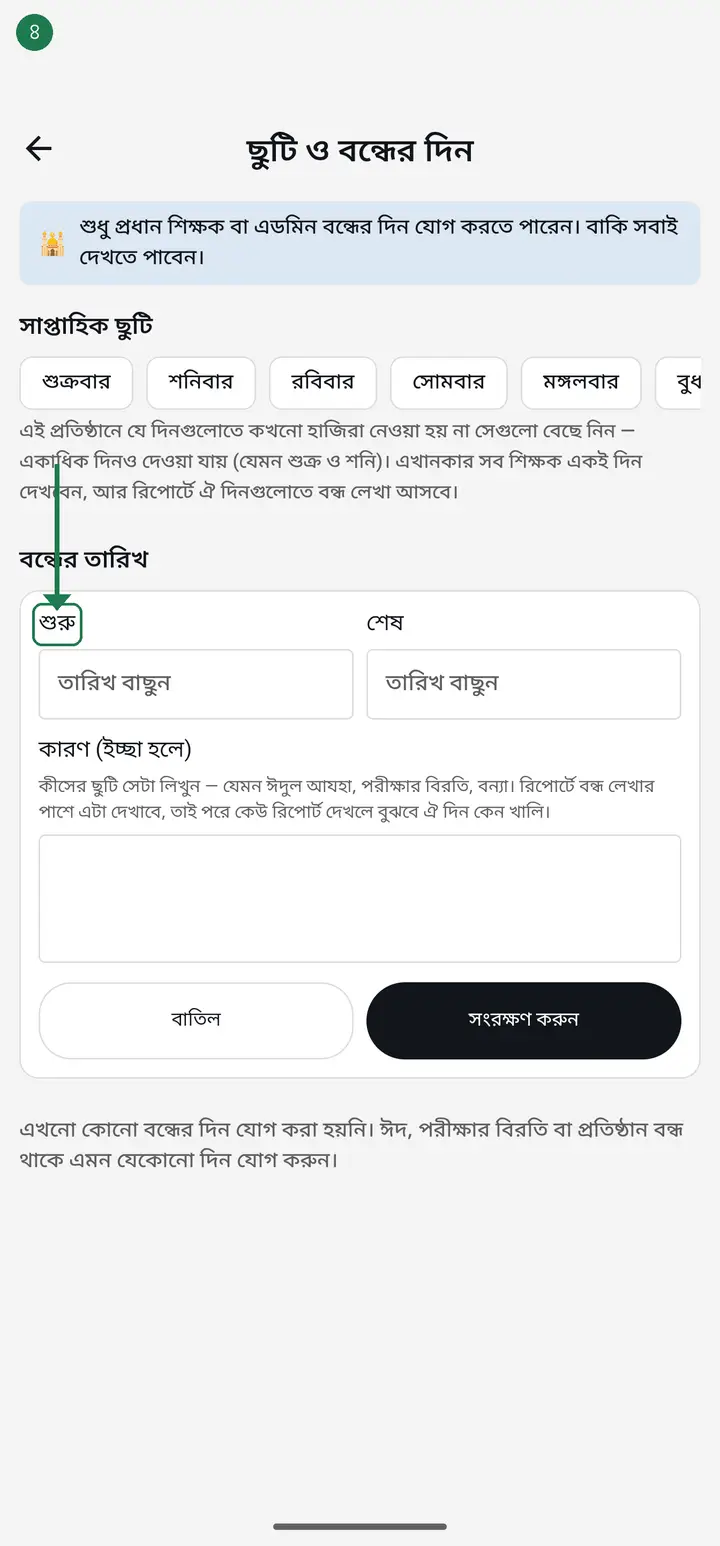
Pick a "শুরু" (from) and "শেষ" (to) date. For a single day put the same date in both. For a run of days, give the first and the last — everything in between is closed too, with no need to enter days one by one. One entry can span up to 60 days, so a whole exam break, or the long gap between two terms, goes in once. The app prints the day count underneath as you pick.
-
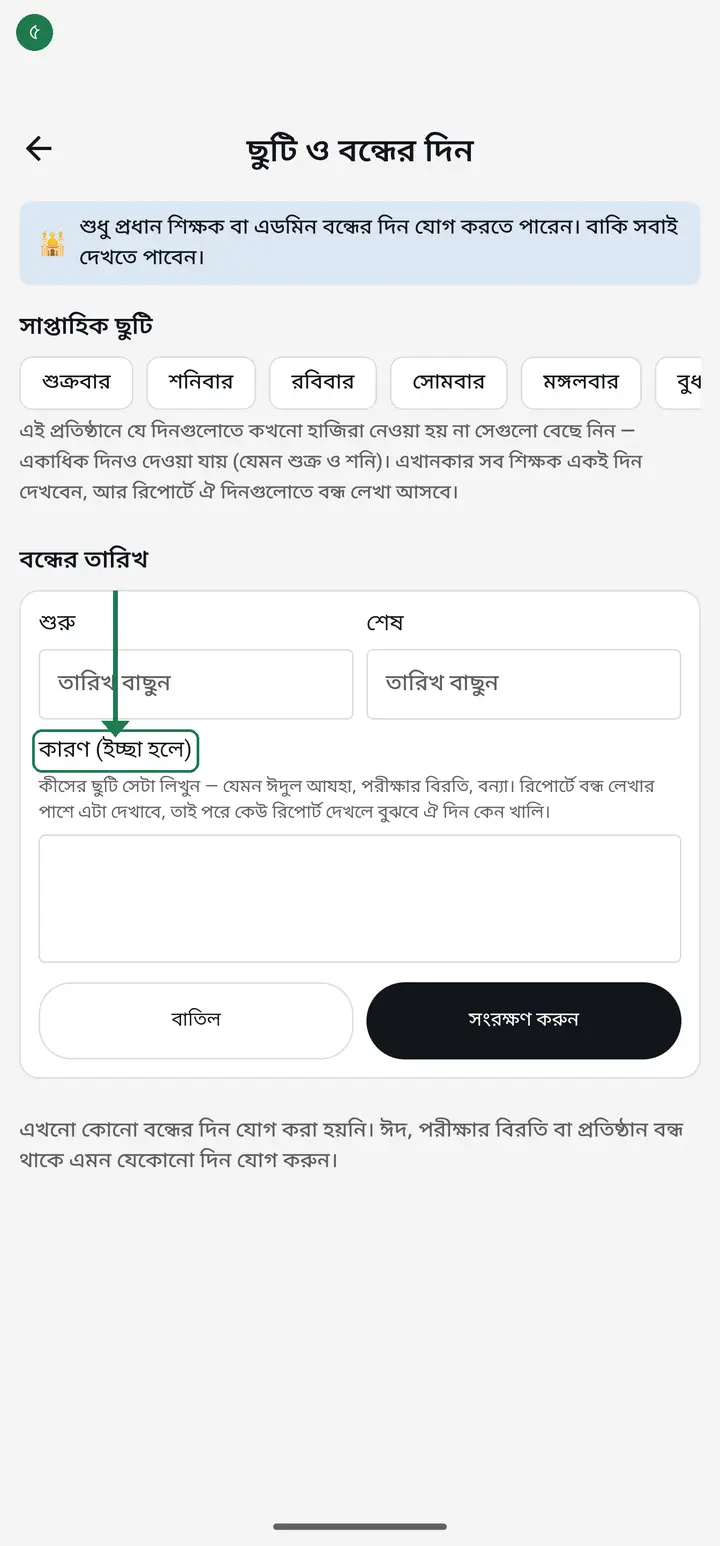
Write a "কারণ" (reason) if you like — Eid, exam break, flood. It is optional, but when it is there the report shows it beside the day, so nobody has to remember later.
-
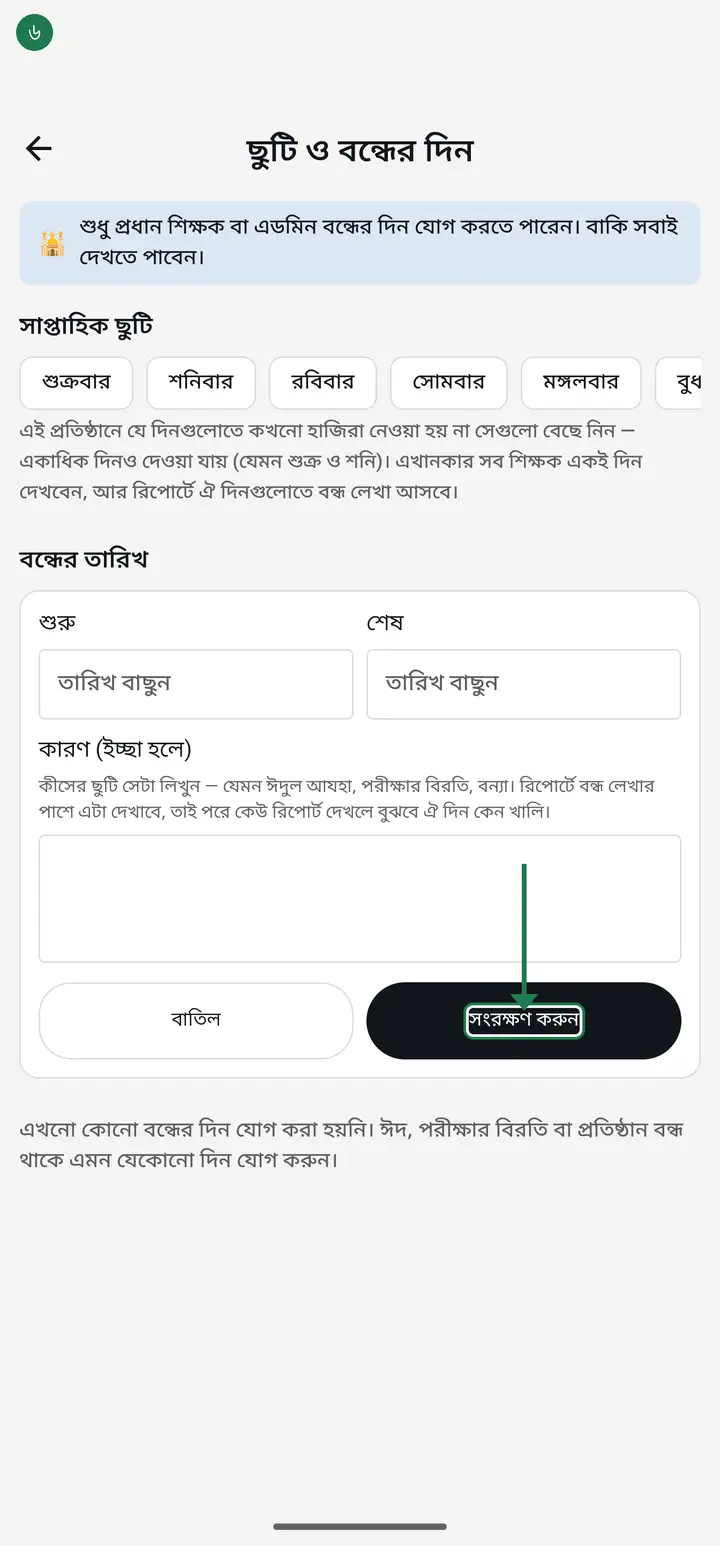
Tap "সংরক্ষণ করুন" (Save). You will see "সংরক্ষণ হয়েছে" and the day joins the "বন্ধের তারিখ" list.
-
A weekday that never has class (Friday, say) does not need writing out day by day. At the top of this same page there is a "সাপ্তাহিক ছুটি" (Weekly holiday) row of weekday chips — tap the day once and it covers the whole year. More than one day can be picked (Friday and Saturday, say).
-
To add many at once there are two shortcuts — tick them off the government holiday list, or copy last year's. Only tick the days your school is actually closed.
Eid, Ashura and Shab-e-Barat move with the moon, so they are not in the government list — add those by hand. Copying last year has the same catch: those dates shift, so check them after copying.
-
To check it worked, open the class's "উপস্থিতির রিপোর্ট" (Attendance report). Closed days now read "বন্ধ" and nobody is counted absent. The printout and the exported file match.
Common questions
Will marking a day closed delete the attendance already there?
No. Neither adding nor removing a closed day adds or deletes anyone's attendance — it only changes how the day is shown in the report. Tap "বাদ দিন" and it becomes an ordinary day again.
What if a class actually happens on a closed day?
You can still take attendance. The app shows "এই দিন প্রতিষ্ঠান বন্ধ" at the top but does not block you — if the class ran, mark it as usual.
I am a teacher but there is no "add" button.
Only the head teacher or an admin can add an institution's holidays, so that different people cannot enter different closures and make the reports disagree. You can still see the list — ask the head teacher to add one.
I cannot find the "ছুটি ও বন্ধের দিন" row anywhere.
Look on the app's home screen first — on newer versions the row lives there. If it is not there, use the menu → Settings and scroll down. If neither has it, the app is older; update and it appears. Nothing is wrong with your app.
It stops me when I try to add a very long holiday.
One entry can cover up to 60 days. For anything longer, add it in two — the first 60 days as one entry and the rest as another. When it refuses, the app names the limit on screen.
Can I record the institution's working period here — first term exam to second term exam, say?
This page is for days OFF, not days open — write down what is closed and every other day is a working day by definition. So put the gap between the two terms in once with "শুরু – শেষ" and write the reason ("১ম সাময়িকের পরের বন্ধ"); that is the text the report and printout carry. To see the attendance figures for a whole period, open the class's "উপস্থিতির রিপোর্ট" and set "শুরুর তারিখ" and "শেষের তারিখ" yourself — any range works. There is no way yet to SAVE a term under a name; the two dates are entered each time.
Why does a "ক্লাস রিমাইন্ডার" (Class reminder) still ring on a day I put in "ছুটি ও বন্ধের দিন"?
That was our bug, not something you did wrong. Older versions rang the class reminder purely from the routine's weekday and time and never looked at the "ছুটি ও বন্ধের দিন" list, so a day like Durga Puja rang anyway. From the newer version, 3.2.304, it is fixed: a day on the "বন্ধের তারিখ" list no longer gets a "ক্লাস রিমাইন্ডার". 3.2.304 has not reached everyone yet — take the update from the Play Store when it appears. After updating, open the app once so reminders that were already set are re-arranged under the new rule. Until you have it, an older version will still ring on those days; just dismiss it — the closed day is saved correctly. Fine print: this covers dated closed days only — ticking a weekday under "সাপ্তাহিক ছুটি" does not change reminders, which follow the weekdays set on your class routine. Exam reminders and parents' reminders are unchanged. And if you added a day by mistake, tap "বাদ দিন" and its reminder comes back.
Ask AI about this page
Ask an AI app to explain this page in simple language.
Copied — now paste it
Get Hazira Khata free on Google Play
More tutorials
- How to sign in Signing in for the first time with your phone number. No email or password needed.
- Add a second way to sign in to one account Add Gmail to an account created with a phone number. It stays one account and nothing inside it changes.
- How to mark your own attendance As a teacher you can record your own daily attendance — it takes one tap.
- Check your salary and sign "received" When your school records your salary, the app tells you. Check the receipt and tap "বেতন বুঝে পেয়েছি" (Salary received) to leave your own digital signature — proof for both sides.
- How to create a class Before you can take attendance you create the class once. A one-time job.
- Putting your classes in your own order — press, hold and drag KG Two showing before KG One? Classes appear in the order you created them. On the "শ্রেণী কার্যক্রম" page, press and hold a card and drag it where you want — no need to rename anything.
- Make receipts and results look right — font and size Documents printing in an ugly font? Change it in one place and the receipt, result slip and certificate all change together.
- How to add students Enter each student's name and roll once. After that, daily attendance is just ticking boxes.