
Making an exam routine
Write down which class sits which exam on which day, once. Then print it, send it to guardians, and let every teacher in the institution see it.
The screenshots show the app in Bangla, its main language. The buttons sit in the same places in English.
-
Swipe the row of tabs at the top of the home page to the left. You will find the "রুটিন" (Routine) tab. Tap it.
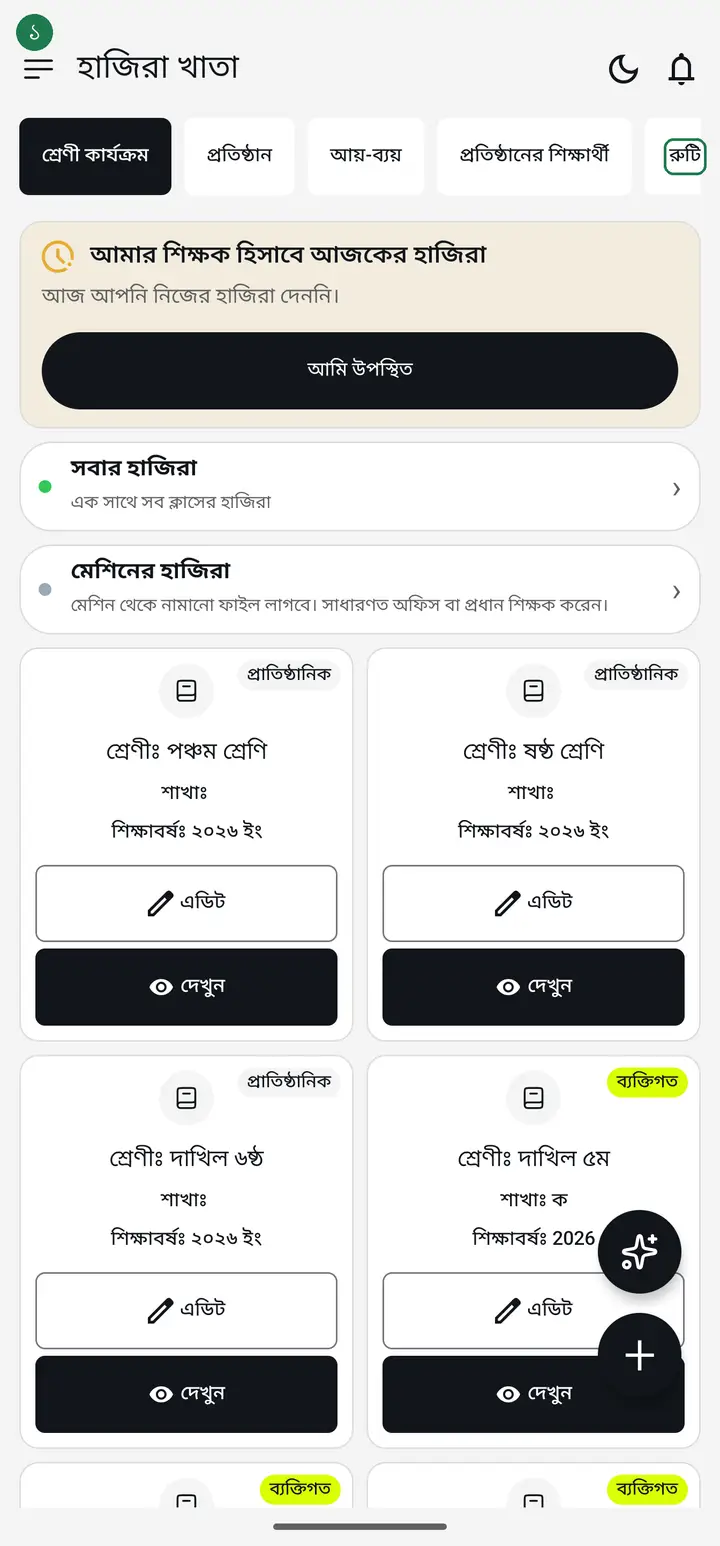
The "রুটিন" tab is not visible at first — it sits off to the right. Without swiping it looks as though the app has no routine feature at all.
-
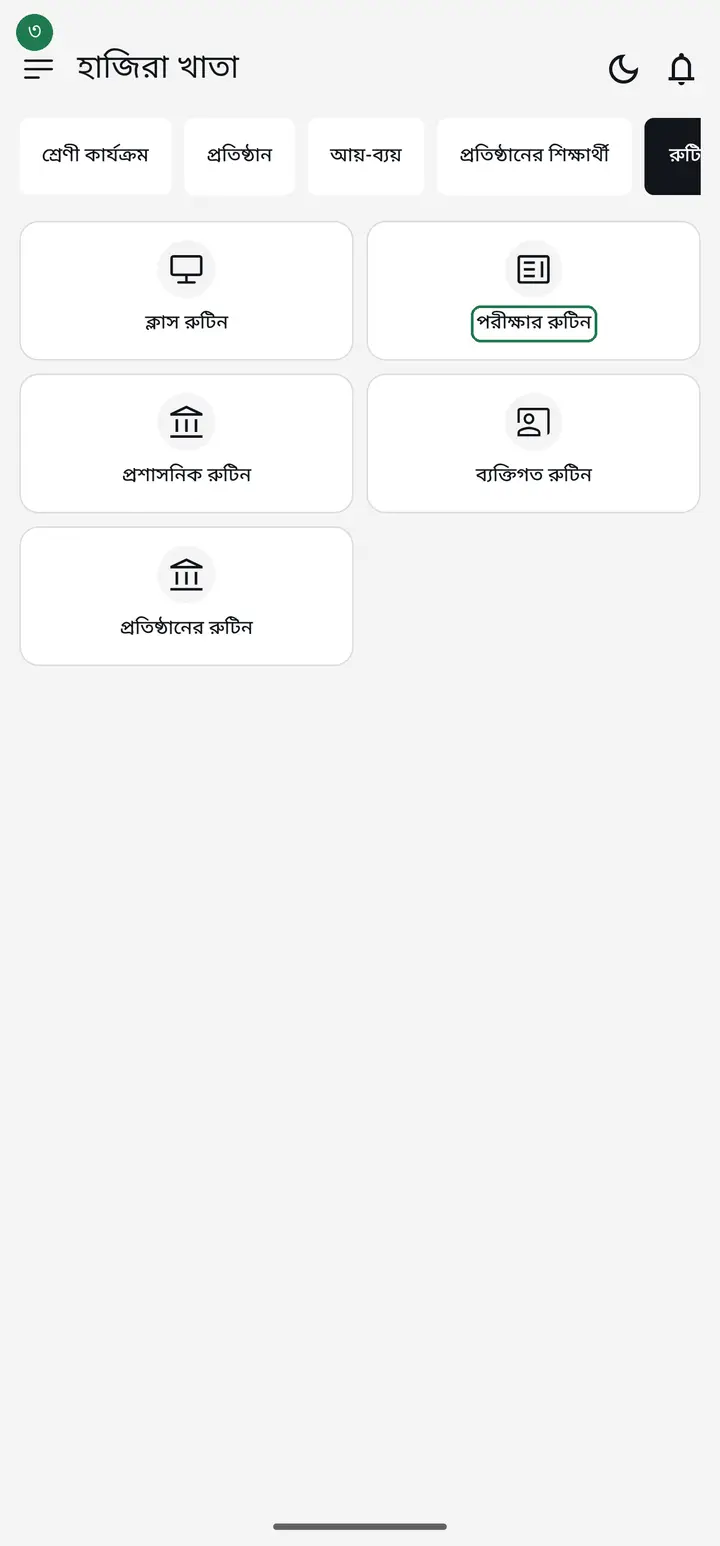
You will see five cards. The top-right one is "পরীক্ষার রুটিন" (Exam routine). Tap it.
-
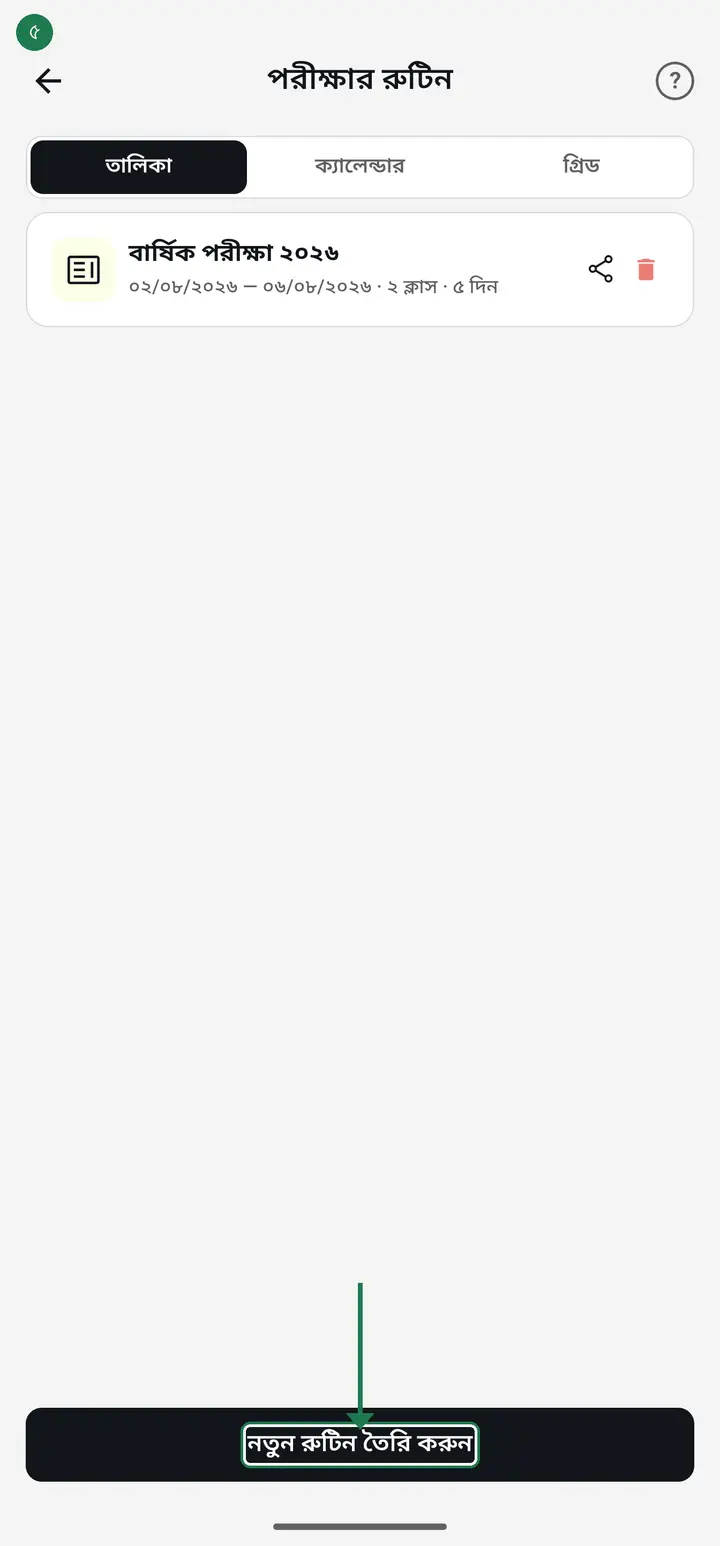
A list of the routines you already made appears. To make a new one, tap "নতুন রুটিন তৈরি করুন" (Create a new routine) at the very bottom.
-
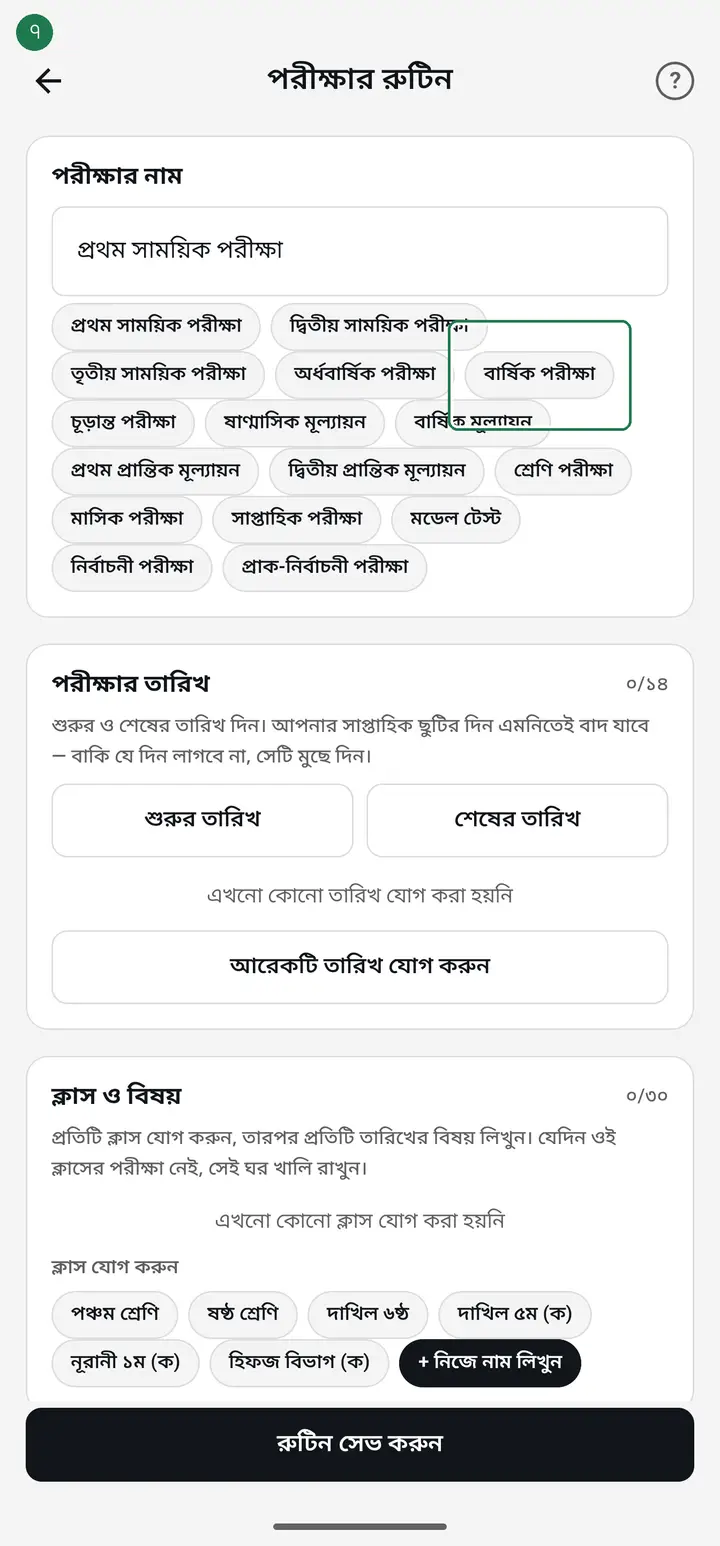
At the top is "পরীক্ষার নাম" (Exam name). Type your own, or tap one of the ready-made names below it — "বার্ষিক পরীক্ষা" (Annual exam), "মডেল টেস্ট" (Model test), "নির্বাচনী পরীক্ষা" (Selection exam) — and the name fills itself in.
-
Next is "পরীক্ষার তারিখ" (Exam dates). Tap "শুরুর তারিখ" (Start date) for the first day and "শেষের তারিখ" (End date) for the last. The app fills in the days in between by itself.
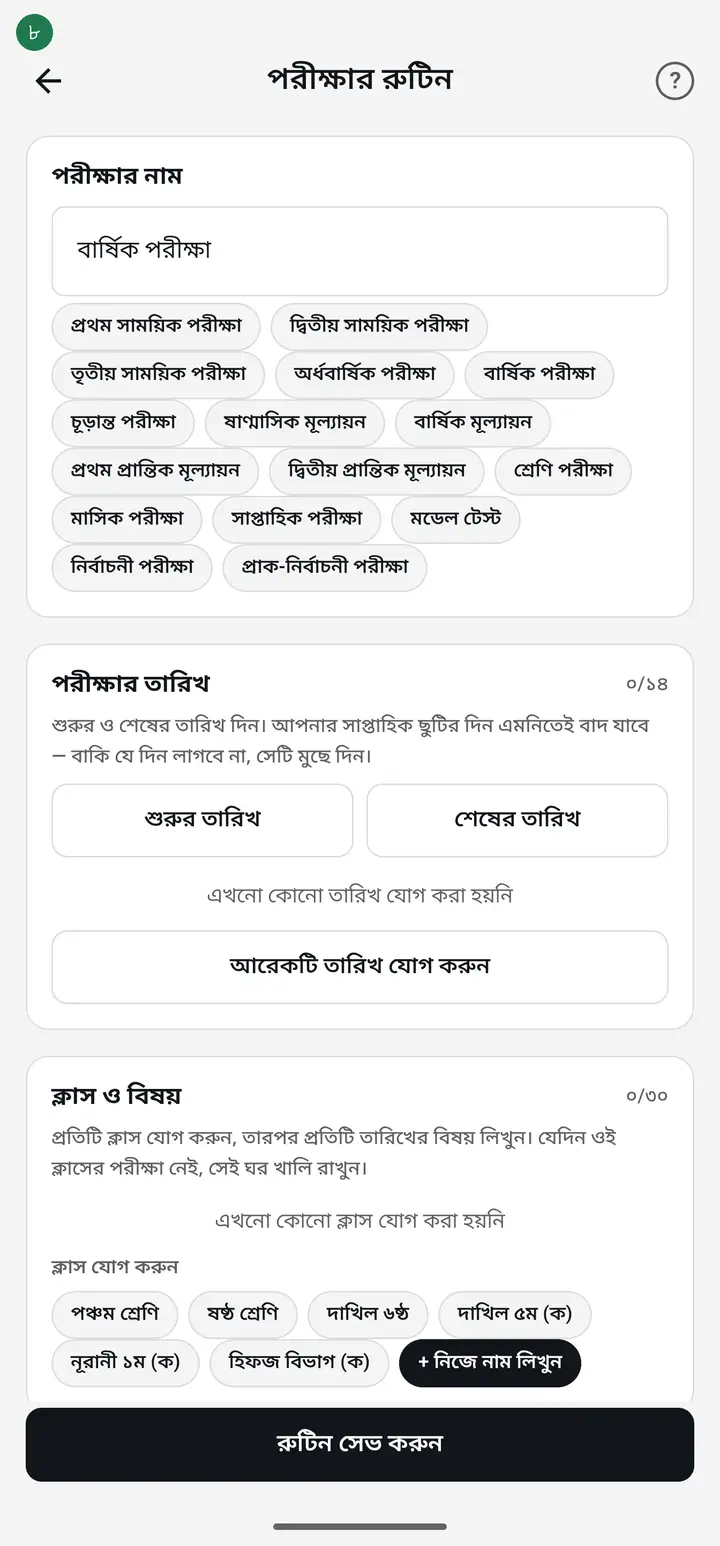
Your weekly holiday is left out automatically — you do nothing for it. Of the remaining days, delete any you do not need.
-
Then "ক্লাস ও বিষয়" (Classes and subjects). Under "ক্লাস যোগ করুন" (Add a class) your classes are listed as rounded chips. Tap the class that is sitting the exam. If several classes are sitting it, tap each one in turn. If your morning and afternoon shifts are separate classes in the app, tap both chips — they join the same routine as two rows and print together on one page.
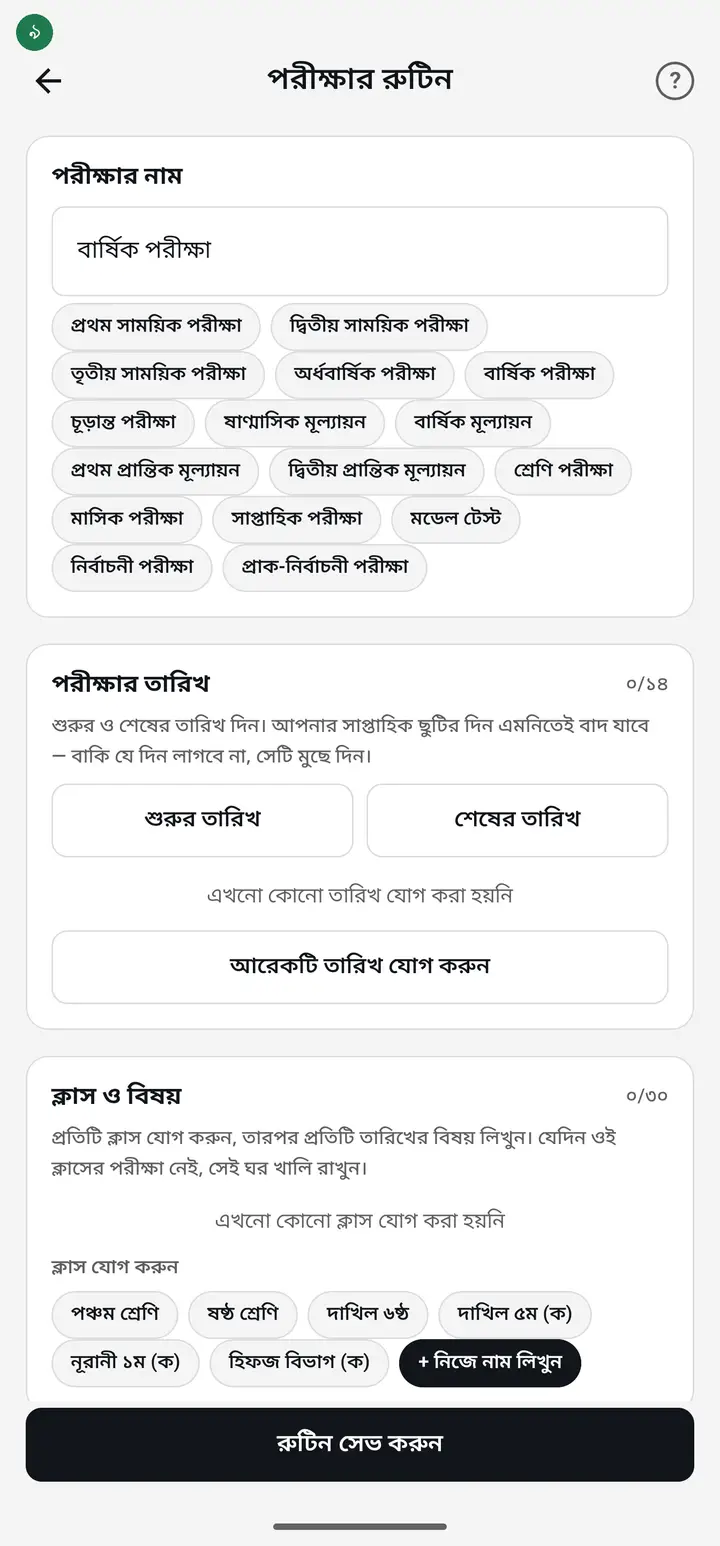
If your shift is not in the list, "+ নিজে নাম লিখুন" (Type a name yourself) lets you hand-type a row name — "তৃতীয় শ্রেণি (বিকাল)" for example. Printing, PDF, and sharing all work fine with it. Only "অভিভাবকদের পাঠান" (Send to guardians) will not work for that row, since a hand-typed name has no guardians linked to it. If the shift is actually a separate class in the app, tap that class chip instead of typing.
-
Once a class is added, type the subject into the box for each date — "বাংলা ১ম পত্র" for example. You can add a start and end time as well. On a day that class has no exam, just leave the box empty.
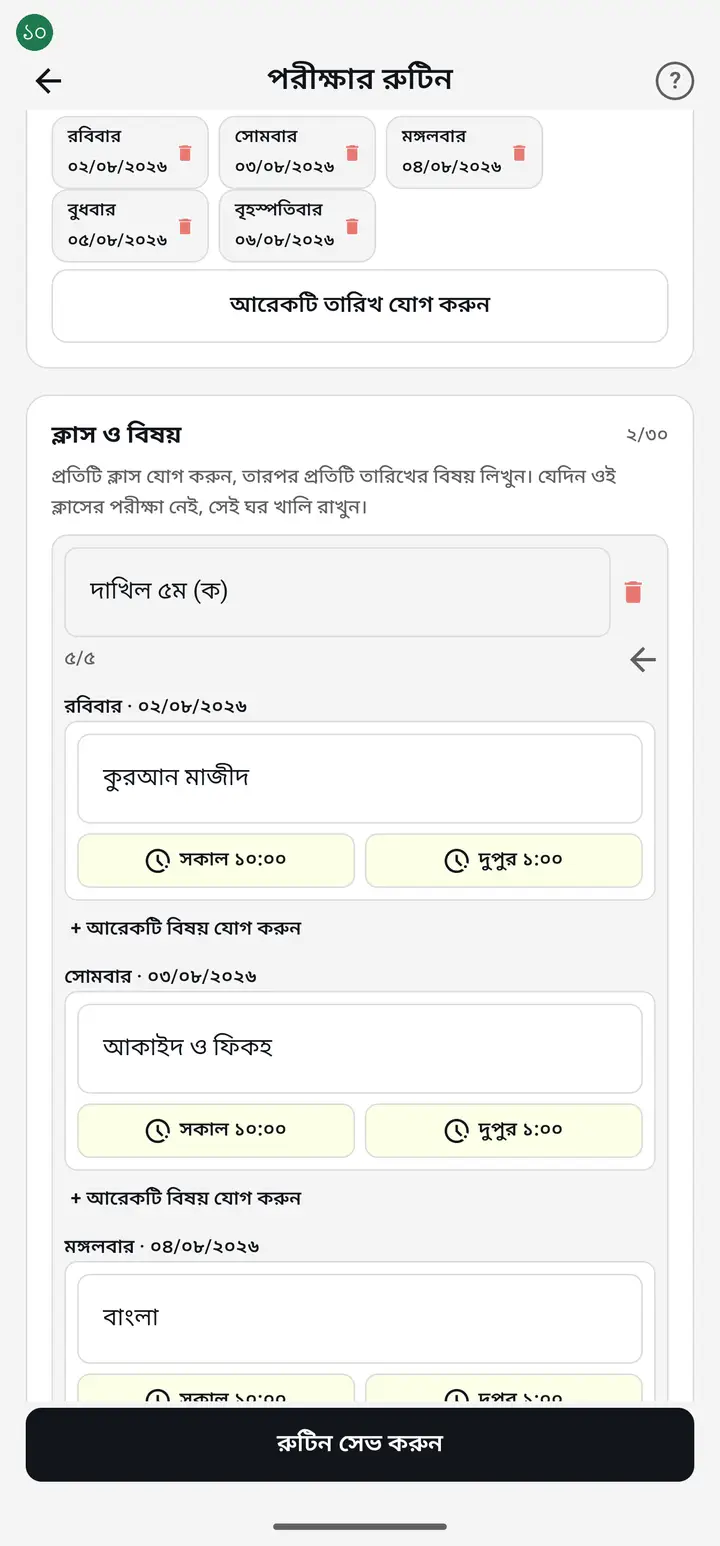
-
If one subject is in the morning and another in the afternoon on the SAME day, tap "+ আরেকটি বিষয় যোগ করুন" (Add another subject) under that date. A second box appears. Put a different subject in each, and give each one its own "শুরুর সময়" (start time) and "শেষের সময়" (end time) — say 10:00–13:00 for the first and 14:00–16:00 for the second. Both print in that day's cell with their times.
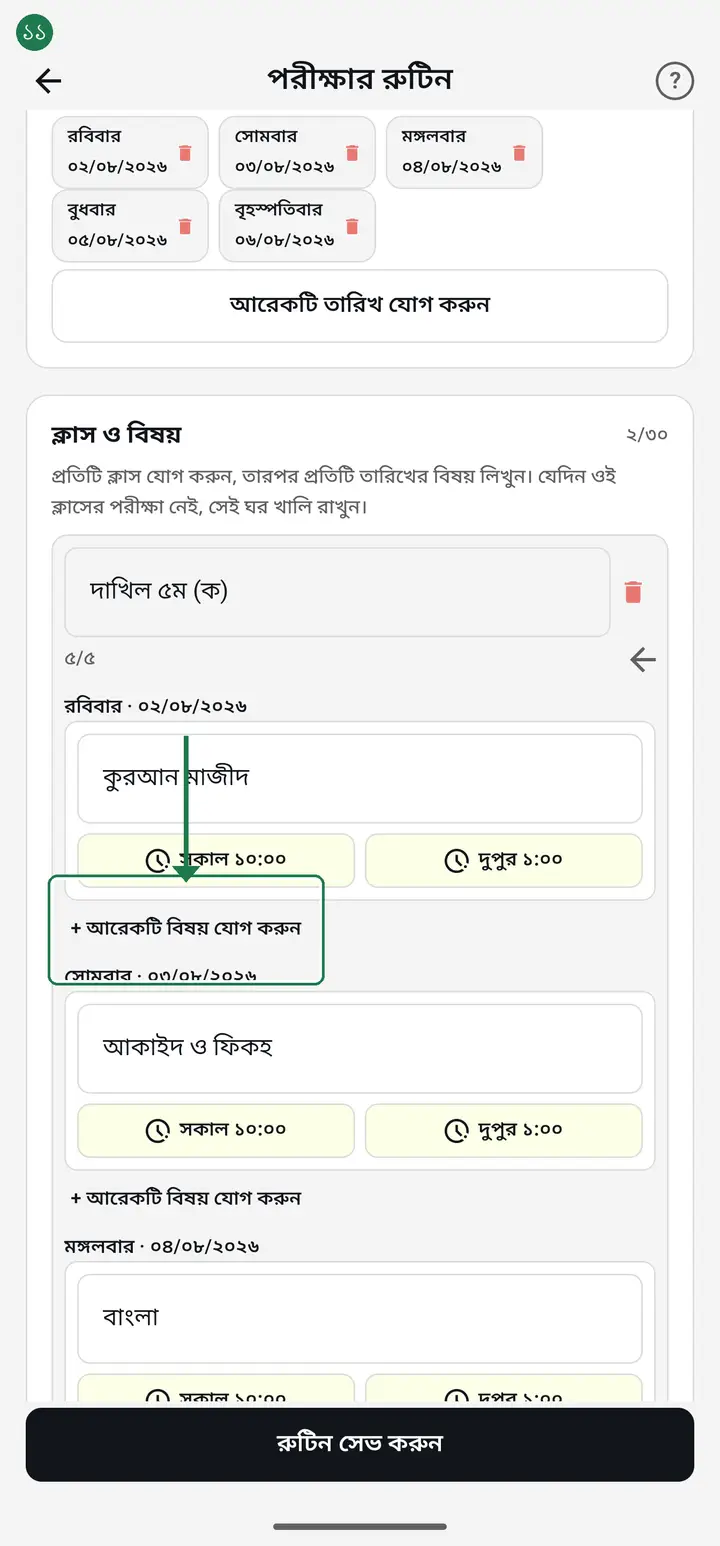
Without times, only the subject names print and nothing tells morning from afternoon. If you run two shifts, always fill in the times.
-
"নিয়মাবলি ও নির্দেশিকা" (Rules and instructions) below is already written for you — exam timing, admit card, submitting the answer script. It prints underneath the table. If your rules differ, edit them right here.
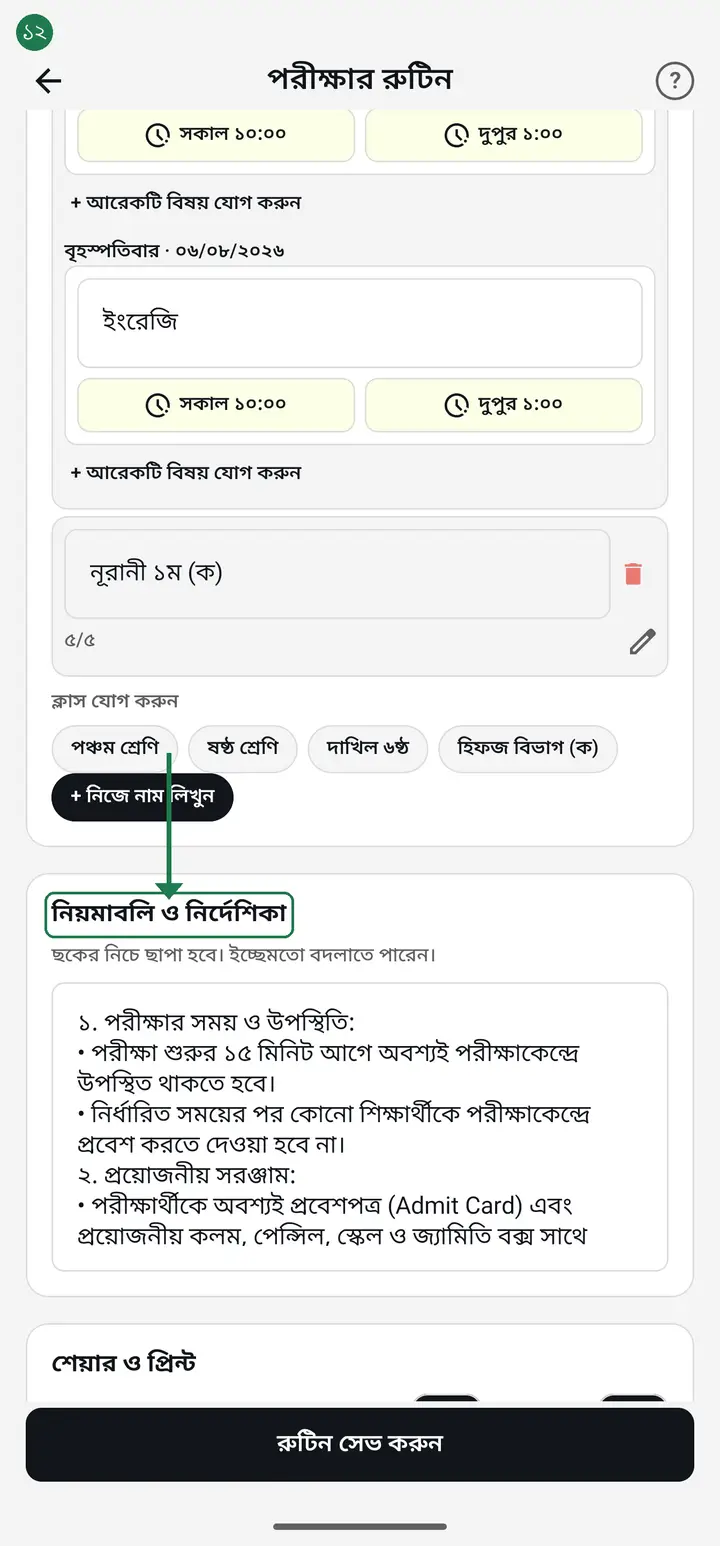
-
When everything is filled in, tap "রুটিন সেভ করুন" (Save routine) at the bottom. "রুটিন সেভ হয়েছে" (Routine saved) confirms it.
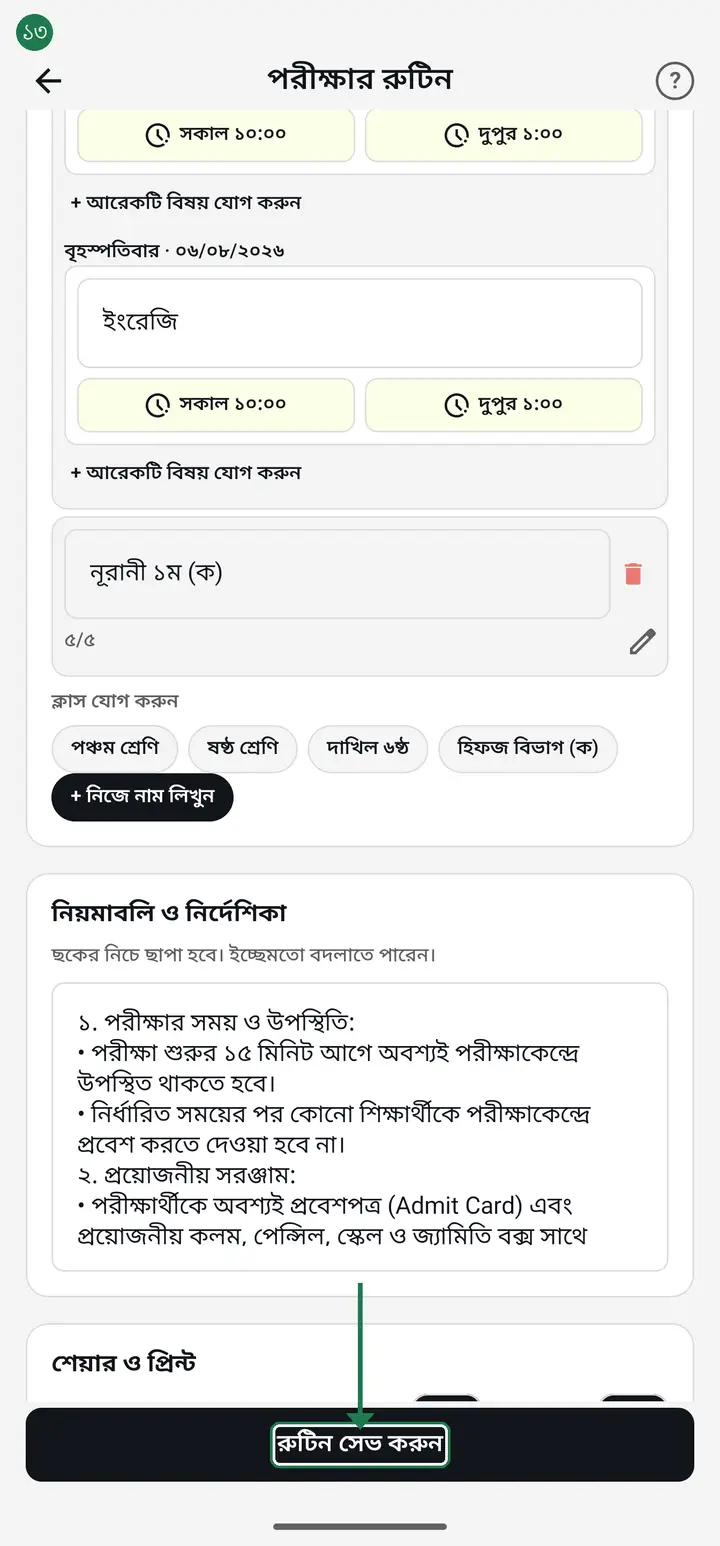
Until you save, no print or send buttons appear at all. This is where people get stuck and conclude the options do not exist — they appear only after saving.
-
After saving, open the routine again from the list. Right at the bottom, inside it, you will find the "শেয়ার ও প্রিন্ট" (Share and print) box — all four actions live there.
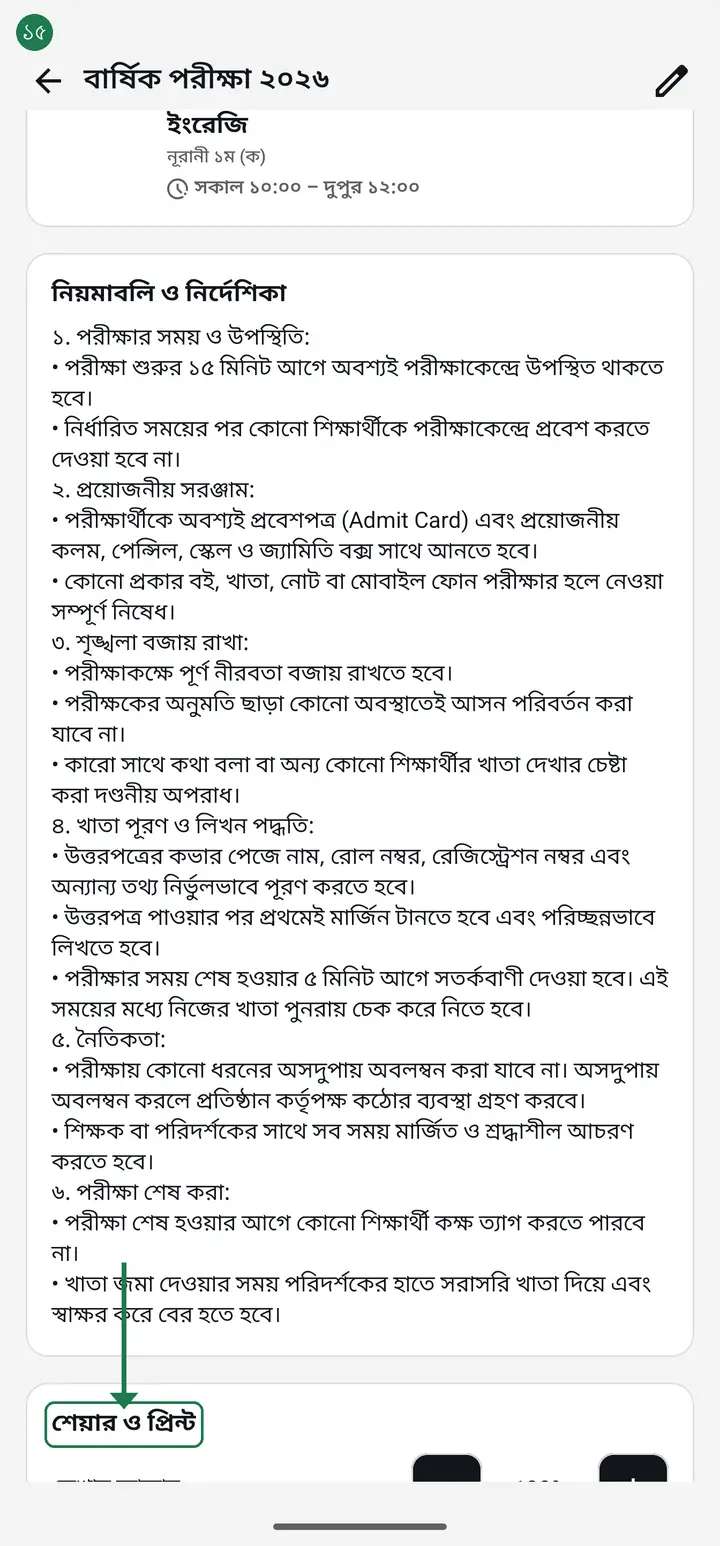
The list page also has a small "শেয়ার ও প্রিন্ট" next to the routine name. That one gives only two actions — print and send-to-parents. "Share as text" is not there. So open the routine first, then use the "শেয়ার ও প্রিন্ট" at the bottom.
-
On the same page, higher up and just above the dates, there is a two-part button — "তালিকা" (List) and "গ্রিড" (Grid). It opens on "তালিকা", so you scroll down day by day. Tap "গ্রিড" and the whole routine turns into one table — a "শ্রেণি" (Class) column down the left, one column per date across the top, the subject and time in every cell. Every class and every day on one screen. With many dates, drag the table sideways.
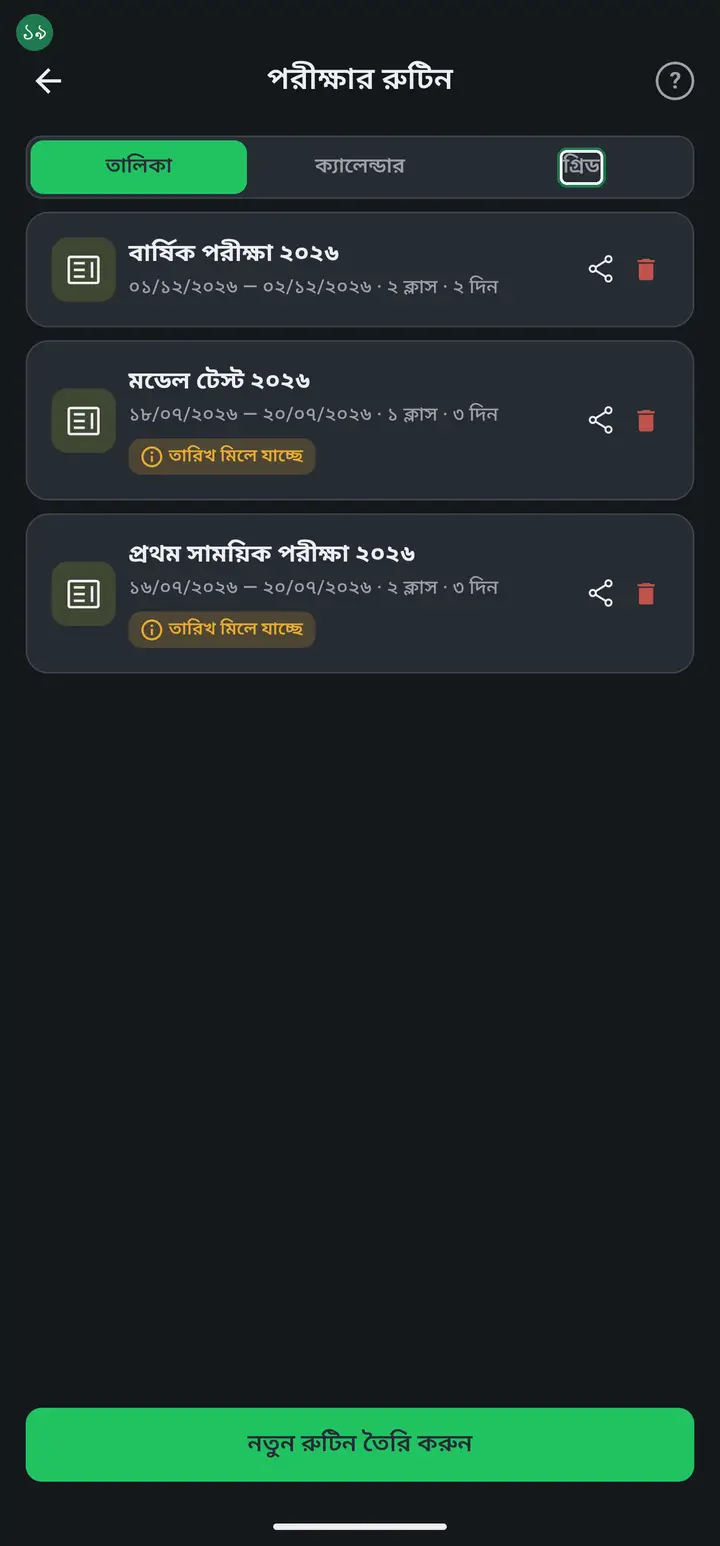
Other teachers opening it through "প্রতিষ্ঠানের রুটিন" get the exact same "তালিকা / গ্রিড" button — that page now has the whole table too, plus its own print/share button, so nobody needs to be sent a picture. They can print or save the PDF themselves.
-
To print on paper or save a PDF, tap "প্রিন্ট / পিডিএফ". If the text looks too small for a notice board, tap the plus (+) on "লেখার আকার" (Text size) above to enlarge it first.
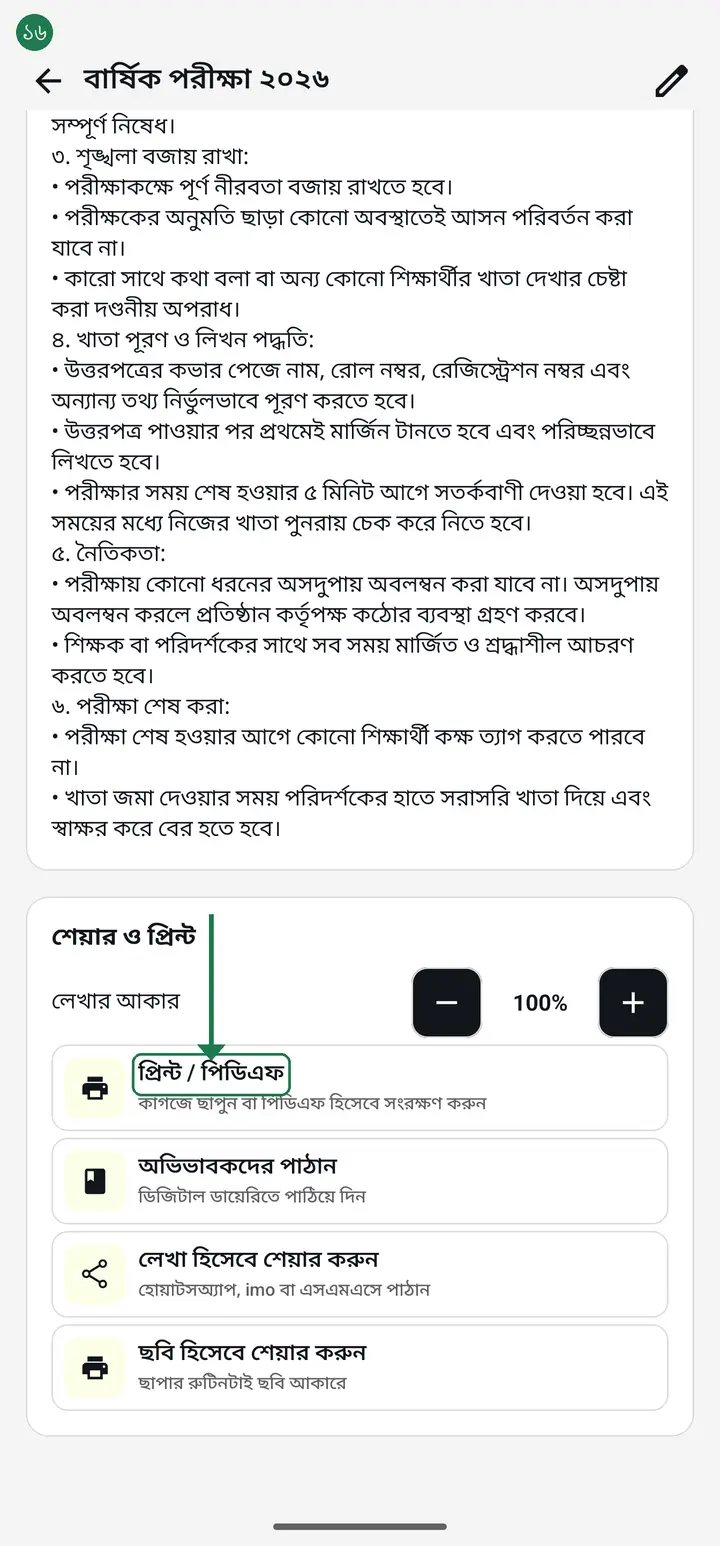
The routine always prints on A4 — there is nothing to choose. Orientation is decided for you too: when the dates no longer fit a portrait page (many dates, or larger text), the page turns to landscape by itself so the routine stays on ONE sheet. There is no separate "landscape" button. If everything fits, it stays portrait, and that is not a fault.
-
To tell guardians, tap "অভিভাবকদের পাঠান" (Send to guardians). The routine goes into the digital diary, and the app tells you how many classes it reached.
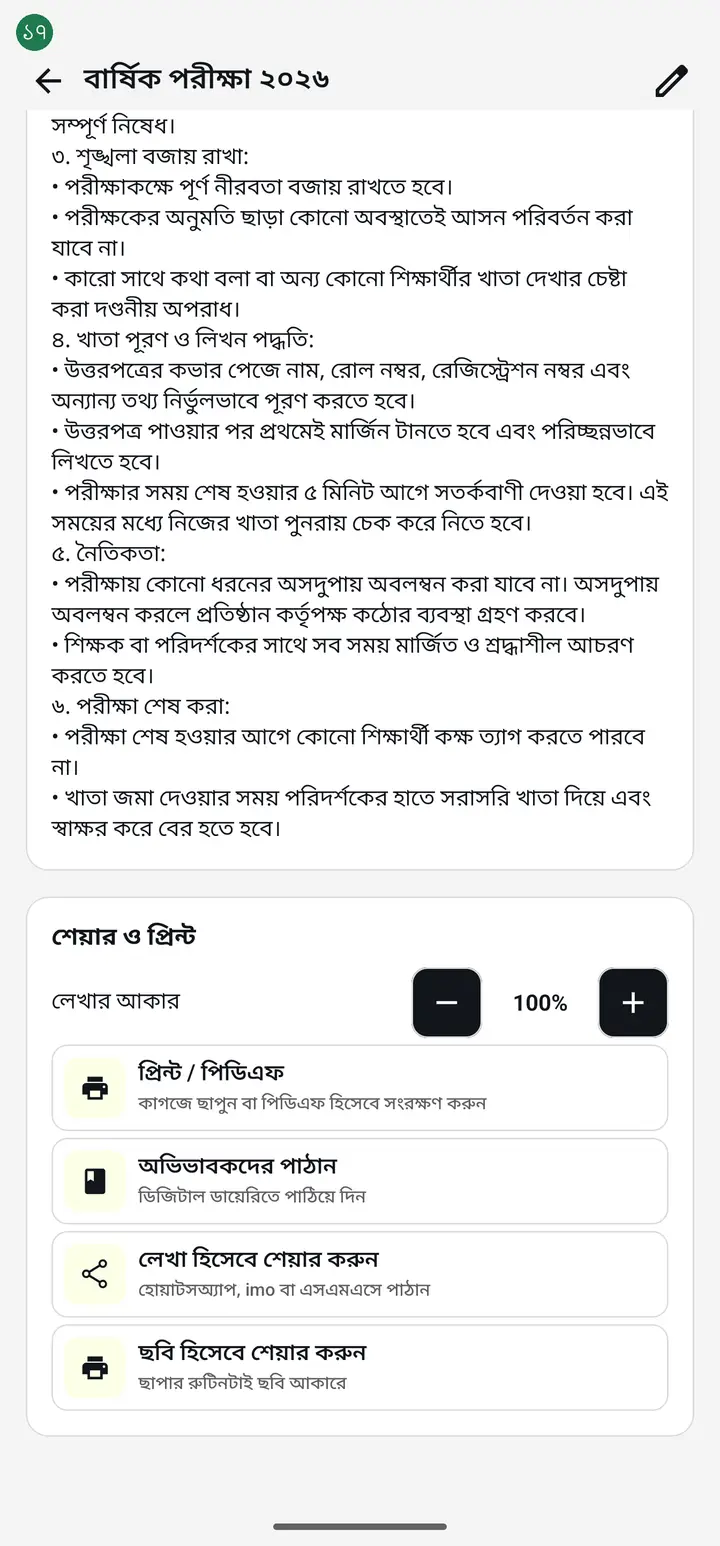
This one tap does two jobs — guardians get it in the diary, and every other teacher in the institution can see it too.
-
If no guardian is connected yet, or you only want teachers to see it, tap "প্রতিষ্ঠানে প্রকাশ করুন" (Publish to institution) instead of "অভিভাবকদের পাঠান" — it sends nothing to any guardian, it only makes the routine visible to other teachers under "প্রতিষ্ঠানের রুটিন".
Just tapping "সেভ" (Save) keeps a routine on your own phone only. Until you tap EITHER "অভিভাবকদের পাঠান" or "প্রতিষ্ঠানে প্রকাশ করুন", no other teacher sees anything. Building a SECOND exam routine for the same class (e.g. দ্বিতীয় সাময়িক after প্রথম সাময়িক) needs this same tap again — publishing the first one does not publish the second automatically.
-
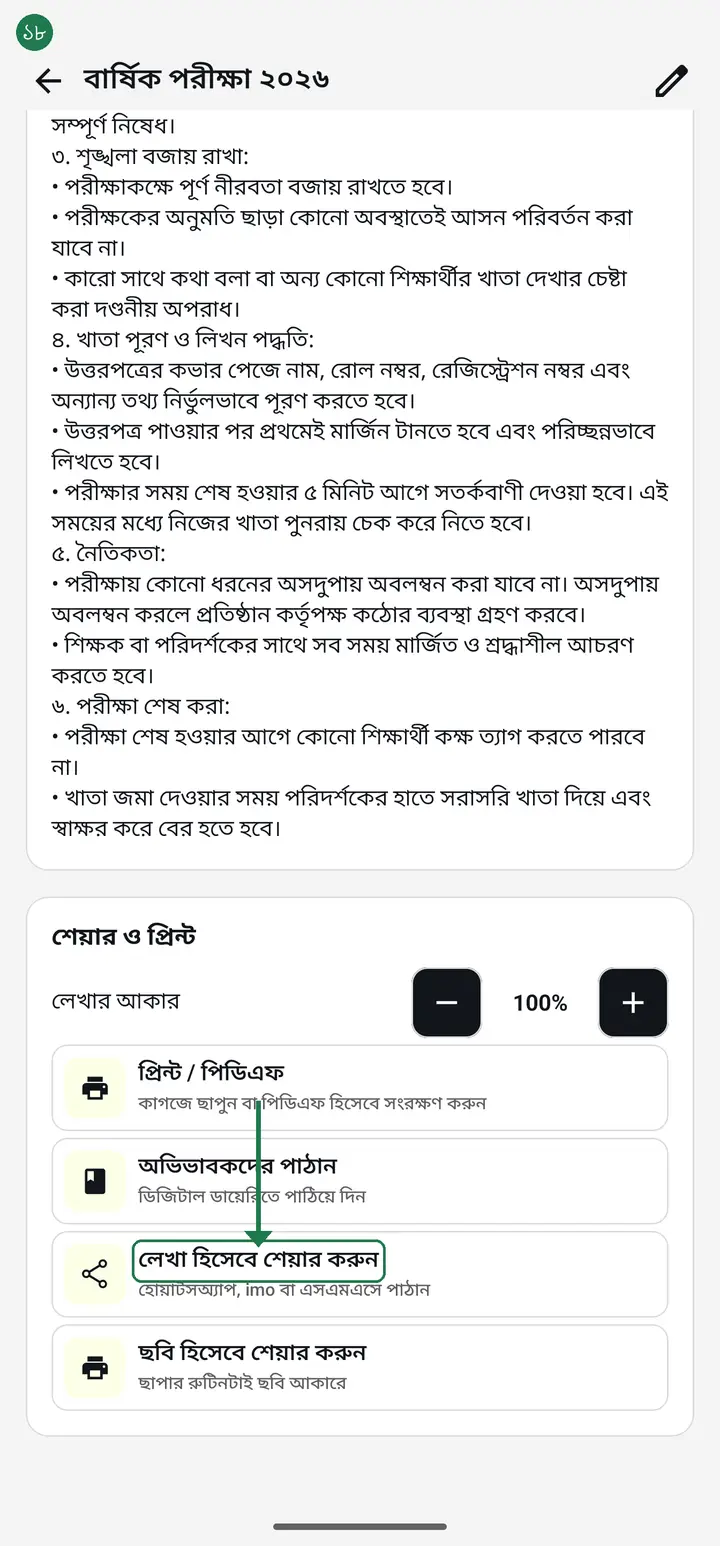
To send it on WhatsApp or imo, tap "লেখা হিসেবে শেয়ার করুন" (Share as text). To send a picture instead, tap "ছবি হিসেবে শেয়ার করুন" (Share as an image) — you get exactly what would have been printed, as a picture.
-
If you already made a separate routine for each class and now need them on one sheet, go back to the routine list. Tap "গ্রিড" on the "তালিকা / ক্যালেন্ডার / গ্রিড" button at the top and all your routines join into one table. The "সব ক্লাস একসাথে প্রিন্ট / পিডিএফ" (Print all classes together) button sits directly above that table — tap it to print or PDF every class on one sheet. If you do not see the button, update the app from the Play Store.
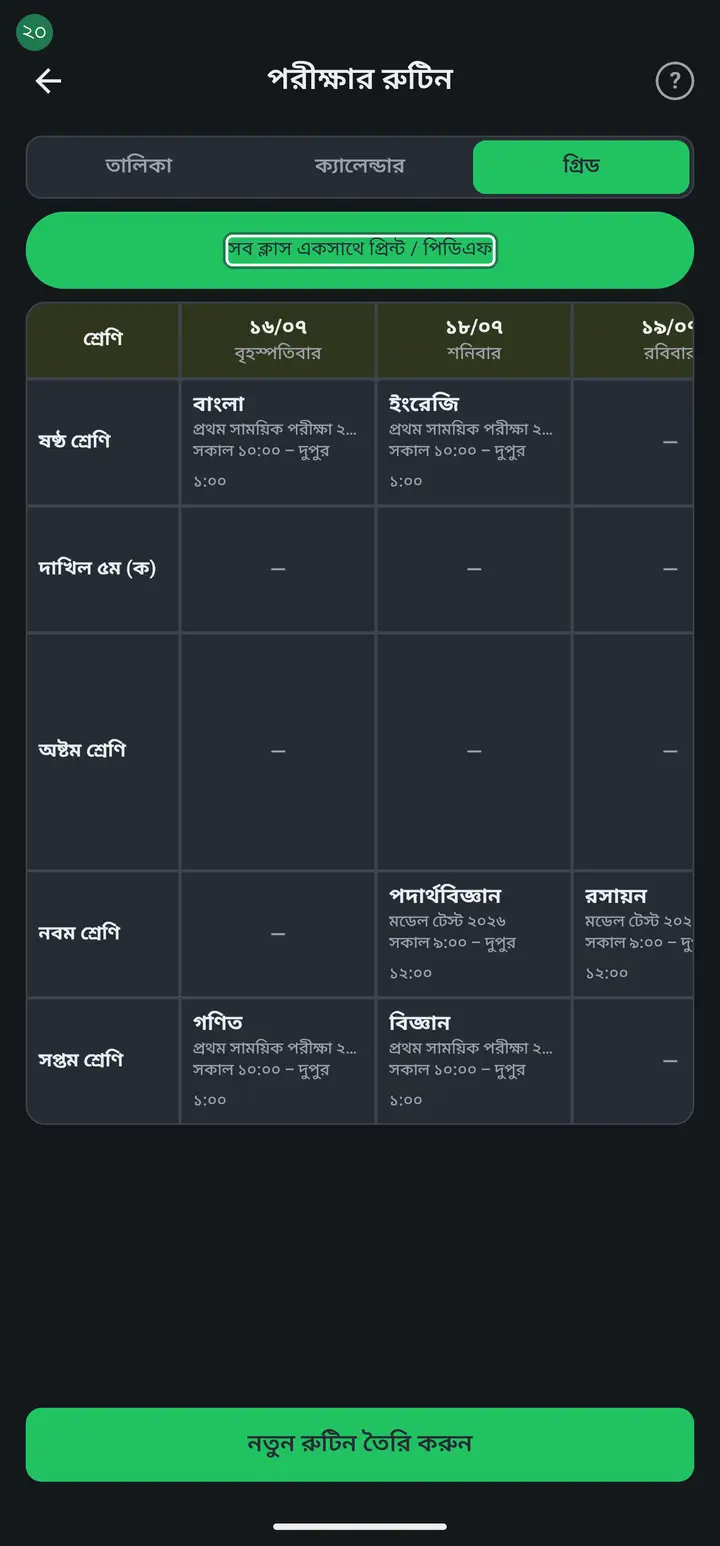
It may not all fit on one sheet — at most 120 class rows and 60 dates are printed. Beyond that the app tells you itself: "এক পাতায় সব ধরল না — N টি শ্রেণি ও N টি তারিখ বাদ পড়েছে". When you see that, split the routine and print it in parts; nothing is ever dropped silently. || Also: in this merged table the classes follow the institution's own class serial, whatever order the routines were created in.
Common questions
I built the exam routine but other teachers and assistants cannot see it. Why?
A routine you only create stays on the phone that made it. To reach anyone else it has to be shared once — open the class, tap "ডিজিটাল ডায়েরি" → "পরীক্ষার রুটিন শেয়ার" and send. After that every teacher sees it under "প্রতিষ্ঠানের রুটিন" in the Routine tab. This is needed even when no guardian is connected.
After sharing, the other teacher has no "প্রতিষ্ঠানের রুটিন" card at all.
That card is new. If their Routine tab shows four cards instead of five their app is older — updating brings the card in. Nothing is wrong with the app.
Does it print on A4? Where is the landscape option?
A4 needs no thought — the routine always prints on A4. There is no separate landscape button because the app decides it for you: when the dates no longer fit a portrait page, it turns to landscape by itself so the routine stays on one sheet instead of splitting across two. With few dates it fits portrait comfortably, so it is not rotated. If you want to force it, keep tapping the plus (+) on "লেখার আকার" (Text size) — once it stops fitting portrait, the page turns on its own.
How do I separate a morning and an afternoon exam on the same day?
Under that date there is "+ আরেকটি বিষয় যোগ করুন" (Add another subject) — tap it and a second box appears for the same day. Put the morning subject in the first and the afternoon one in the second, and give each its own "শুরুর সময়" (start time) and "শেষের সময়" (end time). You can add as many slots per day as you have shifts, each with its own time. Both appear in that day's cell on the printed routine, with their times.
I made the routine but other teachers cannot see it. Why?
Almost always because "অভিভাবকদের পাঠান" was never tapped after saving. Saving alone keeps the routine to yourself; that button is what sends it to everyone in the institution. Open the routine, go to "শেয়ার ও প্রিন্ট" and tap "অভিভাবকদের পাঠান" once, then ask the other teacher to close and reopen the app.
Where do I see a routine another teacher made?
Tap "প্রতিষ্ঠানের রুটিন" (Institution routines), the bottom card in the Routine tab. It has two halves at the top — "ক্লাস রুটিন" and "পরীক্ষার রুটিন". Tap whichever you want, then tap the class name.
I made a SECOND exam routine for the same class (e.g. দ্বিতীয় সাময়িক), but "প্রতিষ্ঠানের রুটিন" still shows only the first one. How do I bring up the second?
Three possible reasons. One — the second one has not been PUBLISHED yet: saving a routine does not send it to other teachers by itself, you still have to tap either "অভিভাবকদের পাঠান" or "প্রতিষ্ঠানে প্রকাশ করুন", separately for each routine. Two — if both are published, tapping the class name shows a picker at the top asking which exam you want; choose the second one from there. Three, and this is the most common — if the two routines have the EXACT same name (both called "দ্বিতীয় সাময়িক পরীক্ষা", say), the grid on "প্রতিষ্ঠানের রুটিন" treats them as one and shows only one. Your routine is not lost, it just is not being drawn. The fix that works today: give them different names, e.g. "দ্বিতীয় সাময়িক পরীক্ষা — ২৪ আগস্ট" and "দ্বিতীয় সাময়িক পরীক্ষা — ৩০ আগস্ট". Different names and both appear. (Showing two same-named routines separately is already fixed in code and will arrive in a coming version.)
I changed the subjects in a published routine, but the institution still shows the old subjects. The dates are correct though.
Correct dates with stale subjects is almost always reason three above — two routines sharing a name. What you edited is saved; the grid is simply drawing the other routine. Open your routine list and check whether two cards carry the same name — if so, give them different names and tap "প্রতিষ্ঠানে প্রকাশ করুন" again. Nothing has been lost.
I want every class and every date in one table. Why do I have to look at one class at a time?
The table is already in the app; it is just easy to miss. Open the routine from the list and tap "গ্রিড" on the "তালিকা / গ্রিড" button above the dates — "শ্রেণি" down the left, dates across the top, subject and time in each cell. Every class you added to that routine appears as a row, and this is exactly what prints on paper and in the PDF. Reading somebody else's routine through "প্রতিষ্ঠানের রুটিন" now has the same "তালিকা / গ্রিড" button, and you can print or share directly from there too.
I tapped "অভিভাবকদের পাঠান" but it said no class is attached. What now?
You typed the class name by hand using "+ নিজে নাম লিখুন". A hand-typed name is not linked to any class in the app, so it has no guardians to deliver to. Open the routine, pick the real class from the chips under "ক্লাস যোগ করুন" for that row, save, and send again.
A yellow "তারিখ মিলে যাচ্ছে" mark appeared. Is something wrong?
Nothing is broken. The app is only reminding you that this routine's dates overlap another routine's. Check that the same class does not have two exams on one day. If it is fine, you can ignore the mark.
I found a mistake after making the routine. Can I change it?
Yes. Open it from the list, tap the pencil at the top right, fix it and tap "রুটিন সেভ করুন" again. After editing, remember to tap "অভিভাবকদের পাঠান" once more so guardians and other teachers get the corrected version.
Can I make a routine with no internet?
You can make and save it. But sending it to guardians or to other teachers needs a connection. Once you are back online, open the routine and tap "অভিভাবকদের পাঠান" once.
I made a separate routine for each class. How do I get them all in one PDF?
Two ways. || 1) The easy one, and it works in every build today — open ONE routine and use "ক্লাস যোগ করুন" (Add class) to put the other classes into it as extra rows. Then "প্রিন্ট / পিডিএফ" gives you every class on one sheet: class down the left, dates across the top, subject and time in each cell. One routine holds up to 30 classes, which covers a whole exam for most madrasas. || 2) To keep the separate routines as they are, tap "গ্রিড" on the "তালিকা / ক্যালেন্ডার / গ্রিড" button above the routine list — every routine appears in one table. A button to print or PDF that table directly ("সব ক্লাস একসাথে প্রিন্ট / পিডিএফ") sits right above that table. If you cannot see it, update the app, or use method 1.
Ask AI about this page
Ask an AI app to explain this page in simple language.
Copied — now paste it
Get Hazira Khata free on Google Play
More tutorials
- How to sign in Signing in for the first time with your phone number. No email or password needed.
- Add a second way to sign in to one account Add Gmail to an account created with a phone number. It stays one account and nothing inside it changes.
- How to mark your own attendance As a teacher you can record your own daily attendance — it takes one tap.
- Check your salary and sign "received" When your school records your salary, the app tells you. Check the receipt and tap "বেতন বুঝে পেয়েছি" (Salary received) to leave your own digital signature — proof for both sides.
- How to create a class Before you can take attendance you create the class once. A one-time job.
- Putting your classes in your own order — press, hold and drag KG Two showing before KG One? Classes appear in the order you created them. On the "শ্রেণী কার্যক্রম" page, press and hold a card and drag it where you want — no need to rename anything.
- Make receipts and results look right — font and size Documents printing in an ugly font? Change it in one place and the receipt, result slip and certificate all change together.
- How to add students Enter each student's name and roll once. After that, daily attendance is just ticking boxes.