
How to add a whole class at once
You do not have to type 40 names one by one. Type or paste the list and add everyone at once — no computer needed.
The screenshots show the app in Bangla, its main language. The buttons sit in the same places in English.
-
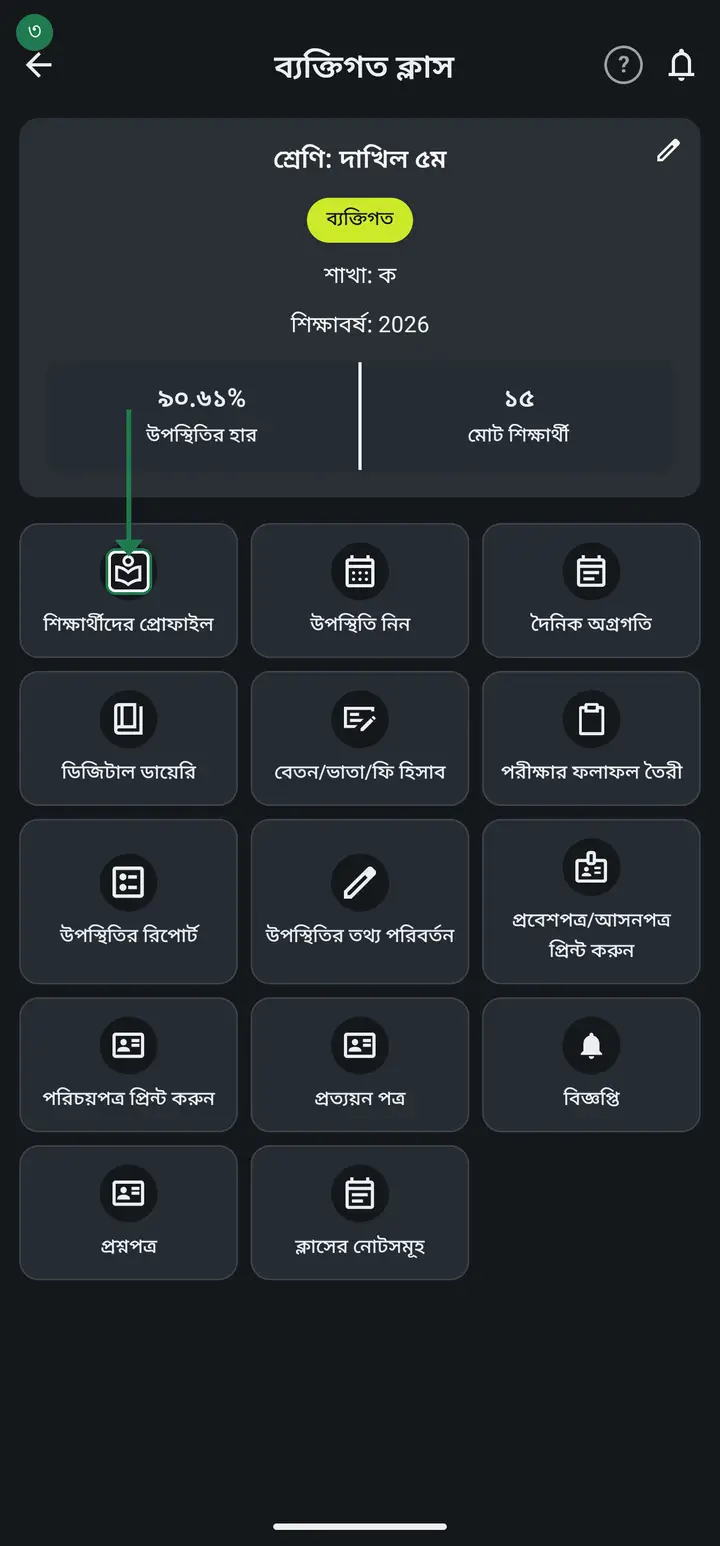
Tap "দেখুন" (View) on the class card, then "শিক্ষার্থীদের প্রোফাইল" (Student profiles).
-
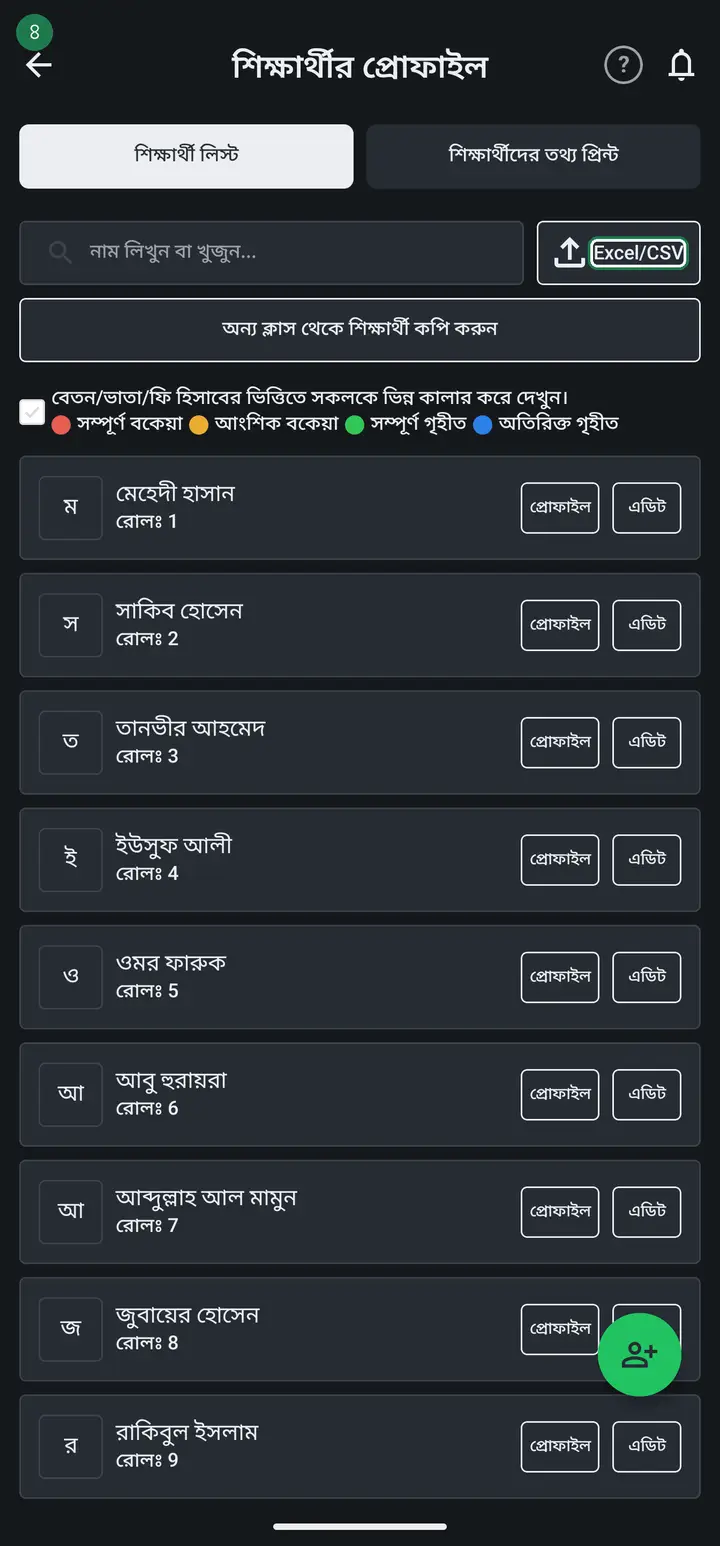
Tap the "Excel/CSV" button at the top right. The "শিক্ষার্থী ইম্পোর্ট" (Student import) page opens.
-
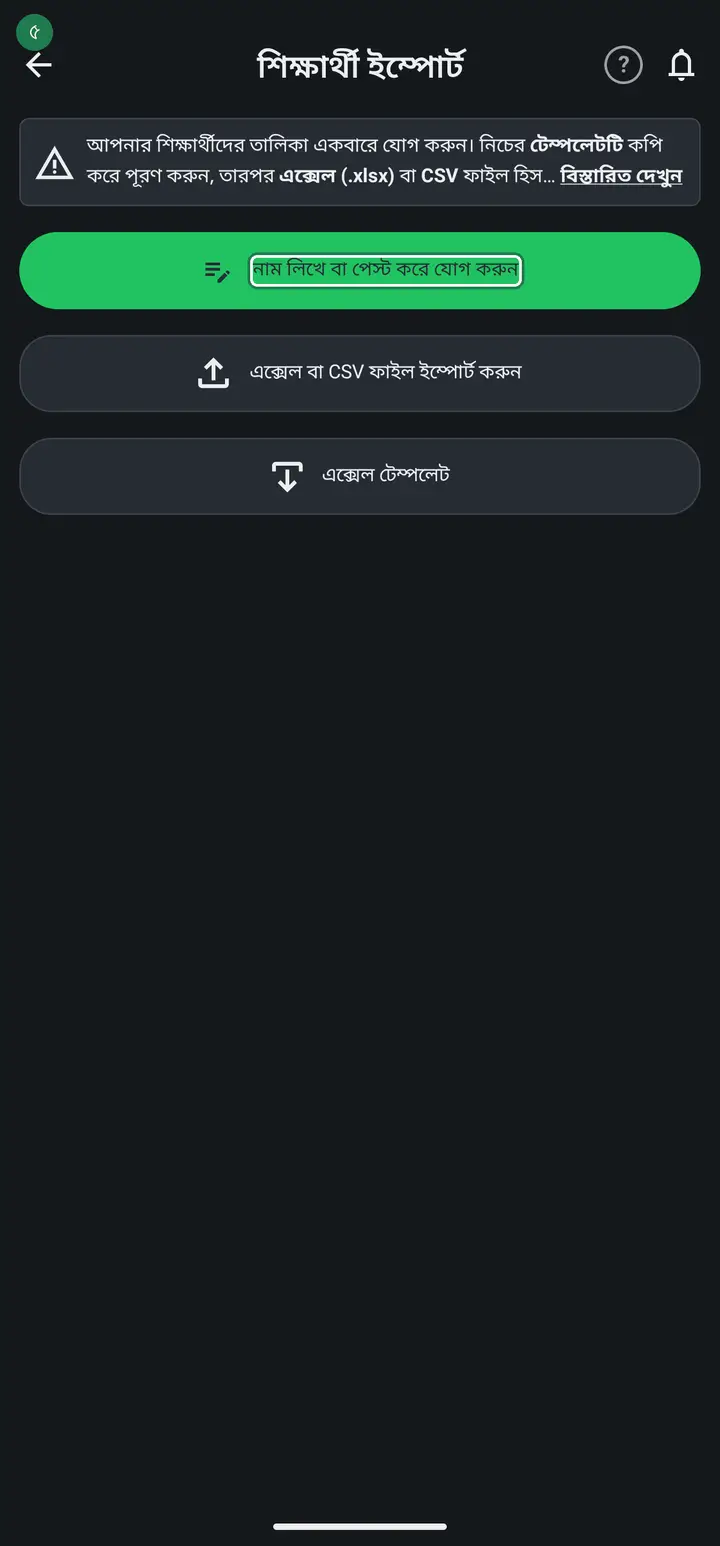
Tap the black button at the top — "নাম লিখে বা পেস্ট করে যোগ করুন" (Type or paste the list). This is the easiest path and needs no computer.
-
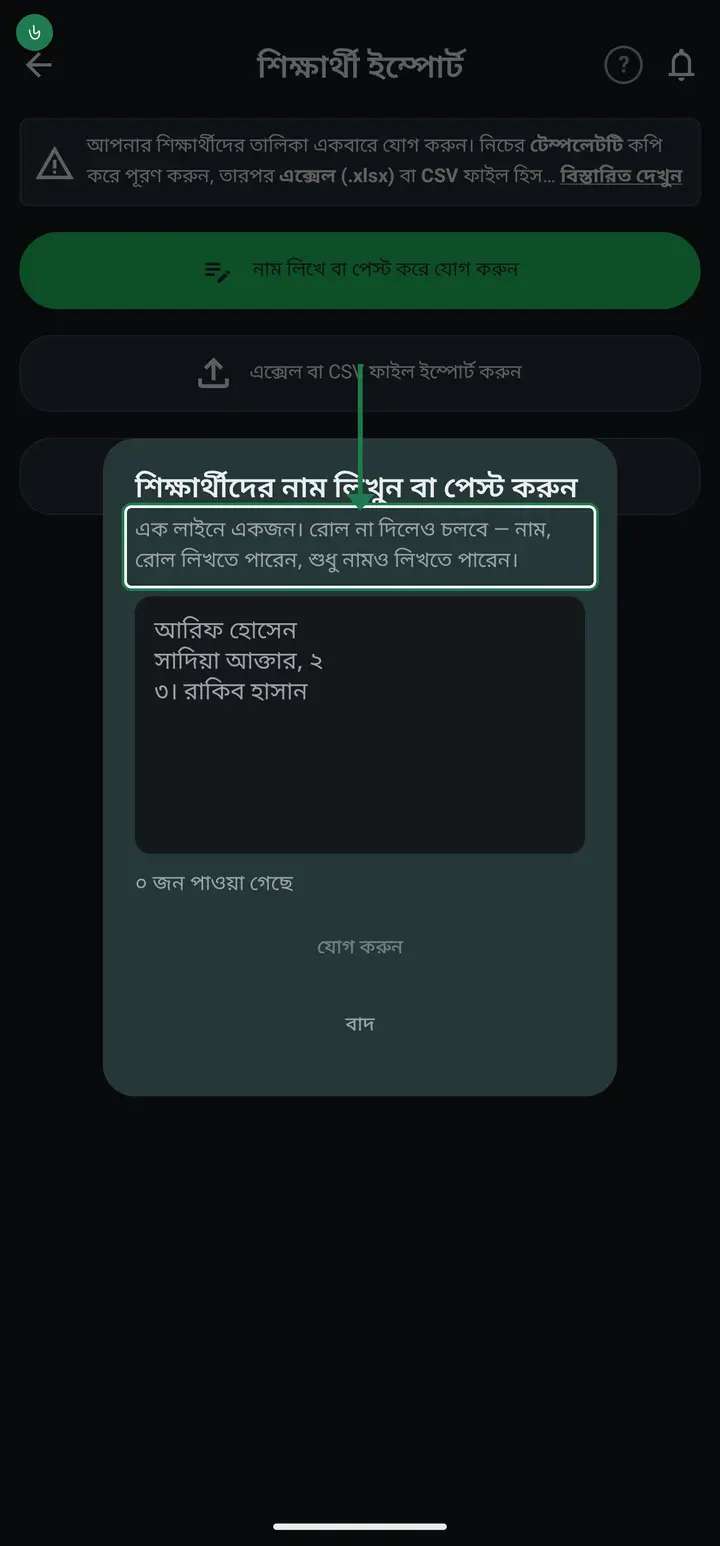
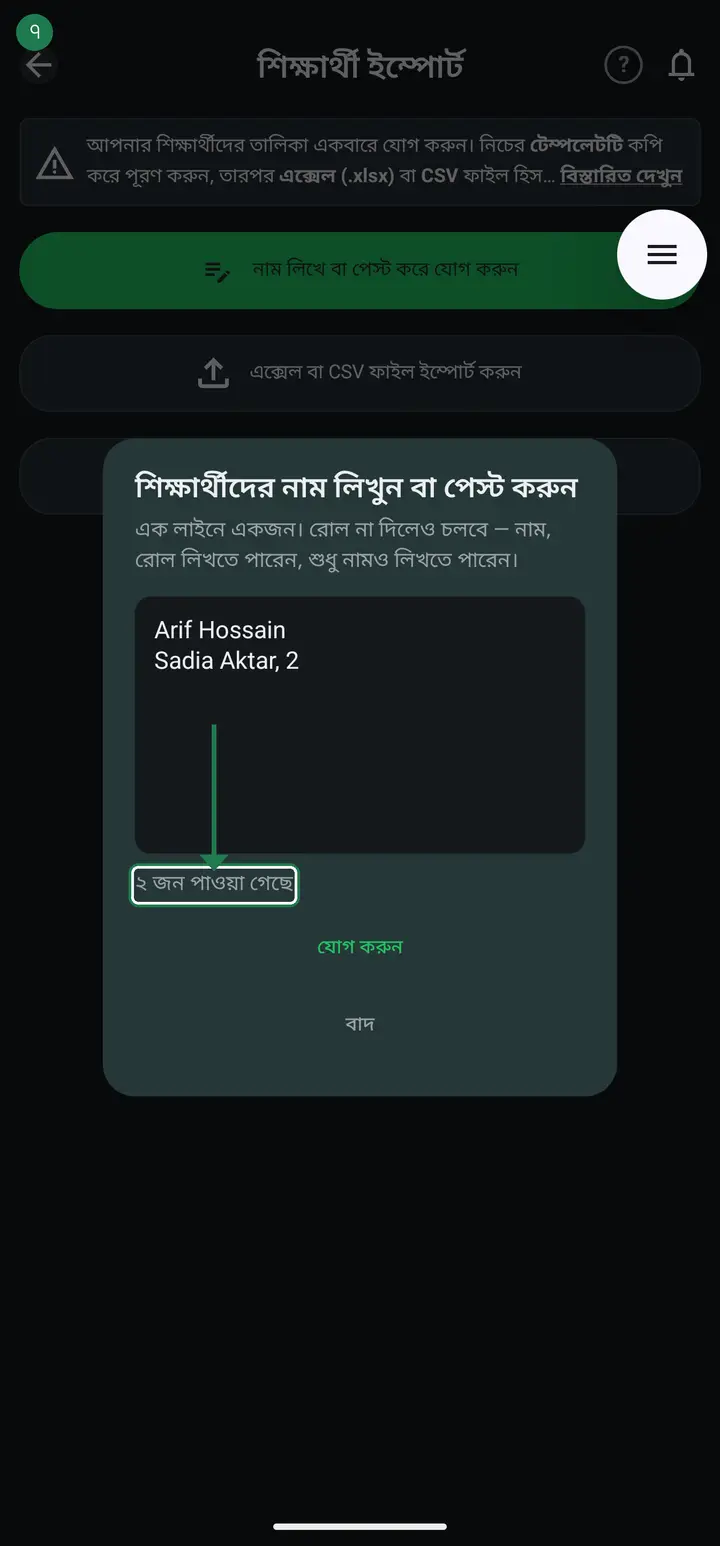
Type one student per line in the box. You can also copy a list from WhatsApp or a note and paste it straight in.
-
To set a roll, put it after a comma — "Arif Hossain, 2". If you skip it, the app fills the roll in order for you.
-
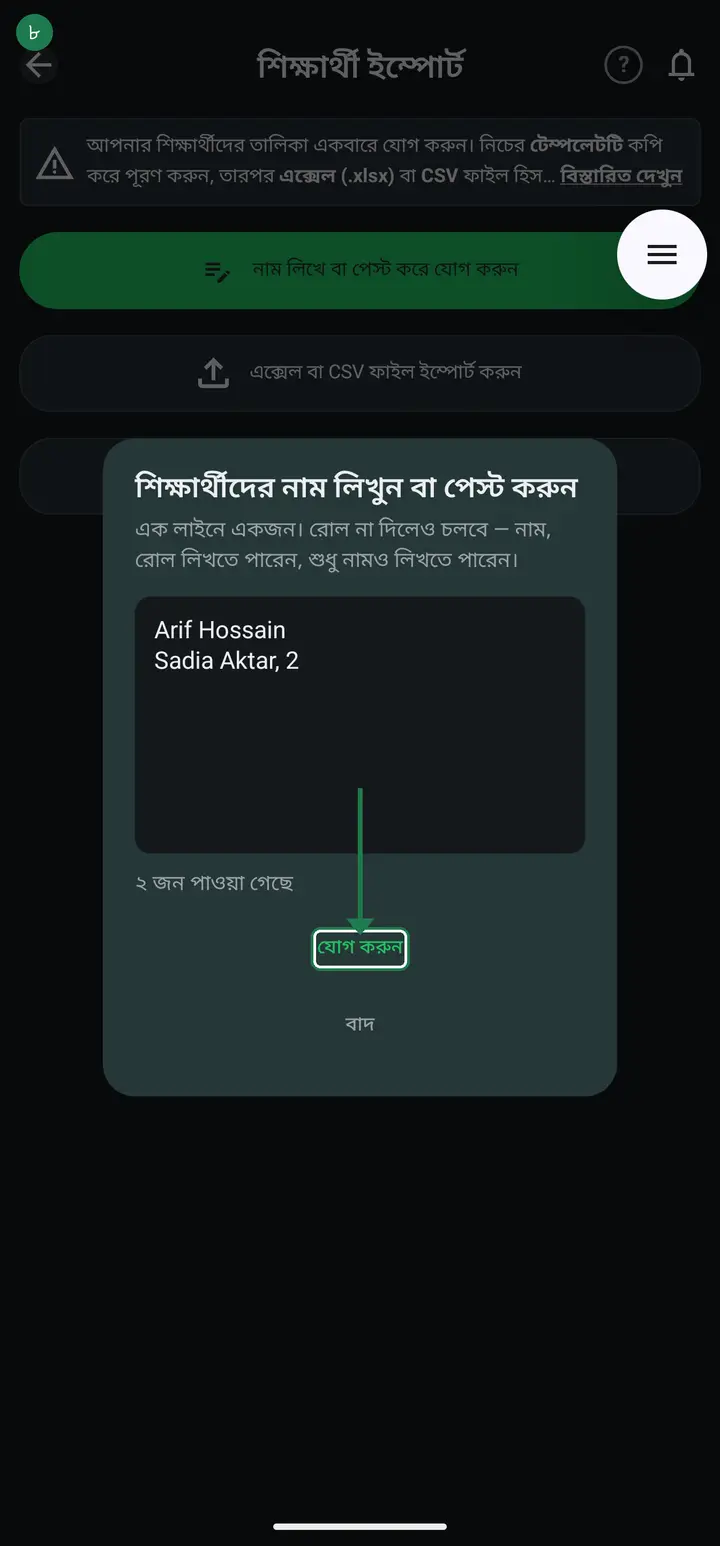
Check the count under the box — "40 students read". If the number matches, tap "যোগ করুন" (Add them).
-
After they are added, open two or three student profiles and check the values landed in the right fields — especially "পিতা/অভিভাবকের নাম্বার" (Guardian number). Never skip this when the list came from an Excel or CSV file: if one column is shifted by one, all 40 students are shifted, and you only find out much later — the day Digital Diary or SMS does not reach anyone.
Common questions
Can the Excel import bring in registration numbers too?
Yes, from version 3.2.273. Add one new column at the very end of the Excel file (after the birth-date column) and head it "রেজিস্ট্রেশন নম্বর" — leave every other column as it is. Bangla or English digits both work. An older file without that column imports exactly as before.
It says my column order does not match the template, but my file is fine — what do I do?
First, nothing of yours was damaged — the import simply stopped. The app reads your column headings to work out what each column holds, and when it cannot recognise a word it assumes the columns are shifted; "বাবার নাম্বার" is one the older version did not know. The newer update changes this: instead of refusing, it shows you how your first student would be stored and asks "is this correct?" — you look, tap yes, and it imports. Until that update reaches you, the quickest route is to download the template and paste your data into it, or rename your headings to match it.
Which columns are actually required?
Name and roll. Without those two, no student is added at all. Every other column can be left empty and filled in later.
Can I paste a list someone sent on WhatsApp?
Yes. Copy the WhatsApp message and paste it into the box. Even a numbered list like "1. Arif Hossain" works — the app reads the number as the roll, so you do not have to clean it up first.
Can I write the roll in Bangla numerals?
Yes. ১, ২, ৩ are read correctly as rolls.
Some students are already in the class — will pasting mess up the rolls?
No. The app starts numbering from one past the highest roll already in the class. Nobody's existing roll changes.
What if a name or roll is repeated?
The app catches it. Students whose roll is already in the class are skipped, the rest are added, and a message tells you exactly who was skipped — nothing existing is overwritten.
Can I still bring students in from an Excel or CSV file?
Yes. The same page has "এক্সেল বা CSV ফাইল ইম্পোর্ট করুন" (Import Excel or CSV) and an "এক্সেল টেমপ্লেট" (Excel template) you can fill in. That path is useful when the list is already on a computer. If you only have a phone, pasting is far easier.
After importing I can see the guardian numbers are wrong — should I fix them one by one?
Please do not. Before you sit down to retype 300 numbers, tell us — send the class name and a photo of any two wrong numbers to the WhatsApp support group. Number problems are usually identical across the whole file (something extra added in front of every number, or a column shifted by one), and when they are identical we can correct all of them on the server at once — you do not have to delete anything or import again. Fixing them by hand gives you 300 chances to make a new mistake; from our side it is one pass.
Can I bring students over from last year's class?
Yes, but which button depends on why. When students move up a class, use "অন্য ক্লাসে সরান" (Move to another class) — their attendance, fee records and guardian link come along (/tutorials/move-student). When the same student must be in BOTH classes (e.g. a জামাত class and the residential class), use "অন্য ক্লাস থেকে শিক্ষার্থী কপি করুন" (Copy students from another class) at the top of the student list — no retyping.
Ask AI about this page
Ask an AI app to explain this page in simple language.
Copied — now paste it
Get Hazira Khata free on Google Play
More tutorials
- How to sign in Signing in for the first time with your phone number. No email or password needed.
- Add a second way to sign in to one account Add Gmail to an account created with a phone number. It stays one account and nothing inside it changes.
- How to mark your own attendance As a teacher you can record your own daily attendance — it takes one tap.
- Check your salary and sign "received" When your school records your salary, the app tells you. Check the receipt and tap "বেতন বুঝে পেয়েছি" (Salary received) to leave your own digital signature — proof for both sides.
- How to create a class Before you can take attendance you create the class once. A one-time job.
- Putting your classes in your own order — press, hold and drag KG Two showing before KG One? Classes appear in the order you created them. On the "শ্রেণী কার্যক্রম" page, press and hold a card and drag it where you want — no need to rename anything.
- Make receipts and results look right — font and size Documents printing in an ugly font? Change it in one place and the receipt, result slip and certificate all change together.
- How to add students Enter each student's name and roll once. After that, daily attendance is just ticking boxes.