
The five routine tiles — what each one is for
Class, exam, administrative, personal and institution routines — which ones are only yours, and which one shows other people's work.
The screenshots show the app in Bangla, its main language. The buttons sit in the same places in English.
-
The routine tab shows five tiles. The important part first — the top four are not four separate features. They are four folders of YOUR OWN routine, so everything does not pile into one list. Only the last one, "প্রতিষ্ঠানের রুটিন" (Institution Routines), shows other people's work.
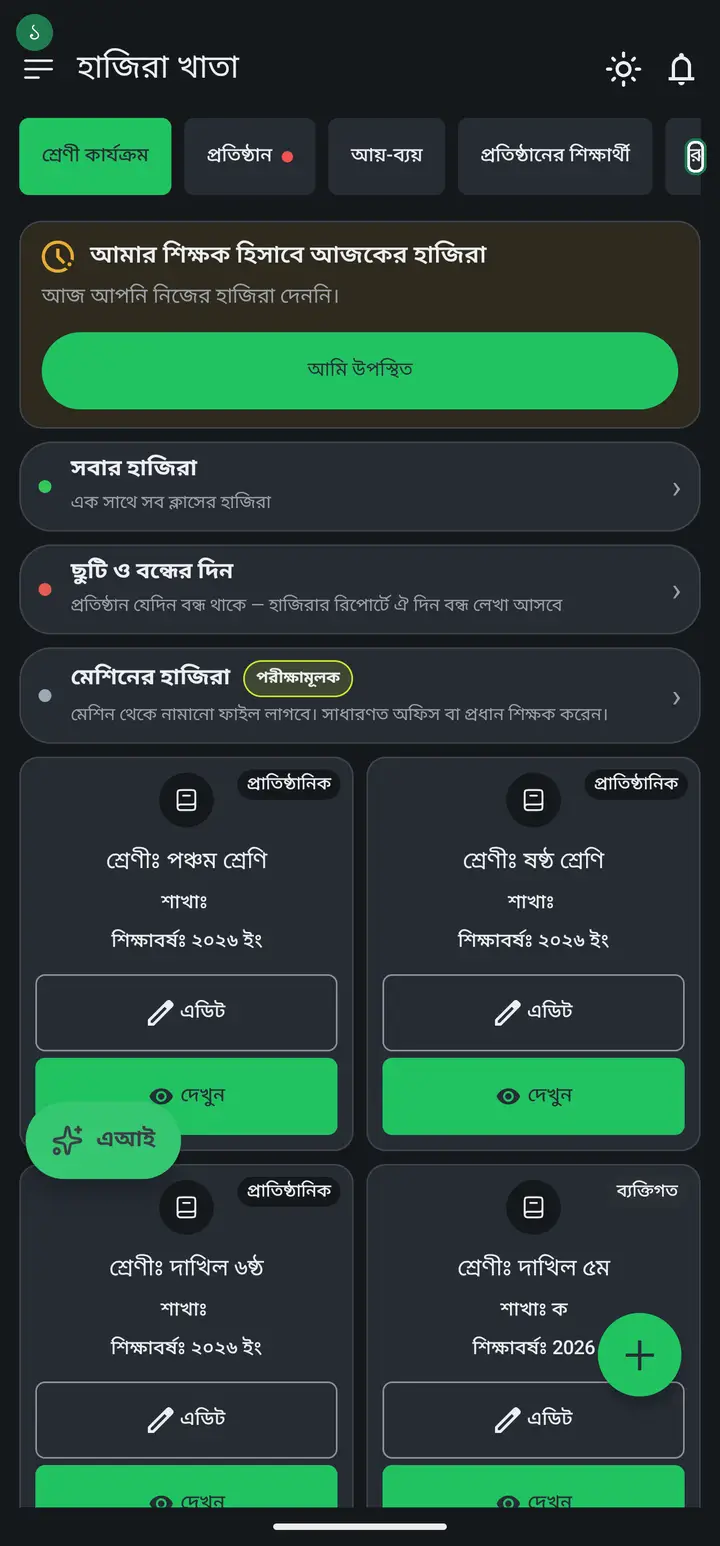
"প্রশাসনিক রুটিন" (Administrative) and "প্রতিষ্ঠানের রুটিন" (Institution) sound almost the same in Bangla but do opposite things. The administrative one is private to you. The institution one shows what your colleagues published.
-
"ক্লাস রুটিন" (Class routine) — which class you teach on which day and time. It is for your own phone and it rings a reminder before each class (not on a date listed under "ছুটি ও বন্ধের দিন" — from 3.2.304; older versions still rang then). Sending it to guardians is a separate publish step, covered on the class-routine page.
-
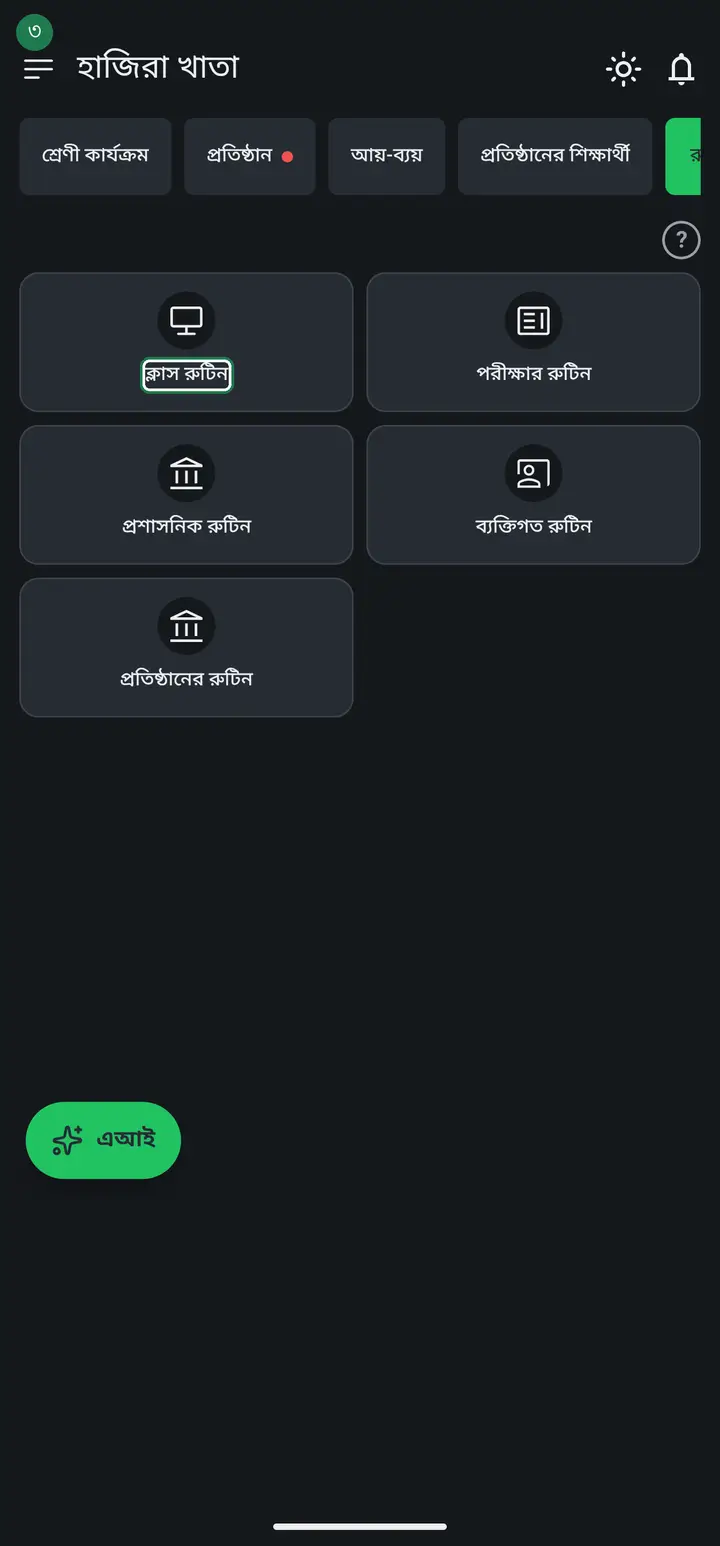
"পরীক্ষার রুটিন" (Exam routine) — this one is different from the others. Here you build a dated exam table: which subject, for which class, on which date. Once built and published, colleagues and guardians can see it.
-
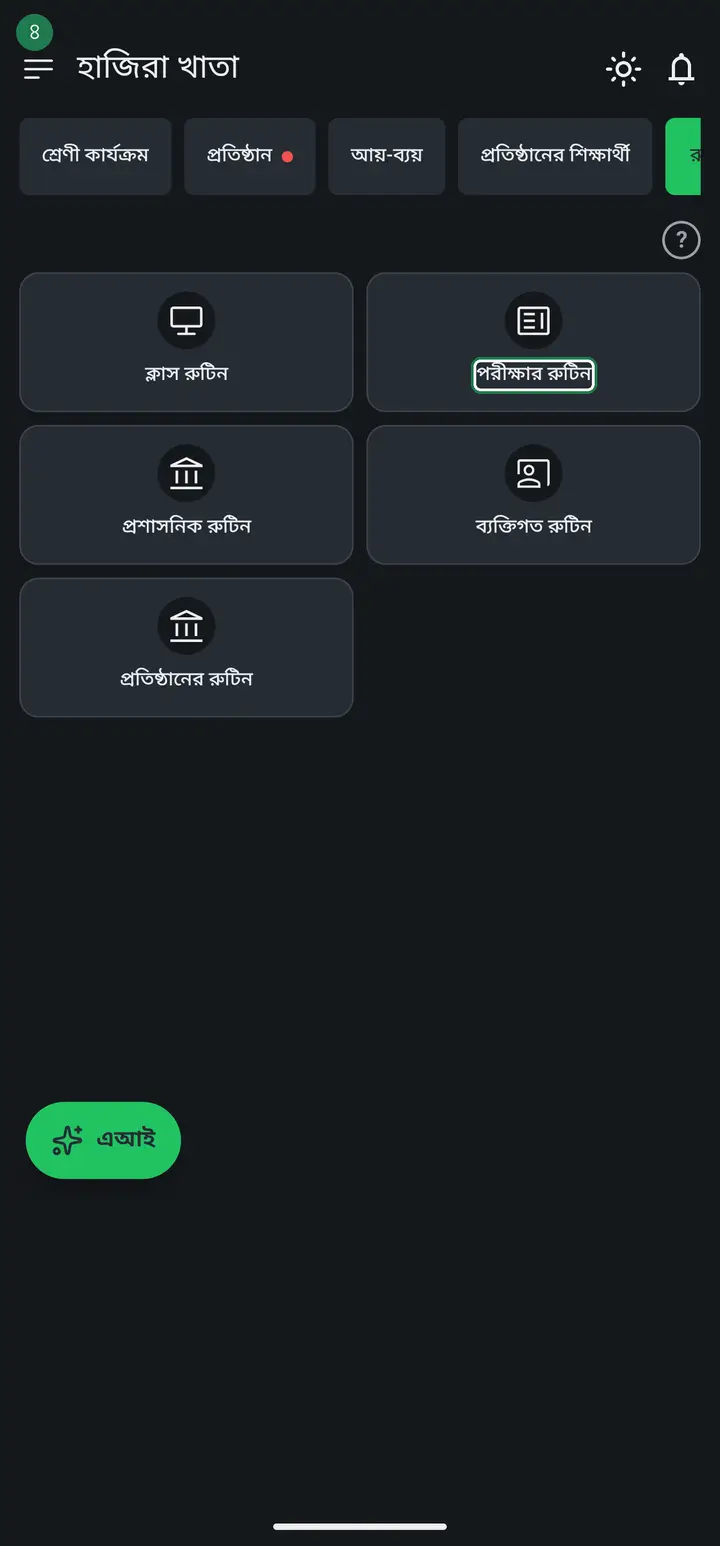
"প্রশাসনিক রুটিন" (Administrative routine) — a place to note office work: meetings, guardian gatherings, office hours. Private to you; it only sets reminders on your own phone.
-
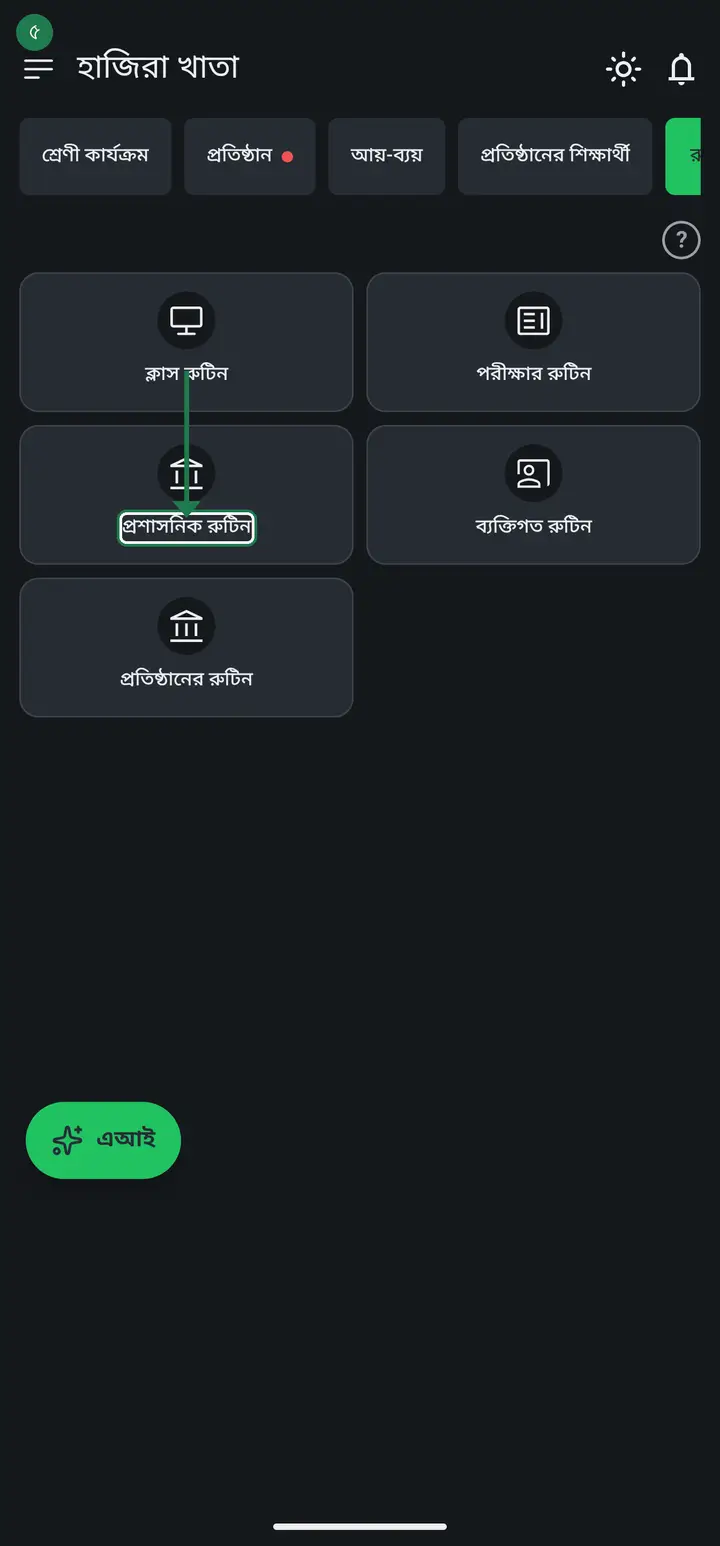
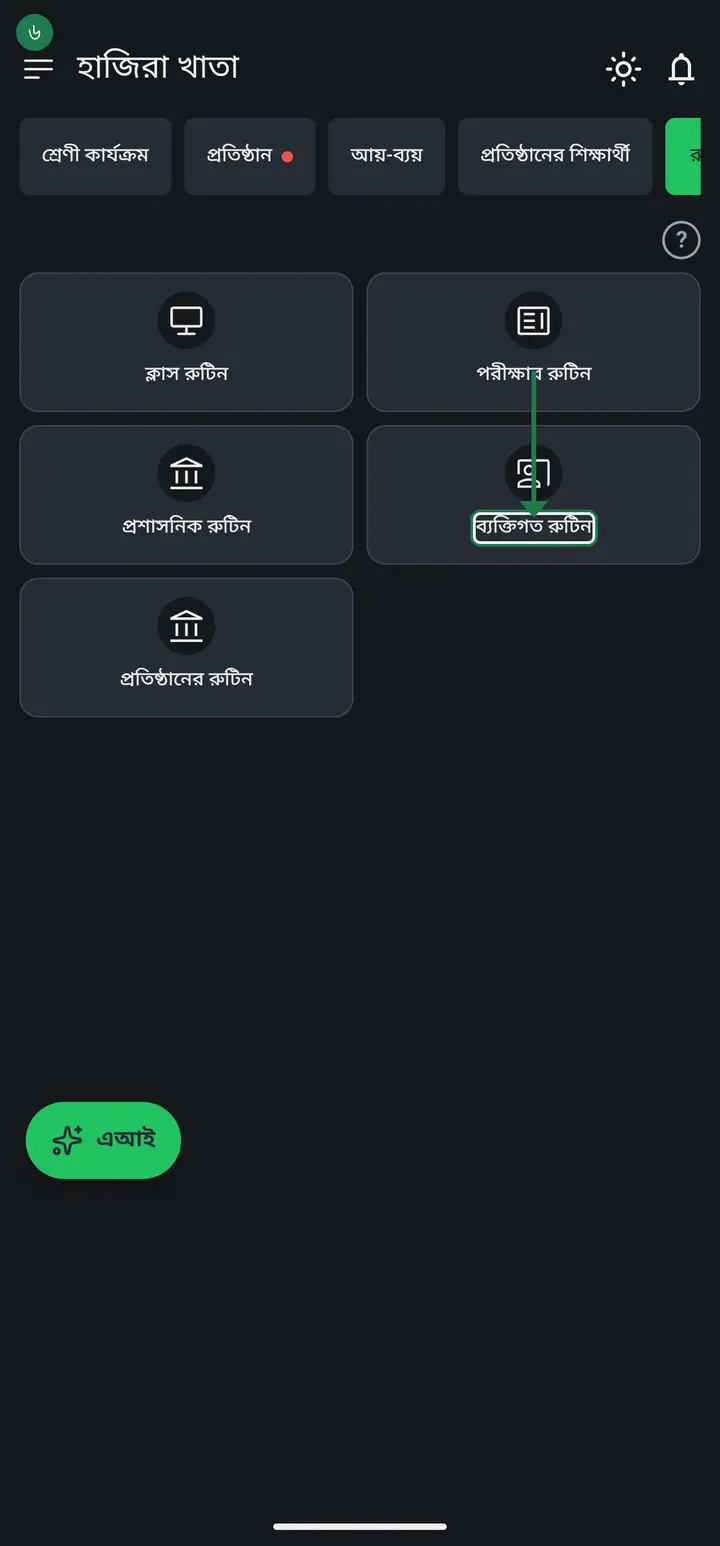
"ব্যক্তিগত রুটিন" (Personal routine) — your own private things: a morning walk, reading, your own study. Nothing to do with the school, and nobody else ever sees it.
-
"প্রতিষ্ঠানের রুটিন" (Institution Routines) — the only tile that shows other people's work. Every class routine and exam routine your head teacher or colleagues published, in one place. You do not create anything here; you read, and optionally print or share.
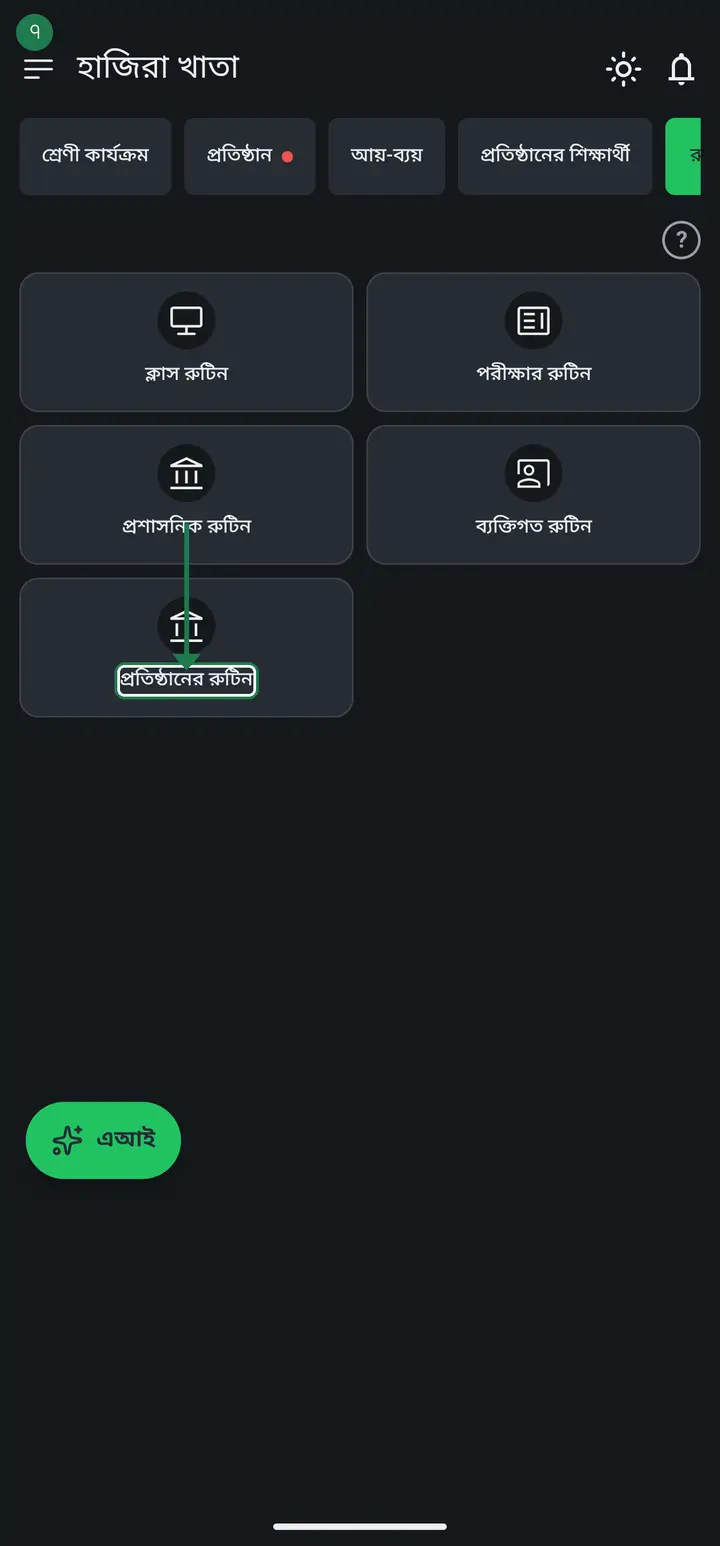
An empty screen here means nobody has published yet. Building and publishing are two separate actions — a routine that was only saved never reaches colleagues.
-
Not every tile appears for everyone. If you are not part of an institution, the administrative and institution tiles are hidden — they would mean nothing. On a guardian's phone, the class routine tile shows their child's published class routine.
Common questions
Where is the option to add an institution routine?
The "প্রতিষ্ঠানের রুটিন" tile has no add option; it is only for reading. Routines are built in the other tiles — make the weekly one in "ক্লাস রুটিন" and tap "অভিভাবকদের পাঠান", or build the exam one in "পরীক্ষার রুটিন", save it, then tap "প্রতিষ্ঠানে প্রকাশ করুন". Only then does it appear under institution routines for everyone. The path is the same for an admin or head teacher.
I cannot work out what these three tiles do.
Short version: administrative = office work times (meetings, guardian gatherings); personal = your own private things (a walk, reading); institution = where you read what colleagues published. The first two are private to your phone and nobody ever sees them. Only the last one shows other people's work.
Will guardians or other teachers see what I put in the administrative and personal routines?
Never. Those two are stored for you alone and only remind you. There is no publish option on them at all.
Institution Routines opens empty. What is wrong?
Usually nothing — it means nobody has published yet. Building and publishing are separate steps. Ask whoever built it to share/publish it, and it will appear on your phone.
My phone shows fewer than five tiles.
That is correct. If you are not part of an institution, the administrative and institution tiles are hidden because they would do nothing. They appear on their own once you join one.
Ask AI about this page
Ask an AI app to explain this page in simple language.
Copied — now paste it
Get Hazira Khata free on Google Play
More tutorials
- How to sign in Signing in for the first time with your phone number. No email or password needed.
- Add a second way to sign in to one account Add Gmail to an account created with a phone number. It stays one account and nothing inside it changes.
- How to mark your own attendance As a teacher you can record your own daily attendance — it takes one tap.
- Check your salary and sign "received" When your school records your salary, the app tells you. Check the receipt and tap "বেতন বুঝে পেয়েছি" (Salary received) to leave your own digital signature — proof for both sides.
- How to create a class Before you can take attendance you create the class once. A one-time job.
- Putting your classes in your own order — press, hold and drag KG Two showing before KG One? Classes appear in the order you created them. On the "শ্রেণী কার্যক্রম" page, press and hold a card and drag it where you want — no need to rename anything.
- Make receipts and results look right — font and size Documents printing in an ugly font? Change it in one place and the receipt, result slip and certificate all change together.
- How to add students Enter each student's name and roll once. After that, daily attendance is just ticking boxes.