
Connecting every guardian at once
Sending one link at a time takes all day for a class of forty. Send the join request to every guardian in one tap, and connect the parent standing in front of you with a QR code on the spot.
The screenshots show the app in Bangla, its main language. The buttons sit in the same places in English.
-
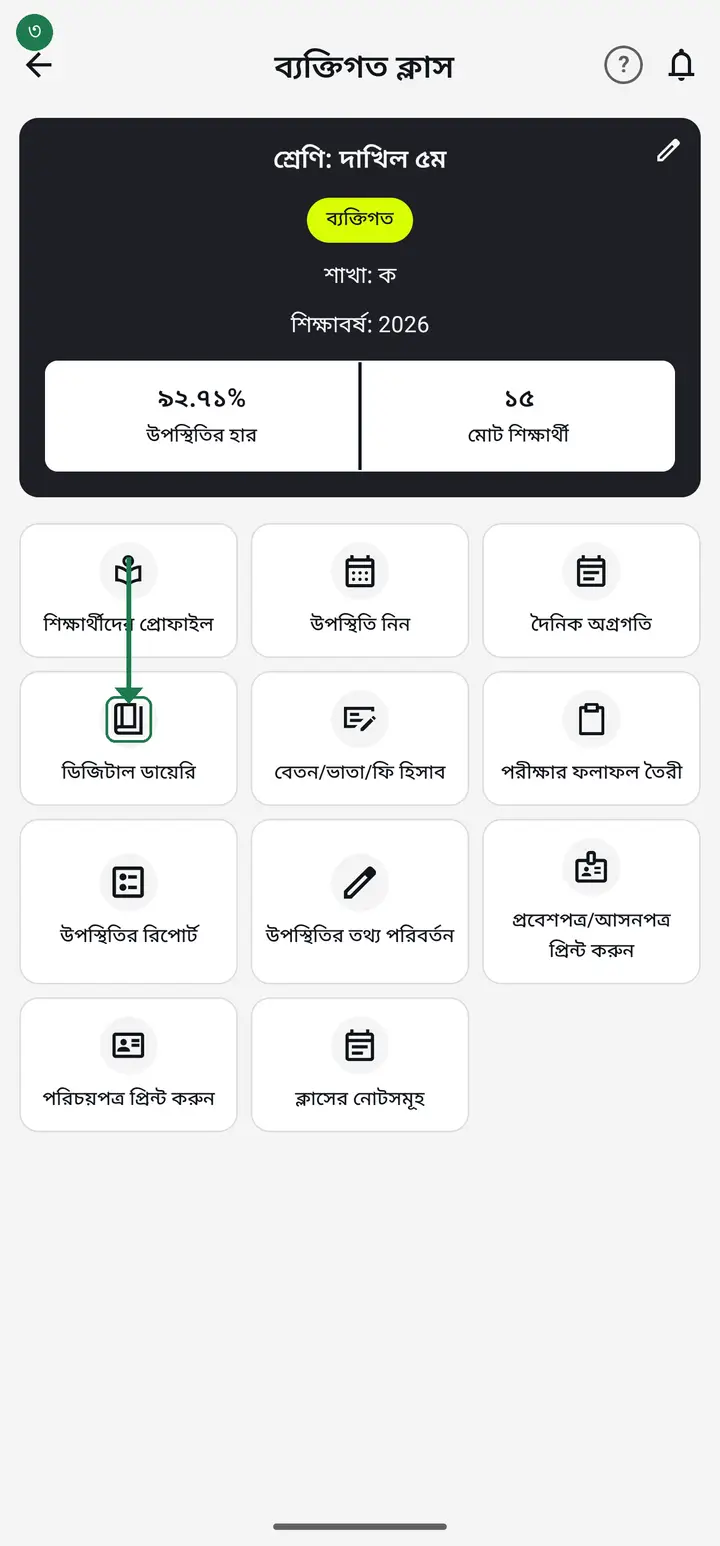
Open the class and tap "ডিজিটাল ডায়েরি" (Digital Diary).
-
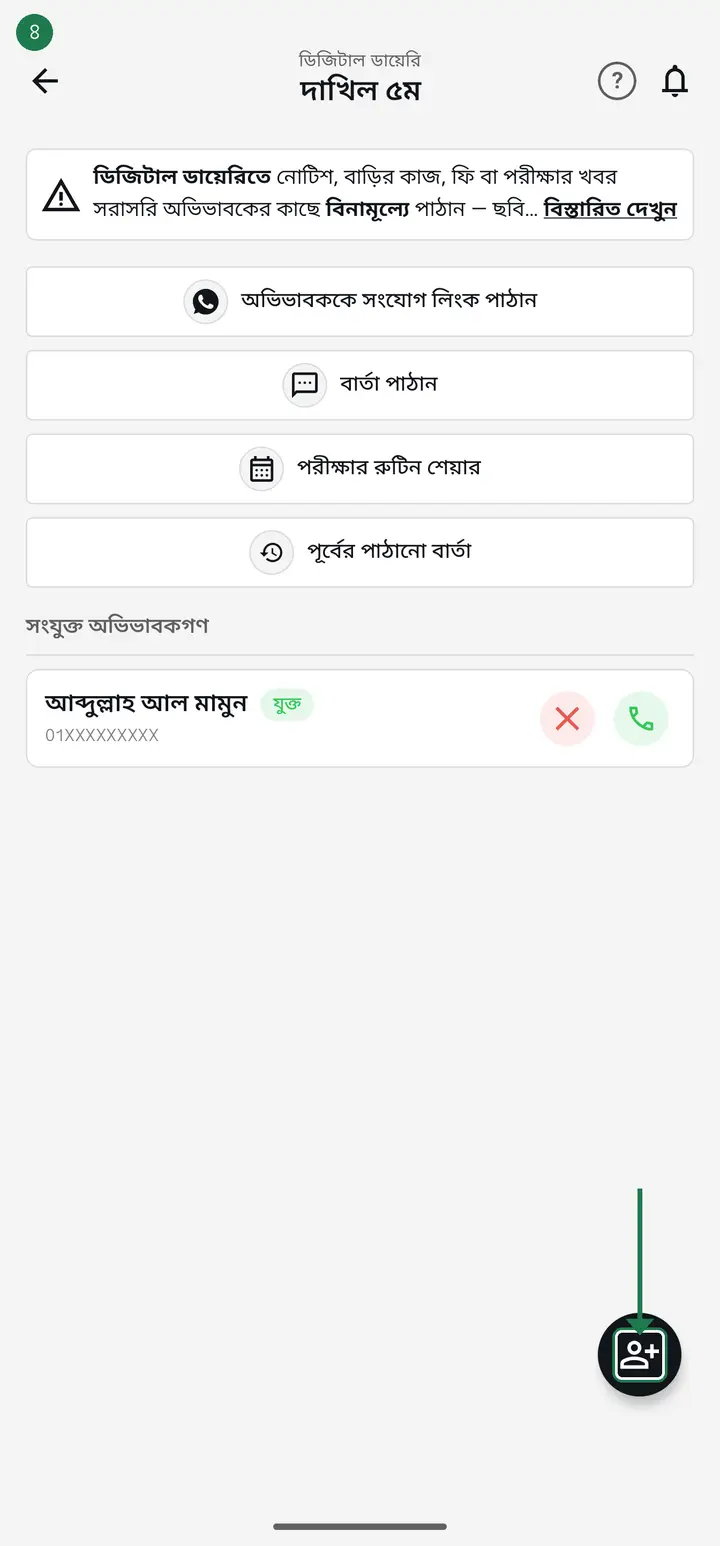
At the bottom-right there is a round button — a person icon with a small "+". Tap it.
-
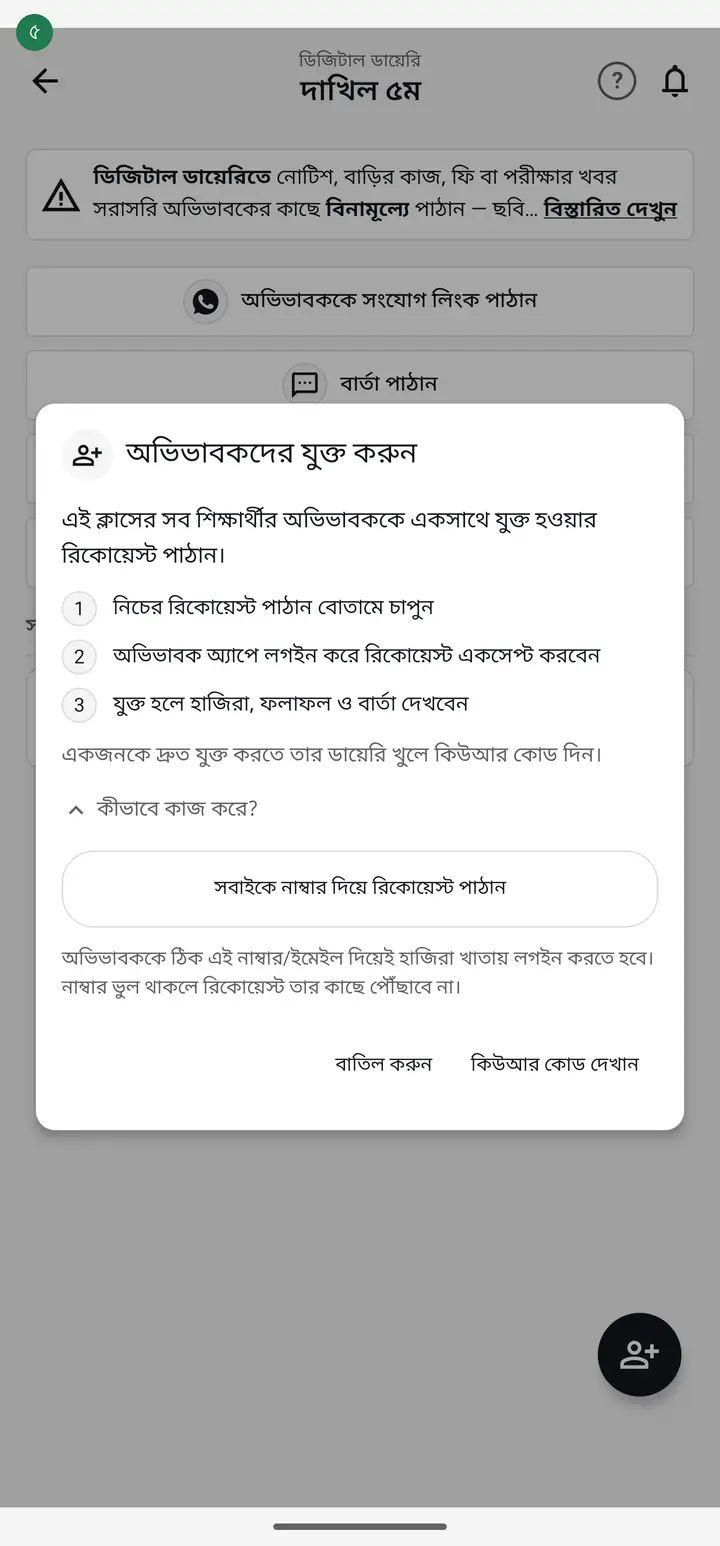
A box appears — "অভিভাবকদের যুক্ত করুন" (Connect guardians). Three lines say what will happen: you send the request, the guardian signs in and accepts it, and then they can see attendance, results and messages. Read it once.
-
Tapping "সবাইকে নাম্বার দিয়ে রিকোয়েস্ট পাঠান" (Send a request to everyone by number) sends the request to every student's guardian in this class at once. You do not have to do them one by one.
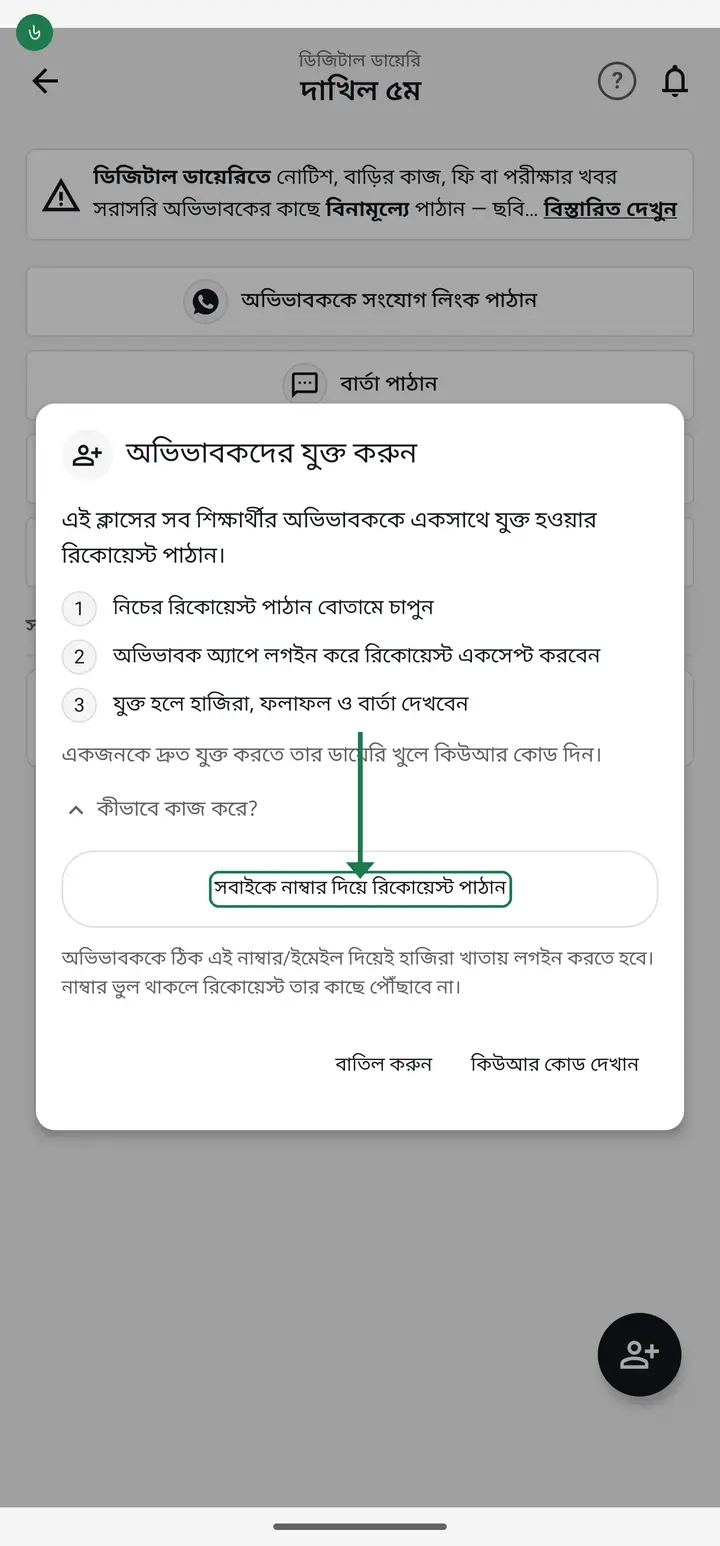
This is where it goes wrong most often. The app sends to the number you saved on the student's profile. If that number is wrong, or the field is empty, that guardian receives nothing — and you will not be told. Check the guardian numbers on the student profiles before you send.
-
If a guardian is standing in front of you right now, there is a separate path — tap "একজন শিক্ষার্থীর কিউআর/লিংক" (QR / link for one student). If your app still says "কিউআর কোড দেখান" (Show QR code), that is the same button.
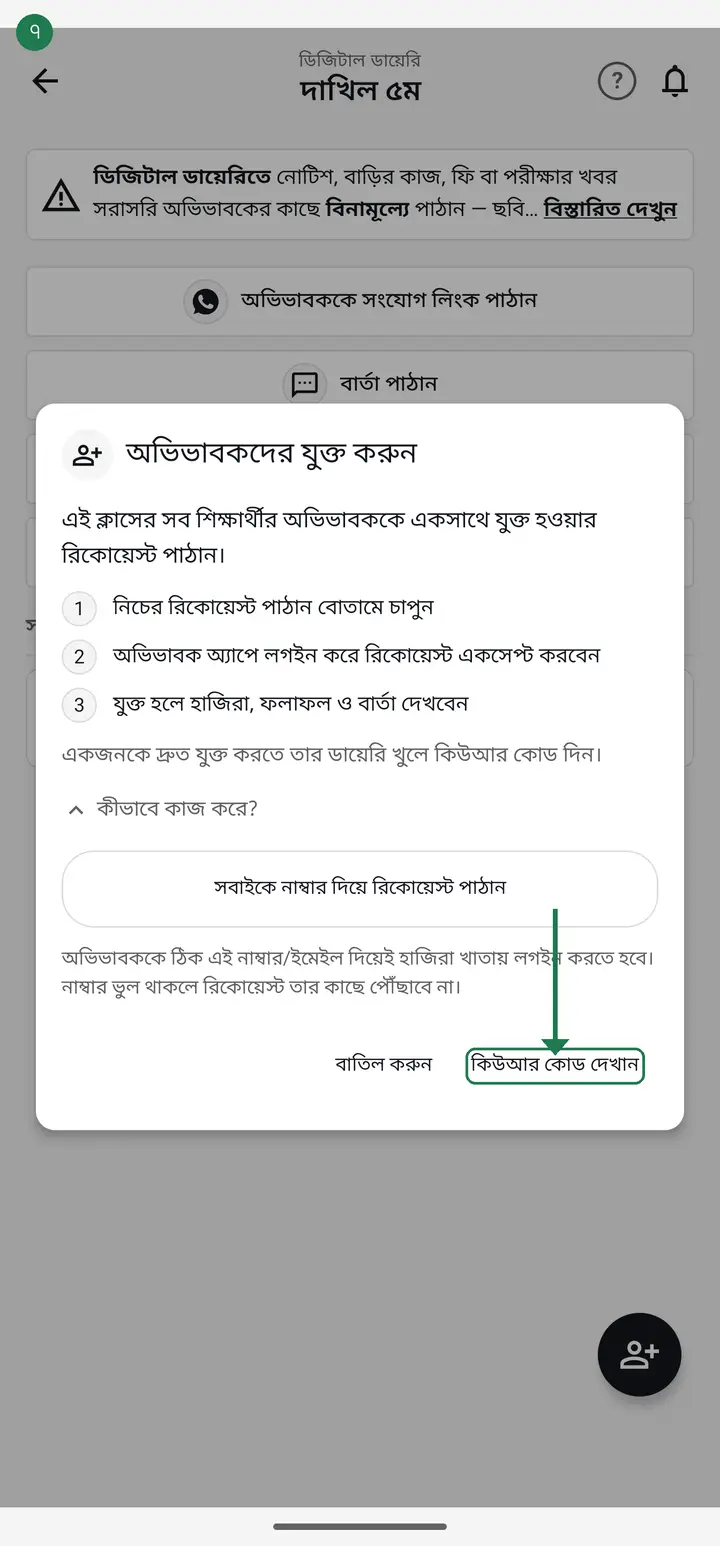
This button is for ONE student. The code or link it produces belongs to that one student, not to the class.
-
Tap the name of the student whose guardian it is.
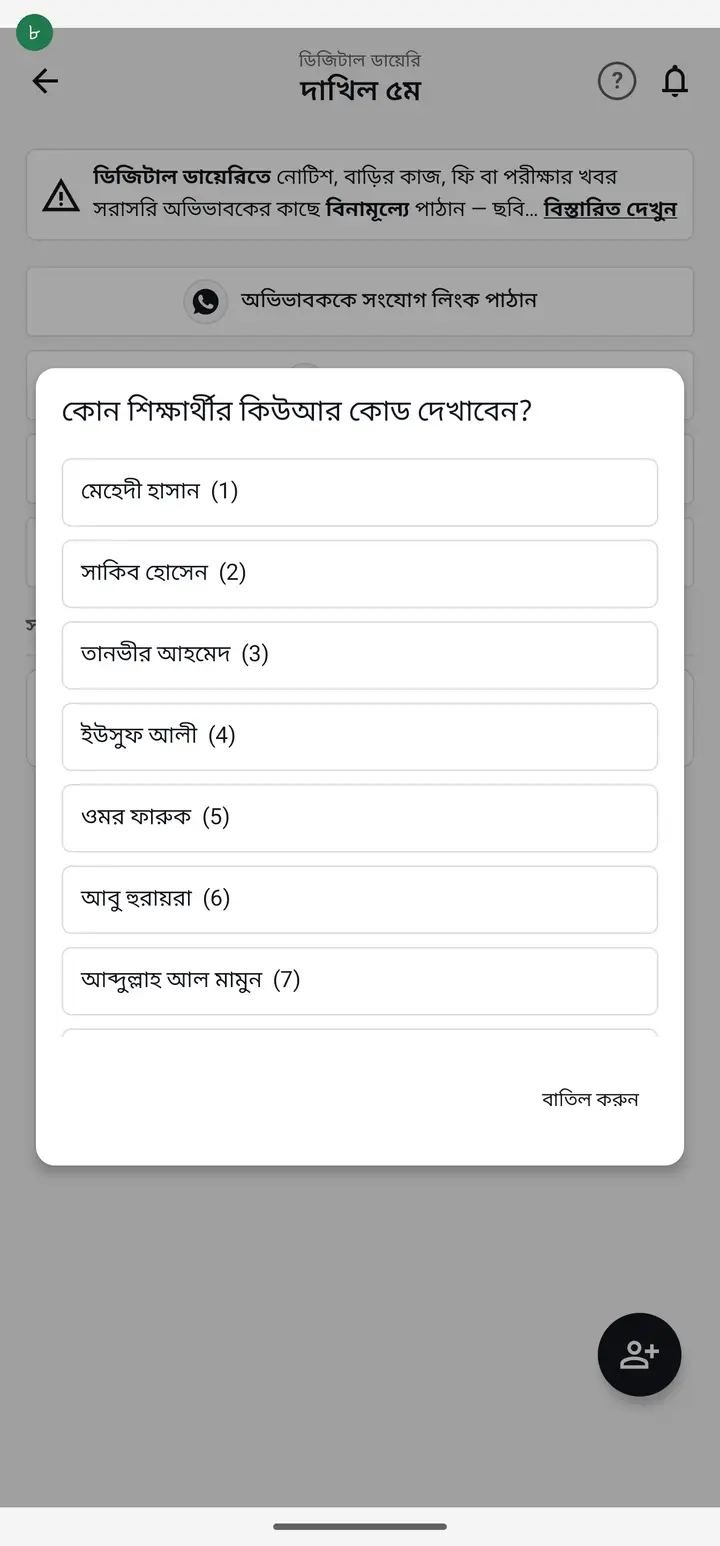
-
A QR code appears. Ask the guardian to open their phone camera and point it at the code — the same way they scan a bKash or Nagad QR. Hazira Khata opens on their phone.
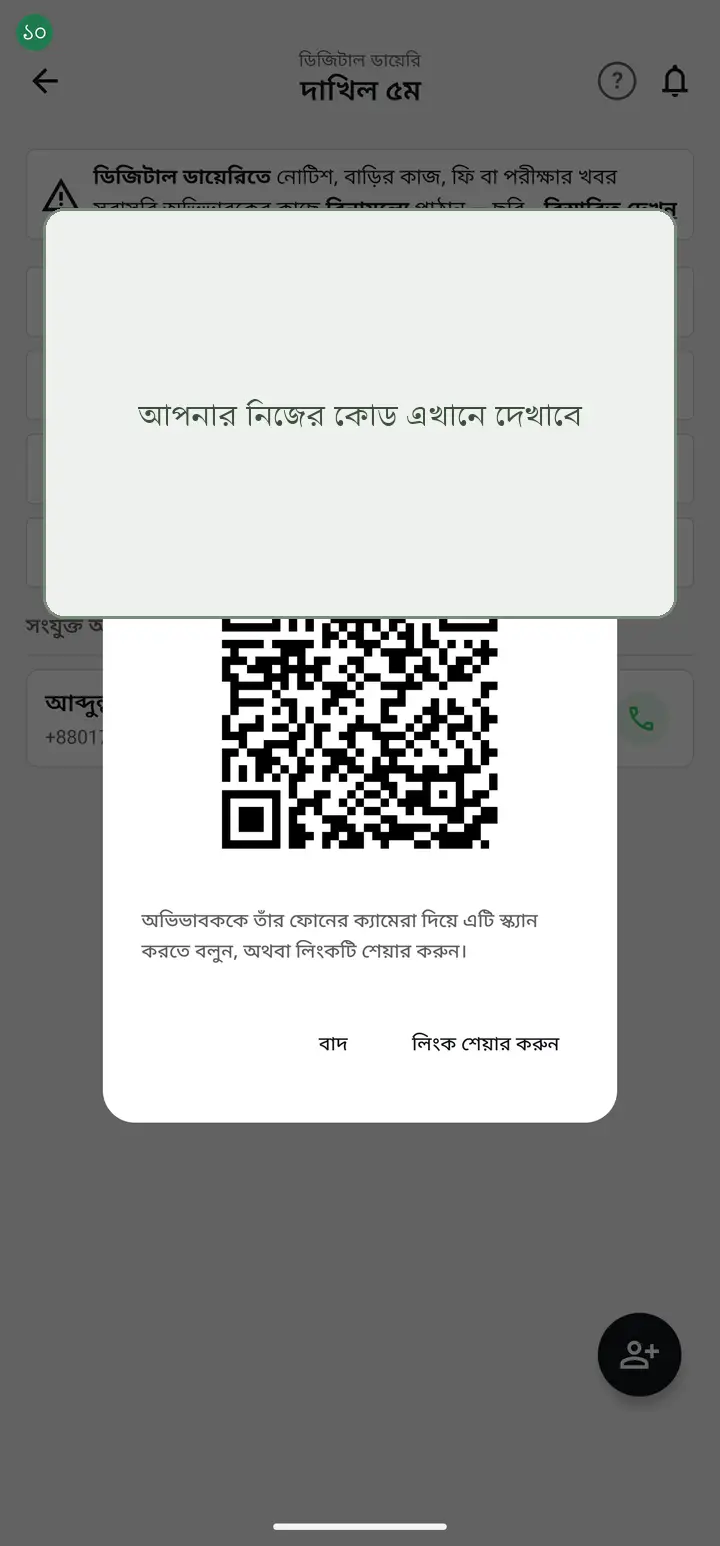
You cannot scan the code with the same phone that is showing it — the guardian needs their own phone. If they do not have it with them, tap "লিংক শেয়ার করুন" (Share link) and send it on WhatsApp instead.
-
No phone with them? The same box has "লিংক শেয়ার করুন" (Share link). Tap it, pick WhatsApp or imo, and the link is sent — the guardian can tap it later, whenever they like. Send it privately, to that one student's guardian only.
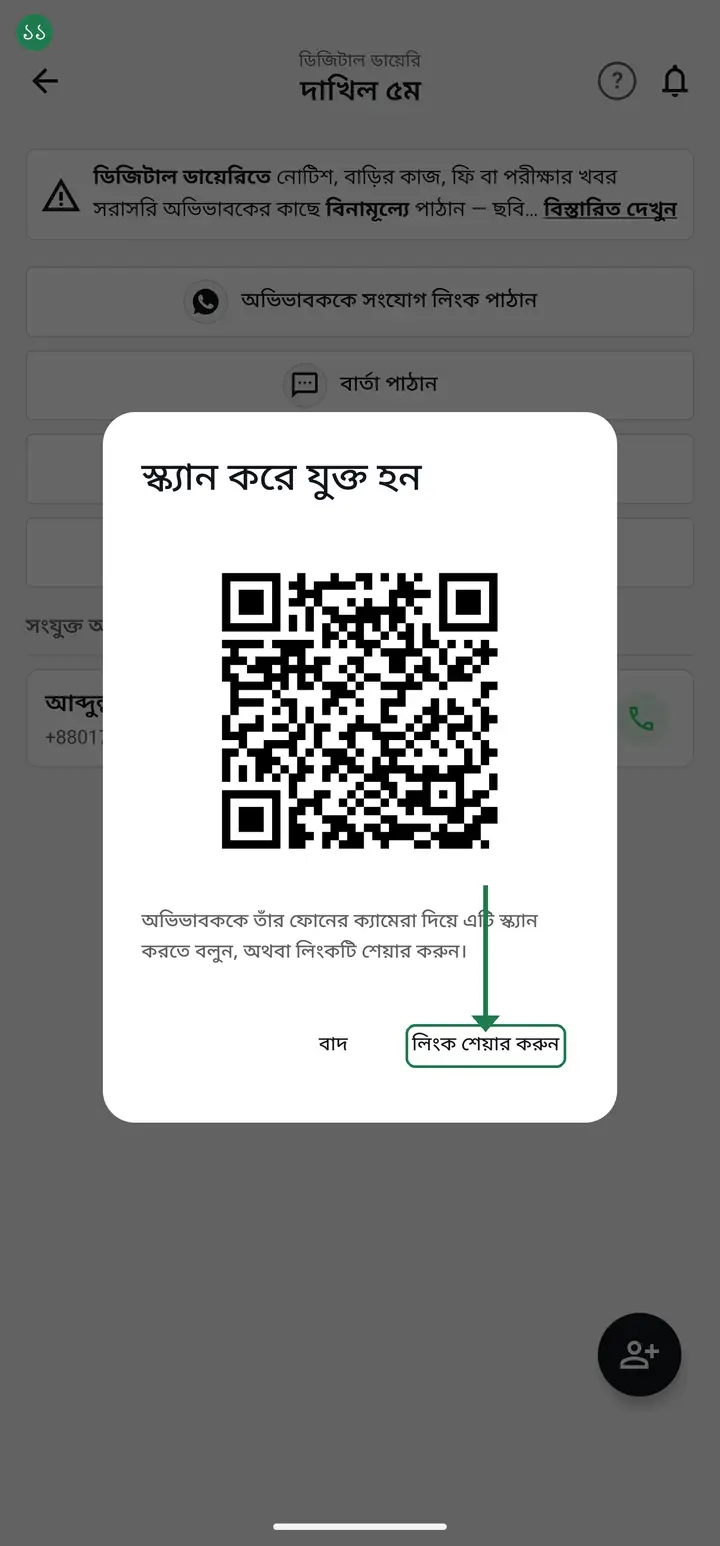
Still do not post the link in the class WhatsApp group. When the student record has the guardian's number, the app now blocks this itself — anyone else who opens the link is told it was made for another student's guardian and cannot connect. But a student with NO number saved still has a link anyone can use. So keep the rule: send each guardian their own. For a whole class use "সবাইকে নাম্বার দিয়ে রিকোয়েস্ট পাঠান" above instead: it sends no link, so the mistake cannot happen at all.
-
What the guardian does next is written out with pictures on the "Connecting a guardian to the diary" page. If a guardian is stuck, send them that page.
-
Who has joined is shown on the diary page under "সংযুক্ত অভিভাবকগণ" (Connected guardians). A name marked "যুক্ত" (Connected) will receive messages. A guardian who is not on that list has not accepted yet — give them a reminder.
Common questions
I sent the request but the guardian got nothing — why?
Almost always the number. The app sends to the number saved on the student's profile, and the guardian has to sign in with exactly that number. If they sign in with a different one, the request will not show up for them. Open the student's profile and check the number.
The guardian has no smartphone. Then what?
Then the digital diary will not help them — it works inside the app and does not send SMS. For those guardians, print the monthly report or send a photo of it on WhatsApp. For a button phone, tap the number on the student's profile, pick "এসএমএস" and write it from your own phone — that SMS is billed to your SIM, and Hazira Khata takes nothing. Details — hazirakhata.xyz/tutorials/sms-cost/
Does sending requests cost money?
No. Requests, messages and photos in the digital diary are all free. Unlike SMS, there is no per-message charge.
One guardian has two children in two classes. Connect twice?
Yes, once per class. The diary works class by class, so each child's class sends its own request. Both children then show up in the guardian's app.
What happens if I post the link in the class group?
If the student record has the guardian's number, nothing happens any more — anyone else in the group who opens it is told the link was made for another student's guardian, and stops there. If NO number is saved it behaves as before: whoever opens it connects to that one student, not their own child, so every guardian sees the same child's name, attendance and results. This has really happened — one link let 17 families in. If you have already posted one, generate a fresh link (making a new one now switches the old one off automatically), and use the "সংযুক্ত অভিভাবকগণ" list to remove the guardians who joined by mistake. For a whole class, always use "সবাইকে নাম্বার দিয়ে রিকোয়েস্ট পাঠান".
Is it a problem if I send the request to everyone by mistake?
No. A request is only an invitation — nothing happens until the guardian accepts, and no data goes anywhere. Sending it again does no harm either.
Ask AI about this page
Ask an AI app to explain this page in simple language.
Copied — now paste it
Get Hazira Khata free on Google Play
More tutorials
- Using My Child as a parent Keep track of your child with no account at all — vaccine dates, memories, and your own attendance record.
- When a guardian asks to join, on their own A guardian opens the school's website, writes their child's name and sends a request. It lands in the institution tab. All you do is point at which student that is — the guardian confirms the rest themselves.
- Connecting a guardian to the diary The teacher shares a link or QR; the guardian taps it and is connected — class messages then reach their phone.
- Sending a message to guardians Notices, homework, fees or exam news — straight to the guardian's phone, free. Photos and PDFs too. Before you send, the app tells you who will actually receive it and who will not.
- Seeing who is connected, and removing someone After sending the requests, the only question that matters is whether it worked. The list at the bottom of the diary answers it — who is marked connected, who to call, and exactly what the red ✕ does.
- Sending the exam routine to guardians You already typed the routine into the app once. One tap sends that same routine to the guardians' phones — no retyping, no photographing a sheet of paper.
- How a parent contacts the teacher Under any diary message there is a button to reach the teacher. There is no reply box in the diary — this explains why, and what to do instead.
- You never buy SMS from Hazira Khata — who actually pays for a message Hazira Khata sells no SMS package and cannot send a single SMS by itself. There are two roads to a guardian's phone — the Digital Diary is completely free, while SMS is charged by your own operator from your own SIM. Here is the difference for one class in one month, with the arithmetic.