
When a guardian asks to join, on their own
A guardian opens the school's website, writes their child's name and sends a request. It lands in the institution tab. All you do is point at which student that is — the guardian confirms the rest themselves.
The screenshots show the app in Bangla, its main language. The buttons sit in the same places in English.
-
On the other two pages the teacher goes looking for the guardian — a link, or a QR. This is the opposite: the guardian finds you. They open the school's website address, write their name, the child's name, class and roll, and tap "অনুরোধ পাঠান" (Send request).
This path only works if your institution has a website address (like hazirakhata.xyz/your-school). Without one there is nowhere for the guardian to send a request from — the teacher's link or QR is then the only way.
-
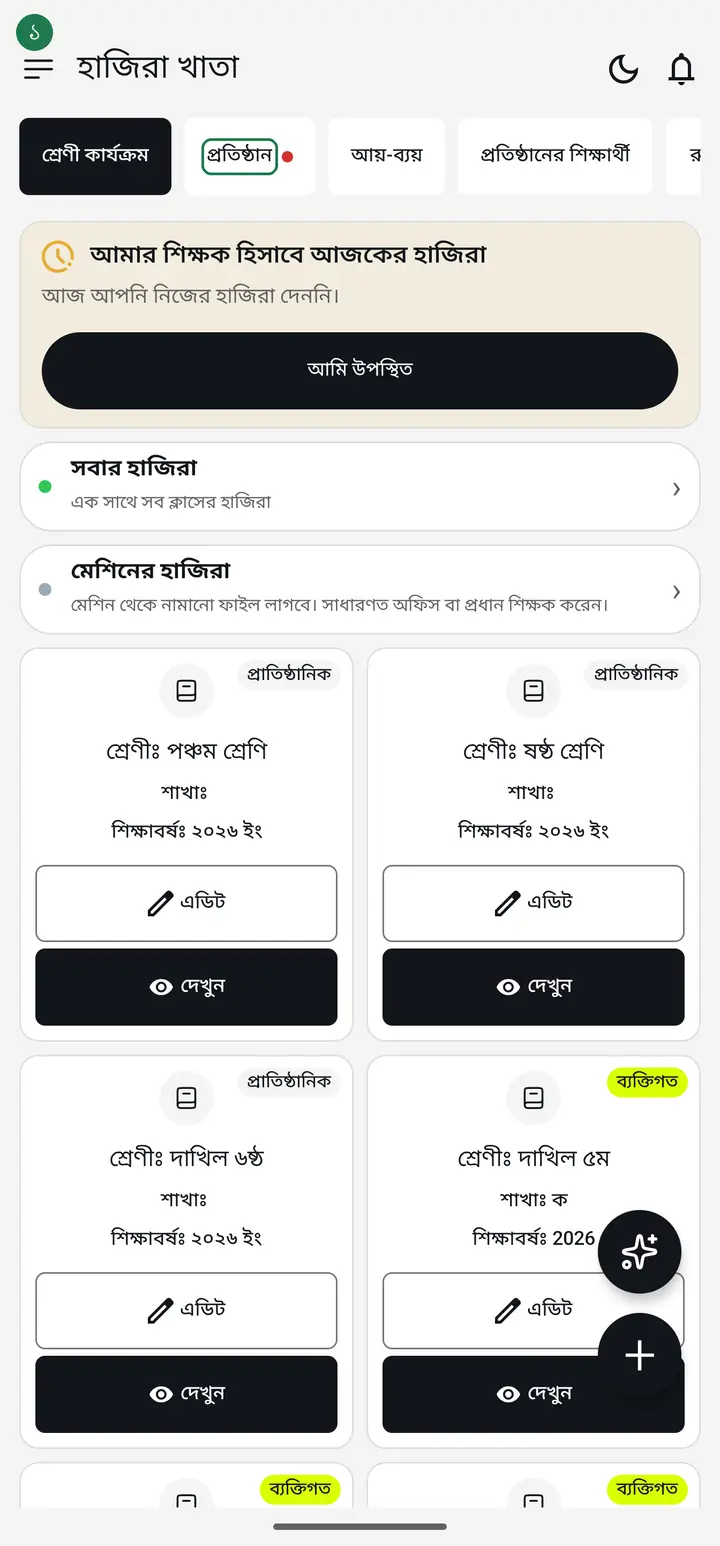
Your part starts here. Tap the "প্রতিষ্ঠান" (Institution) tab at the bottom of the app.
-
Under "আপনার অপেক্ষায়" (Waiting for you) there is a row, "অভিভাবক যুক্ত হতে চান" (Guardians want to join). The number beside it is how many are waiting.
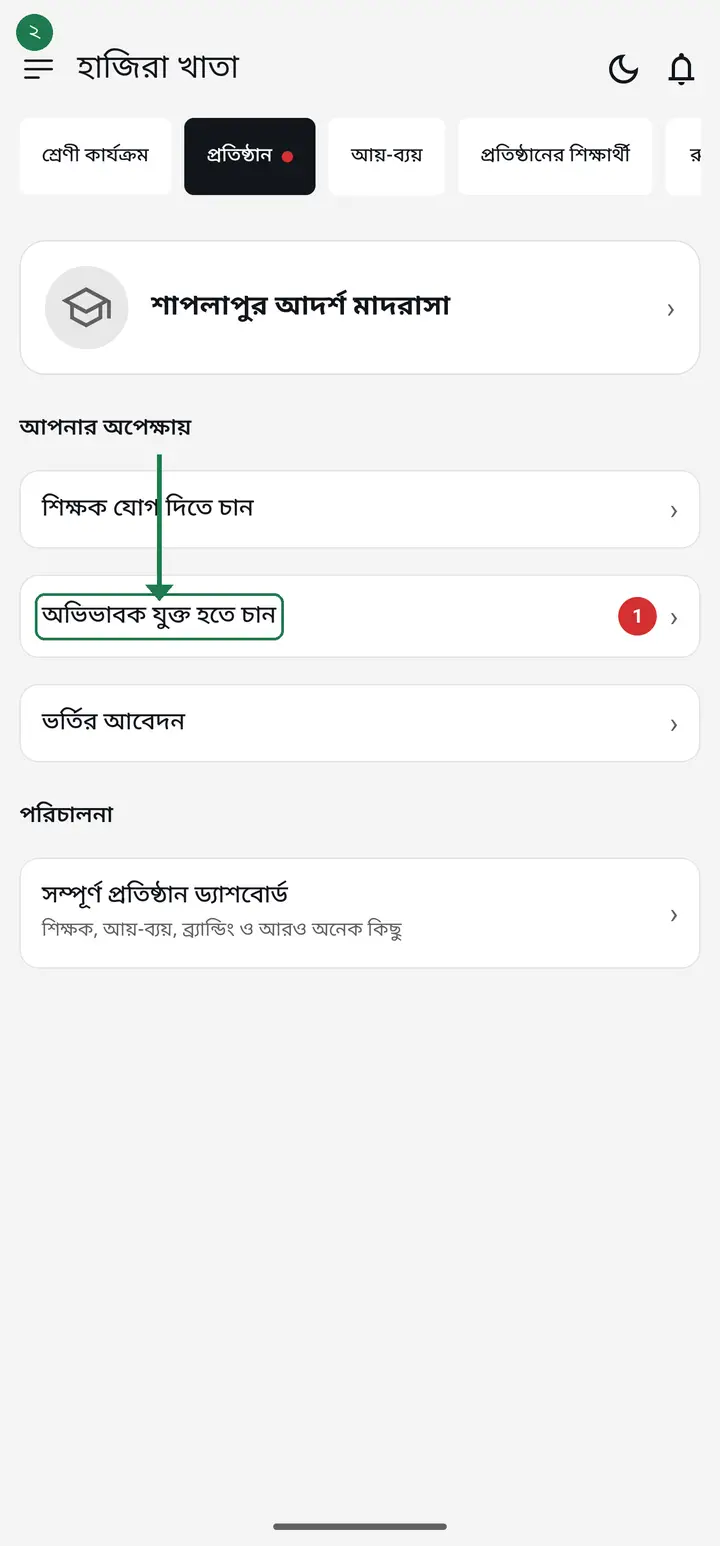
If you cannot see that row at all, nothing is broken — the feature is not switched on for every institution, and the row stays hidden when it is off. Connecting by link and QR still works exactly as before.
-
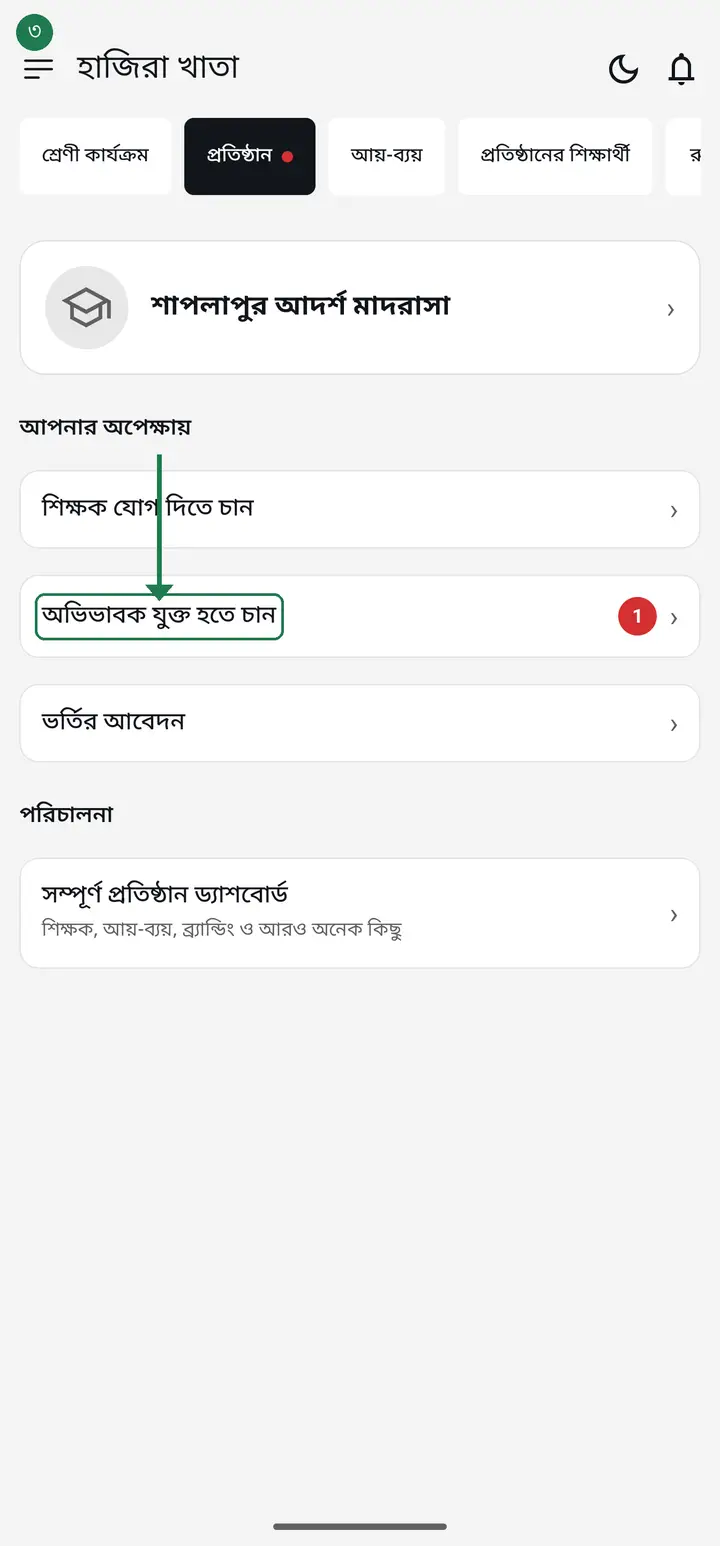
Tap the row. The list of everyone who has sent a request opens.
-
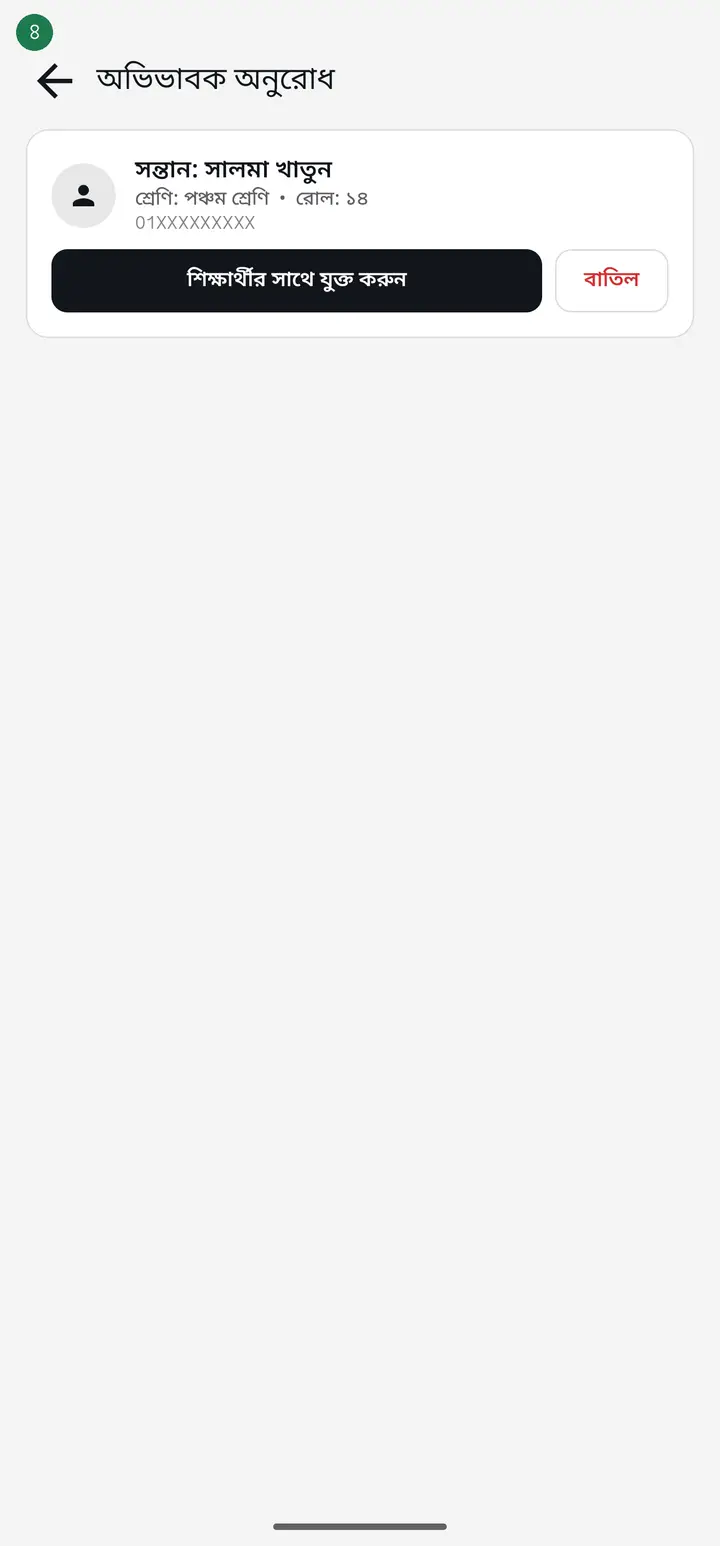
Each card shows exactly what the guardian typed — the child's name, class, roll, their own name and their relation (father / mother / guardian). This is their writing, not your register, so spellings may be a little off.
-
If it looks right, tap "শিক্ষার্থীর সাথে যুক্ত করুন" (Connect to a student). This is where you decide which student they actually belong to.
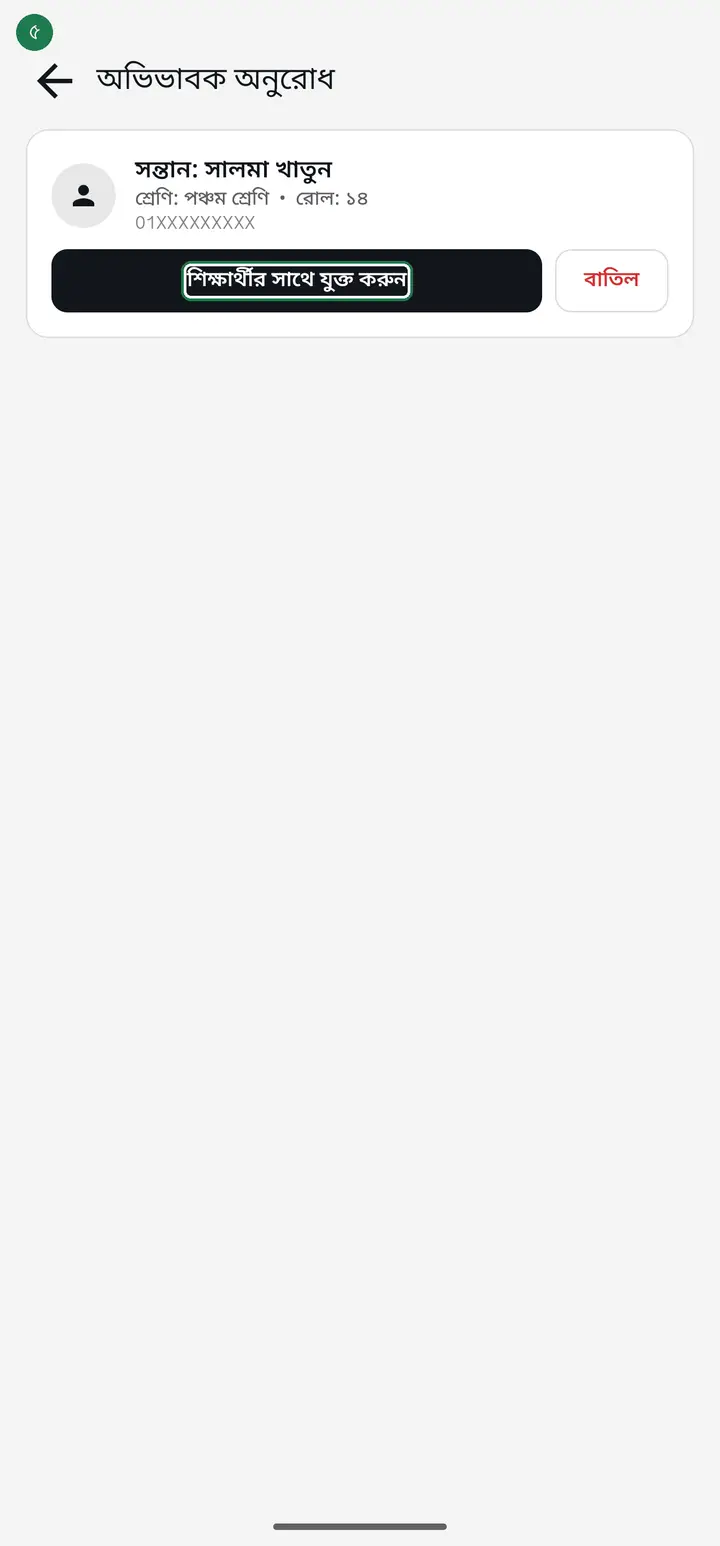
-
First pick the class. The class the guardian wrote is in the blue box at the top — match it. The app marks the matching class with a green "সম্ভাব্য" (Likely) tag by itself.
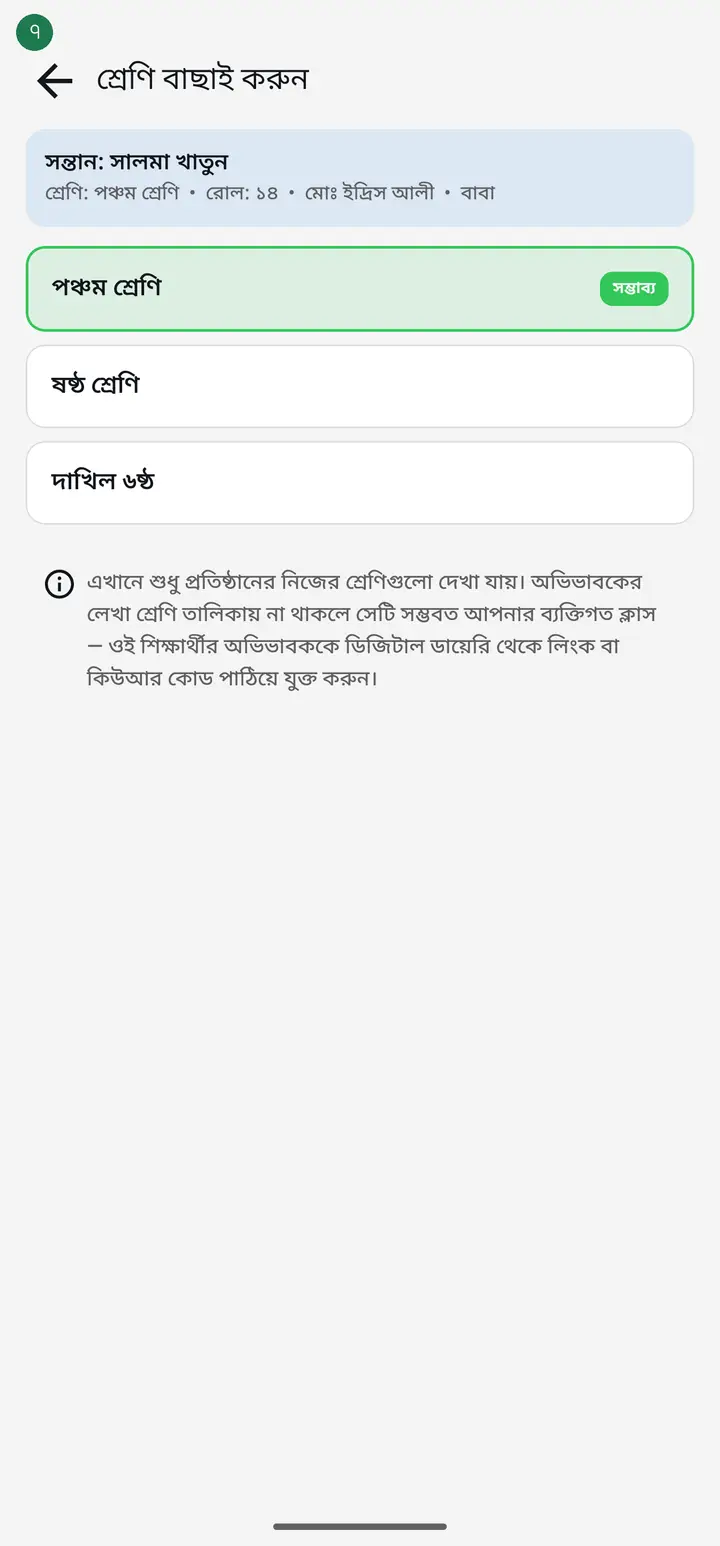
-
The class the guardian named is not in the list? The reason is written right under it — only the institution's own classes appear here. Classes you created privately for yourself are never listed.
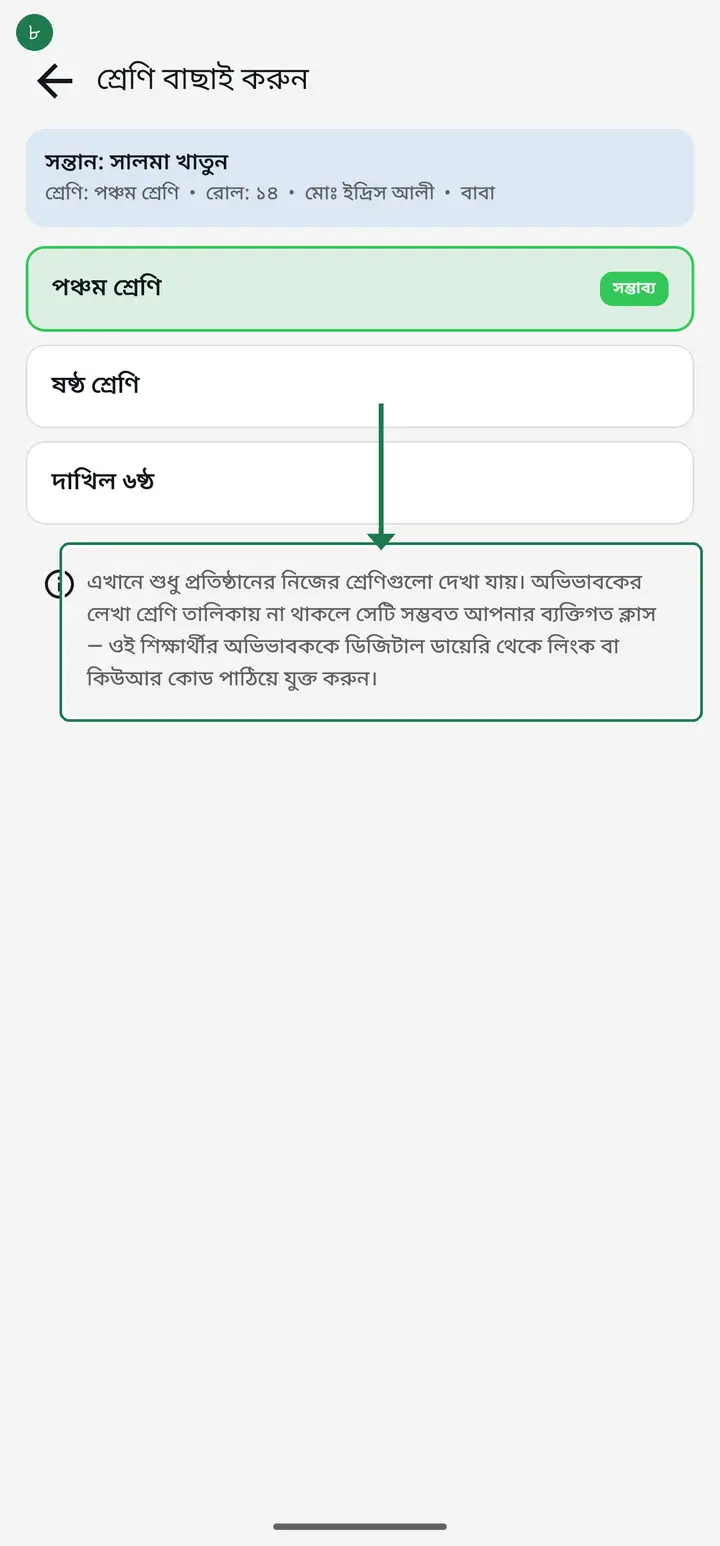
A student in a personal class cannot be connected this way. Go to the Digital Diary and send that guardian a link or a QR code instead — that path works for every class. Do not leave the request sitting here; tap "বাতিল" (Reject) so the queue does not silently pile up.
-
Now pick the student. The app marks the one that matches what the guardian wrote with the same green "সম্ভাব্য" (Likely) tag — usually that is the right one. You can also search by name or roll.
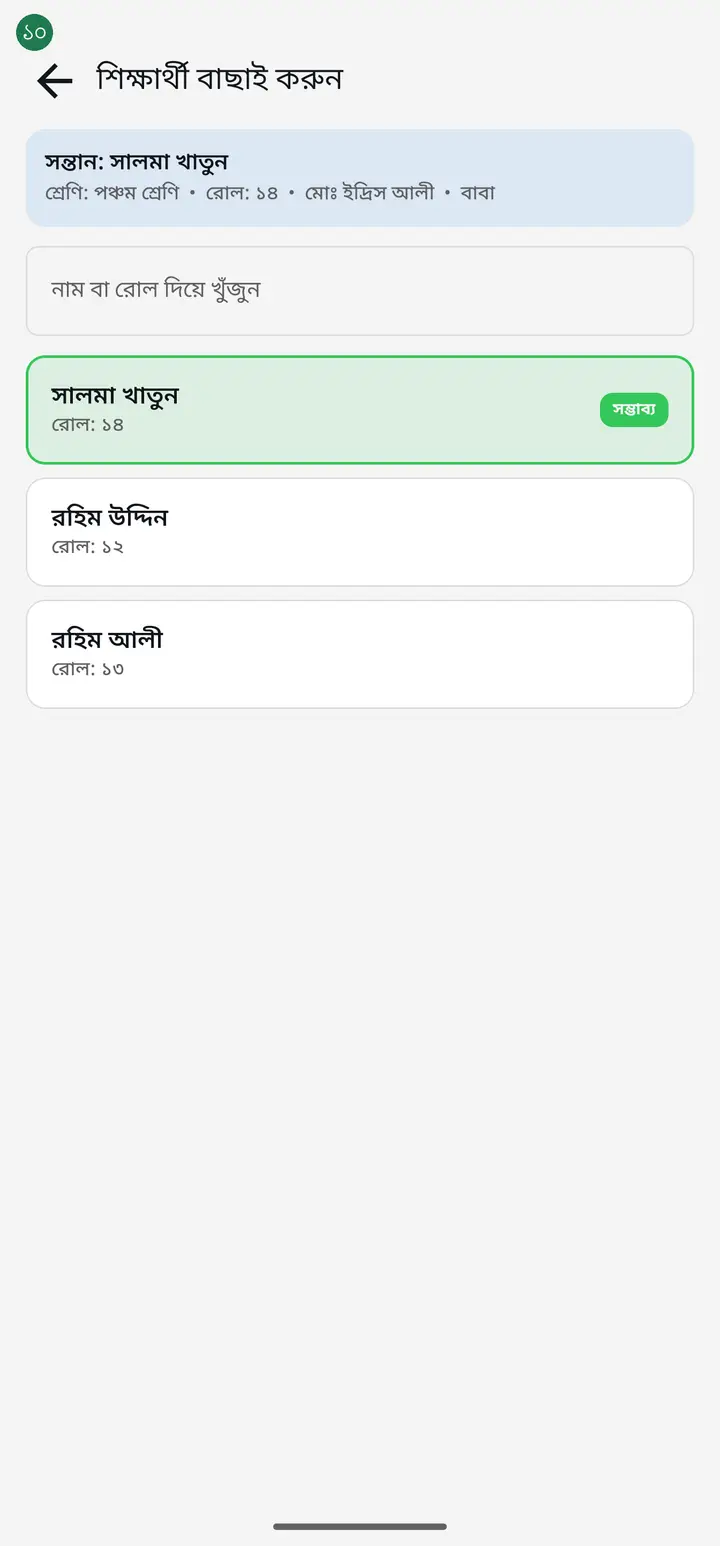
-
Tapping the name opens one last box repeating who the student is and who the guardian is. This is the final check — read it once.
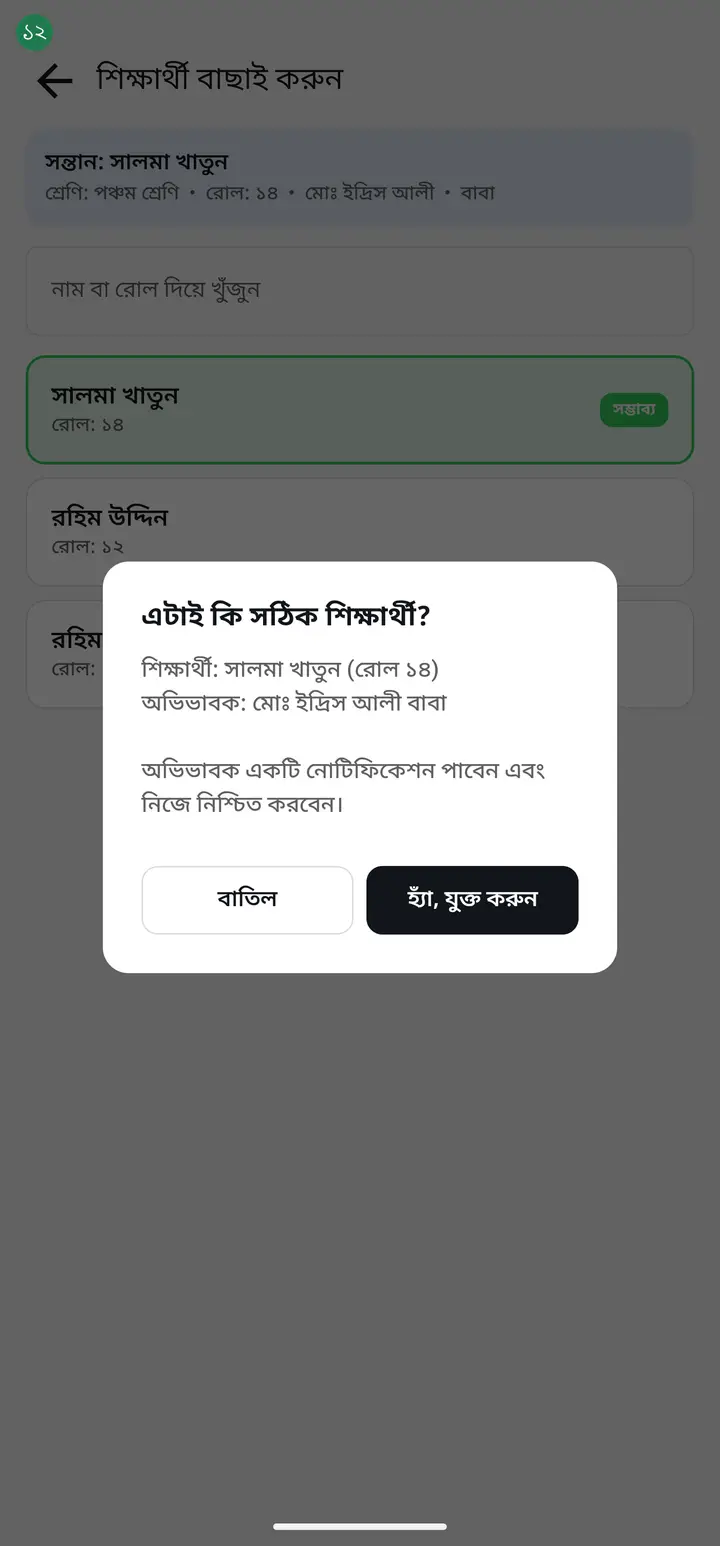
Connecting the wrong student lets a stranger see another child's attendance, results and fees. A matching name is not enough — check the roll and the class too. Two students with the same name is completely normal.
-
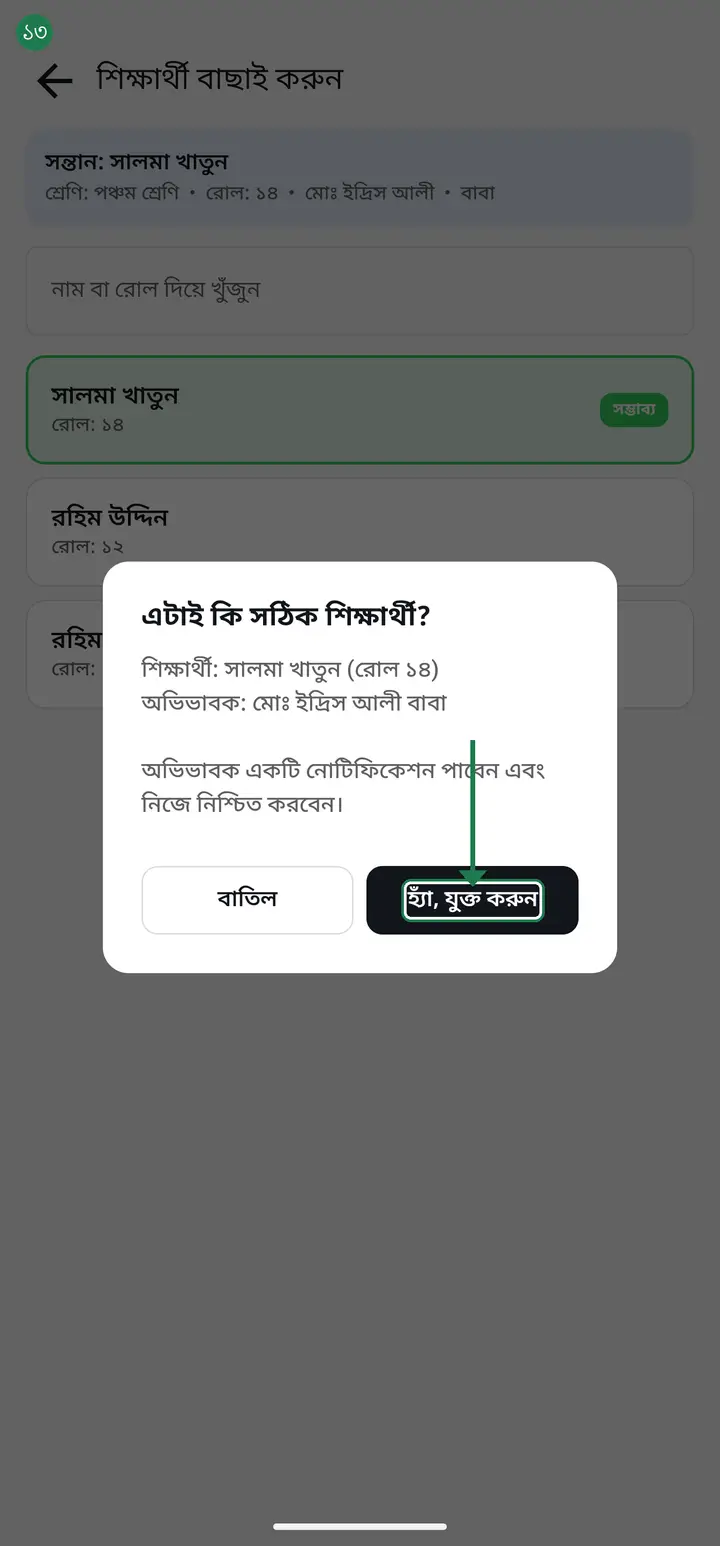
Tap "হ্যাঁ, যুক্ত করুন" (Yes, connect) and your job is done. The guardian gets a notification, and the connection only becomes real when they tap "যুক্ত হোন" (Join) themselves. Neither side can do it alone — it takes both.
-
If a request looks wrong — an unfamiliar name, the wrong class, a student who is not in your register — tap "বাতিল" (Reject). Nothing is damaged; the guardian simply does not get connected.
Common questions
If a stranger sends a request, can they see my students' information?
No. A request is just a letter — they see nothing until you connect them. And once connected, they see only that one student, never the rest of the class.
The guardian wrote one spelling, my register has another. What now?
Your register is the real one. If the roll and class match, pick that student confidently. If you are not sure at all, tap "বাতিল", call the guardian and ask — they can send the request again afterwards.
I connected them but the guardian still sees nothing.
They have not tapped "যুক্ত হোন" (Join) on their own phone yet. Tell them to open the app and look at the home page — the button is right there. People miss it when notifications are off.
How many children can one guardian connect?
Several at the same institution — each child arrives as its own request, and you connect each one separately. There is a cap, and the guardian is told when they reach it.
Who else can see this list?
Members of the institution who have the institution tab. So any one of you can handle it — two people do not need to do the same request twice, and no harm is done if they do.
After tapping "বাতিল" another question appears — what does the red button do?
It rejects the request; the guardian does not get connected. The dialog is headed "অনুরোধ বাতিল করবেন?" (Reject the request?) and says "অভিভাবক যুক্ত হবেন না" (The parent will not be connected) — that sentence is the one to read. On most phones today the red button still reads "হ্যাঁ, যুক্ত করুন" (Yes, connect), even though tapping it rejects. That wording was our mistake and a coming update changes it to "হ্যাঁ, বাতিল করুন" (Yes, reject). While you still see the old label, decide from the question at the top, not from the button. If you reject one by accident nothing is lost — ask the guardian to send the request again.
Ask AI about this page
Ask an AI app to explain this page in simple language.
Copied — now paste it
Get Hazira Khata free on Google Play
More tutorials
- Using My Child as a parent Keep track of your child with no account at all — vaccine dates, memories, and your own attendance record.
- Connecting every guardian at once Sending one link at a time takes all day for a class of forty. Send the join request to every guardian in one tap, and connect the parent standing in front of you with a QR code on the spot.
- Connecting a guardian to the diary The teacher shares a link or QR; the guardian taps it and is connected — class messages then reach their phone.
- Sending a message to guardians Notices, homework, fees or exam news — straight to the guardian's phone, free. Photos and PDFs too. Before you send, the app tells you who will actually receive it and who will not.
- Seeing who is connected, and removing someone After sending the requests, the only question that matters is whether it worked. The list at the bottom of the diary answers it — who is marked connected, who to call, and exactly what the red ✕ does.
- Sending the exam routine to guardians You already typed the routine into the app once. One tap sends that same routine to the guardians' phones — no retyping, no photographing a sheet of paper.
- How a parent contacts the teacher Under any diary message there is a button to reach the teacher. There is no reply box in the diary — this explains why, and what to do instead.
- You never buy SMS from Hazira Khata — who actually pays for a message Hazira Khata sells no SMS package and cannot send a single SMS by itself. There are two roads to a guardian's phone — the Digital Diary is completely free, while SMS is charged by your own operator from your own SIM. Here is the difference for one class in one month, with the arithmetic.