
Sending the exam routine to guardians
You already typed the routine into the app once. One tap sends that same routine to the guardians' phones — no retyping, no photographing a sheet of paper.
The screenshots show the app in Bangla, its main language. The buttons sit in the same places in English.
-
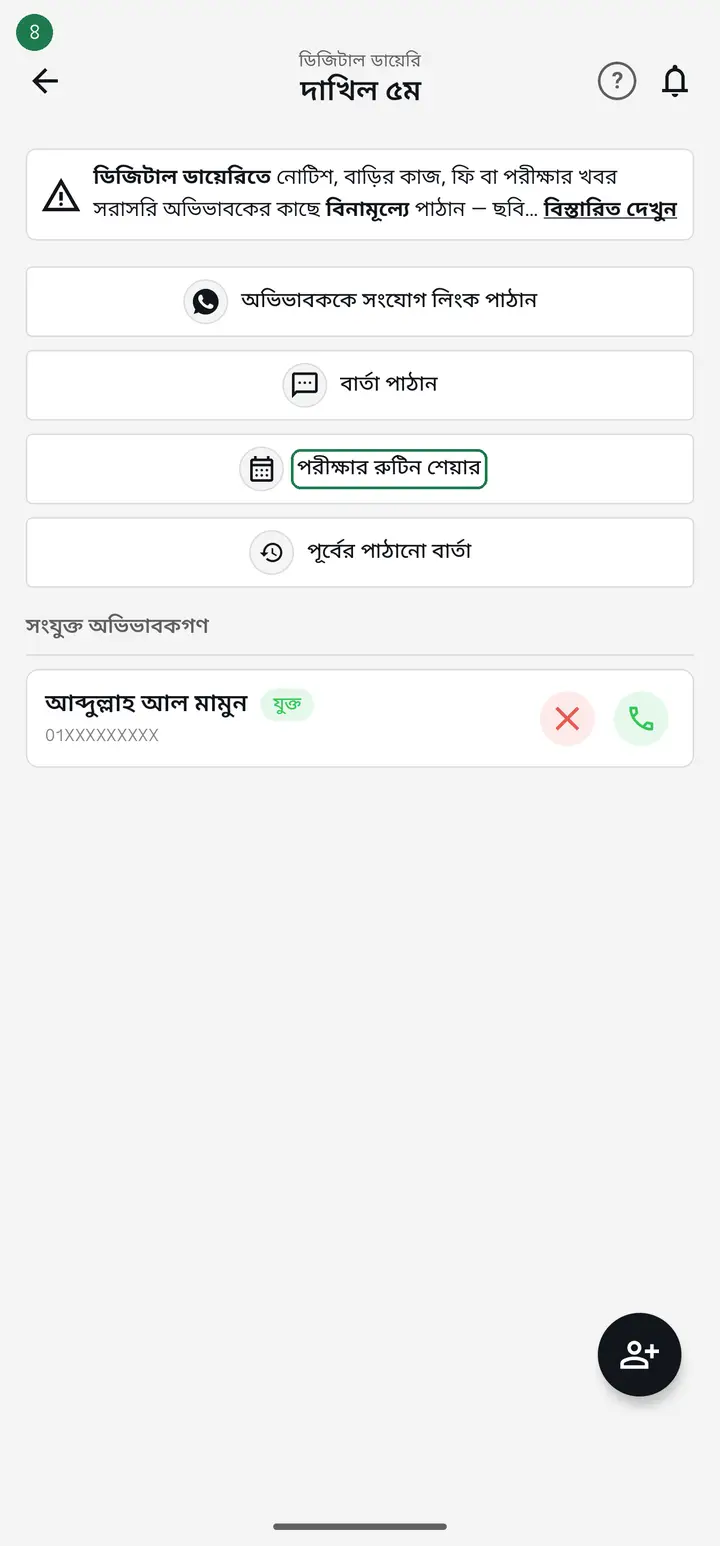
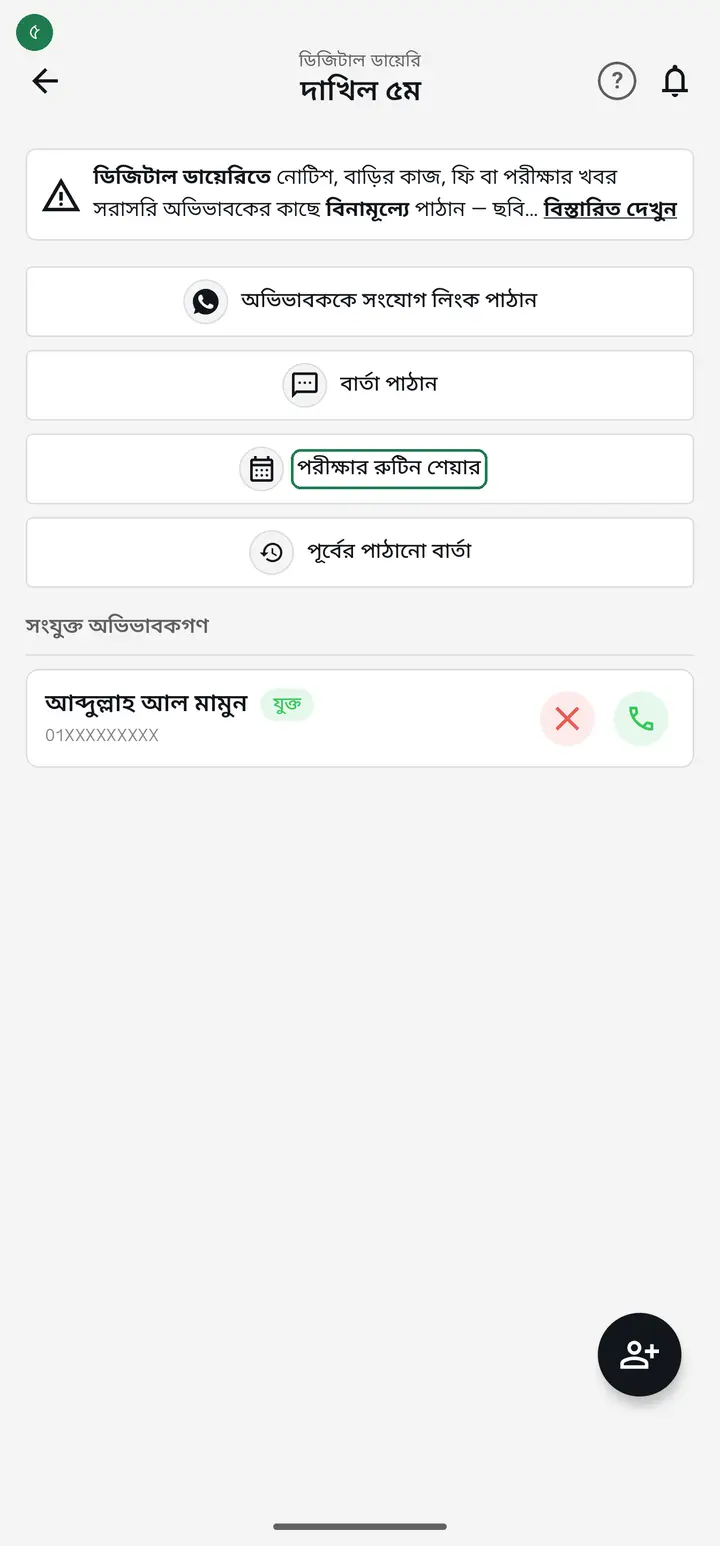
Open the class and tap "ডিজিটাল ডায়েরি" (Digital Diary). Inside there is a row called "পরীক্ষার রুটিন শেয়ার" (Share exam routine).
-
Tap it. The message page opens.
-
Now look at the message box — the routine is already written in. Exam name, which subject on which date, the time, all of it. The app took the routine you built earlier and filled it in for you. You typed nothing.
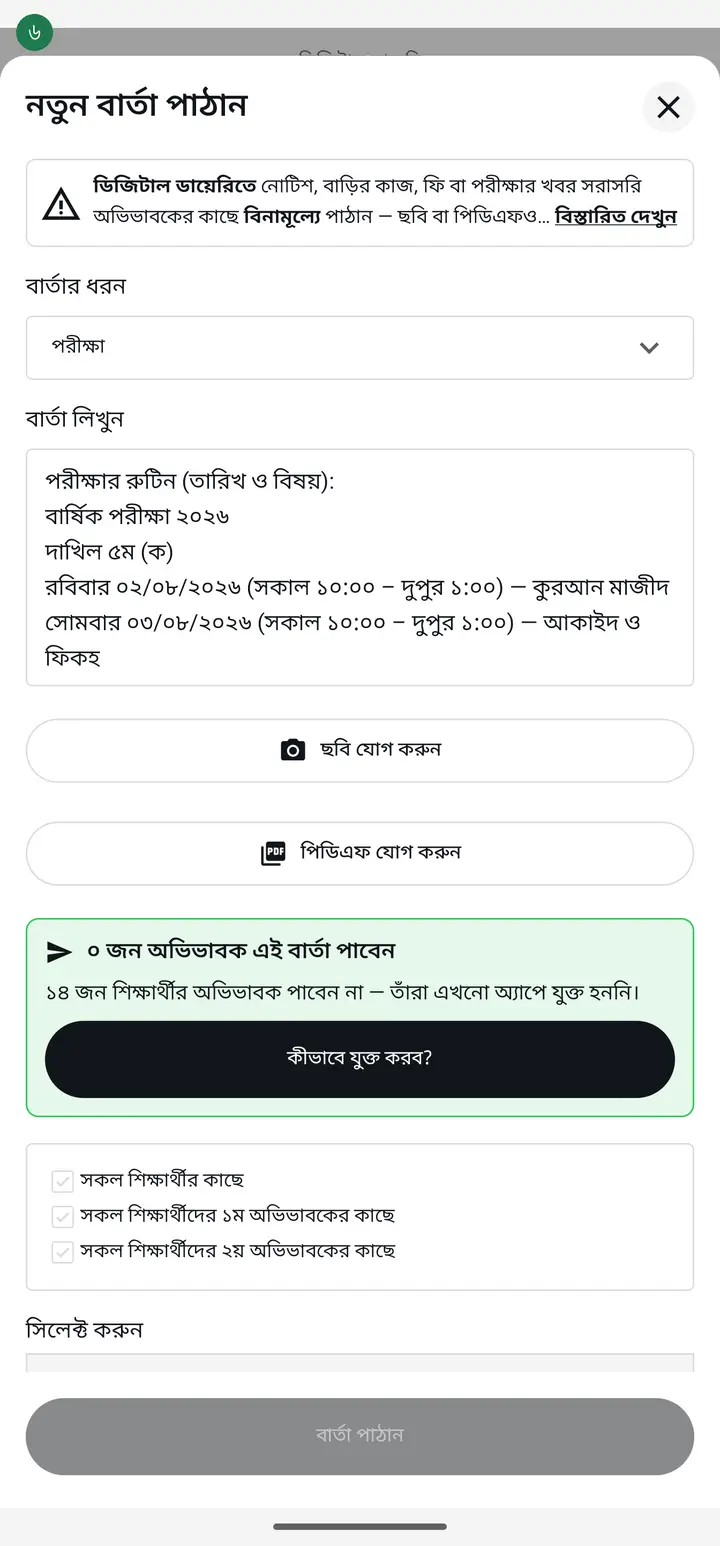
If the box says only "পরীক্ষার রুটিন (তারিখ ও বিষয়):" with nothing under it, you have not built a routine for this class yet. Go to the "পরীক্ষার রুটিন" (Exam routine) page, create it and save it, then come back here.
-
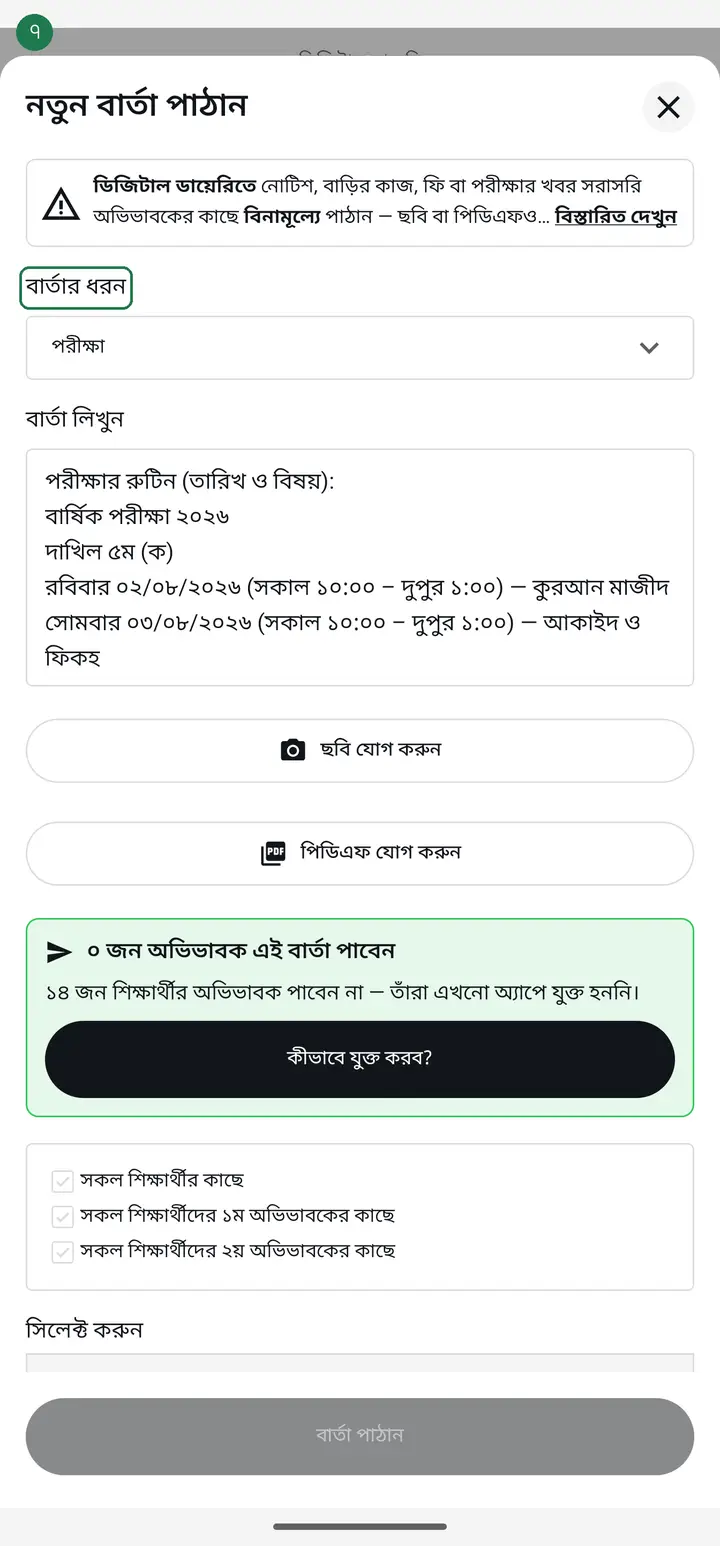
At the top, "বার্তার ধরন" (Message type) is already set to "পরীক্ষা" (Exam). On the guardian's phone it shows as an exam message, so they know at a glance what it is.
-
You can add your own line under the routine if you like — for example "please have them here by 9". It is ordinary text; edit or delete anything in it.
-
Check the number in the green box — how many guardians will actually receive this routine. That number is the truth.
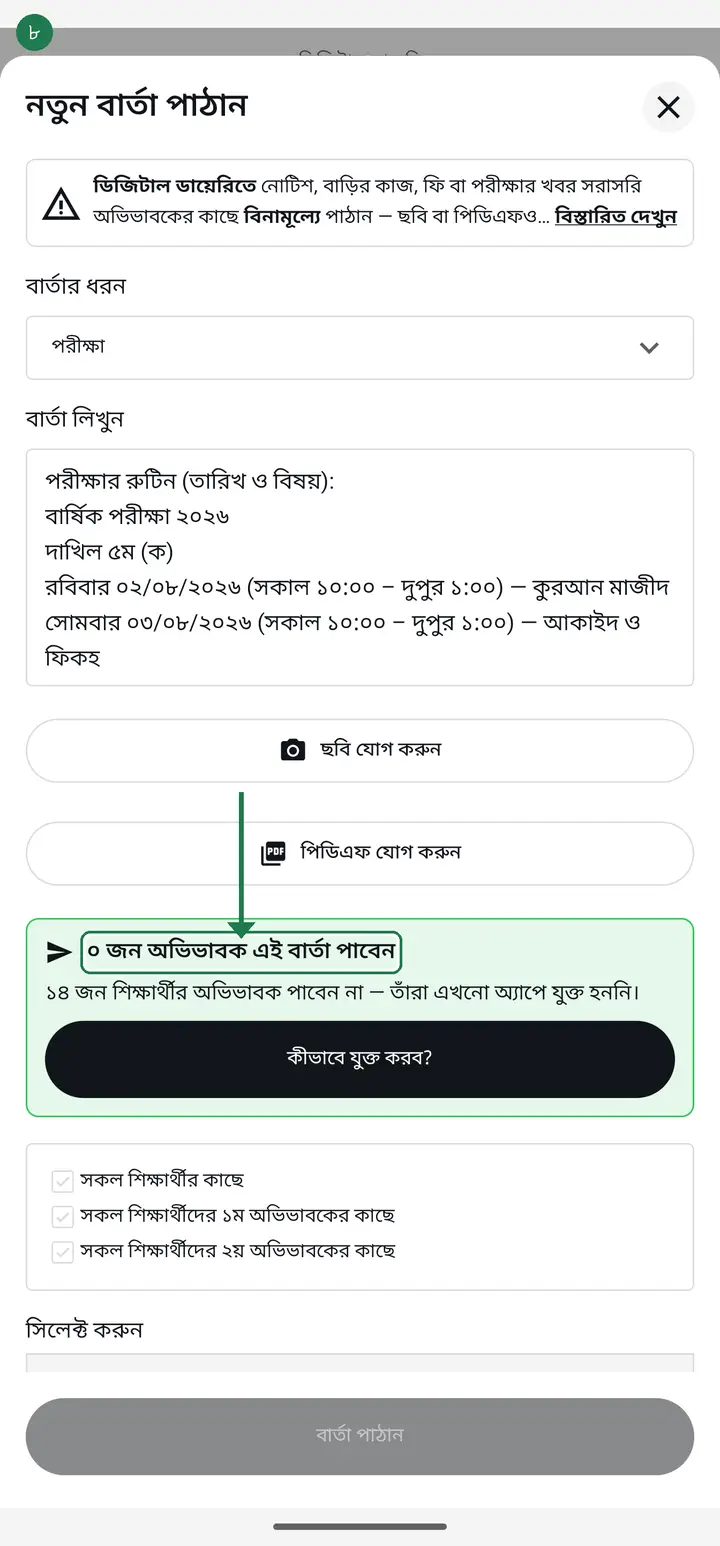
If it is 0, the routine reaches nobody — no guardian in this class has connected yet. Connect them first; the "Connecting every guardian at once" page shows how.
-
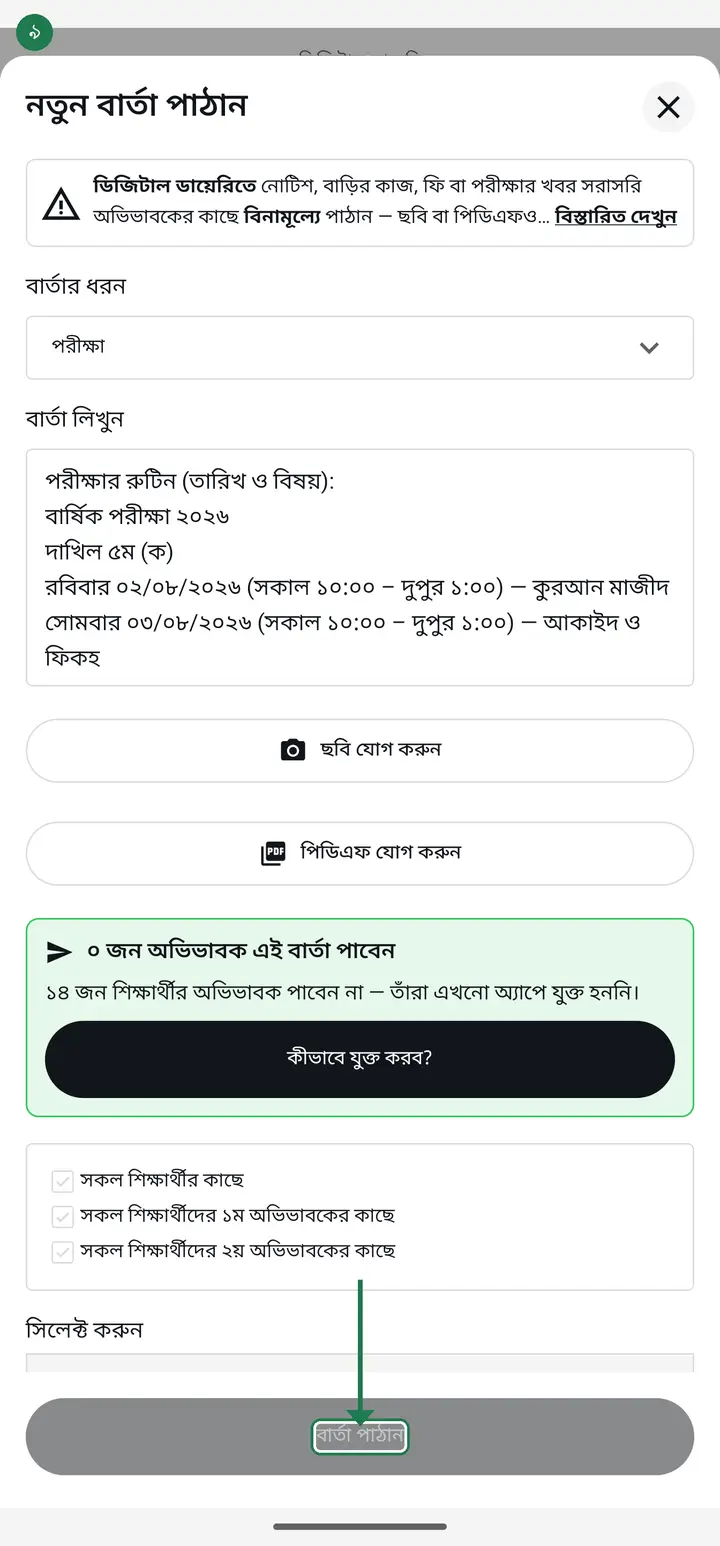
When it looks right, tap "বার্তা পাঠান" (Send message). The routine lands in the guardian's app and their phone gets a notification.
-
One thing to remember — this same tap also delivers the routine to the OTHER TEACHERS of your institution. They see it under "প্রতিষ্ঠানের রুটিন" (Institution routines) in the Routine tab. Share it once even if no guardian is connected, otherwise no other teacher can see your routine.
A routine you only CREATE stays on your own phone. Other teachers and assistants then open "প্রতিষ্ঠানের রুটিন" and see nothing. Share it once and everyone can see it.
Common questions
Do I have to build the routine first? Can I not just type it here?
You can type anything you like in the box. But if you build it on the "পরীক্ষার রুটিন" page first, it fills in here by itself — and the same routine can be printed and shown on the school website. Written once, used three ways.
Do I have to send it separately for each class?
Yes. The diary works class by class, and the app fills in only that class's part of the routine. So open each class and send once — but the text is ready every time; you only tap.
What if the routine changes — do I send it again?
Fix and save the routine, then tap "পরীক্ষার রুটিন শেয়ার" again — the new version fills in. Write "the routine has changed" at the top so guardians know it replaces the old one.
Will the guardian see the printed grid?
No, the message is line by line — day, time, subject. If you want the printed grid, make an image from the "পরীক্ষার রুটিন" page and share it on WhatsApp, or attach it here with "ছবি যোগ করুন" (Add photo).
Ask AI about this page
Ask an AI app to explain this page in simple language.
Copied — now paste it
Get Hazira Khata free on Google Play
More tutorials
- Using My Child as a parent Keep track of your child with no account at all — vaccine dates, memories, and your own attendance record.
- When a guardian asks to join, on their own A guardian opens the school's website, writes their child's name and sends a request. It lands in the institution tab. All you do is point at which student that is — the guardian confirms the rest themselves.
- Connecting every guardian at once Sending one link at a time takes all day for a class of forty. Send the join request to every guardian in one tap, and connect the parent standing in front of you with a QR code on the spot.
- Connecting a guardian to the diary The teacher shares a link or QR; the guardian taps it and is connected — class messages then reach their phone.
- Sending a message to guardians Notices, homework, fees or exam news — straight to the guardian's phone, free. Photos and PDFs too. Before you send, the app tells you who will actually receive it and who will not.
- Seeing who is connected, and removing someone After sending the requests, the only question that matters is whether it worked. The list at the bottom of the diary answers it — who is marked connected, who to call, and exactly what the red ✕ does.
- How a parent contacts the teacher Under any diary message there is a button to reach the teacher. There is no reply box in the diary — this explains why, and what to do instead.
- You never buy SMS from Hazira Khata — who actually pays for a message Hazira Khata sells no SMS package and cannot send a single SMS by itself. There are two roads to a guardian's phone — the Digital Diary is completely free, while SMS is charged by your own operator from your own SIM. Here is the difference for one class in one month, with the arithmetic.