
Leaving my old institution to open my own
You are done at your old institution and want to open your own school, but cannot find a "leave" button? It used to be buried deep. It now sits right on the প্রতিষ্ঠান tab.
Want to leave your old school, or open your own? The red "এই প্রতিষ্ঠান ছাড়ুন" at the very bottom of the প্রতিষ্ঠান tab changes nothing until you confirm. After leaving, open your own.
The screenshots show the app in Bangla, its main language. The buttons sit in the same places in English.
-
From the new version (3.2.306): tap the "প্রতিষ্ঠান" tab and scroll right to the bottom. Last on the page is a red-outlined "এই প্রতিষ্ঠান ছাড়ুন" (Leave this institution) with "নিশ্চিত না করা পর্যন্ত কিছুই বদলাবে না" (Nothing changes until you confirm) under it. Tap it.
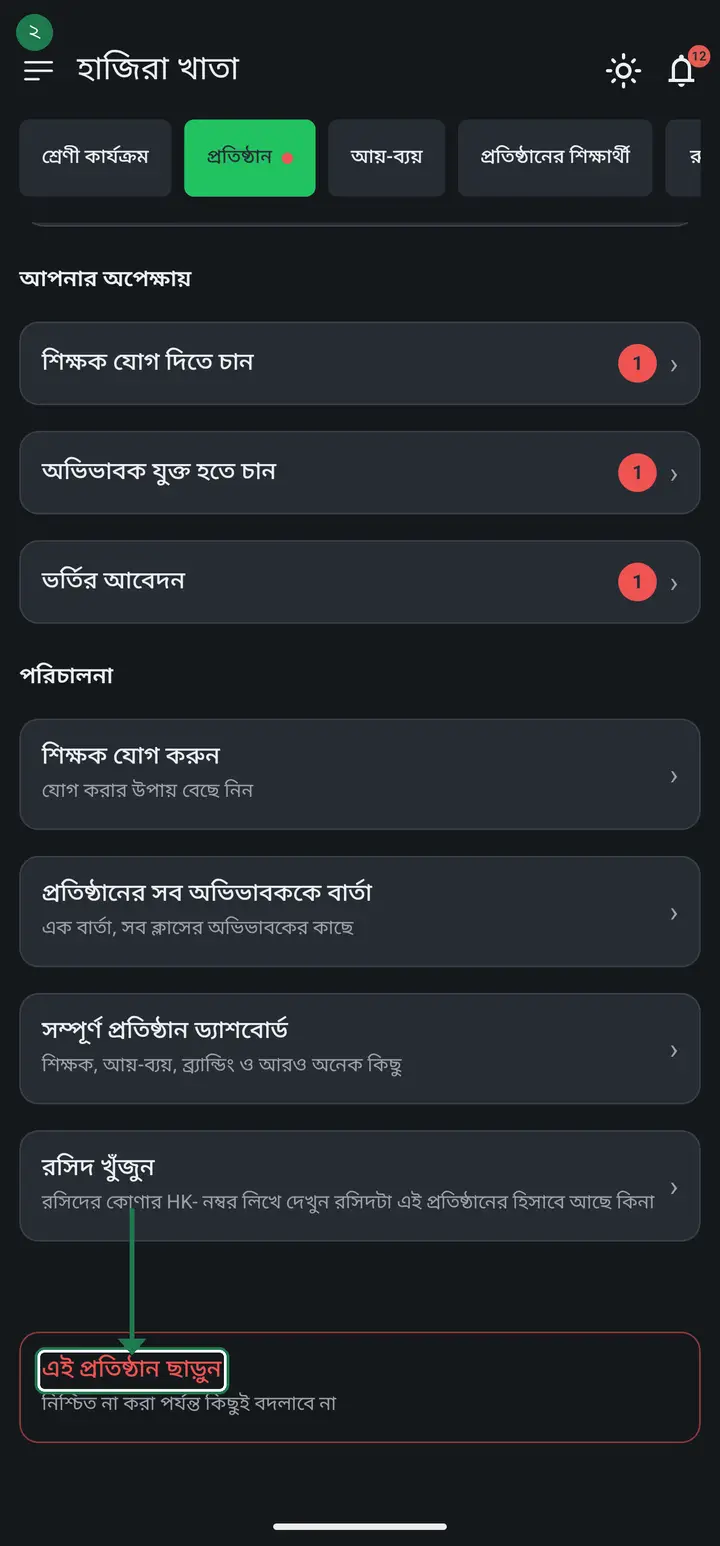
Older versions do not have this red row. Use the "older versions" step below instead; that path still works today.
-
If you are the only admin, the app first asks "কাকে অ্যাডমিন বানাবেন বেছে নিন" (Choose who becomes admin). Pick one member from the list so the institution is never left without an admin. To think it over, tap "বাতিল করুন" (Cancel) and nothing changes.
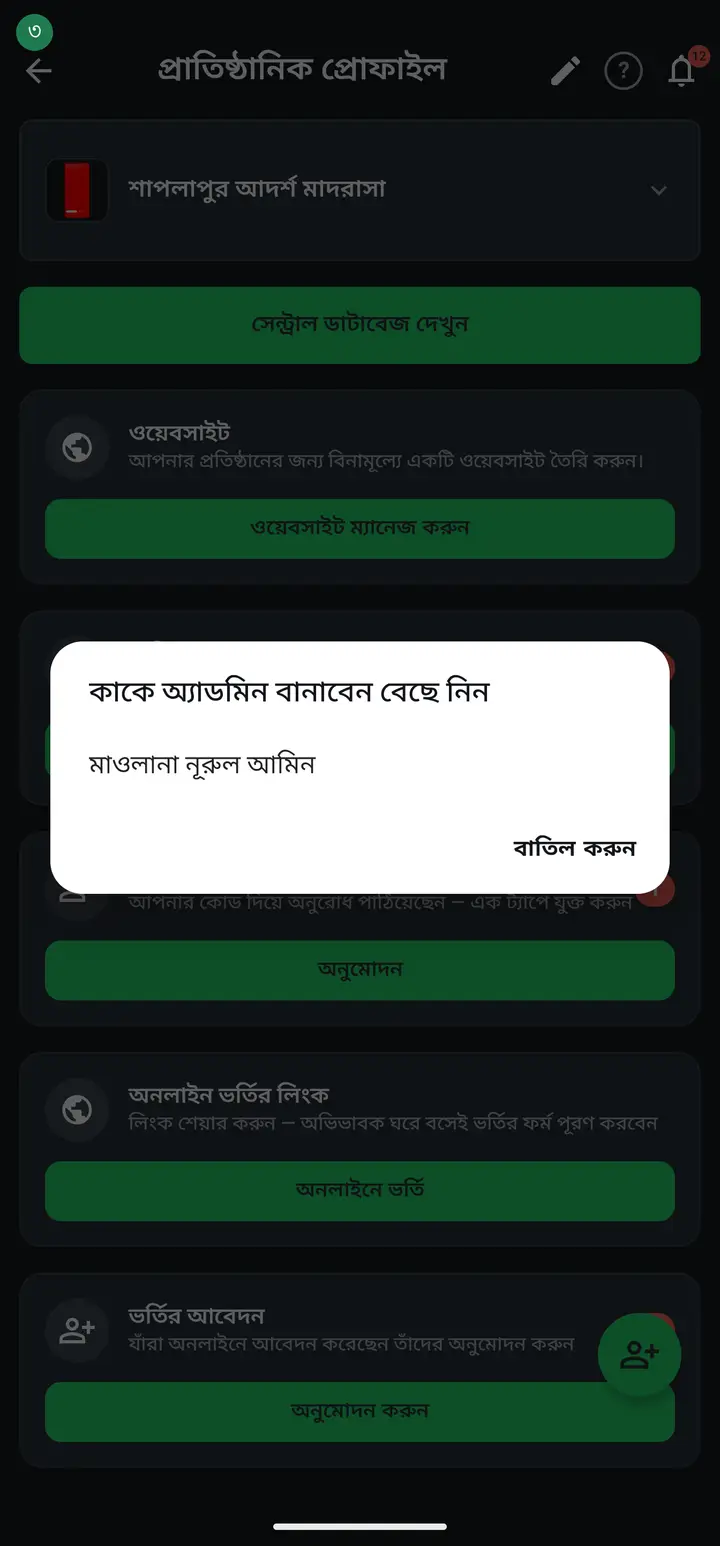
The moment you pick a name, that person becomes an admin. If you change your mind at the next step, they stay an admin and so do you. Pick carefully.
-
A "প্রতিষ্ঠান ছেড়ে দেবেন?" (Leave the institution?) box appears. Tick "আমি বুঝেছি, আমি এই প্রতিষ্ঠান ছাড়তে চাই", then tap "প্রতিষ্ঠান ছাড়ুন". Without the tick the button will not work.
After leaving you can no longer see that institution's classes, students or attendance. Nothing is deleted; all of it stays with the institution.
-
After leaving you see "আপনি প্রতিষ্ঠান ছেড়ে দিয়েছেন।" (You have left the institution.) The "প্রতিষ্ঠান" tab now offers "প্রতিষ্ঠান খুলুন বা যুক্ত হোন". Tap it, and under "প্রতিষ্ঠানের জন্য কী করবেন?" open your own institution, or join another school with its code. The "আমার প্রতিষ্ঠান খুলুন / কোড দিয়ে যোগ দিন" line in the three-line menu does the same.
-
On older versions: "প্রতিষ্ঠান" tab → "সম্পূর্ণ প্রতিষ্ঠান ড্যাশবোর্ড" → scroll to "প্রতিষ্ঠানের সকল কর্মকর্তা" → your own card in the list → "প্রতিষ্ঠান ছাড়ুন". Then it continues exactly like steps two and three above. For that path with screenshots see the page "A teacher has left — removing a member" (remove-member).
Common questions
If I leave, is my old institution's data deleted?
No. Classes, students, attendance and accounts all stay with the institution. Only your own access ends.
I left by mistake — how do I get back?
Someone in the institution has to add you again, or you send a join request with the code. So read the box before you confirm.
Is "চলে গেছেন হিসাবে রাখুন" the same as "প্রতিষ্ঠান ছাড়ুন"?
No. "চলে গেছেন হিসাবে রাখুন" is what an admin uses for someone else; it takes them off attendance and payroll lists but does not end their app access. To cut access completely the admin must tap "রিমুভ". To go yourself, use "প্রতিষ্ঠান ছাড়ুন" on this page.
What does the old institution's admin do to remove me?
The admin goes to the "প্রতিষ্ঠান" tab → "সম্পূর্ণ প্রতিষ্ঠান ড্যাশবোর্ড" → "প্রতিষ্ঠানের সকল কর্মকর্তা" and taps "রিমুভ" on your card. Details are on the "A teacher has left — removing a member" page.
Ask AI about this page
Ask an AI app to explain this page in simple language.
Copied — now paste it
Get Hazira Khata free on Google Play
More tutorials
- How to set up your institution Once your institution profile exists you can add other teachers, and everyone sees the same classes and students.
- Inviting and approving teachers Adding a teacher to your institution — share the code, then approve the request with one tap.
- Assign a teacher to a class (make them a class teacher) Teacher joined the institution but sees nothing? This one job fixes it — 2 minutes.
- Who can see what — designations and permissions How your other teachers sign in, how much power to give each one through designations — and now, more precisely for one person, through permissions too.
- A teacher has left — removing a member Somebody has resigned, or you approved the wrong person. Take the name off in one tap without losing any of the attendance or fees they recorded — and how to leave an institution yourself.
- Record a teacher's salary and send the receipt After paying a teacher, send them a receipt right from the app — instantly if they use WhatsApp, and as a shareable picture even if they don't.
- Taking admissions online Make one link and share it. Guardians fill the form from home, the applications land in your app, and approving one adds the student straight into a class.
- Join a school as a teacher Use the 6-character code your school gave you to join by yourself.