
Taking admissions online
Make one link and share it. Guardians fill the form from home, the applications land in your app, and approving one adds the student straight into a class.
The screenshots show the app in Bangla, its main language. The buttons sit in the same places in English.
-
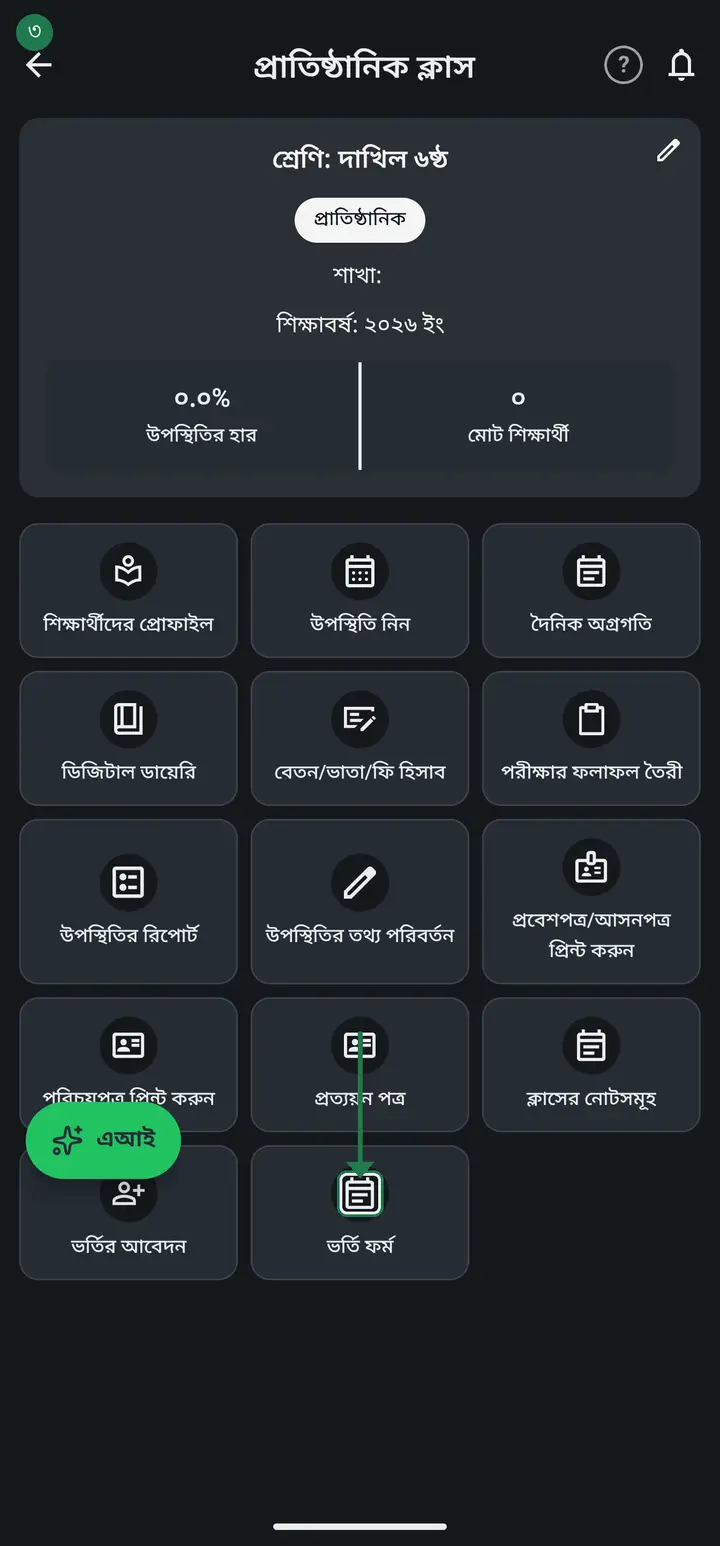
Tap "দেখুন" (View) on a class card, then "ভর্তি ফর্ম" (Admission form). The "অনলাইনে ভর্তি" (Online admission) page opens.
-
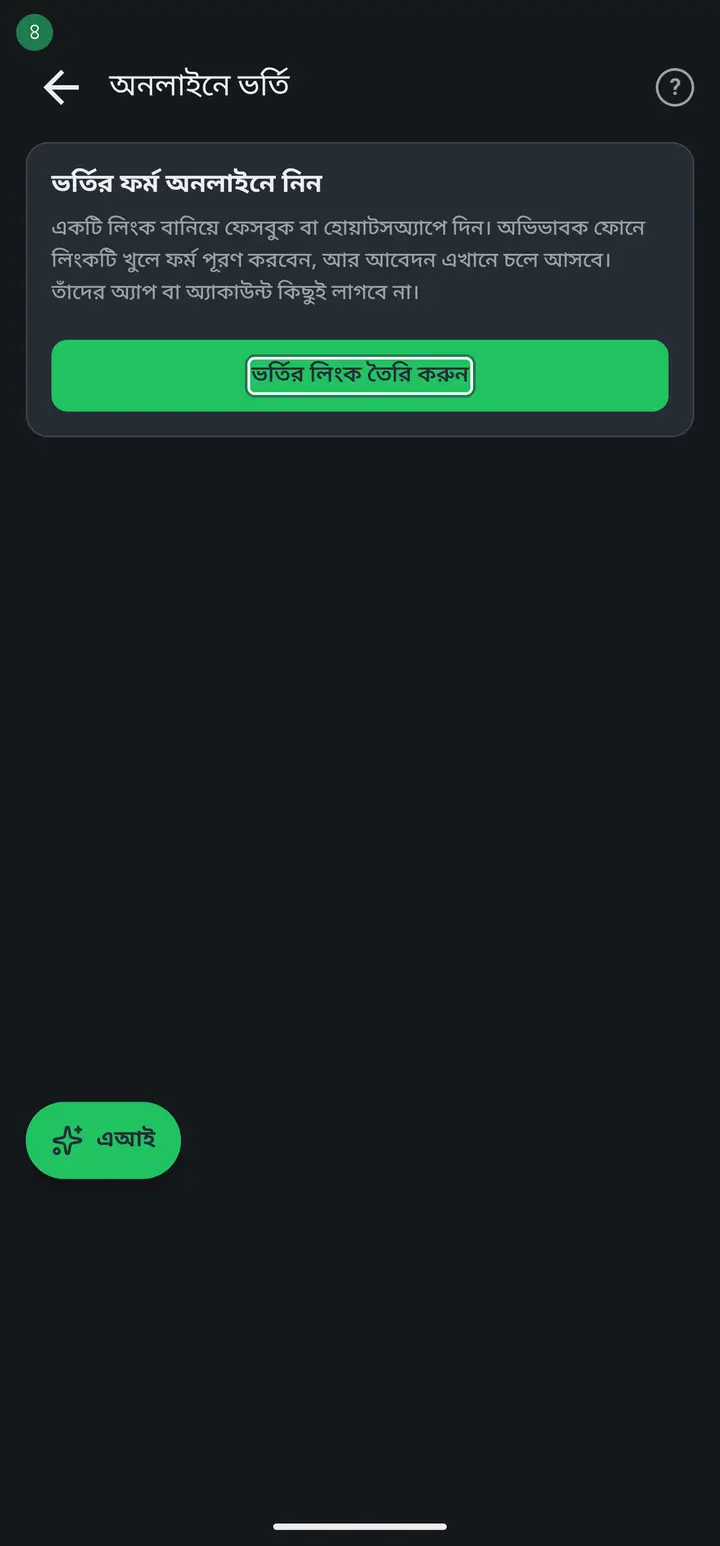
Tap "ভর্তির লিংক তৈরি করুন" (Create the admission link). One tap makes it — one link for the whole institution, not one per class.
-
Type the year into "শিক্ষাবর্ষ" (Session) and tap "শিক্ষাবর্ষ সেভ করুন" (Save session). Then fill "ভর্তি ফি" (Admission fee) and "অভিভাবকদের জন্য কথা" (A note for guardians) below and tap "ফি ও কথা সেভ করুন" (Save fee and note). "সেভ হয়েছে" means it is done.
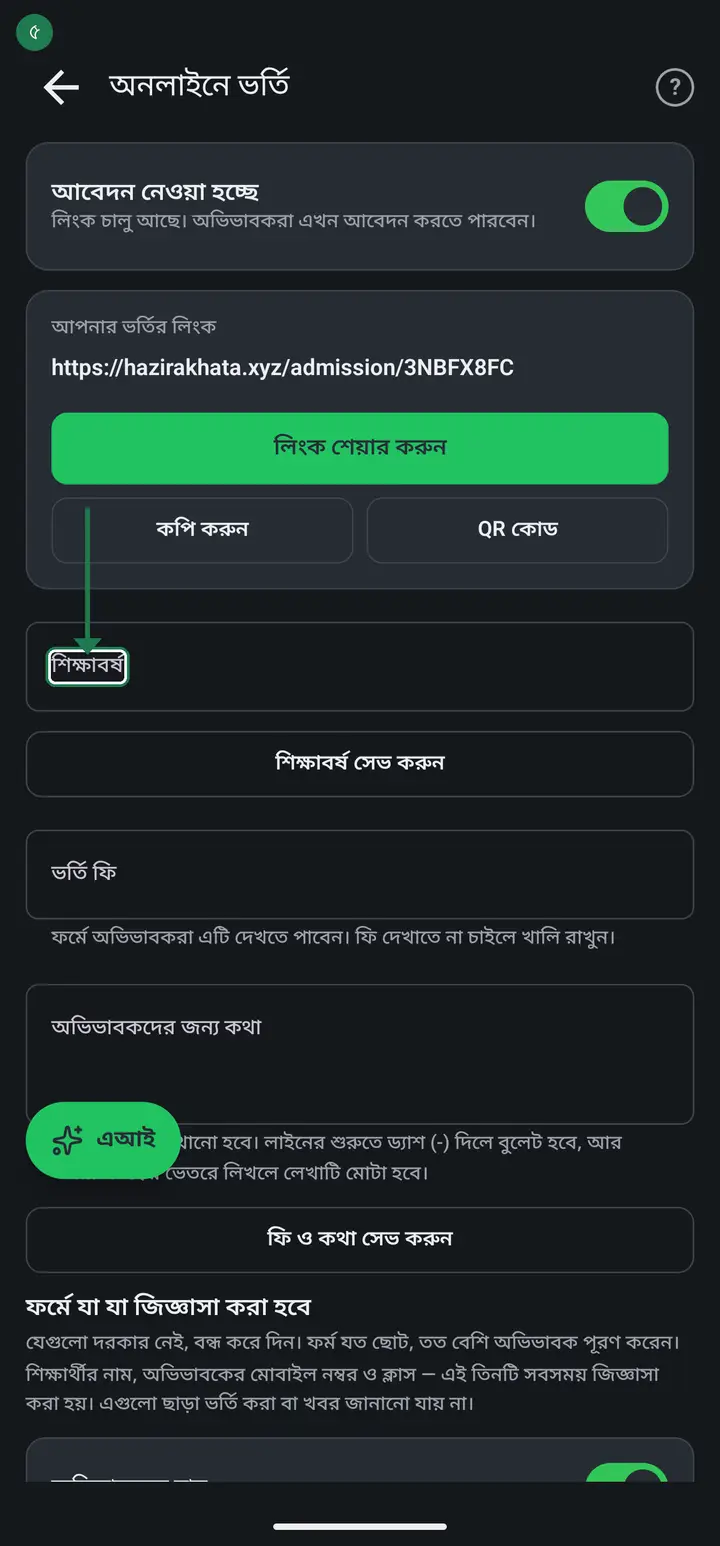
In the guardian note, a line starting with a dash (-) becomes a bullet, and text inside *stars* becomes bold. Leave the fee box empty if you do not want the fee shown on the form.
-
Under "ফর্মে যা যা জিজ্ঞাসা করা হবে" (What the form will ask), switch off whatever you do not need — birth certificate number, blood group, address, second guardian. The shorter the form, the more guardians finish it.
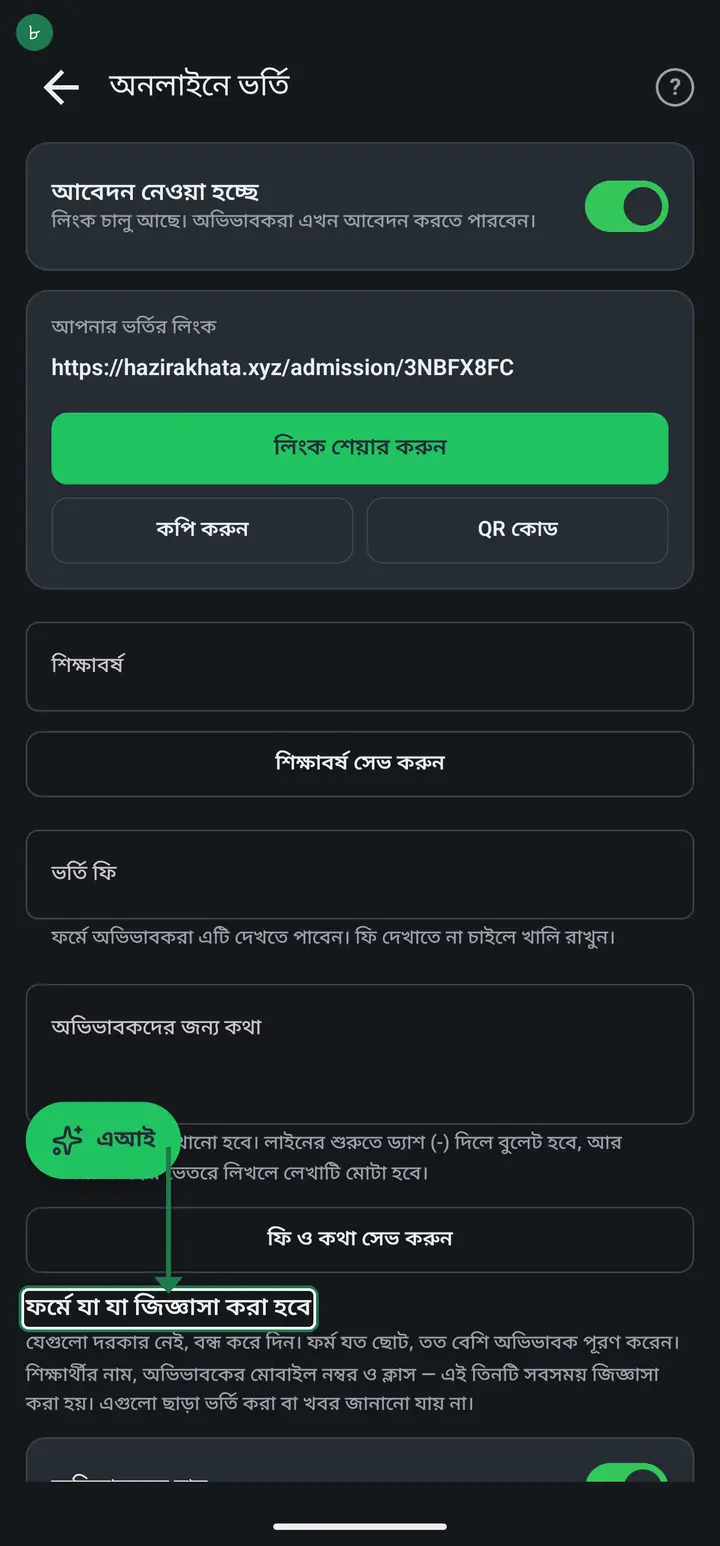
Student name, guardian mobile number and class are always asked and cannot be switched off — without them you can neither admit the student nor contact anyone.
-
Check the "আবেদন নেওয়া হচ্ছে" (Accepting applications) switch. When on it reads "লিংক চালু আছে। অভিভাবকরা এখন আবেদন করতে পারবেন।" When off, nobody can submit the form.
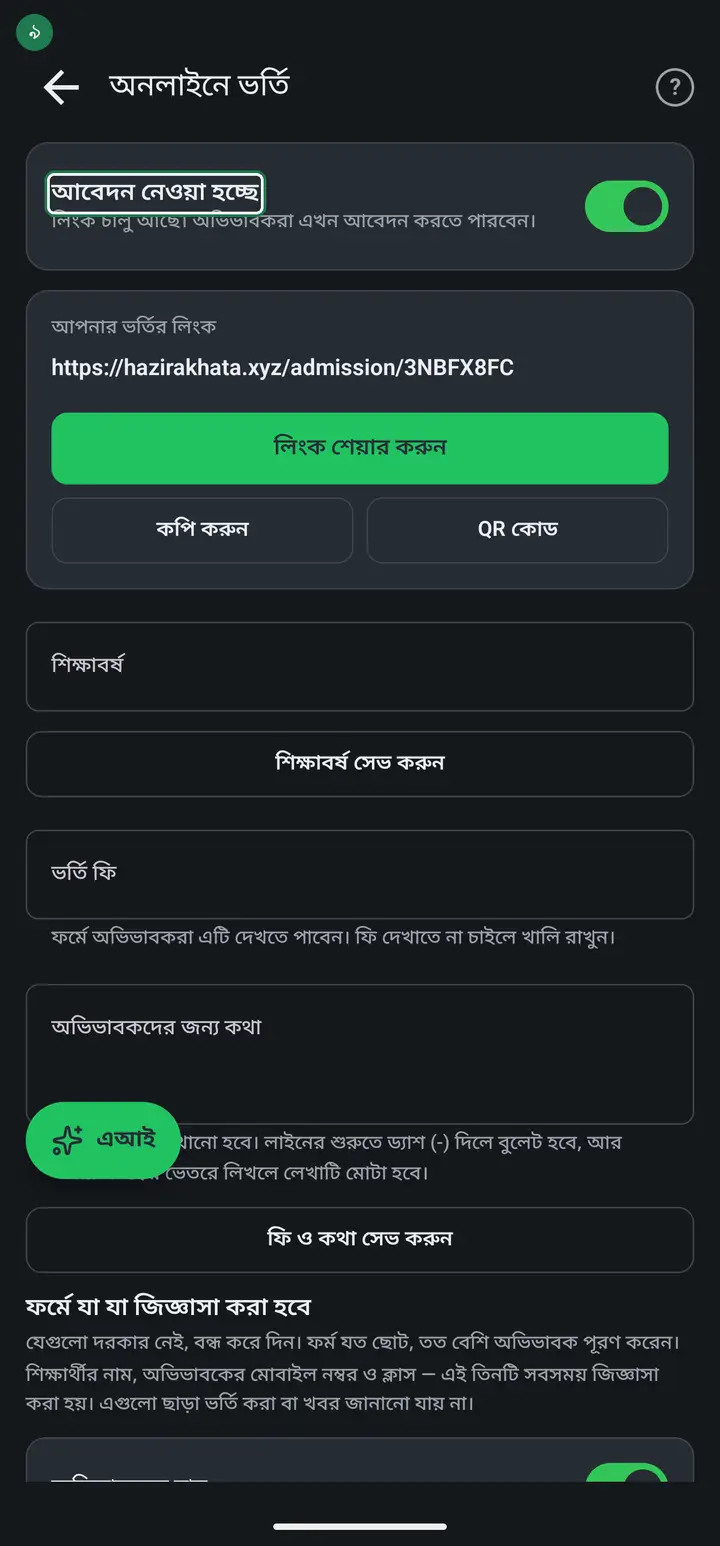
When admissions close, just switch this off. You do not need to delete the link — switching off stops new applications while every earlier one stays in your list.
-
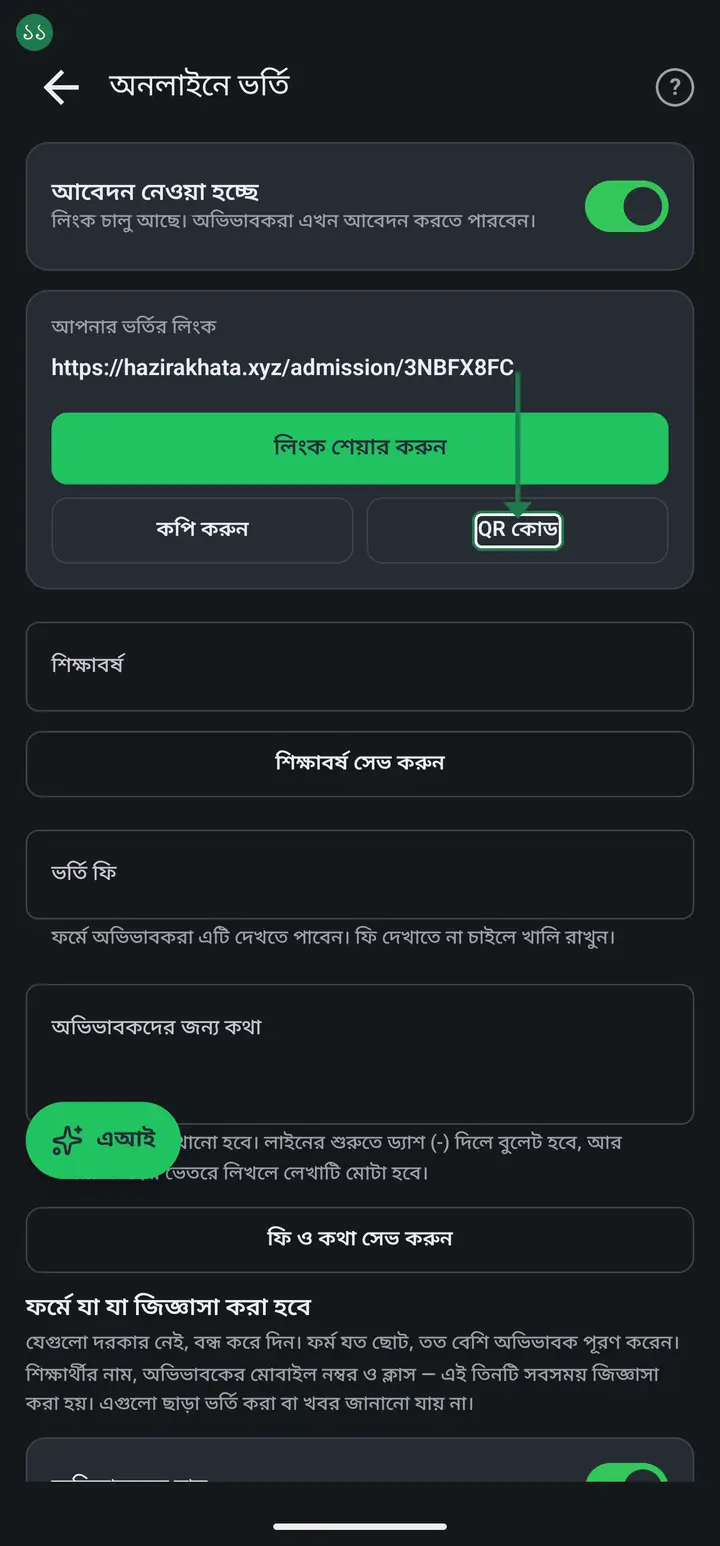
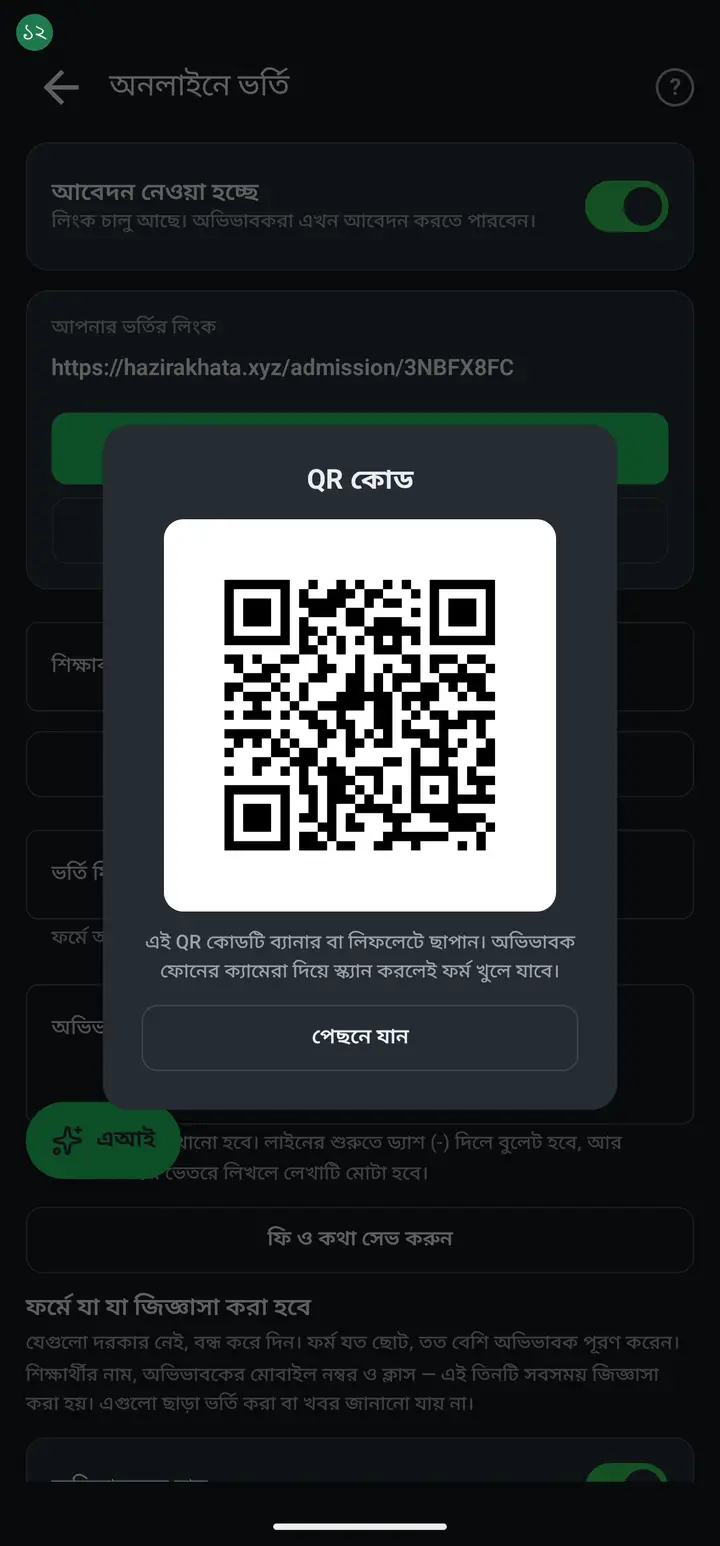
Tap "লিংক শেয়ার করুন" (Share the link) and post it wherever you like. For a banner or leaflet, use the "QR কোড" section — a guardian scanning it with their phone camera lands straight on the form.
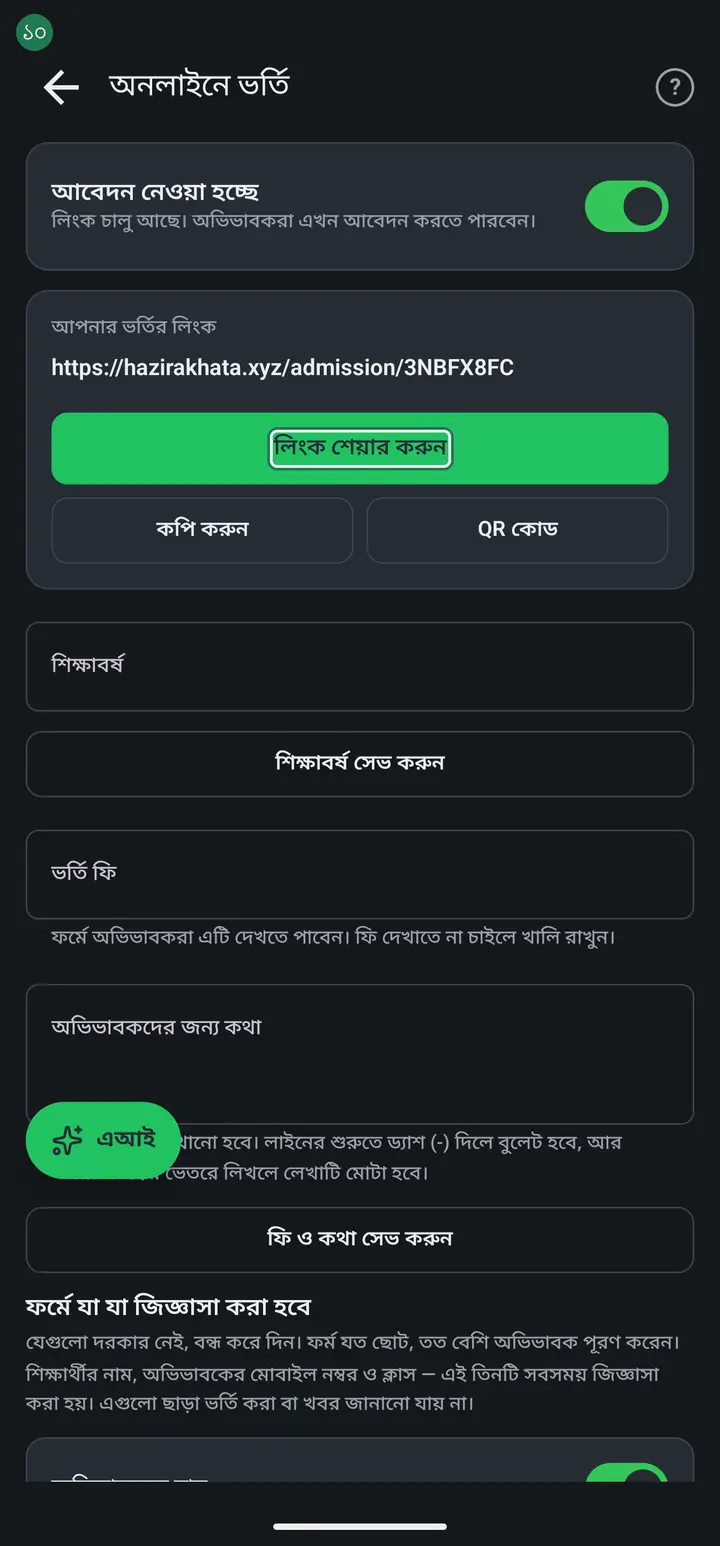
The guardian needs no app and no account. They just open the link and fill the form.
-
When a guardian walks into the office, or cannot fill the form on a phone, you can fill it in for them. Right under "লিংক শেয়ার করুন" is a "ফর্ম খুলুন" (Open form) button; it opens the school's form in the phone's browser. Fill it from what the guardian tells you and submit. It lands in "ভর্তির আবেদন" like every other application, with its own application number.
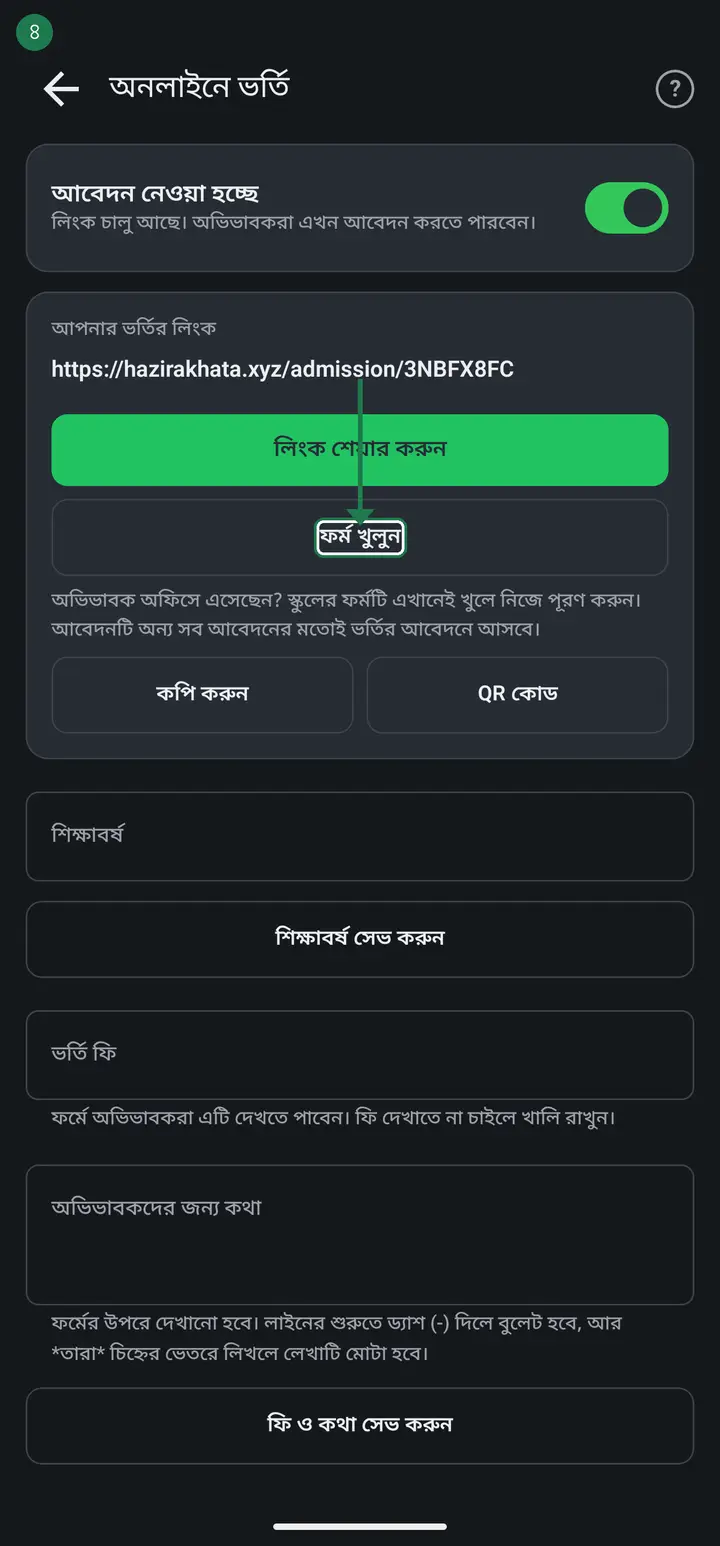
From the new version (3.2.306). Older versions lack the button: tap "কপি" to copy the link, open Chrome on the phone, paste it into the address bar, and the rest is identical. If the "আবেদন নেওয়া হচ্ছে" switch is off the form will not open and the button stays grey, so switch it on first.
-
As applications arrive, open "ভর্তির আবেদন" (Admission applications) inside the class. Filter with "অপেক্ষমাণ" (Pending), "অনুমোদিত" (Approved), "বাতিল" (Rejected) or "সব" (All). Tapping one shows everything the guardian filled in.
-
Every application carries a small "আবেদন নম্বর: AD-XXXXXX" (Application number) line. It is the same number the guardian saw on their own screen after submitting. When someone quotes it over the phone or at the office, type it into the "নাম, অভিভাবক বা নম্বর দিয়ে খুঁজুন" (Search by name, guardian or number) box at the top and their application comes straight up. Tapping the application shows the number again, with a copy button beside it.
Search using English digits — AD-830425, or just 830425. Bangla digits (৮৩০৪২৫) will not match an application number, even though they do match a mobile number.
-
To admit, pick a class under "কোন ক্লাসে ভর্তি করবেন?" (Which class?), optionally give a roll, then tap "অনুমোদন করুন" (Approve). A box asks "ভর্তি অনুমোদন করবেন?" — answer "হ্যাঁ". "ভর্তি সম্পন্ন। শিক্ষার্থীকে ক্লাসে যোগ করা হয়েছে।" means it is done.
Steps from here down do not have screenshots yet — they will be added once a real guardian submits an application. The text is enough to follow along; matching it to the actual screen just takes a little longer without a picture. Separately — the class the guardian asked for is shown beside "যে ক্লাস চেয়েছেন", but you decide the real one. If that roll already exists in the class the app warns you in red without blocking — two students sharing a roll is sometimes genuinely intended.
-
After approving, a box asks "অভিভাবককে ডিজিটাল ডায়েরিতে যুক্ত করবেন?" (Connect the guardian to the Digital Diary?). Tap "লিংক পাঠান" (Send the link) and choose the app — WhatsApp, SMS, imo or anything else. Tap "পরে" (Later) to skip.
On older versions this link could only go out on WhatsApp, so guardians who do not use WhatsApp received nothing at all. From 3.2.168 you choose the app yourself.
-
If you took money at admission, type it into "কত টাকা বুঝে পেলেন?" (How much did you receive?) before approving — it is posted to আয়-ব্যয় as income at the moment you approve. Leave it empty and nothing is posted.
If the guardian said they paid by bKash/Nagad, the app labels it "এটি অভিভাবকের দাবি" — a claim, not a verified payment. The app does not check that any money arrived. Reconcile against your own account before entering an amount.
-
To turn one down, tap "বাতিল করুন" (Reject) and optionally give a reason. A rejected application is not deleted — find it under the "বাতিল" filter. For a paper copy there is "ফর্মটি প্রিন্ট করুন (PDF)".
Common questions
Does the guardian need the Hazira Khata app?
No, nothing at all. They open the link and fill the form — no app, no account, no sign-in. Only if they later want to see attendance and results on their own phone do they need the Digital Diary link, which is a separate thing you can send at the moment you approve.
What is the application number AD-830425 actually for?
It is a lookup number for that one application — think of it as the guardian's receipt. Three uses. (1) When a guardian quotes it on the phone, typing it into the search box in "ভর্তির আবেদন" pulls their application up at once, even if two applicants share a name. (2) "ফর্মটি প্রিন্ট করুন (PDF)" prints "আবেদন নম্বর: … • তারিখ: …" along the bottom of the form, so a paper file matches the application in the app. (3) Rejected applications are never deleted, so the number is the easiest way back to an old one. Beyond that the number carries no power at all — nobody can sign in or open anything with it.
Will this number be needed for fees and results too?
No. The application number's job ends at admission. Once you approve, the student's identity is class + roll/ID — fees, results, marksheets, ID cards and attendance all run on the roll, never on the application number, which stays with the application and is not copied into the student's profile. So fill the "রোল" box while approving: admission works without it, but the roll is what you will search and match on afterwards.
Can a guardian check their application's status online with that number?
No — there is no such page. After submitting, the guardian sees "আপনার আবেদন নম্বর" with the line "এই নম্বরটি লিখে রাখুন বা ছবি (স্ক্রিনশট) তুলে রাখুন। প্রতিষ্ঠান আবেদনটি দেখে আপনার মোবাইলে জানাবে।" — the news comes from you, by phone or by the Digital Diary link you send while approving. Holding the number just makes their phone call easier.
Do I need a separate link per class?
No — one link for the whole institution. The guardian picks the class on the form and you see it beside "যে ক্লাস চেয়েছেন" in the application. You choose the real class when approving; you are not bound to the one they asked for.
Admissions are over. What do I do with the link?
Just switch "আবেদন নেওয়া হচ্ছে" off. No need to delete anything — new applications stop while every old one stays in your list. Switch it back on next year and remember to change the "শিক্ষাবর্ষ" (session).
The guardian says they sent money by bKash. Does the app verify it?
No, and this matters. The app only shows what the guardian typed and labels it "এটি অভিভাবকের দাবি" (the guardian's claim). Check your own bKash/Nagad account yourself. Once it matches, enter the amount in "কত টাকা বুঝে পেলেন?" — that is the moment it is posted to আয়-ব্যয় as income.
After approving, do I still have to add the student by hand?
No. Approving creates the student in that class with the guardian's name and number already attached. Check under "শিক্ষার্থীদের প্রোফাইল" — there is nothing to re-type.
I rejected one by mistake.
It is not deleted — tap the "বাতিল" filter and it is there. But a rejected application cannot be approved directly. Either ask that guardian to submit the form again, or add the student yourself from "শিক্ষার্থীদের প্রোফাইল", copying the details off the application you can still read.
I tapped "পরে" on the diary invite. How do I send it now?
Open "ডিজিটাল ডায়েরি" in the class and send the link from that student's row. Nothing is lost by skipping it at admission time — it can go out any day.
A guardian is at the office — how do I fill the form in for them?
From the new version (3.2.306), on the "অনলাইনে ভর্তি" page tap "ফর্ম খুলুন" under "লিংক শেয়ার করুন"; the form opens in the phone's browser, fill it and submit. On older versions tap "কপি", then paste the link into Chrome on the phone. Either way the application arrives in "ভর্তির আবেদন" like every other one. If the "আবেদন নেওয়া হচ্ছে" switch is off the form will not open.
Can I choose what the admission form asks?
Yes. Open "অনলাইনে ভর্তি" for the class and go to "ফর্মে যা যা জিজ্ঞাসা করা হবে" (what the form will ask). Each field has a switch: turn off what you do not need and it disappears from the form. The "আবশ্যক" (required) tick decides whether a field you keep can be left empty. Three things are always asked and cannot be turned off: the student name, the guardian mobile number and the class. You cannot add your own new questions yet, only switch the existing ones on or off. The shorter the form, the more guardians finish it.
Ask AI about this page
Ask an AI app to explain this page in simple language.
Copied — now paste it
Get Hazira Khata free on Google Play
More tutorials
- How to set up your institution Once your institution profile exists you can add other teachers, and everyone sees the same classes and students.
- Inviting and approving teachers Adding a teacher to your institution — share the code, then approve the request with one tap.
- Assign a teacher to a class (make them a class teacher) Teacher joined the institution but sees nothing? This one job fixes it — 2 minutes.
- Who can see what — designations and permissions How your other teachers sign in, how much power to give each one through designations — and now, more precisely for one person, through permissions too.
- A teacher has left — removing a member Somebody has resigned, or you approved the wrong person. Take the name off in one tap without losing any of the attendance or fees they recorded — and how to leave an institution yourself.
- Record a teacher's salary and send the receipt After paying a teacher, send them a receipt right from the app — instantly if they use WhatsApp, and as a shareable picture even if they don't.
- Leaving my old institution to open my own Want to leave your old school, or open your own? The red "এই প্রতিষ্ঠান ছাড়ুন" at the very bottom of the প্রতিষ্ঠান tab changes nothing until you confirm. After leaving, open your own.
- Join a school as a teacher Use the 6-character code your school gave you to join by yourself.