
How to set up your institution
Once your institution profile exists you can add other teachers, and everyone sees the same classes and students.
The screenshots show the app in Bangla, its main language. The buttons sit in the same places in English.
-
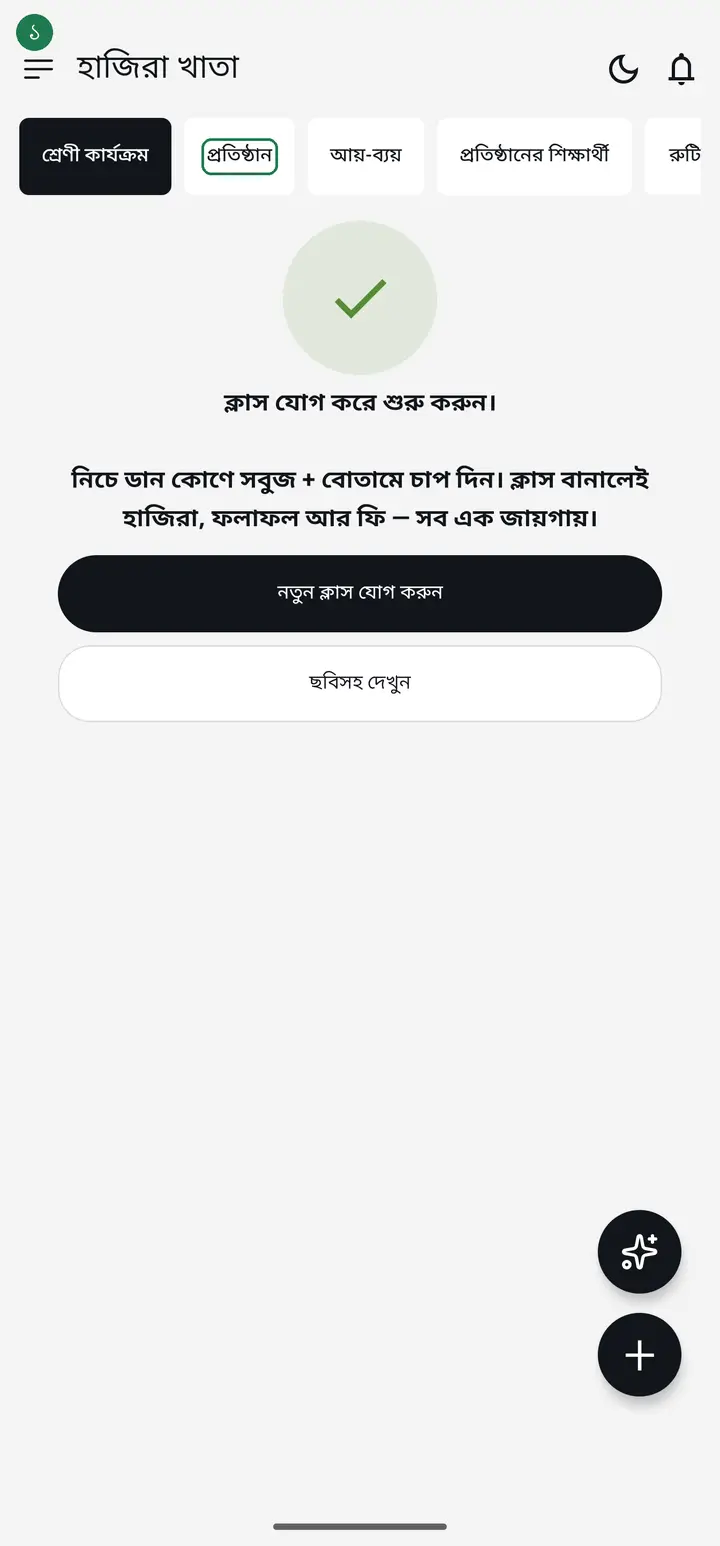
Tap the "প্রতিষ্ঠান" (Institution) tab at the top of the app.
-
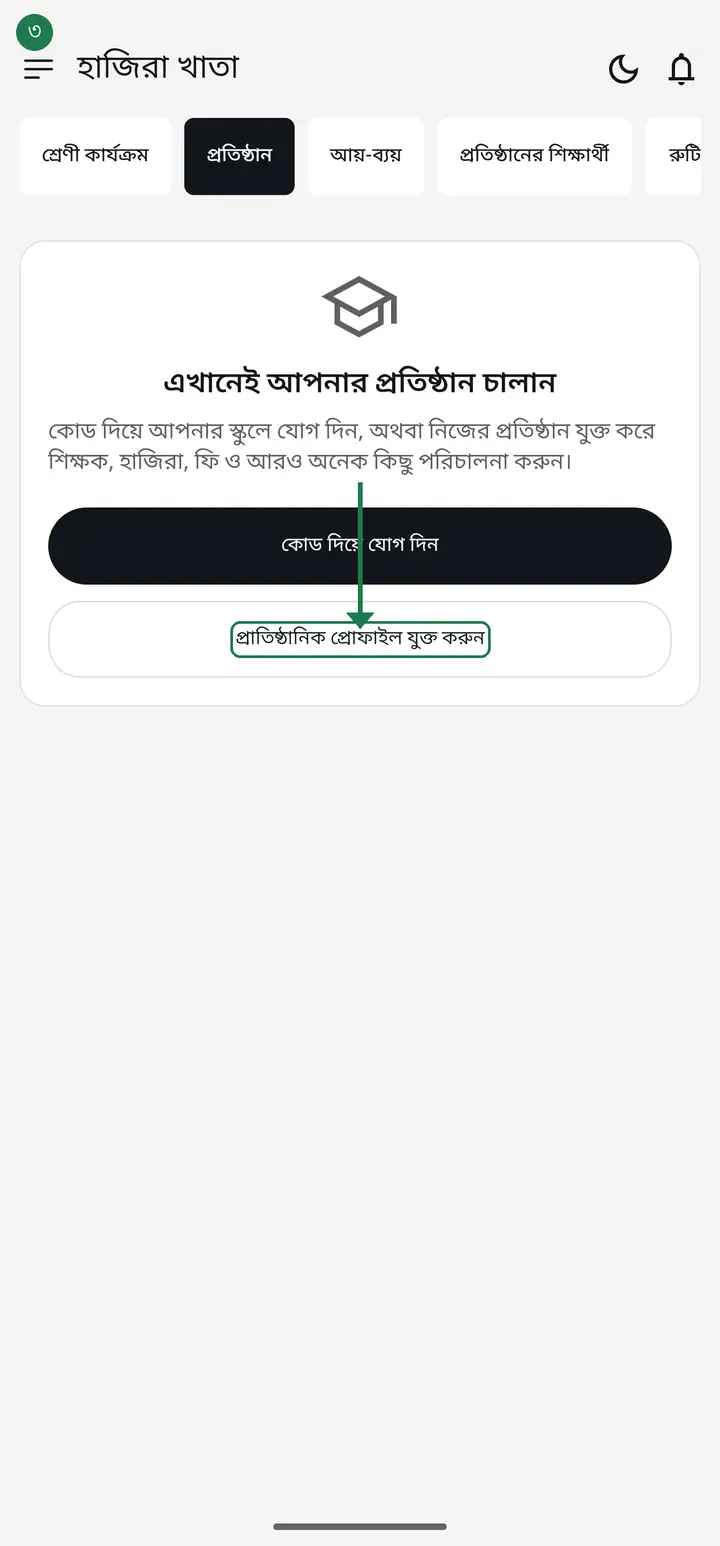
Tap "প্রাতিষ্ঠানিক প্রোফাইল যুক্ত করুন" (Add institution profile).
-
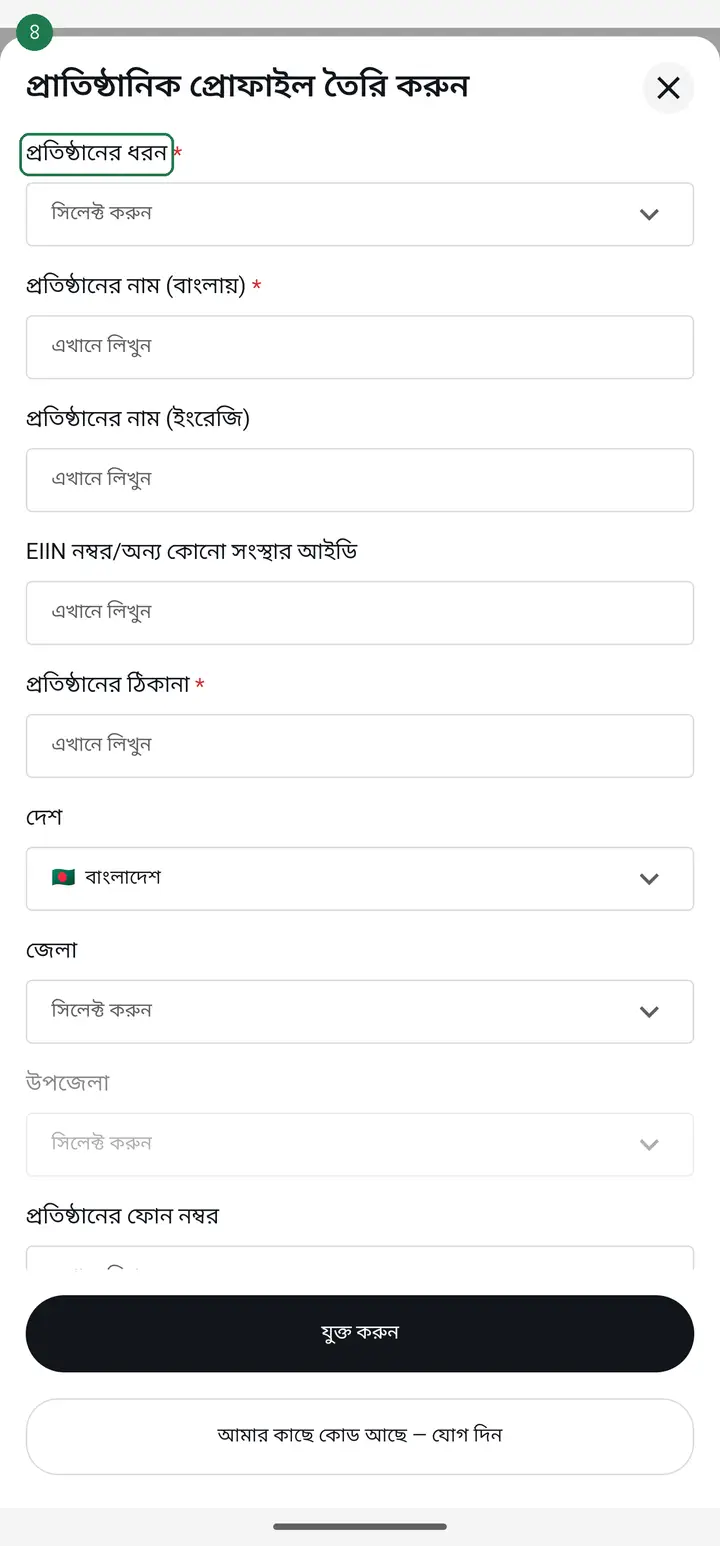
Tap "প্রতিষ্ঠানের ধরন" (Institution type) and pick yours from the list — madrasa, school, whichever applies.
-
Type the full name in "প্রতিষ্ঠানের নাম (বাংলায়)" (Institution name in Bangla).
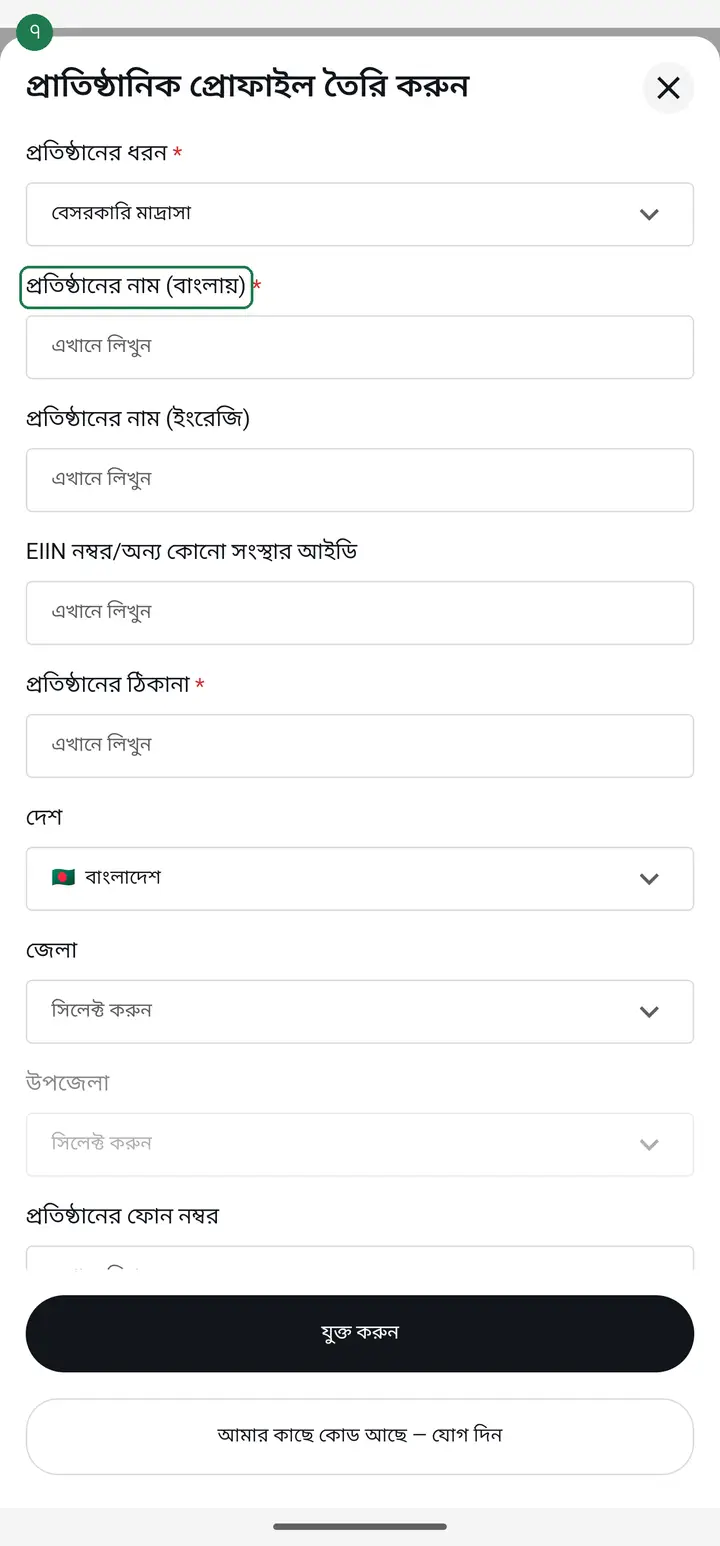
Write the Bangla name now. Editing the profile later from the dashboard requires the Bangla name specifically.
-
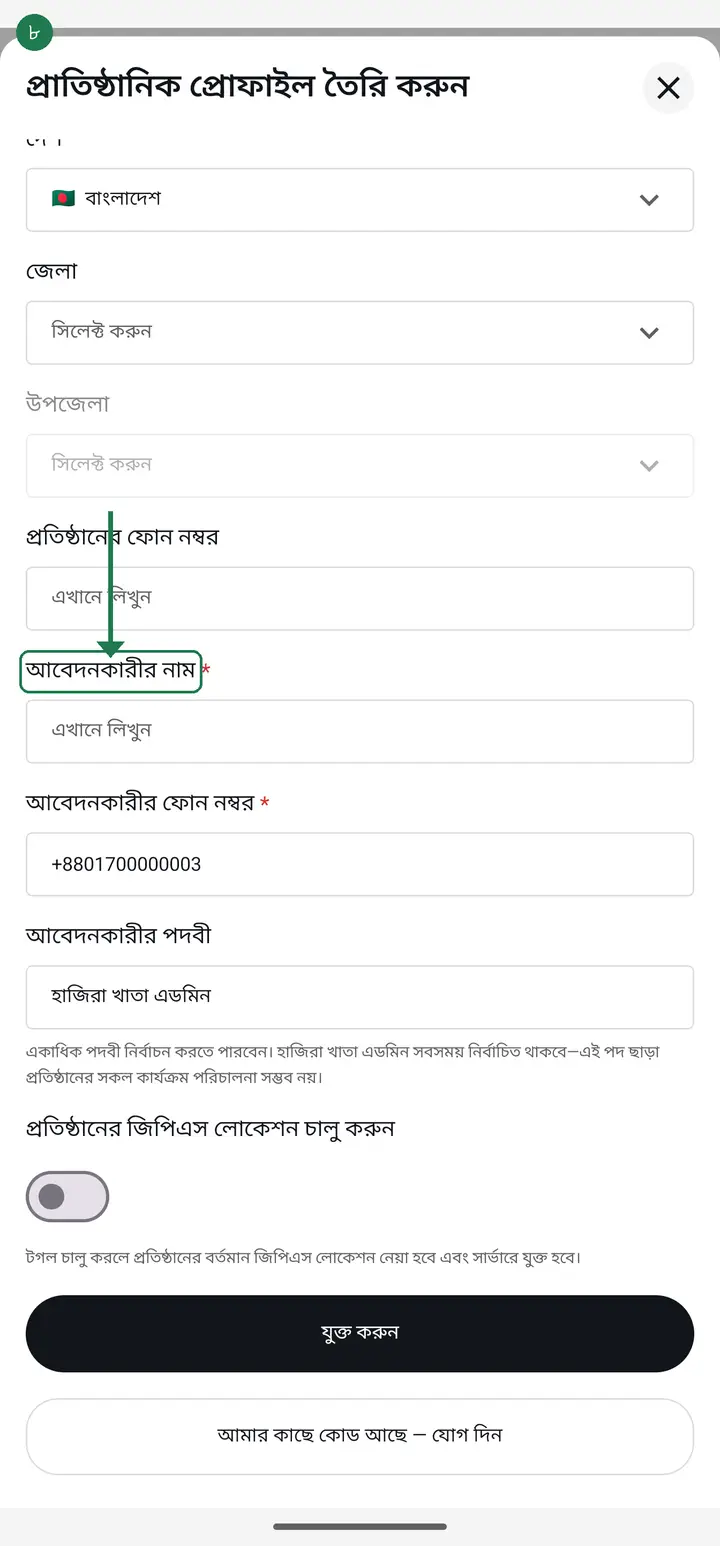
Type "প্রতিষ্ঠানের ঠিকানা" (Institution address). Below it, "আবেদনকারীর নাম" (Applicant name) and "আবেদনকারীর ফোন নম্বর" (Applicant phone) are usually filled in already — just check they are right.
-
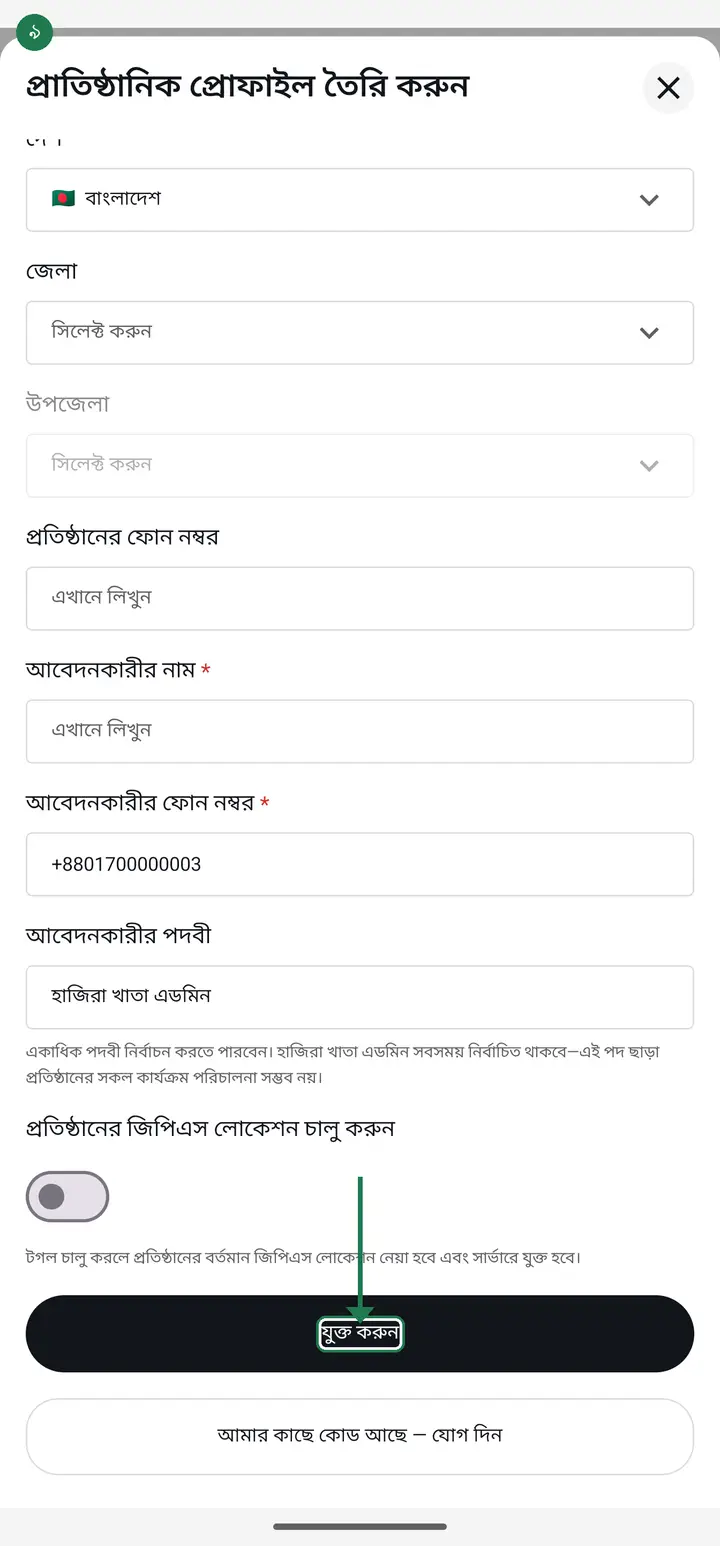
Tap "যুক্ত করুন" (Add). Your request is submitted.
-
Right after you submit, the screen shows "যাচাই করা হচ্ছে…" (checking). Keep it open — it usually finishes in a few seconds. The check is automatic; you do not need to call anyone.
On builds before 3.2.158 this message could stick even after approval. If it stays for a long time, update the app.
-
When it finishes, the same card says "অনুমোদন হয়ে গেছে" (Approved) with your institution's name, and a button appears: "প্রতিষ্ঠানে যান" (Go to my institution). Tap it.
-
The app reloads itself and takes you inside. You are now the admin of this institution.
If it says "একটু ঠিক করতে হবে" (something needs fixing), the reason is written underneath — fix that field and tap "ঠিক করে আবার দিন". This is not a rejection, just one field to correct.
-
After approval, open "সেন্ট্রাল ডাটাবেজ দেখুন" (View central database) from the dashboard and add the institution's classes. Classes must exist before you can assign teachers to them.
-
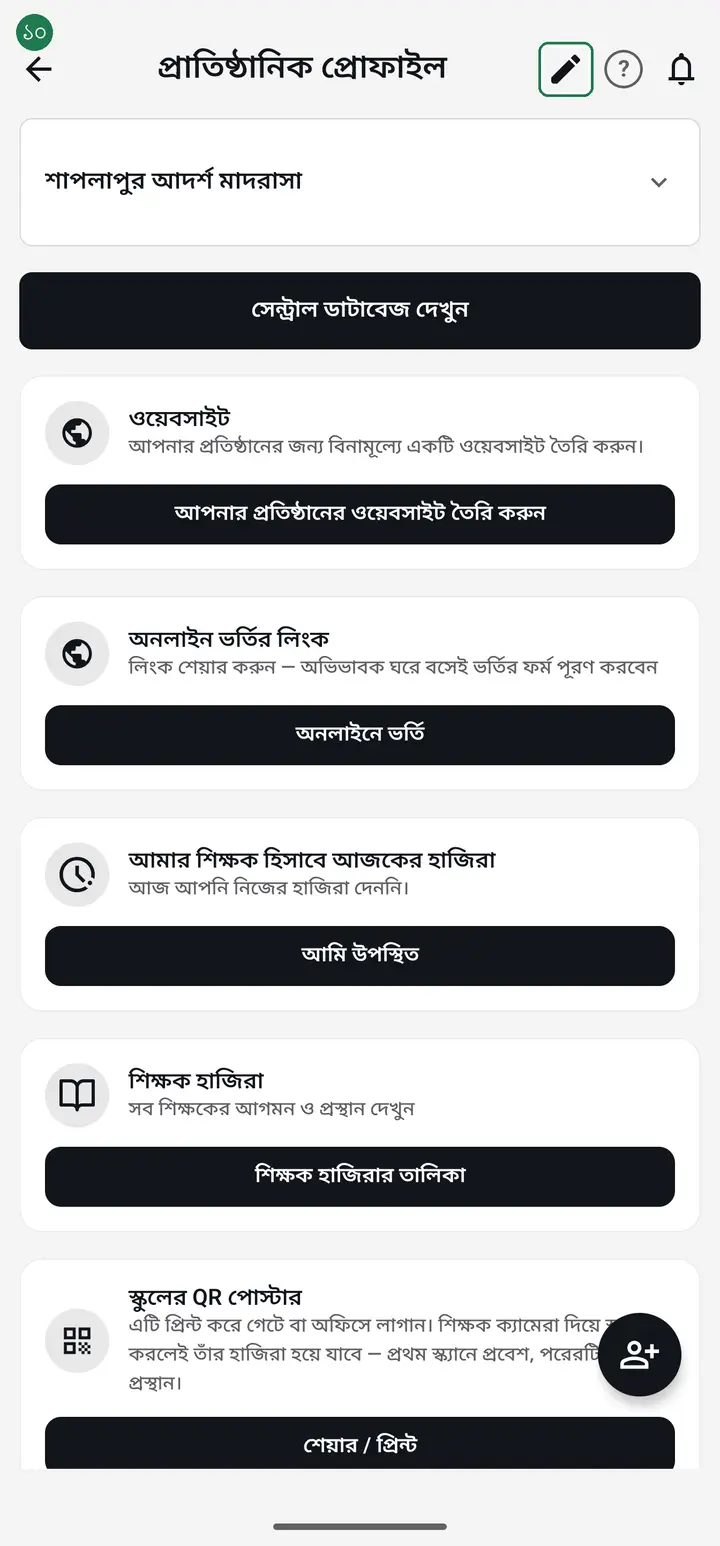
Wrong information can be corrected later — you do not need to apply again. Open the "প্রতিষ্ঠান" (Institution) tab, tap your institution's name, then tap the pencil icon at the top right. Name, EIIN, address, phone, district and upazila can all be changed.
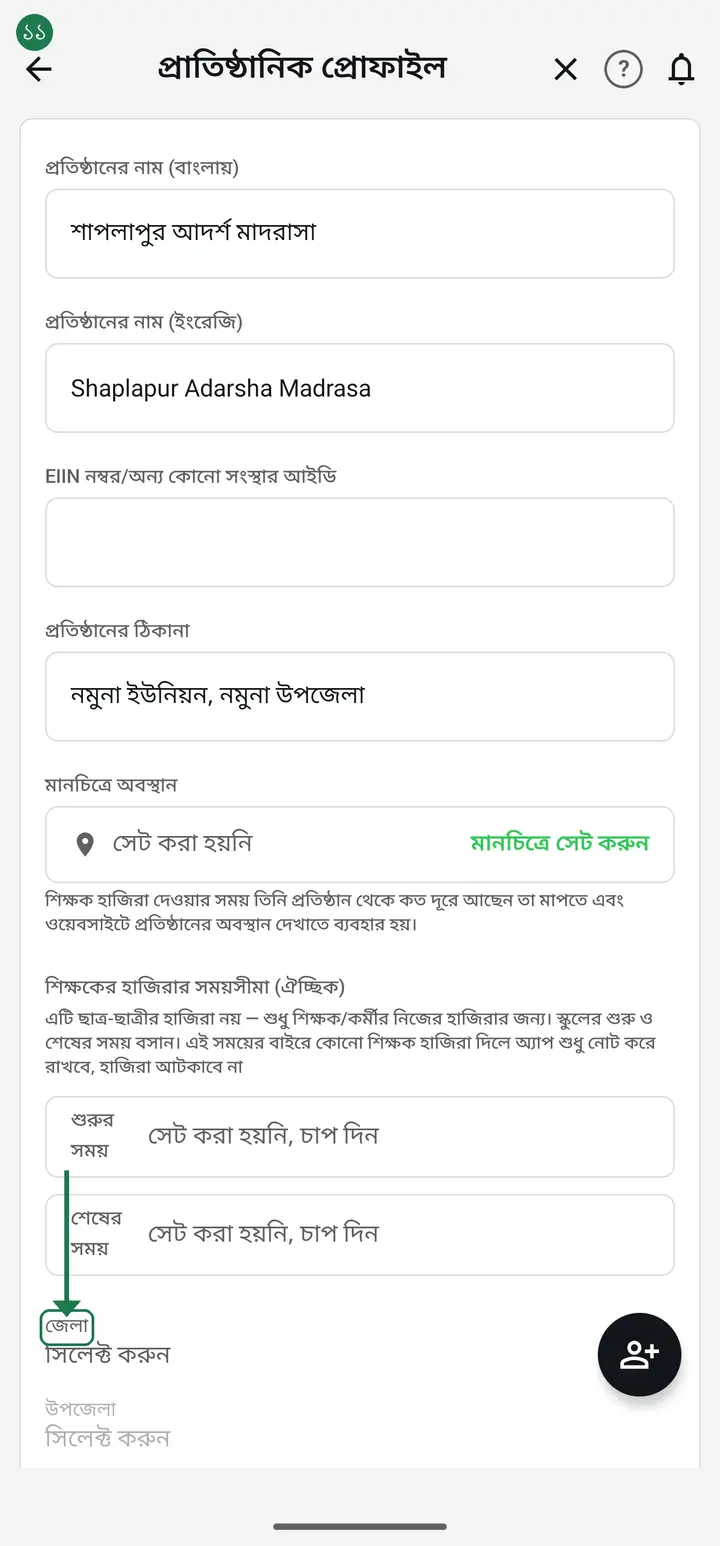
Changing the district CLEARS the upazila on purpose — pick the upazila again from the new district. The upazila row stays greyed out until a district is set.
-
The district and upazila lists are long. When the list opens there is a search box at the top — type the first few letters of the name and the list narrows. Finish with "পরিবর্তন সংরক্ষণ করুন" (Save changes).
Common questions
When I apply it asks "এই প্রতিষ্ঠান কি আগেই খোলা আছে?" (Is this institution already here?) — what do I do?
An institution with the EIIN you typed is already on Hazira Khata, and the app shows its name. If you teach there, do not create a new one — get the 6-character join code from its admin and tap "কোড দিয়ে যোগ দিন" (Join with a code). Then every class, attendance record and teacher stays in one place. If yours is a separate branch or a different institution, tap "না, নতুন খুলব" (No, create new) and the application goes through as before.
I applied, but the button now says "আপডেট করুন". Did something go wrong?
No, that is correct. Your request is already submitted, so the button now edits it instead. You do not need to apply again.
Does the app work without an institution?
Yes. A teacher can create personal classes and take attendance with no institution at all. You need one when several teachers work with the same students together.
Is it a problem if I skip the EIIN number?
No. EIIN, district/upazila and the institution phone are all optional. Only the type, name, address and the applicant's name and phone are required.
Do I need internet for this?
Yes, this one needs internet. The form cannot be submitted offline, so do it when you have a connection.
I uploaded a logo, but a grey or white box shows behind it on receipts and admit cards. Why?
That box is your image's own background. Most institutions photograph the logo painted on their signboard or wall, so the wall colour comes along with it, and on white paper it prints as a rectangle. The app is not stretching or cropping your logo — it places it exactly as given.
Can that background be removed?
Yes, since 3.2.249, and it has now reached everyone. After you upload a logo the app shows you two pictures side by side, "যেমন আছে" (as it is) and "ব্যাকগ্রাউন্ড ছাড়া" (without background), and you tap the one you prefer. Nothing changes on its own. If your logo does not have one flat colour behind it — a photo of a wall with shadow across it, say — the app does not offer the option at all, because removing the background there could eat part of the logo too.
Ask AI about this page
Ask an AI app to explain this page in simple language.
Copied — now paste it
Get Hazira Khata free on Google Play
More tutorials
- Inviting and approving teachers Adding a teacher to your institution — share the code, then approve the request with one tap.
- Assign a teacher to a class (make them a class teacher) Teacher joined the institution but sees nothing? This one job fixes it — 2 minutes.
- Who can see what — designations and permissions How your other teachers sign in, how much power to give each one through designations — and now, more precisely for one person, through permissions too.
- A teacher has left — removing a member Somebody has resigned, or you approved the wrong person. Take the name off in one tap without losing any of the attendance or fees they recorded — and how to leave an institution yourself.
- Record a teacher's salary and send the receipt After paying a teacher, send them a receipt right from the app — instantly if they use WhatsApp, and as a shareable picture even if they don't.
- Leaving my old institution to open my own Want to leave your old school, or open your own? The red "এই প্রতিষ্ঠান ছাড়ুন" at the very bottom of the প্রতিষ্ঠান tab changes nothing until you confirm. After leaving, open your own.
- Taking admissions online Make one link and share it. Guardians fill the form from home, the applications land in your app, and approving one adds the student straight into a class.
- Join a school as a teacher Use the 6-character code your school gave you to join by yourself.