
Importing attendance from a machine
Take the file off your fingerprint machine and load it into the app — the attendance fills itself in.
The screenshots show the app in Bangla, its main language. The buttons sit in the same places in English.
-
Take a pendrive. There is a small rectangular slot on the machine — plug it in there.
-
Press the machine's main button. It is usually labelled MENU or M/OK.
-
Find the pendrive entry in the menu. It may say USB, PenDrive or USB Disk.
-
Go inside and choose the option that downloads attendance — Download AttLog.
If the pendrive route does not work — there is no USB slot, the machine does nothing when you plug one in, or this option is not in your menu — do not get stuck here. See "পেনড্রাইভ কাজ করছে না" in the questions below; there is another route using the office computer.
-
Now also take the name list. In the same place there is another option — Download User.
Without the name list the app only gets ID numbers, no names — and you then have to match every ID to a student by hand. Do not skip this step.
-
When the screen says success, take the pendrive out. Plug it into the phone (or copy the files to the phone via a computer).
-
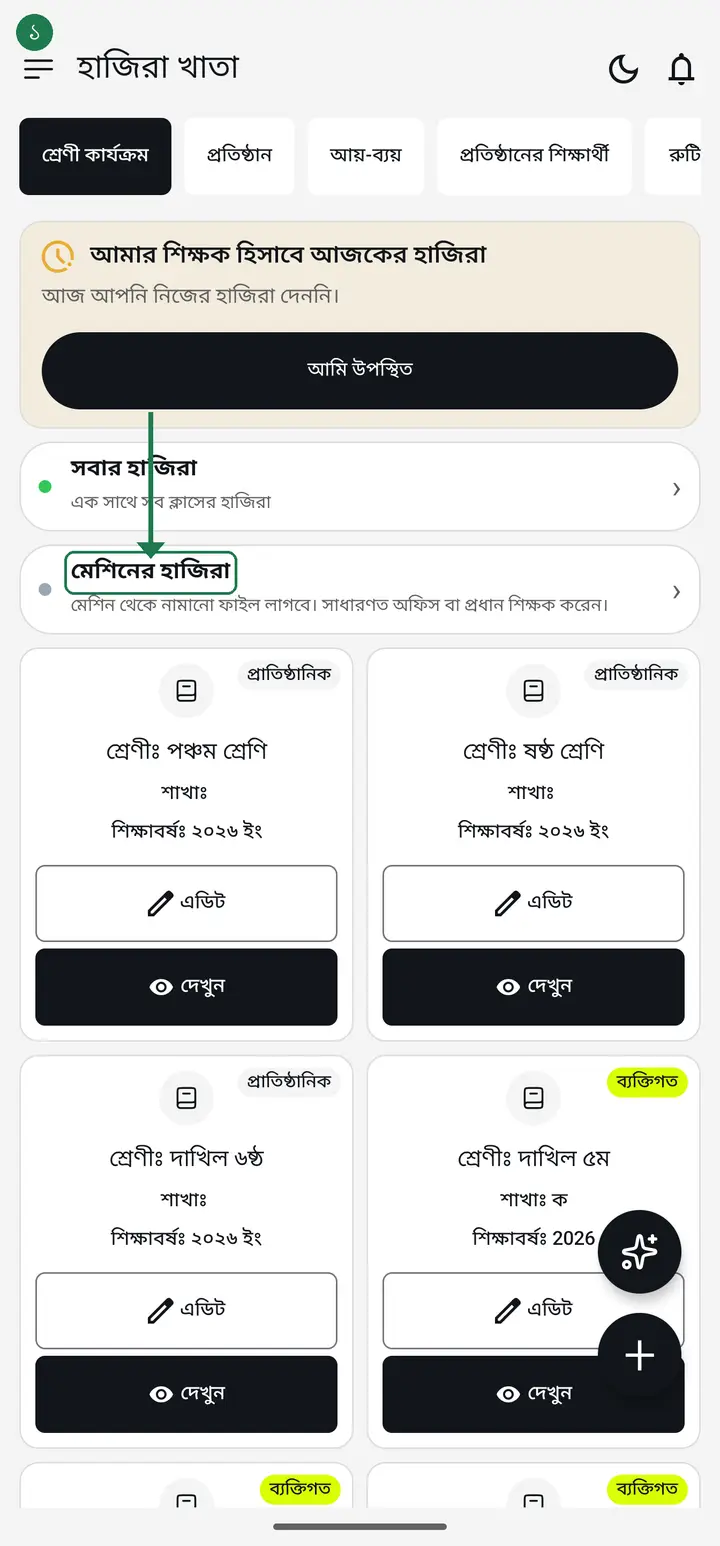
Open the app. On the home page tap "মেশিনের হাজিরা" (Machine attendance).
-
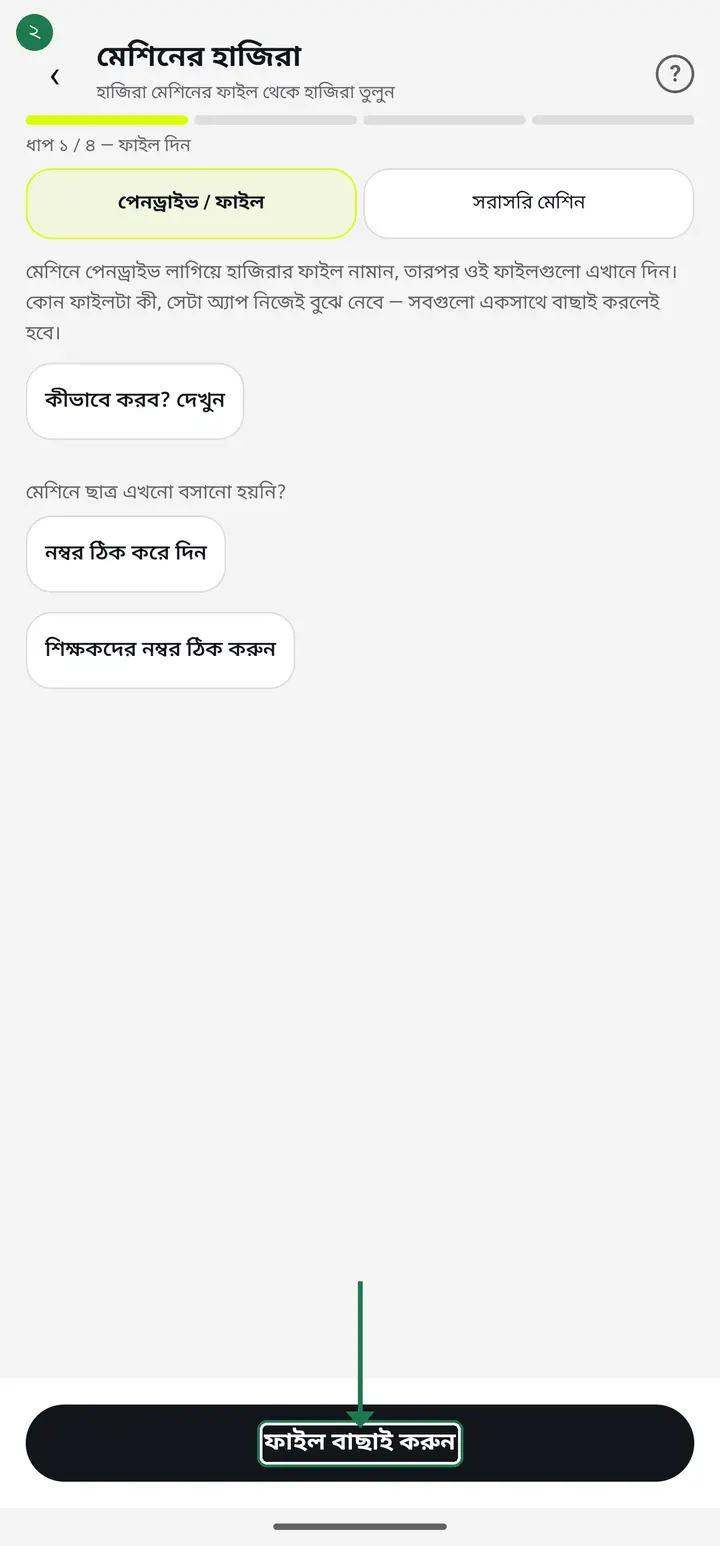
Tap "ফাইল বাছাই করুন" (Choose files) and select the pendrive files — all of them together. Then tap "এগিয়ে যান" (Continue).
-
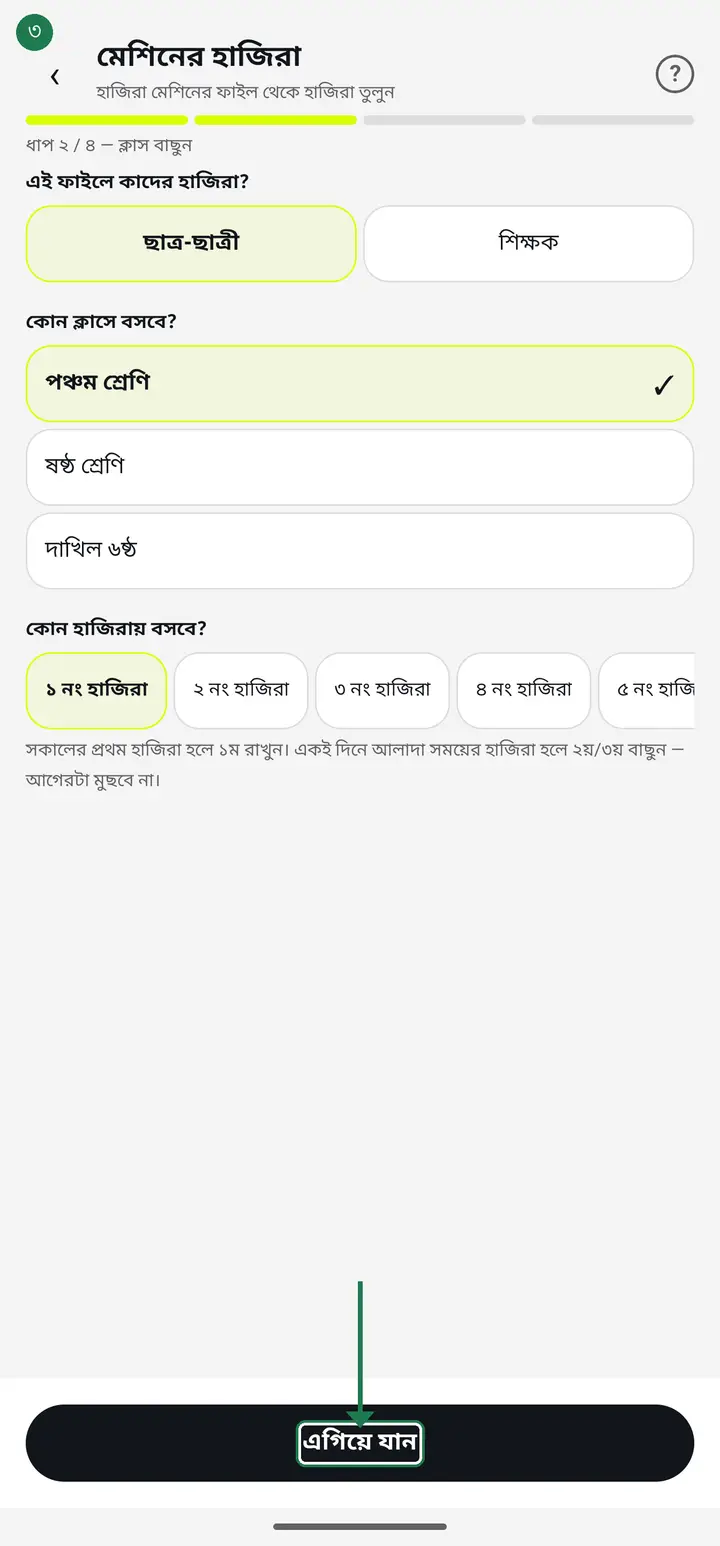
On "এই ফাইলে কাদের হাজিরা?" (Whose attendance is this?) choose "ছাত্র-ছাত্রী" (Students), then pick which class and which session, and tap "এগিয়ে যান".
-
Check that the machine IDs matched the right students. Tap any wrong row to pick the correct student. Then tap "দেখে নিন" (Review).
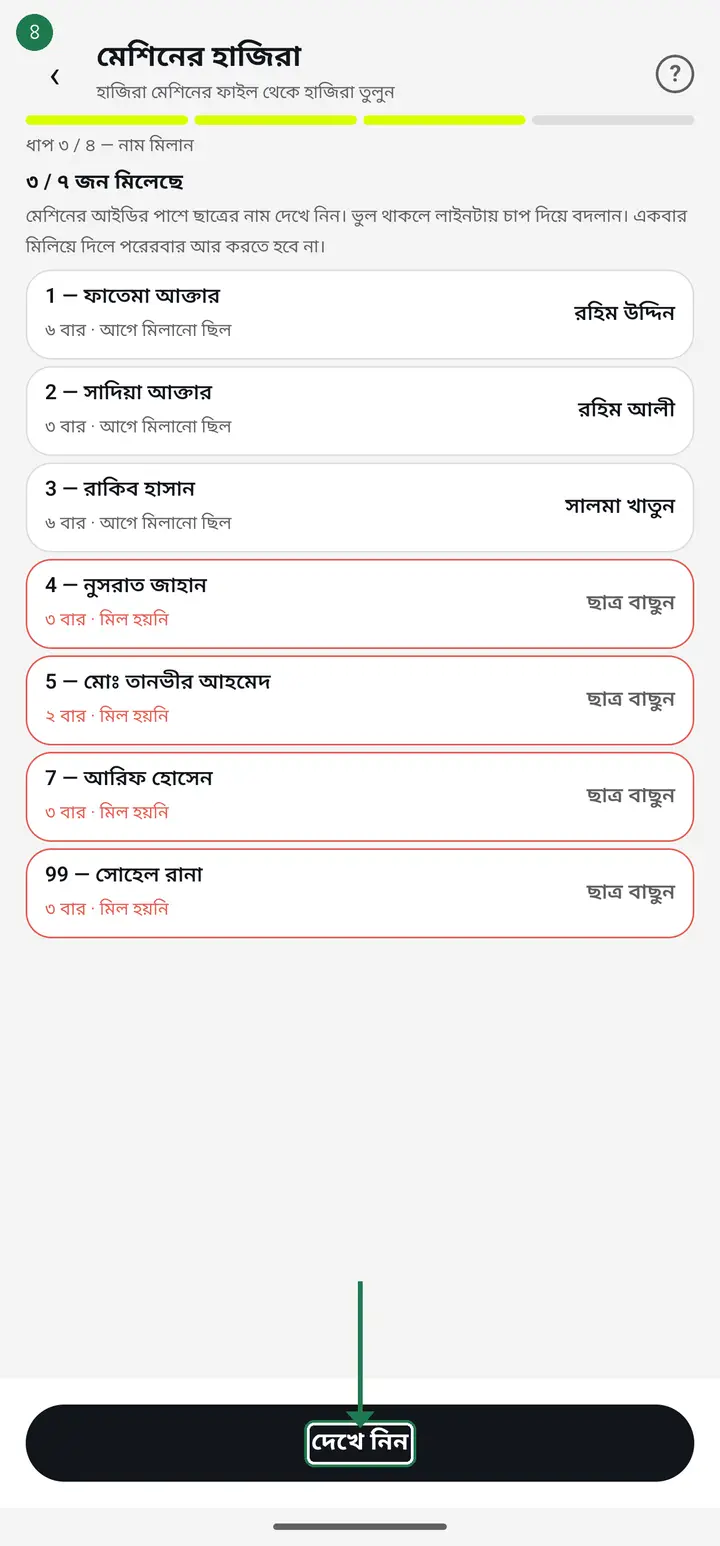
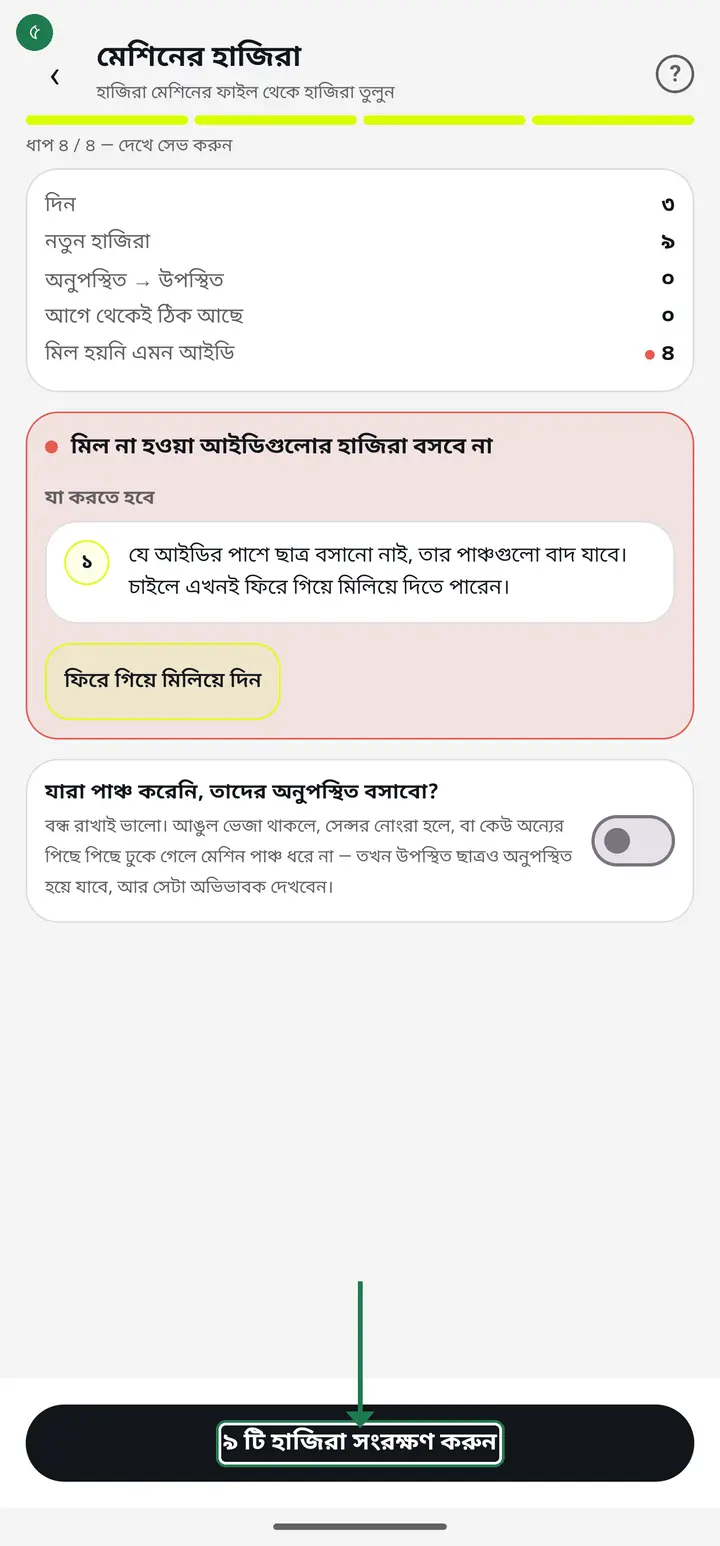
IDs that matched no student will not be recorded — the app warns you before saving. Better to go back and match them.
-
Read what will be saved, then tap the save button. When you see "হাজিরা তোলা হয়েছে" (Attendance imported) tap "শেষ" (Finish).
-
If your machine already has its own numbers (1001, 1002 and so on), tell the app first. On the "মেশিনের হাজিরা" page tap "শিক্ষকদের নম্বর ঠিক করুন" (Set the teachers' numbers).
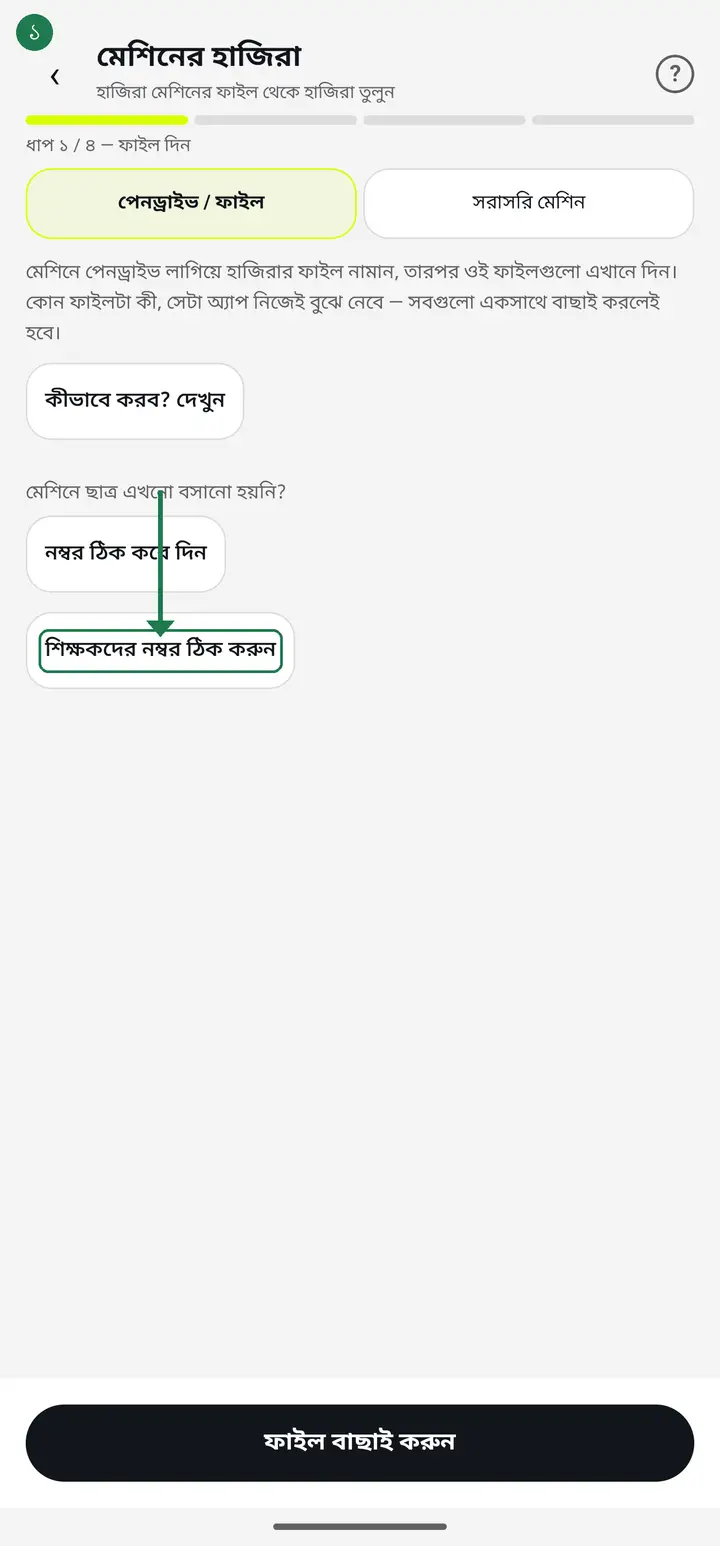
Skip this and the app hands out fresh numbers (9001, 9002…). Those match nothing in your machine's file, so the import will run and land on nobody.
-
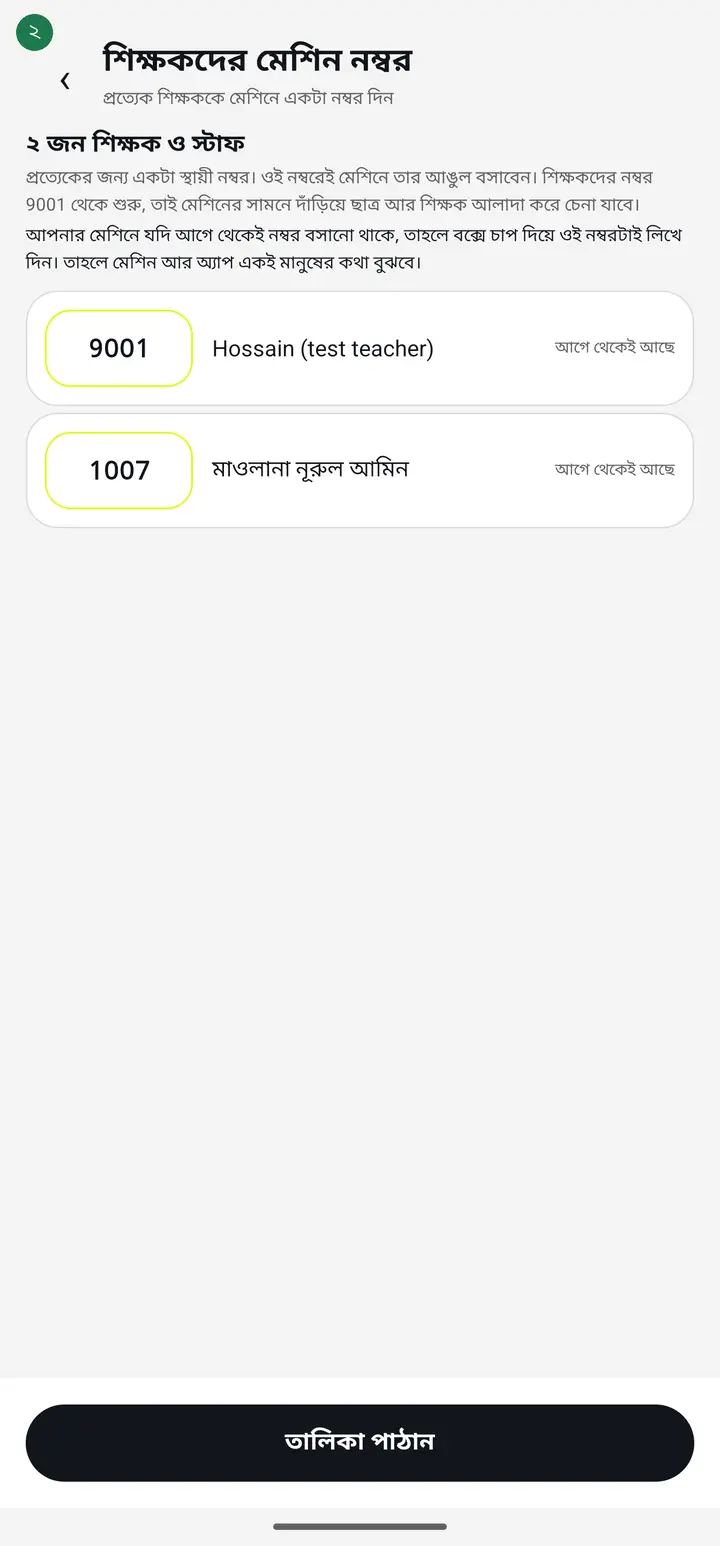
Each name has a box next to it. Tap the box and type the number that person has on the machine. The numbers stay in English digits — the machine's keypad has no Bangla on it.
-
Give the same number to two people and the box turns red with the reason underneath, and the save button stops working. Fix the red one and it works again.
Two people on one number means the second fingerprint enrolled overwrites the first on the device. That is why the app blocks it.
-
When everything is right tap "নম্বর সেভ করুন" (Save numbers) at the bottom. Open the page again and each row says "আগে থেকেই আছে" (already set) — that means it saved.
-
Students work the same way. On the "মেশিনের হাজিরা" page tap "নম্বর ঠিক করে দিন" (Set the numbers), pick the class, then type and save the numbers the same way.
-
To import STAFF attendance, after choosing the file answer "এই ফাইলে কাদের হাজিরা?" (Whose attendance is this?) with "শিক্ষক" (Teachers) instead of "ছাত্র-ছাত্রী". No class is needed then.
A day the teacher marked themselves in the app is never overwritten by the machine file — their own entry stands.
Common questions
Can I pull attendance straight over WiFi, without a pendrive?
Yes — but it is still experimental and not guaranteed on every machine. The pendrive and office-computer routes are unchanged and work on every brand, so those remain the main routes. Two conditions: the machine must be cabled to your router, and your phone must be on that same WiFi. Find the machine number (like 192.168.1.201) in the machine menu under Comm/Network. In the app open "মেশিনের হাজিরা", choose "সরাসরি মেশিন" at the top, type the number and press "যুক্ত হন". Once it works the app remembers the number — after that it is just one button, "হাজিরা আনুন".
Does a direct pull bring everything, including very old dates?
The machine keeps every punch it ever recorded — years of them, students included. One school with thirteen staff had nearly eight thousand punches stored. Nobody can look at eight thousand rows each morning and judge whether they are right, so the app lets you choose at the top: today, the last 30 days, everything on the machine, or your own start and end dates. It starts on today. If the number looks small, nothing is lost — pick a wider option and the rest comes back.
What if the direct connection gets stuck?
A report card appears on screen and one tap sends it to us on WhatsApp. It names the step it reached, so nobody has to guess. Two things worth checking first: (1) if the machine software (like ZKTime) is open on the office computer, close it completely — minimising is not enough, because the machine accepts only one connection at a time; (2) check the phone is on the school WiFi and not mobile data. Send the card even when it fails — that is what we fix from.
Can a teacher's punch land in the app the moment they touch the machine, without pressing "হাজিরা আনুন" every time?
There is a button called "সাথে সাথে হাজিরা" (Live attendance); it is still experimental. It only works on the "সরাসরি মেশিন" (Direct) route, so first connect once with "যুক্ত হন" — after that the button appears on the "মেশিনের হাজিরা" page. Tap "সাথে সাথে হাজিরা চালু করুন". While the screen is open the app checks the machine every few seconds, and when someone new has punched it saves their attendance and lists the name and time below. The top reads "● চালু আছে — অ্যাপ নিজে থেকে বারবার মেশিন দেখছে" and "শেষবার মেশিন দেখা হয়েছে …" (machine last checked …) — as long as that time keeps moving, it is working. If the top instead reads "● চালু আছে — আঙুল দিলেই হাজিরা বসছে", your app is an older version, which on some machines (a ZKTeco K40, for one) showed that while nothing actually arrived. Update from the Play Store; meanwhile press "হাজিরা আনুন" — nothing is lost. A few things - (1) teachers only; student attendance still comes in with "হাজিরা আনুন". (2) Keep the screen open, ideally on the charger. If you leave the page with it switched on, it switches itself back on when you return. (3) If the internet drops nothing is lost — punches wait and are saved when it returns. (4) Arrival = the machine's first finger, departure = its last. Two punches within 10 minutes in the morning count as one arrival — a finger the sensor missed and was given again is not a departure ("হাজিরা আনুন" does the same). Two punches on the way out: the later one is the departure — with both "হাজিরা আনুন" and live attendance. A teacher who marked themselves in the app is never overwritten by the machine. (5) If the machine's clock shows the wrong date those punches are not saved and the screen says so — fix the machine's date and time.
I kept "সাথে সাথে হাজিরা" (Live attendance) on and waited, but an earlier day's departures (last Thursday, say) never arrived. Why?
Live attendance only brings in TODAY's punches — never an earlier day's, however long you wait, even with "গত ৩০ দিনের" (Last 30 days) selected above. For an earlier day: keep "গত ৩০ দিনের" (or "তারিখ বেছে নিন (শুরু ও শেষ)", Pick dates) under "কোন দিনের হাজিরা আনবেন", press "হাজিরা আনুন" (Fetch attendance), answer "শিক্ষক" (Teachers) to whose attendance it is, continue and save. If the teacher punched when leaving that day, the departure fills in — the day's first punch is the arrival, the last is the departure. A day a teacher marked themselves in the app is never changed by the machine. Today's punches keep coming in through live attendance on their own.
A teacher's name appeared on the "সাথে সাথে হাজিরা" card — does it just sit there, or is it in the attendance too?
It is in the attendance too — nothing else to press. A ✓ beside the name and time means that teacher's attendance for the day is already saved in "শিক্ষক হাজিরা" (Teacher attendance); open it and you will see it. (On 3.2.274 the line reads just "name — time ✓"; from 3.2.275 it reads "name — time ✓ হাজিরা সেভ হয়েছে".) The red line under the card, "আগে "হাজিরা আনুন" চাপুন। মেশিন থেকে হাজিরা নামলে তবেই এগোনো যাবে।", and the grey "এগিয়ে যান" are about the student-import steps, not teacher attendance. That is how 3.2.274 shows it; from 3.2.275, while live attendance is on, that line reads "শিক্ষকের হাজিরা নিজে থেকেই সেভ হচ্ছে — এর জন্য "এগিয়ে যান" লাগবে না।" (newer versions start it with "আজকের শিক্ষক হাজিরা…", Today's teacher attendance — because live mode only brings in today) An empty card means no teacher has punched since the screen was opened — to bring in earlier punches, press "হাজিরা আনুন" once.
Does the app only work at school? Can I see attendance from outside?
It works anywhere with internet — from home, from anywhere. Attendance, reports, fees and cards are all available outside school. There is one exception: pulling attendance straight off the machine needs the phone and the machine on the same WiFi, because the phone talks to the machine directly. That is only for the moment of the pull — afterwards you can read that attendance from home. The file route works from anywhere: export the file at the office and import it later at home. To get teachers' attendance from afar without anyone pulling it at school every day: leave a spare Android phone at school — on the school WiFi, on the charger. Sign it in with the account you use to pull from the machine (the admin, or someone with the "সহকারী প্রধান শিক্ষক" role), open "মেশিনের হাজিরা", tap "সাথে সাথে হাজিরা চালু করুন" and leave the page open (while it is on, the screen does not switch itself off). From then on a teacher's punch reaches the app within seconds, and you can open "শিক্ষক হাজিরা" on your own phone from home. Note - teachers only; student attendance still needs "হাজিরা আনুন" pressed from the school WiFi. Hazira Khata does not yet have a way for the machine to send punches over the internet by itself (the machine's cloud setting). And do not open a port on the router to put the machine on the internet — with no machine password, anyone outside could read or erase its attendance.
My machine already has numbers — do I have to enrol every finger again?
No. Just type those numbers into the app ("শিক্ষকদের নম্বর ঠিক করুন" or "নম্বর ঠিক করে দিন"). Nothing on the machine changes.
I cannot see "মেশিনের হাজিরা" on the home page.
This feature is enabled per school — we check a school's machine file first, then switch it on for them. To get it enabled, send your machine's file in the WhatsApp group and ask.
If I import the same file twice, will attendance be doubled?
No. Importing the same file again just says there is nothing new — that is fine and safe.
I imported the file but today's attendance is not there. Why?
On the file route the app is not live-connected to the machine. A file only carries whatever was punched up to the moment you exported it from the computer — anything after that is simply not in the file. So an old file shows old dates, that is not a bug. To get today's, export a fresh file from the computer again. If the machine is cabled to your router, see the "সরাসরি মেশিন" and "সাথে সাথে হাজিরা" questions above.
Exporting and sending the file every time is annoying. Any easier way?
One way — Google Drive. Install "Google Drive for Desktop" on the office computer, sign in with your gmail. Point the folder your machine software saves the export into so it sits inside Drive — then just pressing Export sends the file to Drive on its own, no more sending it by hand. Put the Drive app on the phone too, with the SAME gmail — get that wrong and the phone sees nothing. After tapping "ফাইল বাছাই করুন", pick Drive from the menu at the top and grab the file. Two things to remember: the computer needs actual internet, not just WiFi to the machine, or nothing reaches Drive. And the phone needs internet too when picking the file, or it may show an old cached copy. This is not fully automatic, it just removes the manual sending step.
The pendrive does not work — I cannot get the file off the machine. Is that the end of it?
No. If the office computer has the machine's software on it (ZKTime, eTimeTrackLite, BioTime, Attendance Management — any of them), you can get the file without a pendrive. (1) Open the software. (2) Pull the new punches off the machine — the button says something like Download, Sync or Get Data. (3) Now export a report, and this is the part that matters: choose the **Attendance Records** (or AttLog) report. (4) Save it as **CSV or Text** — those work on every version. Excel works too, but only from 3.2.207 onwards; if the app will not take your Excel file, save the same report as CSV instead. (5) Get the file onto the phone (sending it to yourself on imo/WhatsApp is enough), then carry on from step 7 above.
Can I use a report exported from the machine's software? Which one?
Yes, but it has to be the right report. These programs offer two, and the names sound almost the same: **Attendance Records / AttLog** is the list of who put a finger on the machine and when — that is the one you need. **General / Statistic / Calculate** is a computed summary that does not carry the punch times at all, so attendance cannot be built from it. The app catches the wrong one and tells you, so nothing breaks — this is just so you know.
I pressed Export but the app says it is the software's activity log, not attendance. Why?
That software puts an Export button above almost every list, and it exports whichever list is on screen. The Operation Log is the record of who pressed which button — if the columns are **ID, Operator, DateTime, Device, Description**, that is the one, and it holds no attendance at all. The fix: open the **Attendance Records** list from the Report menu first, wait for the list to appear, and only **then** press Export. The right file has Name and Date/Time columns, and several lines per person — because one person puts a finger on the machine more than once a day.
Do I need internet?
Reading and matching the file works offline. Only the final save needs internet. If it fails the app lets you copy a report — send that in the group and we will look at it.
Should I mark non-punchers absent?
Leave that switch off the first time. Anyone who forgot to punch, or whom the machine did not recognise, would be marked absent. Check the results are right first.
Who is allowed to import attendance from the machine?
The **অনুমতি** (Permissions) page carries a per-teacher switch called **"মেশিন থেকে হাজিরা আনা"**. It stays ON for everyone, exactly as before; an admin or head master turns it off only for the people who should not do it. With it off they can no longer pull attendance off the machine, while taking attendance by hand works as before. On a phone running the new version the machine card simply stops appearing. On a phone still running an older version the card is still there and the import still runs — but the server refuses the final save, so nothing is written. The permission holds either way; on an old build the refusal just arrives later and less gracefully.
How do I set a password (Comm Key) on the machine, and where do I type it in the app?
A password stops anyone else on your school WiFi from reading or deleting attendance on the machine. The same number goes in two places. (1) On the machine — press M/OK (or MENU) → Comm. → PC Connection → Comm Key → type a number and press OK (for example a six-digit number you will remember). On some machines it sits under Comm. → Security instead. (2) In the app — "মেশিনের হাজিরা" → "সরাসরি মেশিন". If the machine has connected before, the password box is hidden: tap "অন্য ঠিকানা দিন" (from 3.2.276 the button reads "ঠিকানা বা পাসওয়ার্ড বদলান") and two boxes appear, "মেশিনের নম্বর" and "মেশিনের পাসওয়ার্ড (না থাকলে খালি রাখুন)". Check the machine's IP is in "মেশিনের নম্বর", type the same number you set on the machine into "মেশিনের পাসওয়ার্ড", and tap "যুক্ত হন". Once it matches the app remembers it. If live attendance ("সাথে সাথে হাজিরা") is on, turn it off and on once after setting the password. Careful — if the school computer reaches the machine with ZKTeco's own software, give it the same Comm Key too, or the computer will stop connecting. If the app says "মেশিনের পাসওয়ার্ড মিলছে না", compare the machine's Comm Key with the number in the app.
Ask AI about this page
Ask an AI app to explain this page in simple language.
Copied — now paste it
Get Hazira Khata free on Google Play
More tutorials
- How to collect fees Create the month's fee once, then record what each student pays. The app works out who still owes what.
- When students pay different amounts One student pays 1000, another 2000, another nothing — each can have their own amount. Old dues are recorded the same way.
- Previous dues — recording old arrears and carrying them forward Enter the dues students carried in from before you started using the app, and let each month's unpaid balance carry into the next month by itself.
- How to make a marksheet Create a subject's mark form, enter the marks, then print the whole class's marksheet.
- Getting every student's result in one go The whole class's results in one PDF in one tap — one page per student, so you never export them one at a time. Print it, or keep it in your own Google Drive and find any student by name years later.
- How to make admit cards and seat cards Make and print exam admit cards and seat cards yourself — with the logo, signatures and dates. Both live on one screen, as two tabs at the top.
- How to make student ID cards Make and print student ID cards yourself — with your logo and their photos.
- How to make staff ID cards Print ID cards for teachers, office staff, guards and support staff — all on one sheet.