
Moving a student to another class — move, not copy
A student has moved up a class or changed section. "অন্য ক্লাসে সরান" (Move to another class) carries their attendance, fee records and guardian link with them. Copying does not — here is the difference.
The screenshots show the app in Bangla, its main language. The buttons sit in the same places in English.
-
First, the most important thing. There are two different ways to get a student into another class, and they do completely different things. "অন্য ক্লাস থেকে শিক্ষার্থী কপি করুন" (Copy students from another class) only puts the NAME in the new class — it creates a new student, and nothing of theirs comes along. "অন্য ক্লাসে সরান" (Move to another class) takes the SAME student to the new class with all their records. To promote a student, you want Move.
Until now the app only had Copy, so many people used Copy to move a student — and their old attendance, paid fees and guardian link stayed behind in the old class. Nothing was ever deleted; it just never attached to the new student. From version 3.2.176 there is "অন্য ক্লাসে সরান" (Move to another class) — use that from now on.
-
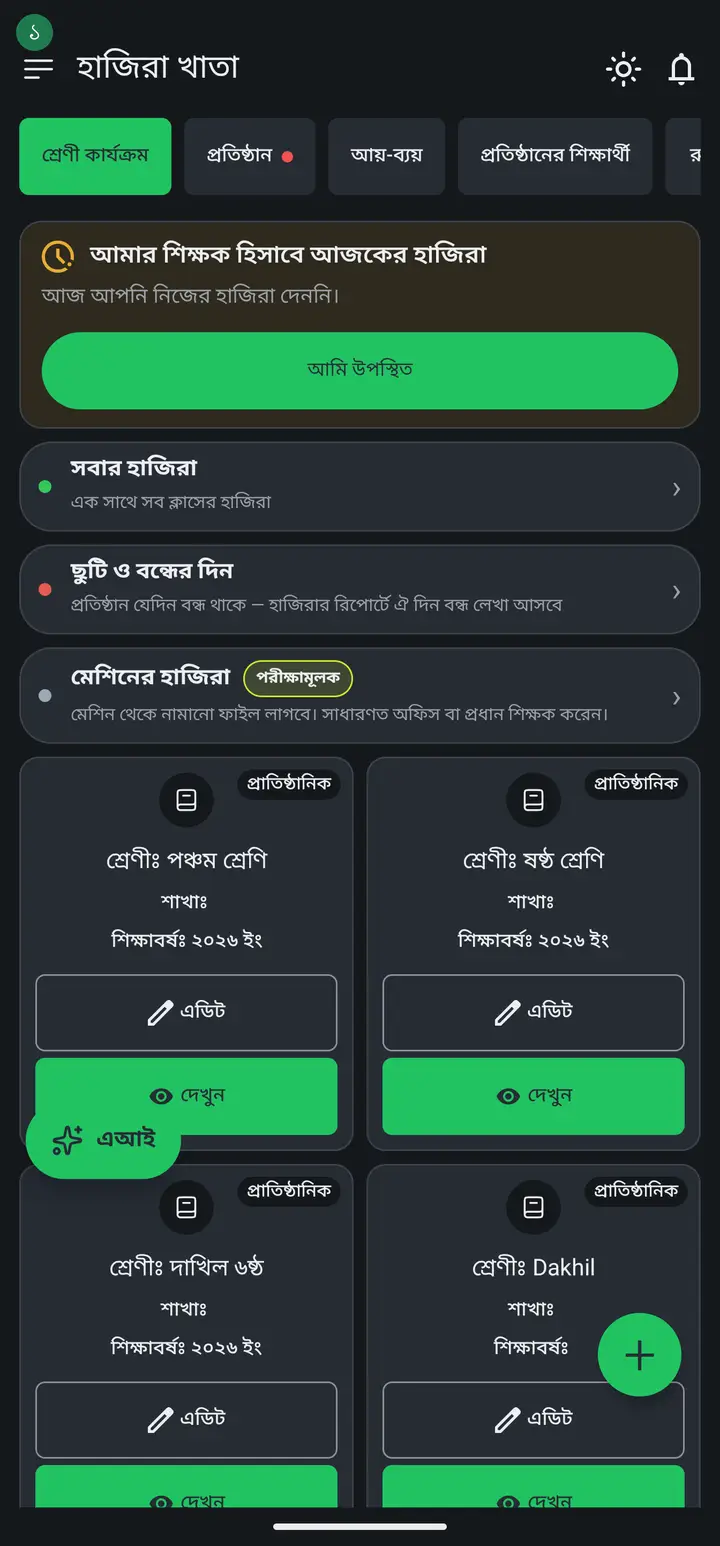
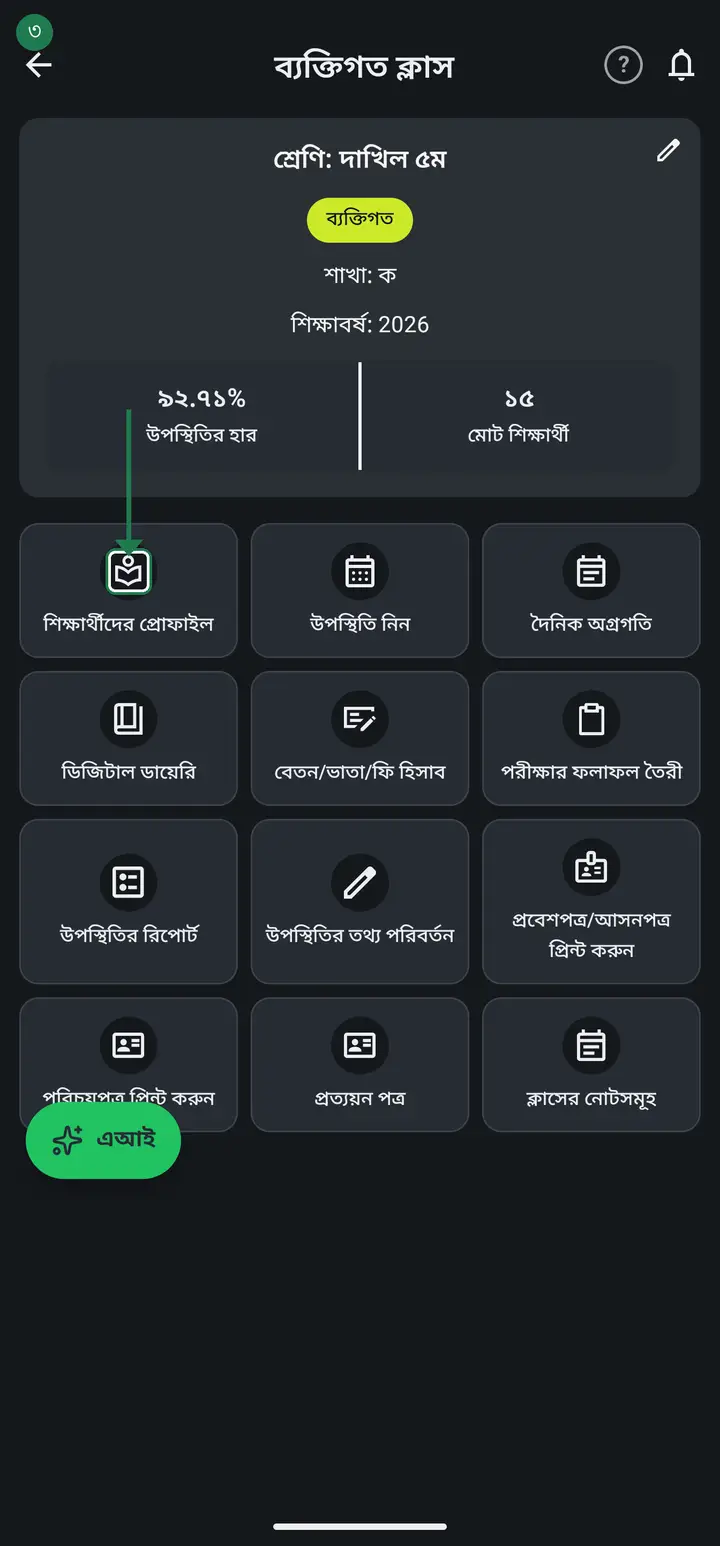
Tap "দেখুন" (View) on the class card, then "শিক্ষার্থীদের প্রোফাইল" (Student profiles).
-
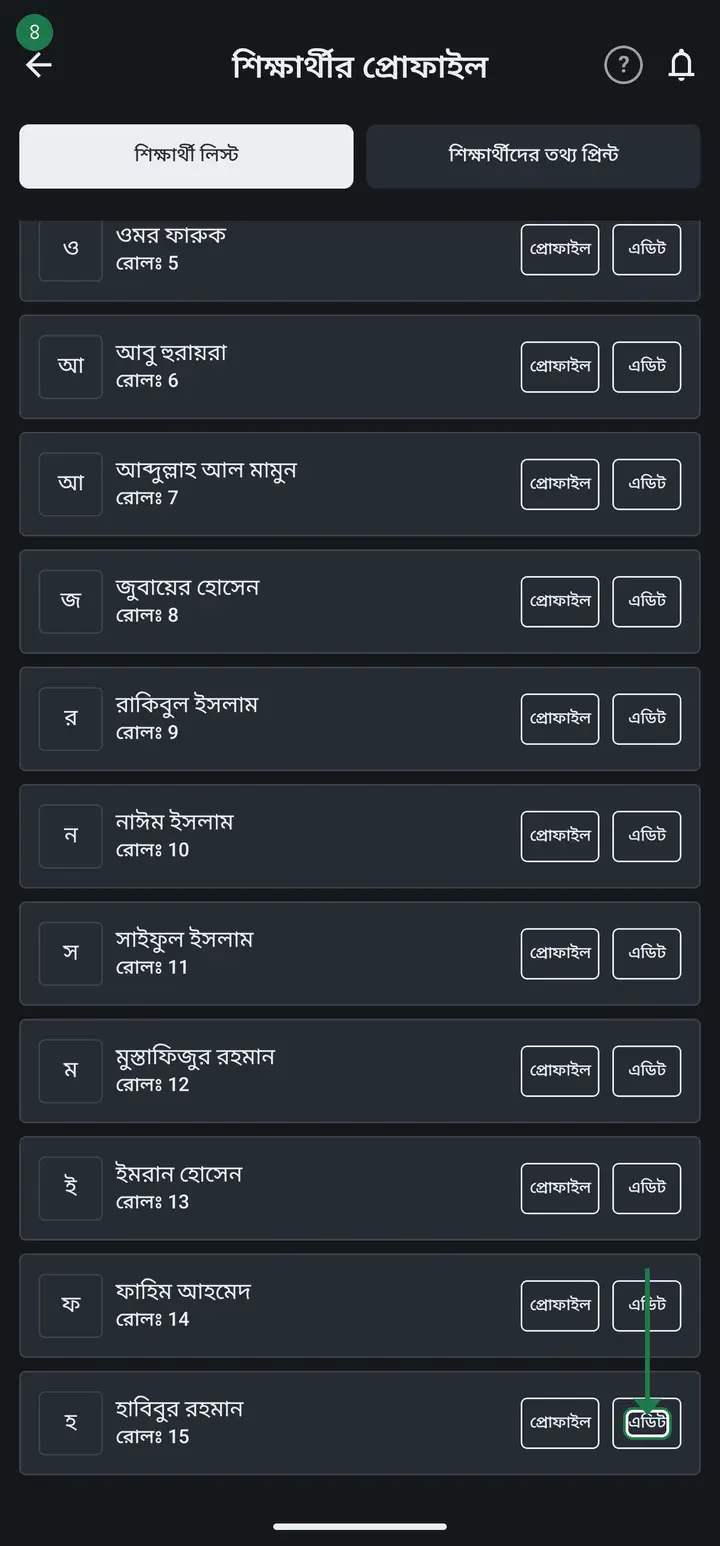
Tap "এডিট" (Edit) to the right of the student you want to move. Not "প্রোফাইল" — "এডিট".
-
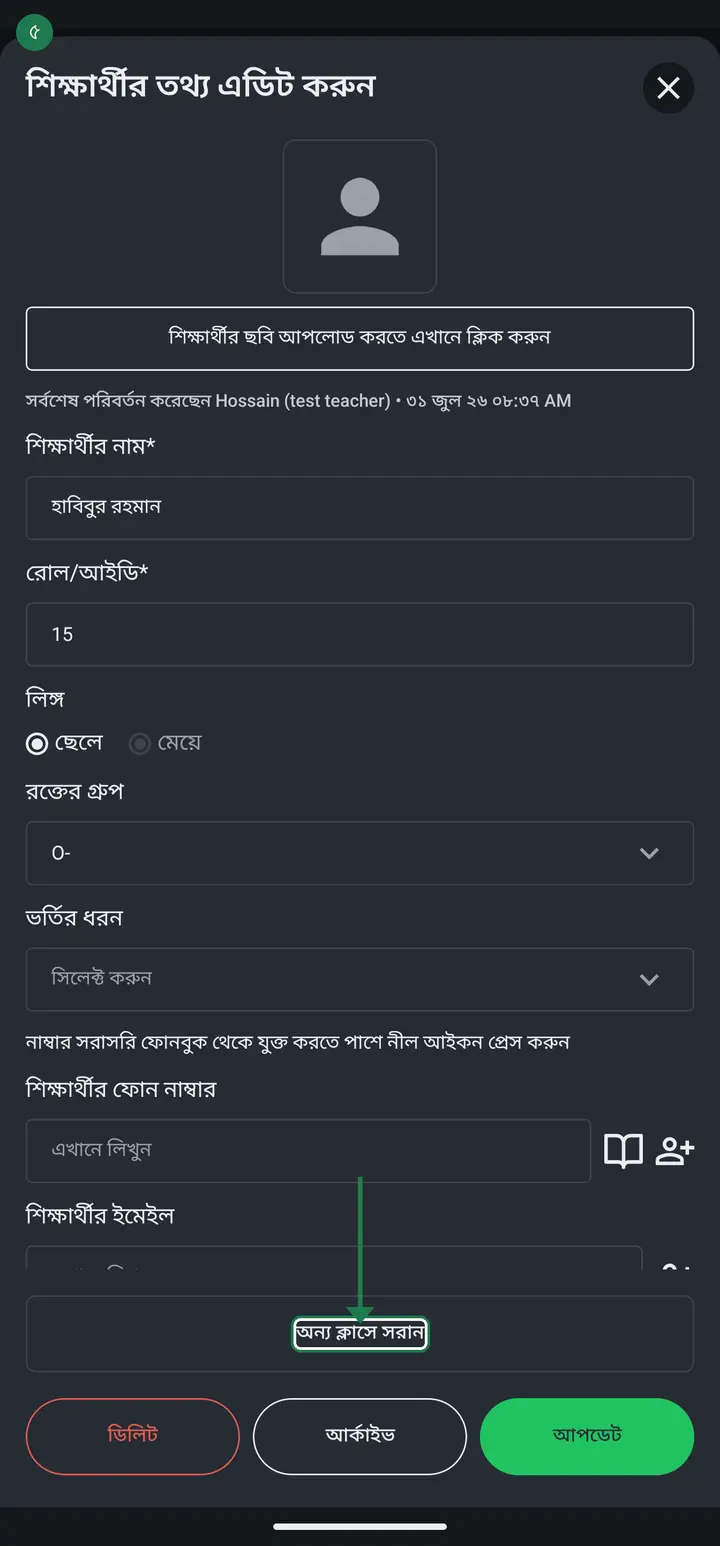
Scroll the sheet all the way down. Just above the three buttons "ডিলিট / আর্কাইভ / আপডেট" there is a wide row — "অন্য ক্লাসে সরান" (Move to another class). Tap it.
-
A list appears titled "কোন ক্লাসে সরাবেন?" (Move to which class?). Pick the class you want. There is a search box at the top if you have many classes.
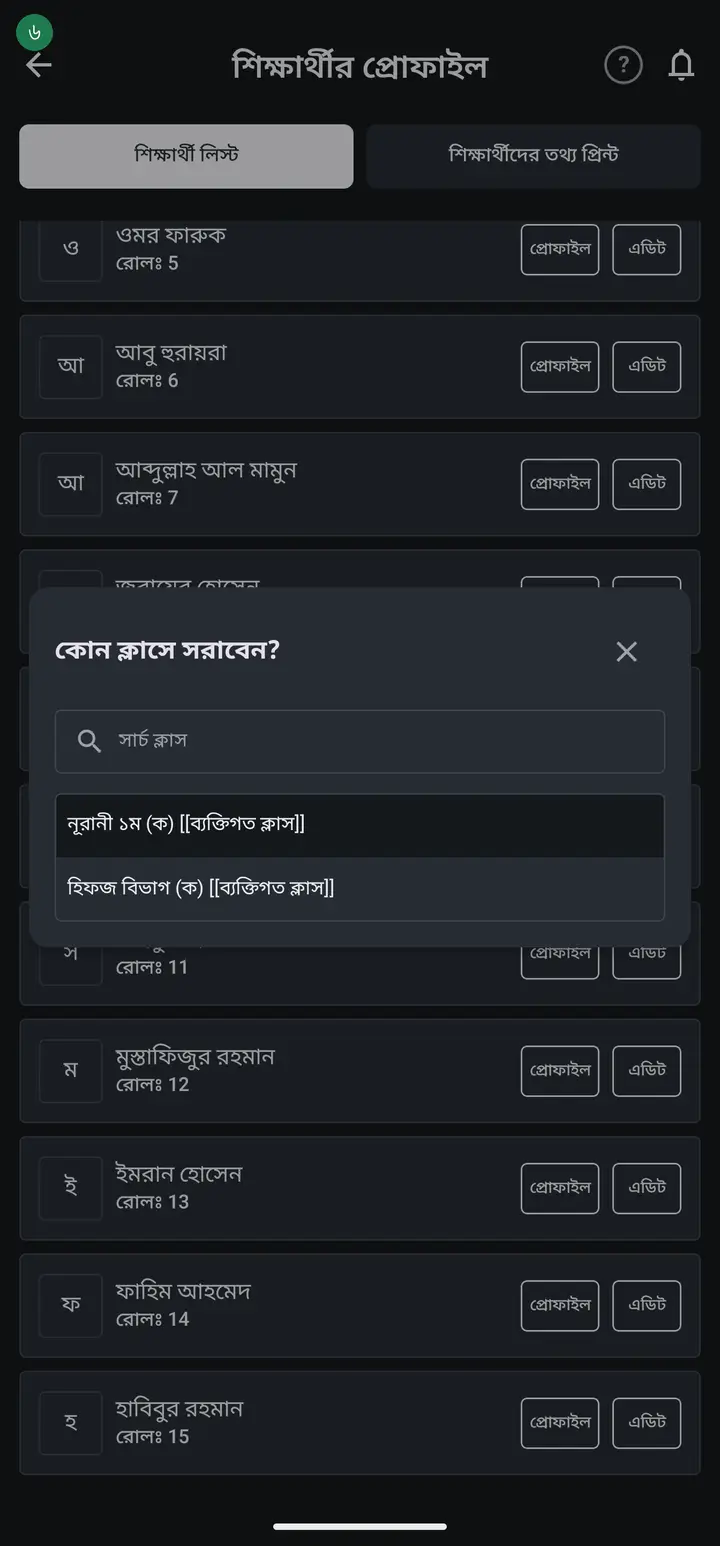
You may not see all your classes in that list, and that is correct. A personal-class student can move to another personal class, and an institution student to another class of the SAME institution. Moving between personal and institution is not allowed — they are stored in two different places, so the records could not follow. Use Copy for that case.
-
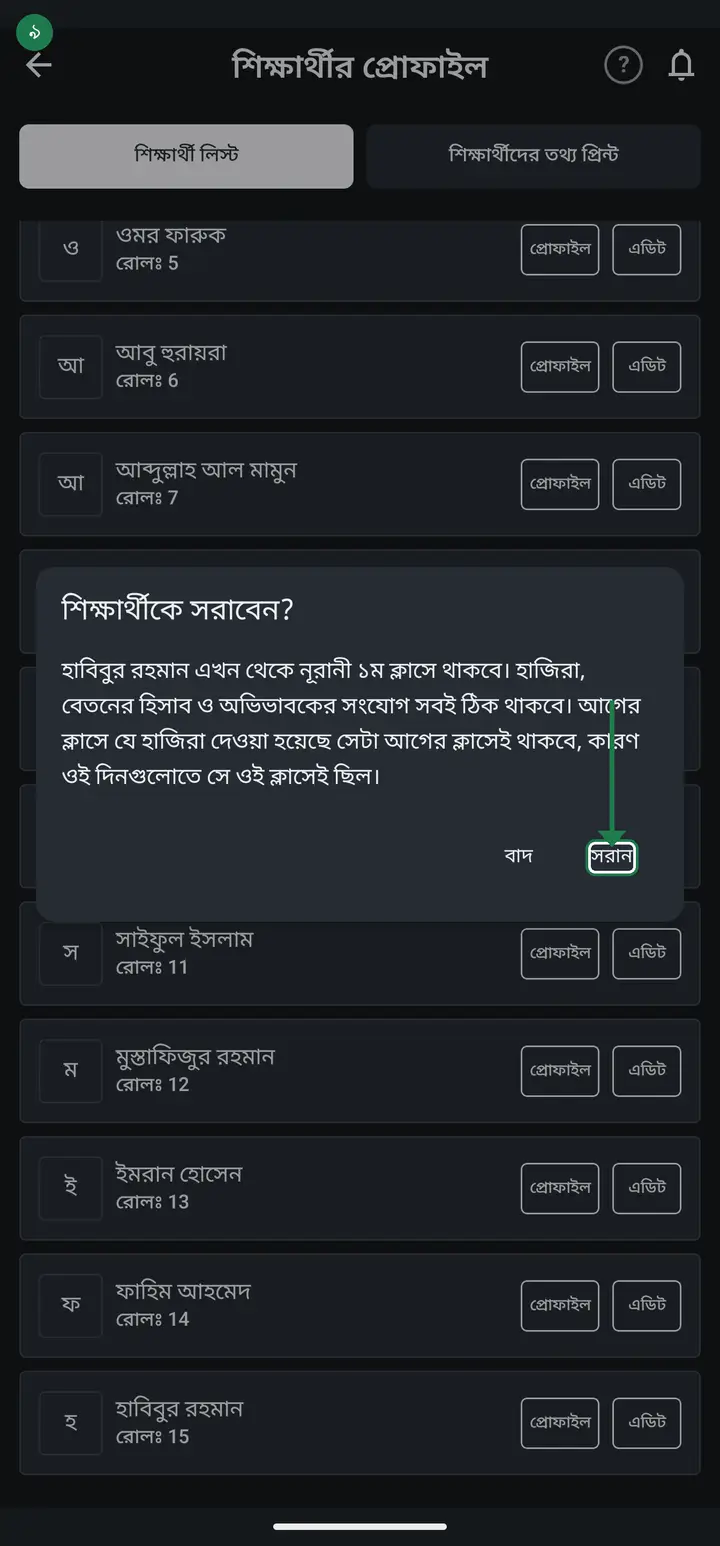
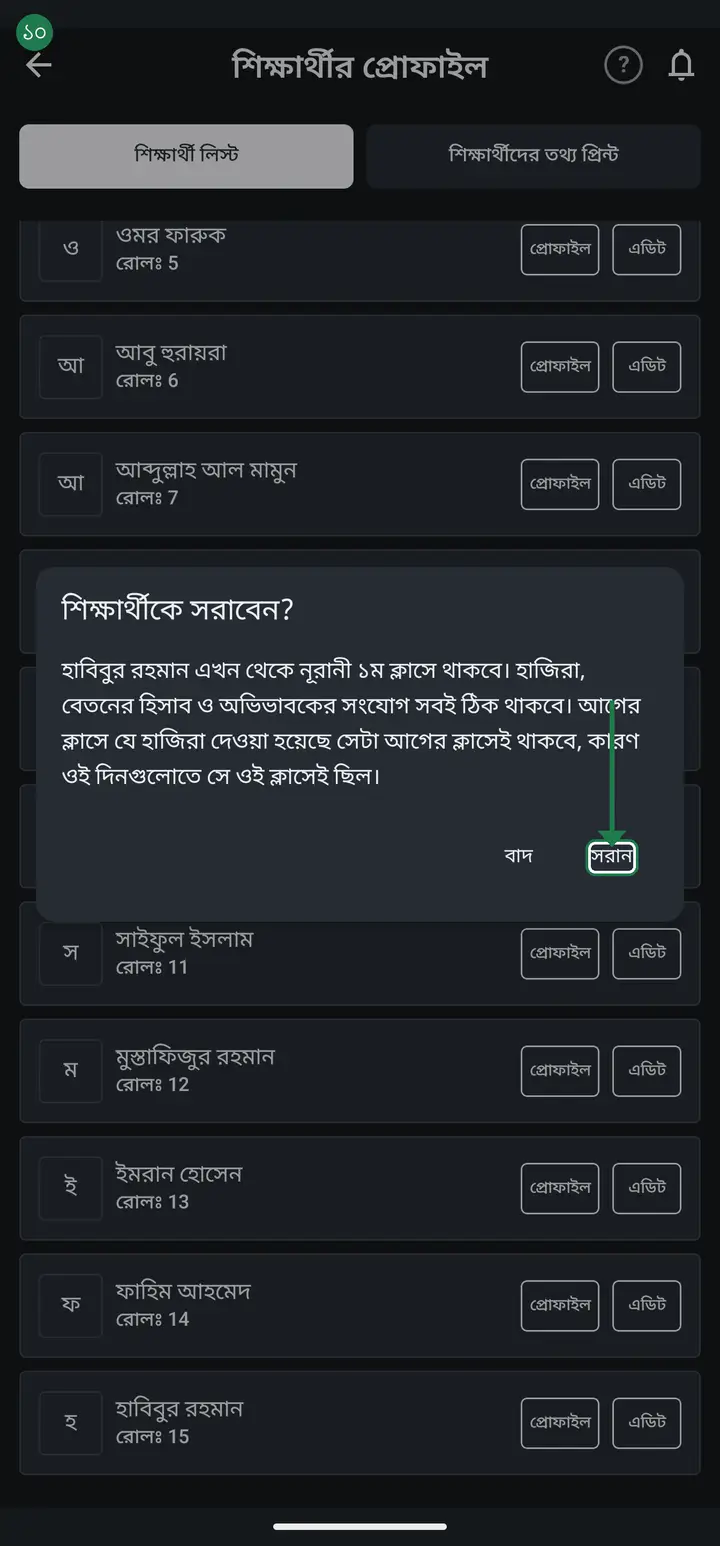
A box appears — "শিক্ষার্থীকে সরাবেন?" (Move this student?) — naming the student and the new class. Check it and tap "সরান" (Move). If it is wrong, tap "বাদ" (Cancel) and nothing happens.
-
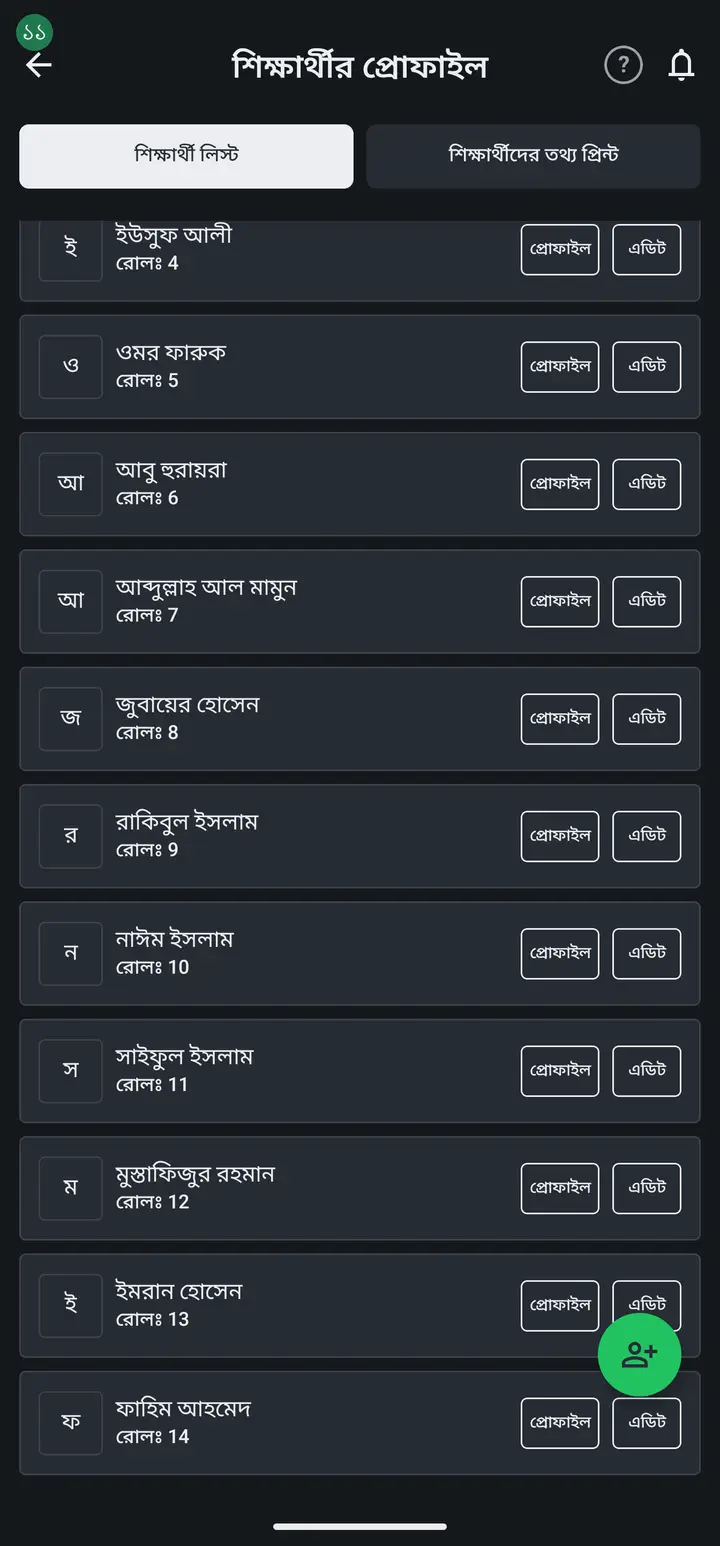
When you see "… ক্লাসে সরানো হয়েছে" (Moved to …) at the bottom, it is done. The name leaves the old class list and appears in the new one. It will not be in both — that is the difference from Copy.
-
One student moves at a time. To promote a whole class you must repeat this for each student.
-
Finally, check for yourself — is the name in the new class attendance list, and does the fee page still show their earlier payments? Close and reopen the app to be sure.
Common questions
After moving, does the old class's attendance show up in the new class?
No, and that is correct. On those days the student really was in the old class, so the attendance stays recorded there. It is not lost — it stays attached to the student, so their own report still shows everything. The new class starts from the new day.
Do paid fees and dues stay correct?
Yes. Payments travel with the student, so you do not re-enter them. Just remember that if the new class has different fee amounts, the new months follow the new class's rules.
Do I have to connect the guardian again?
No. Moving the student re-points the guardian link to the new class — you do not send a new request and the guardian does not have to approve anything again. This was the biggest problem when people used Copy to move.
What about students I already moved using Copy?
Nothing was deleted — their attendance and fees are all still stored under the old class's copy of them. They simply never attached to the new name. Do not delete that old class; archive it. Now their profile has an "আগের রেকর্ড" (Prior record) button at the very bottom that opens the old attendance and fees directly — full steps in the next tutorial.
Why is the class I want missing from the list?
Two reasons. One, it is the other kind of class — you cannot move between a personal class and an institution class. Two, you created it just now and the app has not refreshed its class list — close the app and reopen it, then try again.
What if there is a problem with the roll number?
Two students in one class cannot share a roll. If the roll is already taken in the target class, the app stops and tells you a free roll number. Change the student's roll in "এডিট" and move again.
In our madrasa the same student is in a department class (নূরানী/নাজেরা/হিফজ/কিতাব) AND a general grade class (১ম-৮ম), and both need attendance. "সরান" only moves to one class — what do I do?
This is the one case where you use Copy on purpose — not the "promotion mistake" described above, but because two real memberships are needed. Use "অন্য ক্লাস থেকে শিক্ষার্থী কপি করুন" to add the student to the second class too. But go in with eyes open — Copy makes two completely separate profiles; same person, but two different students to the app. So: (1) take attendance in each class separately — one does not show up in the other. (2) charge fees in only ONE class, or the student gets billed twice. (3) manually keep roll, photo and guardian phone matching across both profiles — the app will not sync them for you. (4) never delete either one — since nothing links them, deleting one does not warn you the other exists, and you lose that side's history for good. (5) reports/marksheet/ID card must be generated separately per class — one will never show the other's data. This is a workaround, not a real synced dual-class feature, which does not exist yet.
Ask AI about this page
Ask an AI app to explain this page in simple language.
Copied — now paste it
Get Hazira Khata free on Google Play
More tutorials
- How to sign in Signing in for the first time with your phone number. No email or password needed.
- Add a second way to sign in to one account Add Gmail to an account created with a phone number. It stays one account and nothing inside it changes.
- How to mark your own attendance As a teacher you can record your own daily attendance — it takes one tap.
- Check your salary and sign "received" When your school records your salary, the app tells you. Check the receipt and tap "বেতন বুঝে পেয়েছি" (Salary received) to leave your own digital signature — proof for both sides.
- How to create a class Before you can take attendance you create the class once. A one-time job.
- Make receipts and results look right — font and size Documents printing in an ugly font? Change it in one place and the receipt, result slip and certificate all change together.
- How to add students Enter each student's name and roll once. After that, daily attendance is just ticking boxes.
- How to add a whole class at once You do not have to type 40 names one by one. Type or paste the list and add everyone at once — no computer needed.