
How to print a school notice
Print a holiday, exam, admission or meeting notice on the school's own letterhead. Ready-made wordings are built in — you only fill in the dates.
The screenshots show the app in Bangla, its main language. The buttons sit in the same places in English.
-
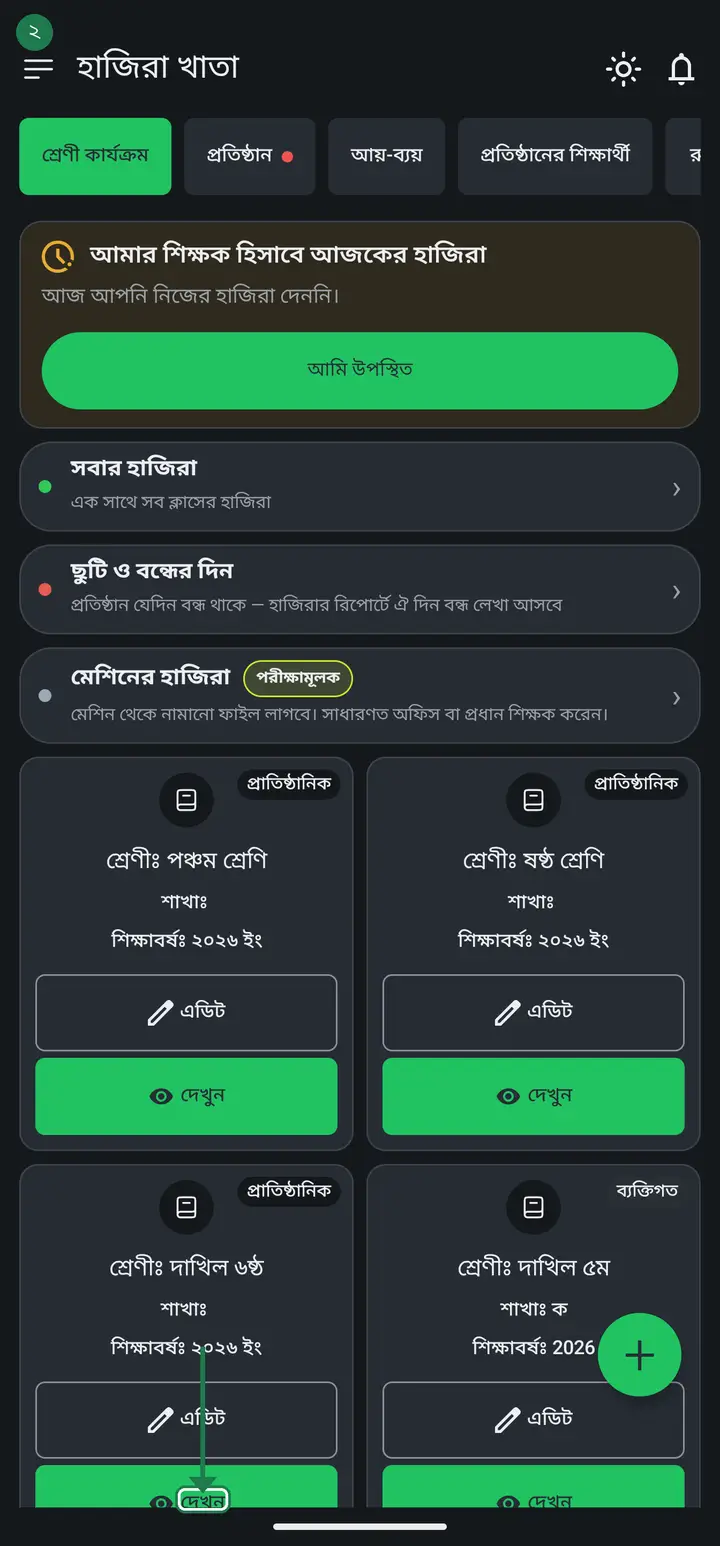
On the home screen tap "দেখুন" (View) on any class card — the notice tool lives inside a class.
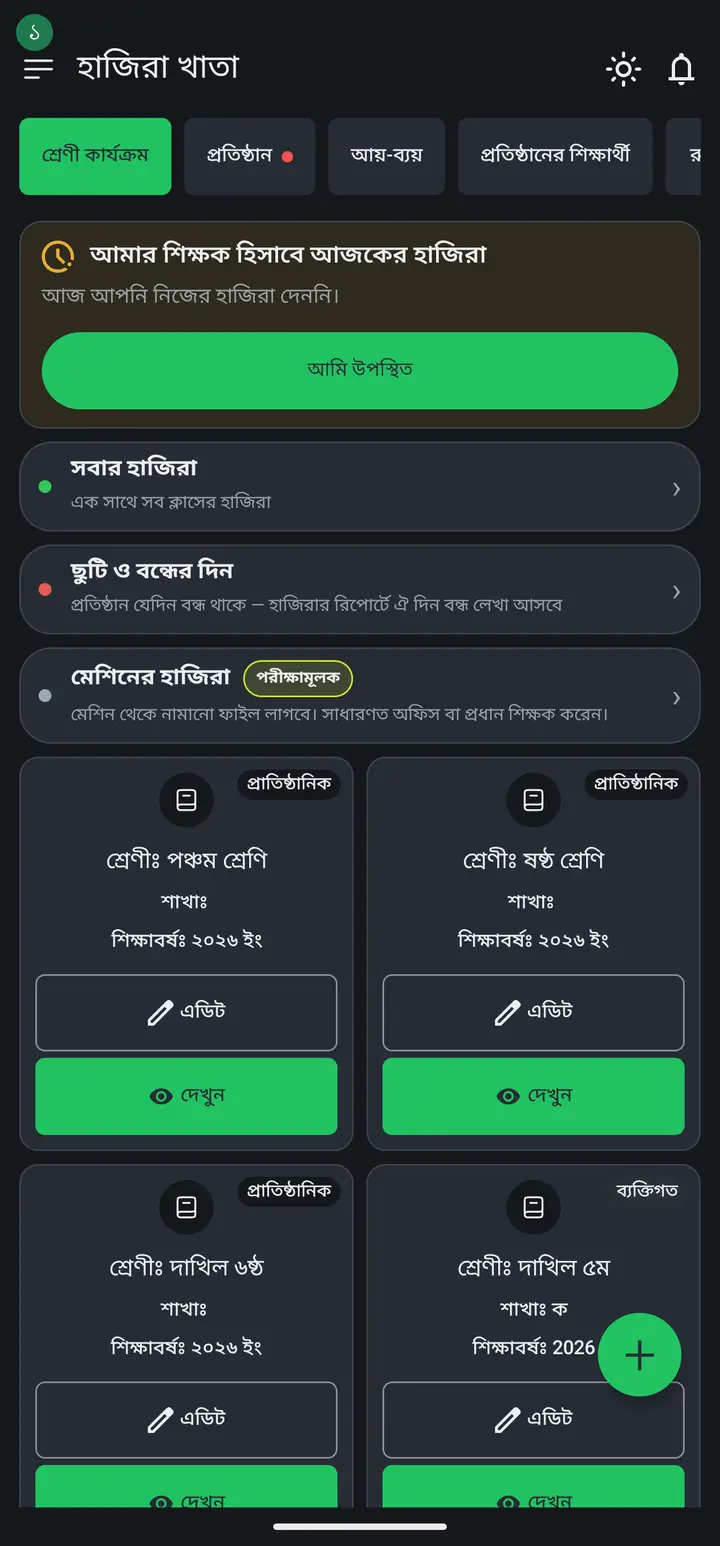
Go in from an institutional class if you want the school name and logo at the top. From a personal class the head comes out blank — that class is not attached to any institution.
-
Scroll down and tap "বিজ্ঞপ্তি" (Notice).
-
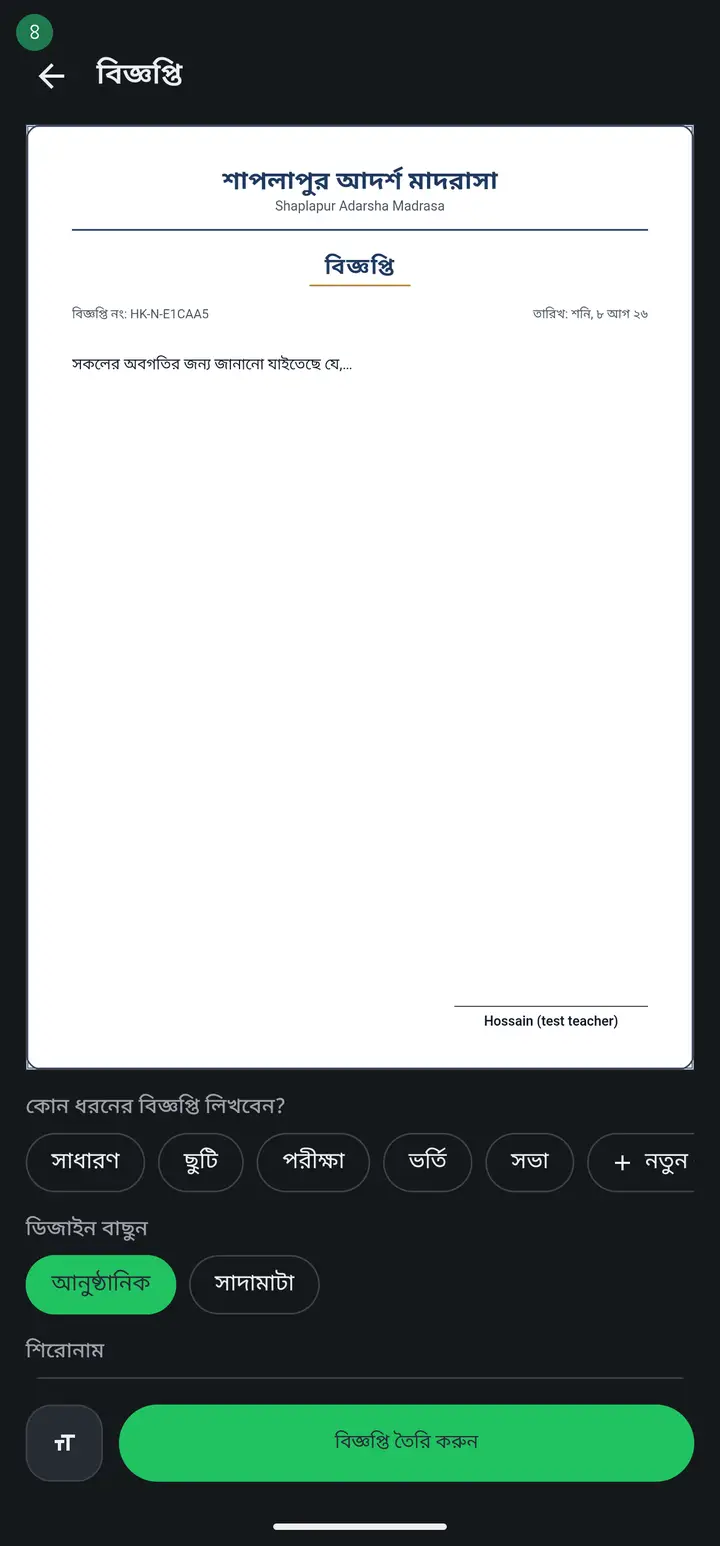
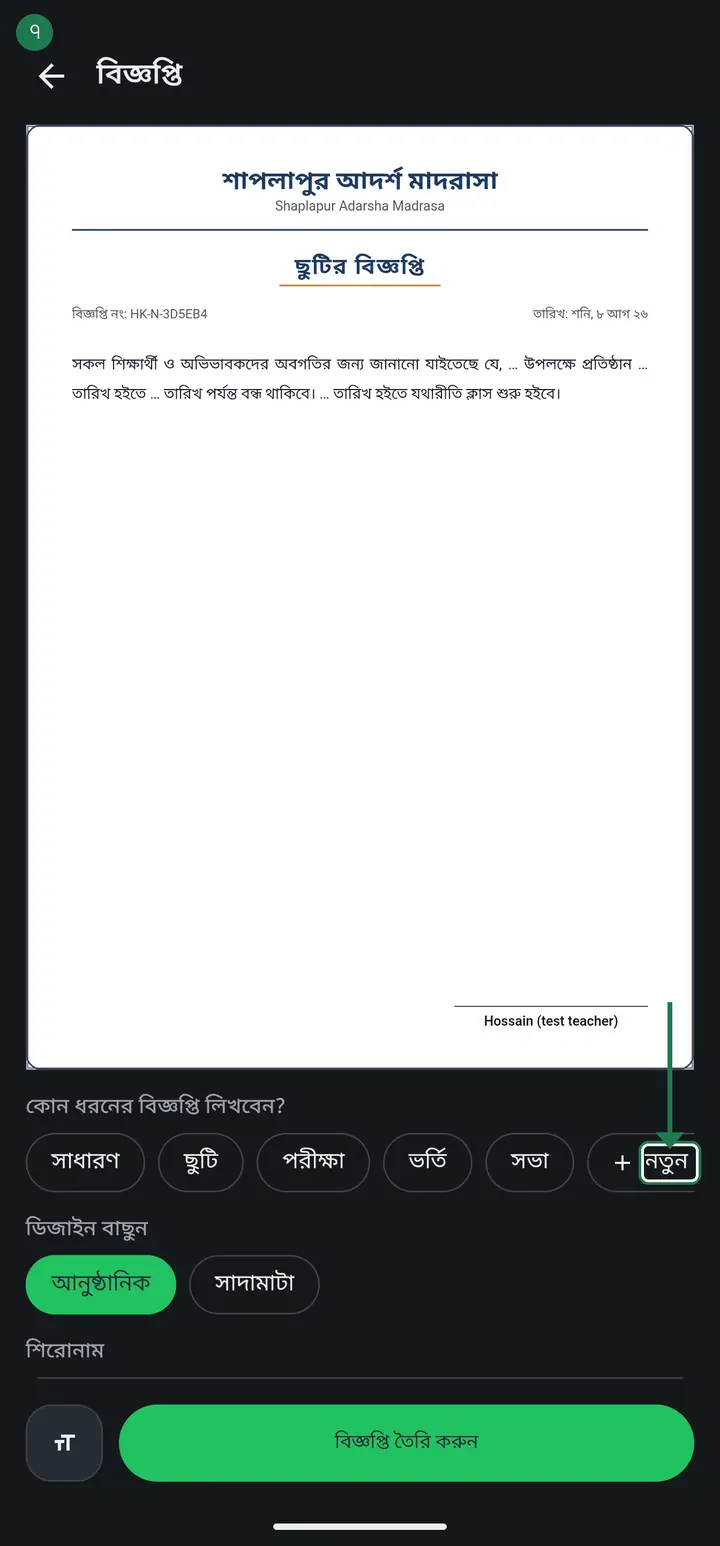
What you see at the top is exactly what prints — school name, notice number, date, and the signature line at the bottom. Everything you change below updates that page instantly.
-
Under "কোন ধরনের বিজ্ঞপ্তি লিখবেন?" tap ছুটি (holiday), পরীক্ষা (exam), ভর্তি (admission) or সভা (meeting) and the whole wording drops in. You just fill the "…" gaps with your dates and names.
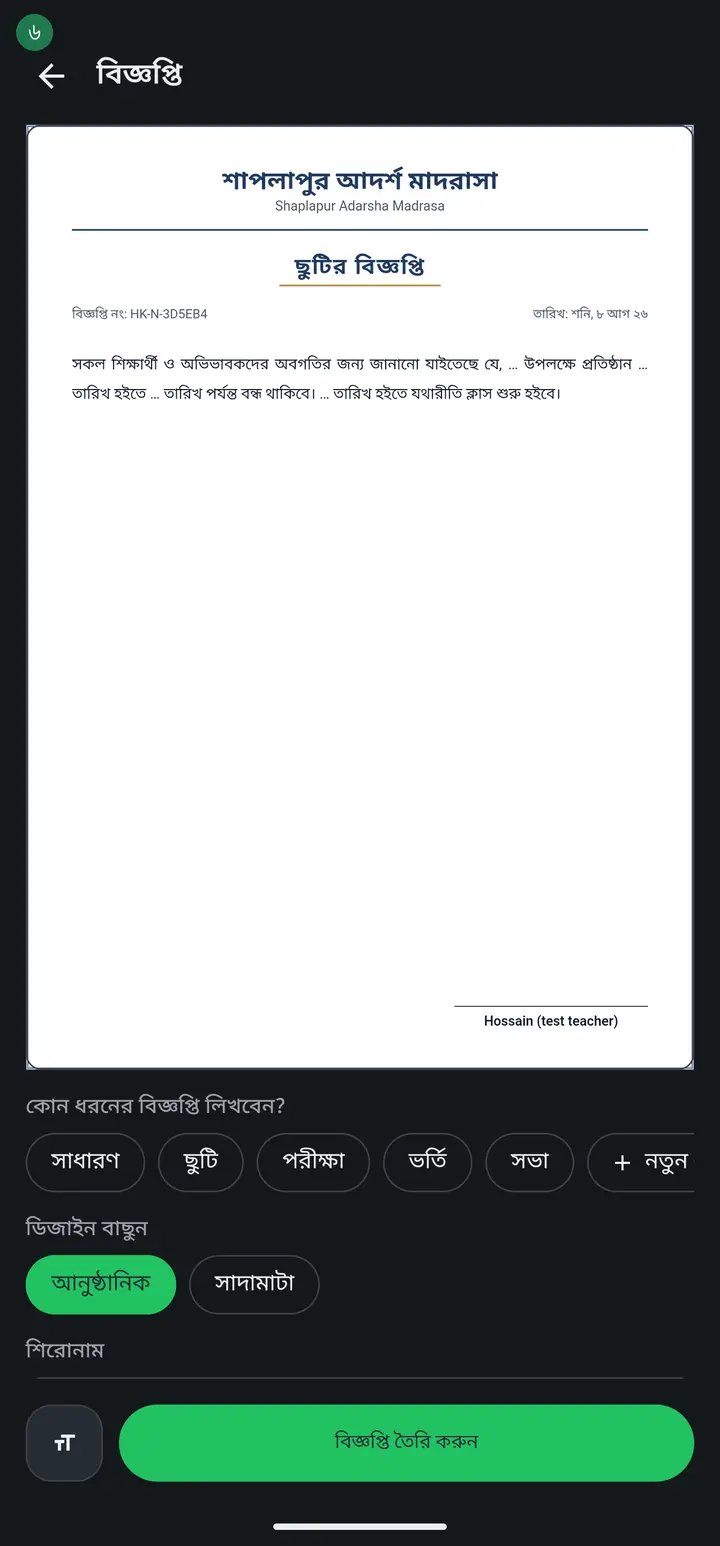
Tapping a type REPLACES whatever is written. So do not tap one after you have already typed out your own notice.
-
Word it your way, then tap "নতুন ধরন হিসেবে সেভ করুন" (Save as a new type) and it becomes your own chip — one tap to get that wording back next time.
-
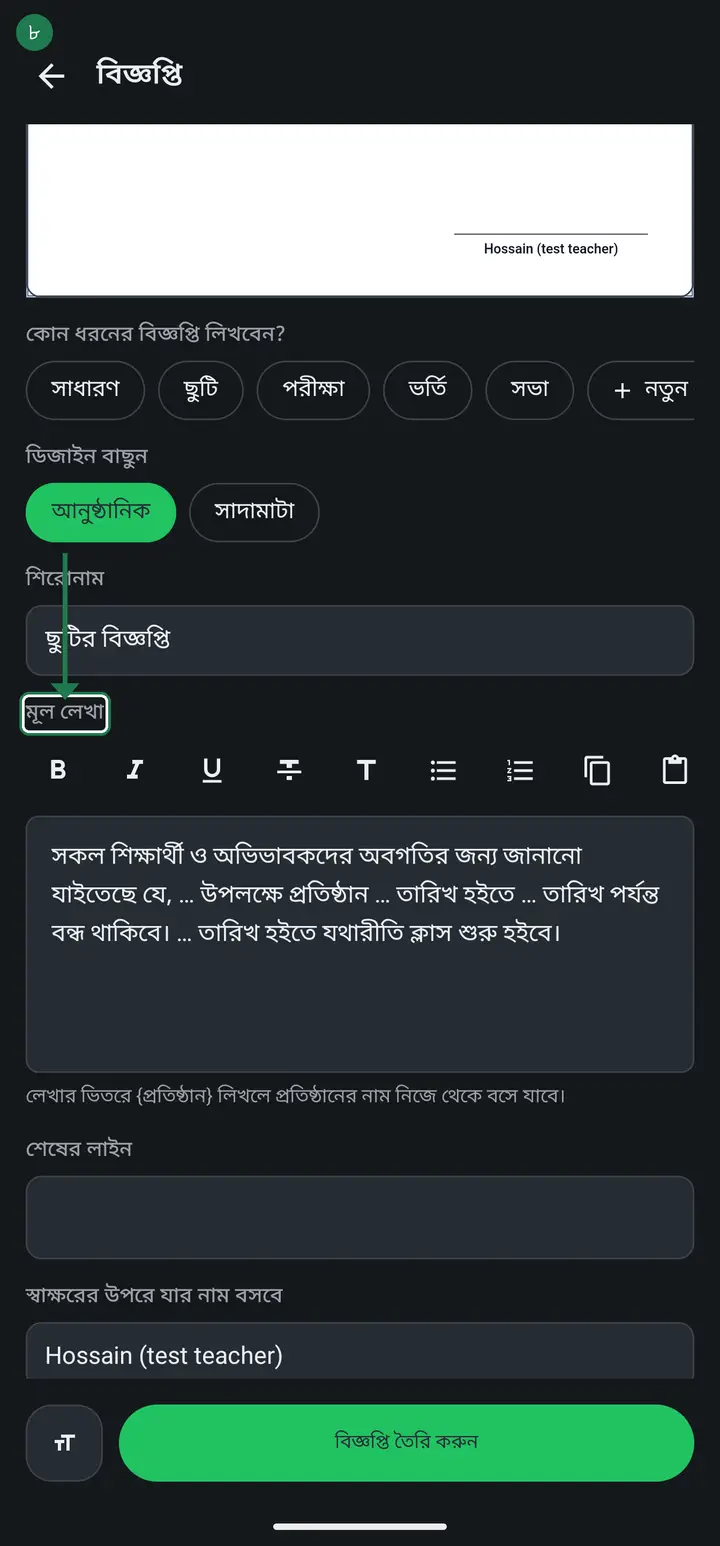
Write your own text in "মূল লেখা" (Body). Type {প্রতিষ্ঠান} anywhere in it and the school's name drops into that spot by itself — no need to type it out each time.
-
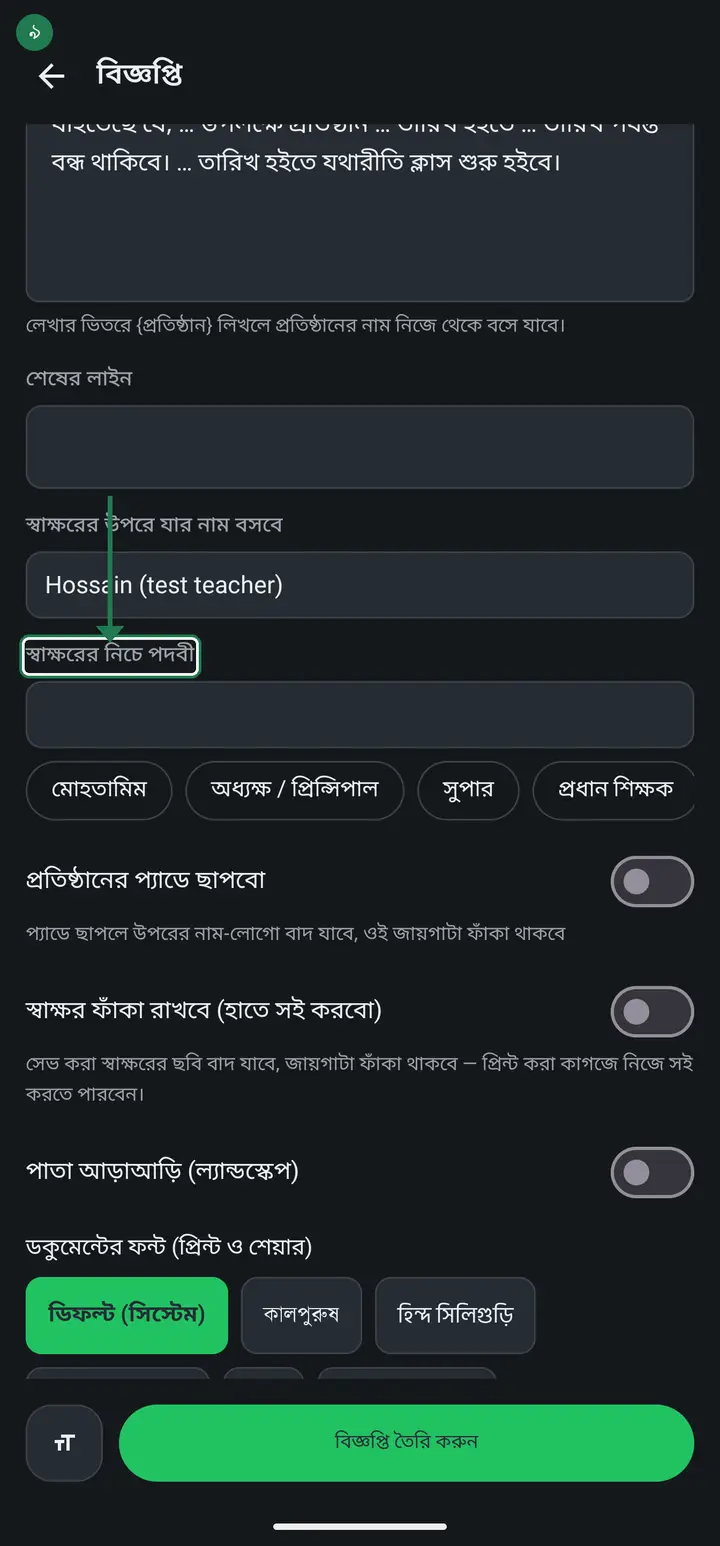
Further down, put the name that goes above the signature and pick the post below it — মোহতামিম, অধ্যক্ষ, সুপার, প্রধান শিক্ষক — or type your own.
-
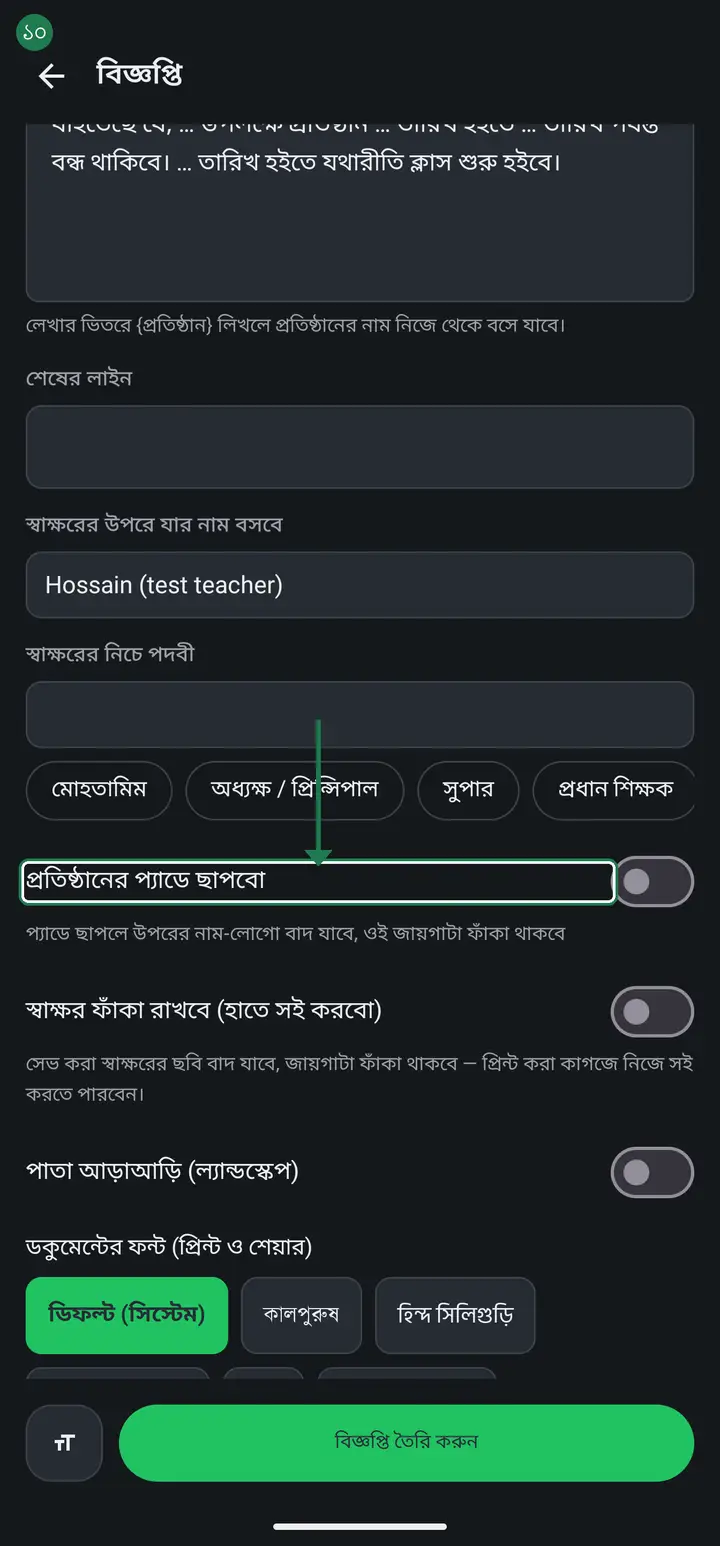
Printing on your pre-printed letterhead pads? Turn on "প্রতিষ্ঠানের প্যাডে ছাপবো" — the name and logo are left off so they do not print over the pad's own head. Likewise "স্বাক্ষর ফাঁকা রাখবে" drops the saved signature image so you can sign the paper by hand.
-
When it looks right, tap "বিজ্ঞপ্তি তৈরি করুন" (Create notice). You get a PDF — print it, or send it to the guardians on WhatsApp.
Ask AI about this page
Ask an AI app to explain this page in simple language.
Copied — now paste it
Get Hazira Khata free on Google Play
More tutorials
- How to sign in Signing in for the first time with your phone number. No email or password needed.
- Add a second way to sign in to one account Add Gmail to an account created with a phone number. It stays one account and nothing inside it changes.
- How to mark your own attendance As a teacher you can record your own daily attendance — it takes one tap.
- Check your salary and sign "received" When your school records your salary, the app tells you. Check the receipt and tap "বেতন বুঝে পেয়েছি" (Salary received) to leave your own digital signature — proof for both sides.
- How to create a class Before you can take attendance you create the class once. A one-time job.
- Make receipts and results look right — font and size Documents printing in an ugly font? Change it in one place and the receipt, result slip and certificate all change together.
- How to add students Enter each student's name and roll once. After that, daily attendance is just ticking boxes.
- How to add a whole class at once You do not have to type 40 names one by one. Type or paste the list and add everyone at once — no computer needed.