
Choosing the second name line and the signature caption on your printed papers
Two places on a printed page were decided by the app with no way to change them — the English name line under the institution's name at the top, and "প্রধান শিক্ষকের স্বাক্ষর" under the signature at the bottom. Many madrasas want Arabic on that second line, and in many institutions the person who signs a routine is the পরীক্ষা নিয়ন্ত্রক or the মুহতামিম, not the head teacher. Both are now yours to type.
Put Arabic — or anything else — on the second name line under your institution's name, and replace "প্রধান শিক্ষকের স্বাক্ষর" with the office that actually signs your papers.
The screenshots show the app in Bangla, its main language. The buttons sit in the same places in English.
-
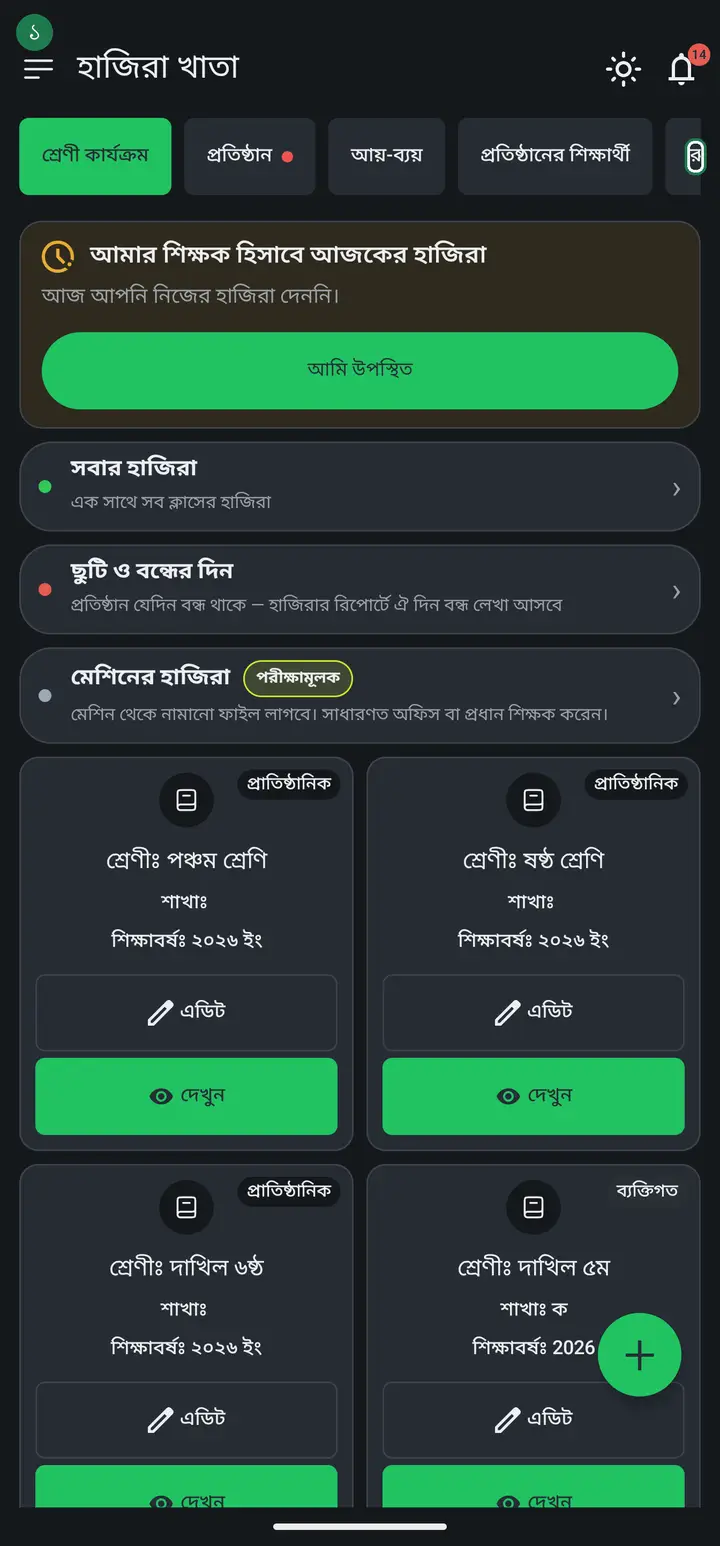
Start with the caption under the signature. Routine tab → "পরীক্ষার রুটিন" (Exam routine) → open the routine you are going to print. It has to be saved already, or the box below does not appear at all.
-
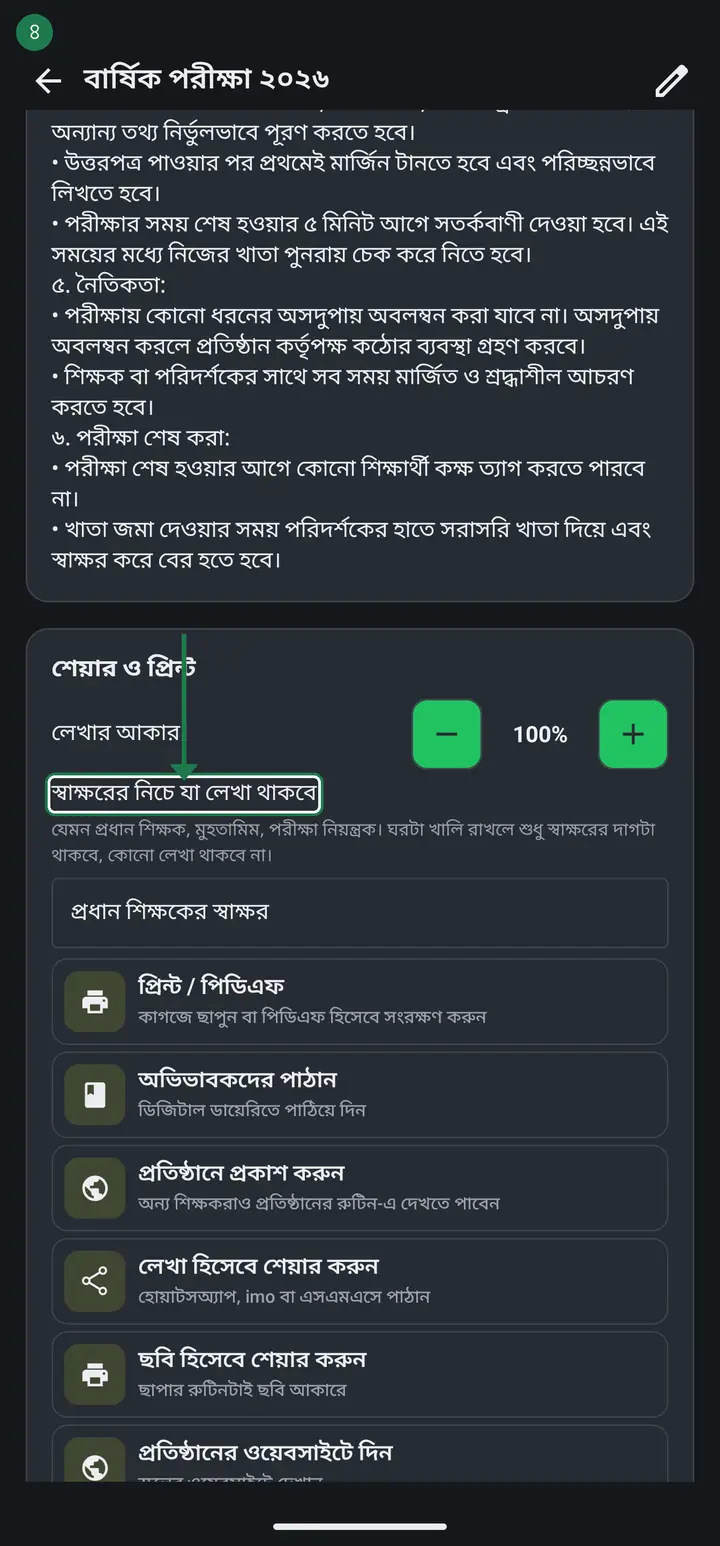
Scroll down to the "শেয়ার ও প্রিন্ট" (Share and print) box. Directly under "লেখার আকার" (Text size) there is a text field — "স্বাক্ষরের নিচে যা লেখা থাকবে" (What the caption under the signature says). It comes pre-filled with "প্রধান শিক্ষকের স্বাক্ষর".
-
Clear it and type what you want — "পরীক্ষা নিয়ন্ত্রক" (Controller of Examinations), "মুহতামিম", "অধ্যক্ষ" (Principal), or whatever your institution uses. There is no separate save button; it is stored as you type.
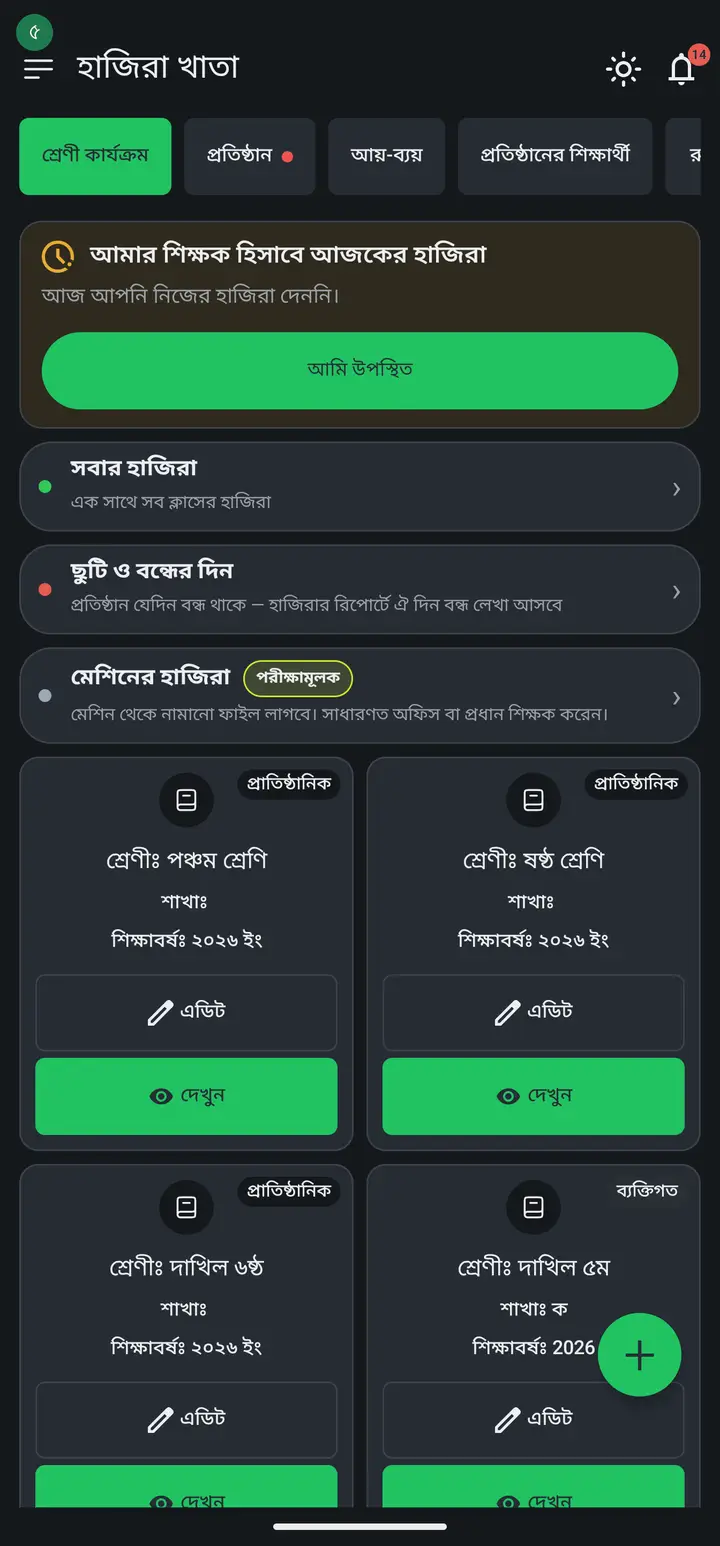
Leaving the field completely empty prints the signature rule with nothing written under it. That is a real answer, not a mistake — it is there for schools that want no office named at all, and the app remembers the blank. To bring the original wording back, tap "আগের লেখায় ফিরে যান" (Back to the default wording) underneath.
-
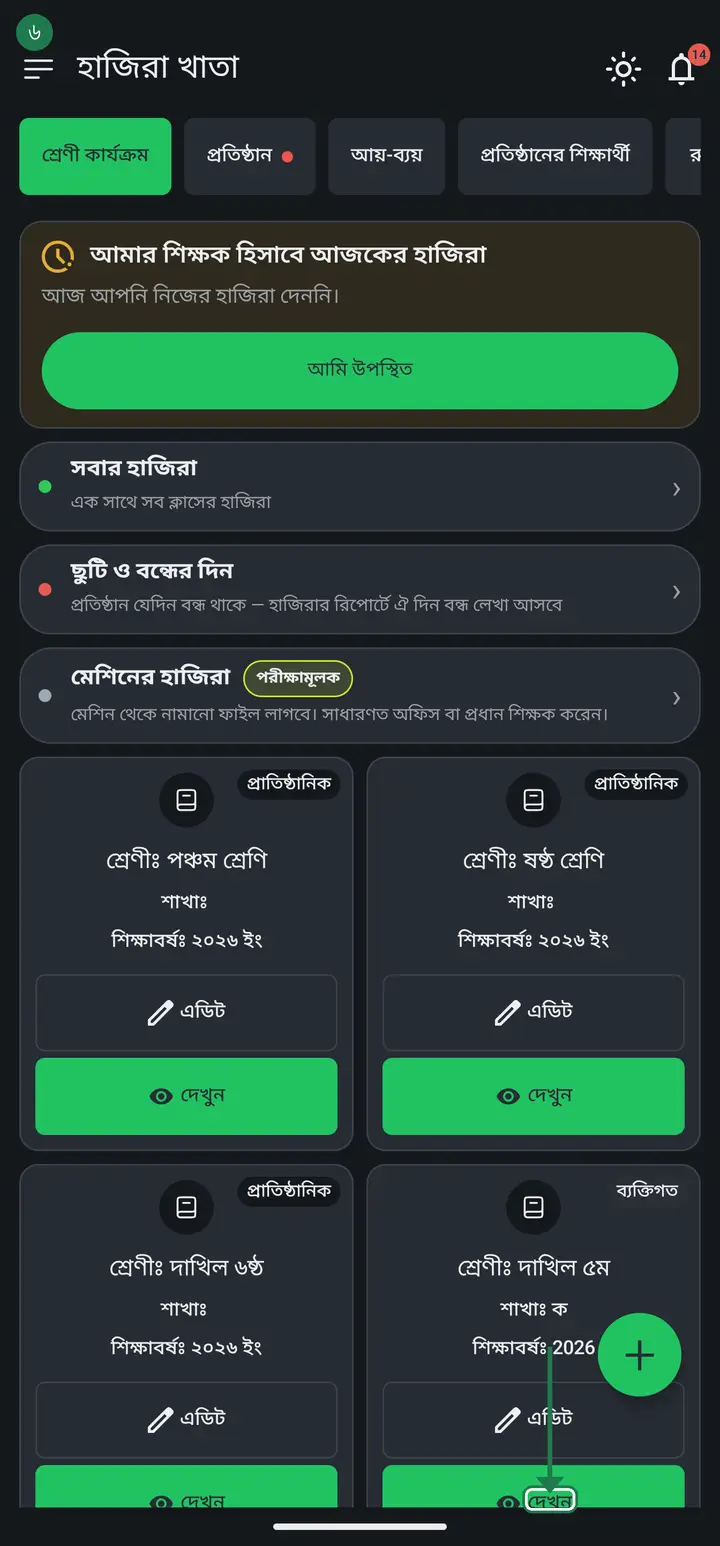
Tap "প্রিন্ট / পিডিএফ" and check — the printed routine now carries your wording under the signature.
-
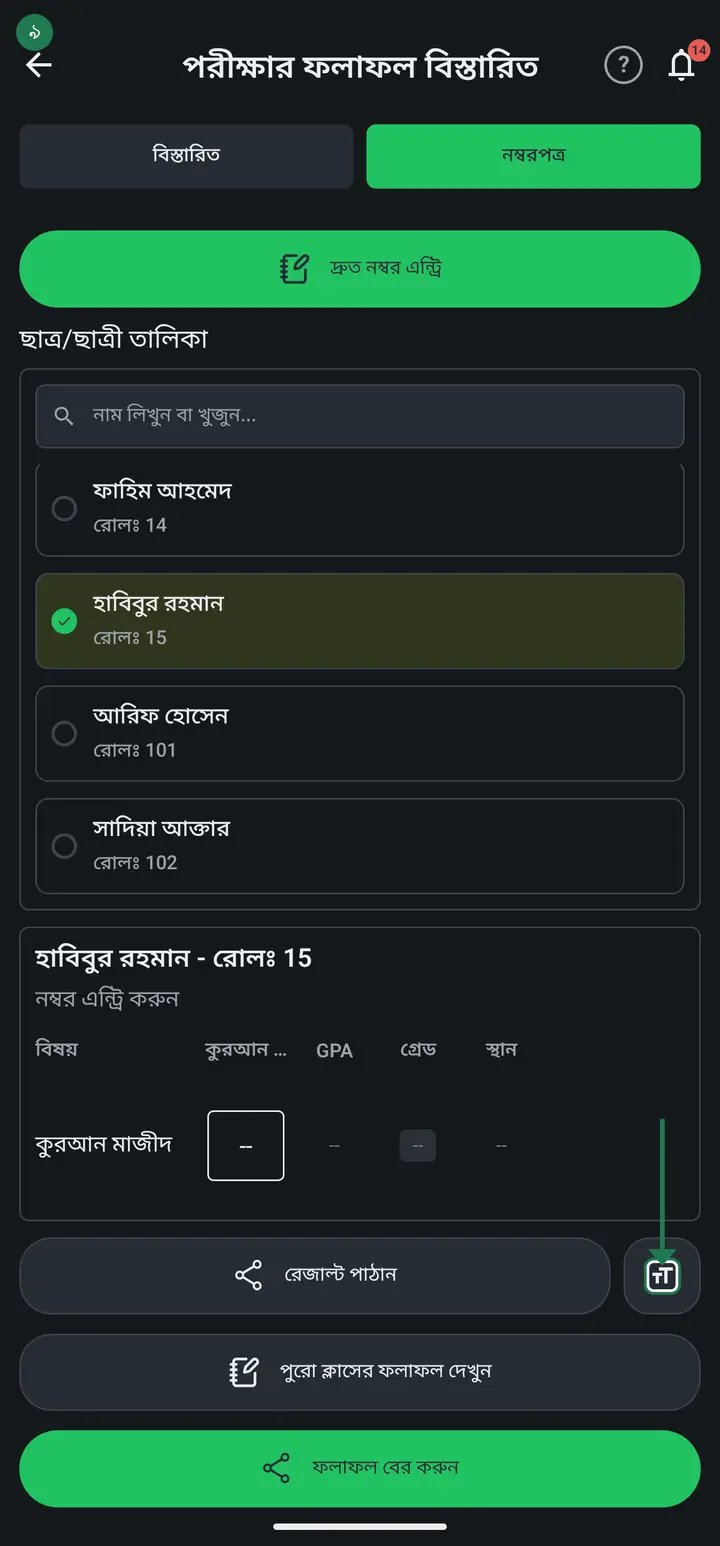
Now the name line at the top. On any document screen, tap the small "Aa" button beside share/print — "প্রিন্টের সেটিংস" (Print settings) opens.
-
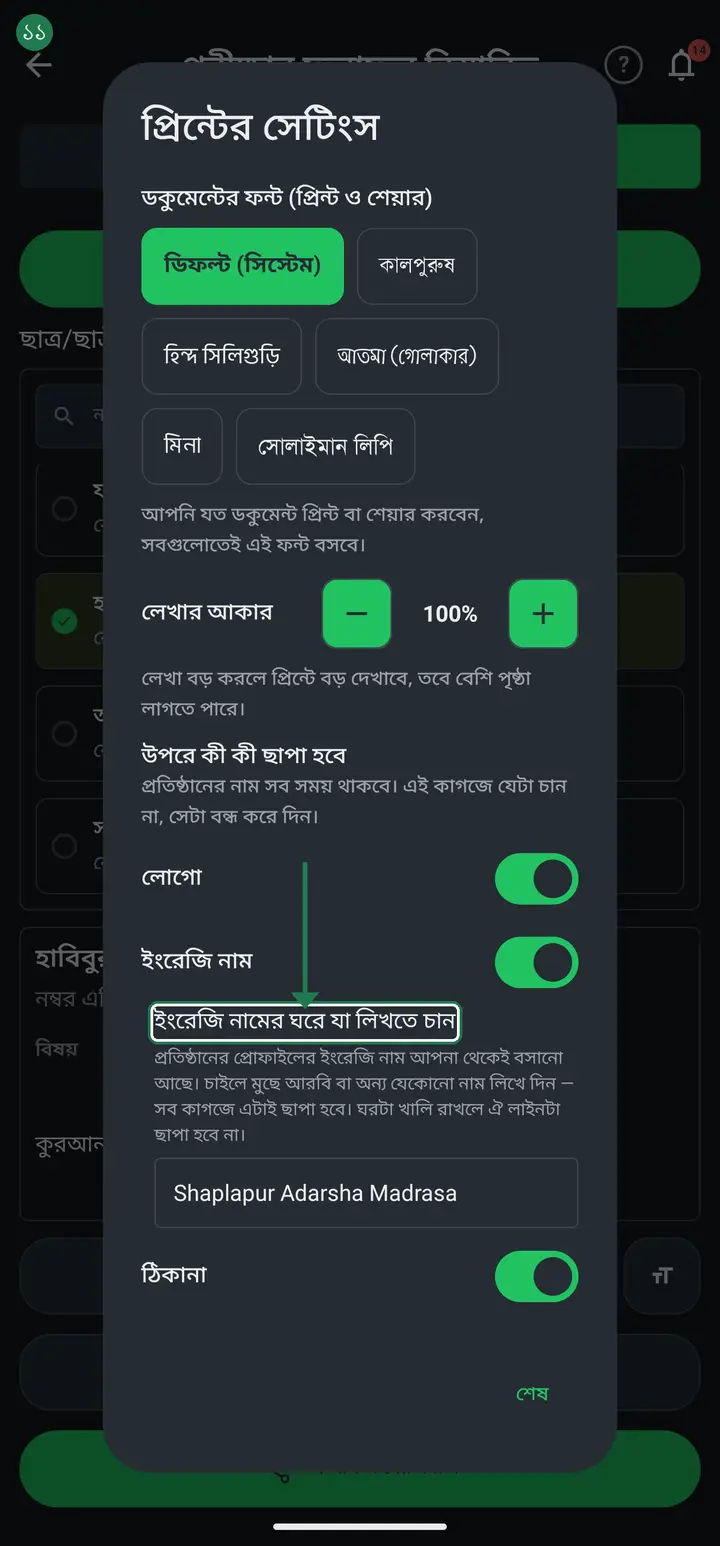
In that box you will find "উপরে কী কী ছাপা হবে" (What prints at the top) — logo, English name, address, each with its own on/off switch. Directly under the "ইংরেজি নাম" switch there is a new text field, "ইংরেজি নামের ঘরে যা লিখতে চান" (What the English-name line says), pre-filled from your institution profile.
-
Clear it and type the Arabic name, or whatever you want there. This one is institution-wide — routines, certificates, receipts, admit cards all carry the same line. The institution's name is deliberately not allowed to differ from document to document.
Leave it empty and that line prints on no document at all. To go back to the profile's English name, tap "আগের ইংরেজি নামে ফিরে যান" (Back to the saved English name) below the field — it only appears once you have typed an override.
-
Which documents show the line is a separate question — that is the "ইংরেজি নাম" switch, and that switch is per document. So: what the line SAYS is decided once for the school; where it APPEARS is decided per document.
Common questions
Our routines are signed by the Controller of Examinations, not the head teacher — but the paper says head teacher.
That wording is now editable. Open the saved exam routine, scroll to the "শেয়ার ও প্রিন্ট" box at the bottom, and type "পরীক্ষা নিয়ন্ত্রক" into "স্বাক্ষরের নিচে যা লেখা থাকবে". Every print of that routine carries it from then on. || Note it is per document — what you set on the exam routine does not carry over to the weekly class routine. In most madrasas a different person signs that one, which is why they are kept apart on purpose.
Can I change the signature caption on the class routine too?
Not yet. The printed class routine reads from the same setting, but the field that sets it currently exists only on the exam routine screen, so the class routine keeps printing "প্রধান শিক্ষকের স্বাক্ষর". Tell us if you need it there and it will be added.
I changed it on my phone. If another teacher prints from theirs, will they get my wording?
No. Both of these live on the phone where they were set, exactly like the font and text size. Another teacher printing from their own phone gets whatever is set there, or the original wording if they have set nothing. So if several people at one institution print the same paper, set it once on each of their phones and every copy will match.
Our institution profile has no English name at all. Can I still put the Arabic name here?
Yes. The field simply starts empty — type the Arabic name and the "ইংরেজি নাম" switch starts working too. Previously the switch was greyed out when the profile had no English name; it no longer is, because writing an Arabic name is exactly the case where there is nothing to fall back on.
Do the papers I already printed change?
No. Anything already printed or already sent as a PDF stays as it is. What you change here shows up only on documents you generate from now on — so reprinting an old paper may not match the copy already in someone's hand.
What prints if I never touch either field?
Exactly what printed before — "প্রধান শিক্ষকের স্বাক্ষর" under the signature, and your institution profile's English name on the name line. If you never open these two fields, nothing about your papers changes.
Ask AI about this page
Ask an AI app to explain this page in simple language.
Copied — now paste it
Get Hazira Khata free on Google Play
More tutorials
- How to set up your institution Once your institution profile exists you can add other teachers, and everyone sees the same classes and students.
- Inviting and approving teachers Adding a teacher to your institution — share the code, then approve the request with one tap.
- Assign a teacher to a class (make them a class teacher) Teacher joined the institution but sees nothing? This one job fixes it — 2 minutes.
- Who can see what — designations and permissions How your other teachers sign in, how much power to give each one through designations — and now, more precisely for one person, through permissions too.
- A teacher has left — removing a member Somebody has resigned, or you approved the wrong person. Take the name off in one tap without losing any of the attendance or fees they recorded — and how to leave an institution yourself.
- Record a teacher's salary and send the receipt After paying a teacher, send them a receipt right from the app — instantly if they use WhatsApp, and as a shareable picture even if they don't.
- Taking admissions online Make one link and share it. Guardians fill the form from home, the applications land in your app, and approving one adds the student straight into a class.
- Join a school as a teacher Use the 6-character code your school gave you to join by yourself.