
Finding a copied student's old attendance and fees — "আগের রেকর্ড"
Before 3.2.176 there was no Move — many people used Copy to promote a student, and the old attendance and fees stayed behind in the old class. That student's profile now has an "আগের রেকর্ড" (Prior record) button that opens the old data directly.
The screenshots show the app in Bangla, its main language. The buttons sit in the same places in English.
-
If you promoted a student using Copy before, nothing was deleted — it is all still recorded under the old class's copy of them, it just never attached to the new name. That data can now be opened straight from the profile. This page copies a student first just to show the screen — your real students do not need this step, the button is already on their profile.
-
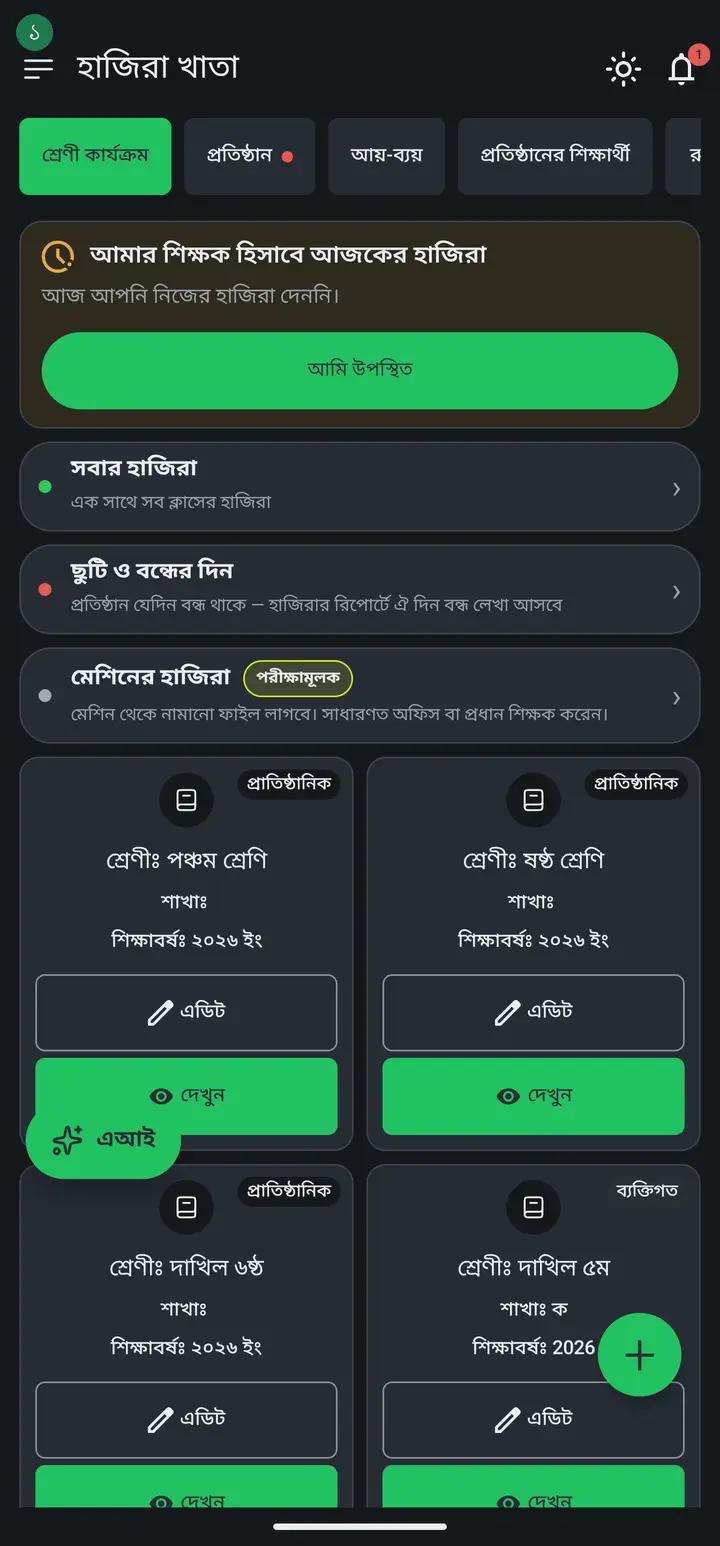
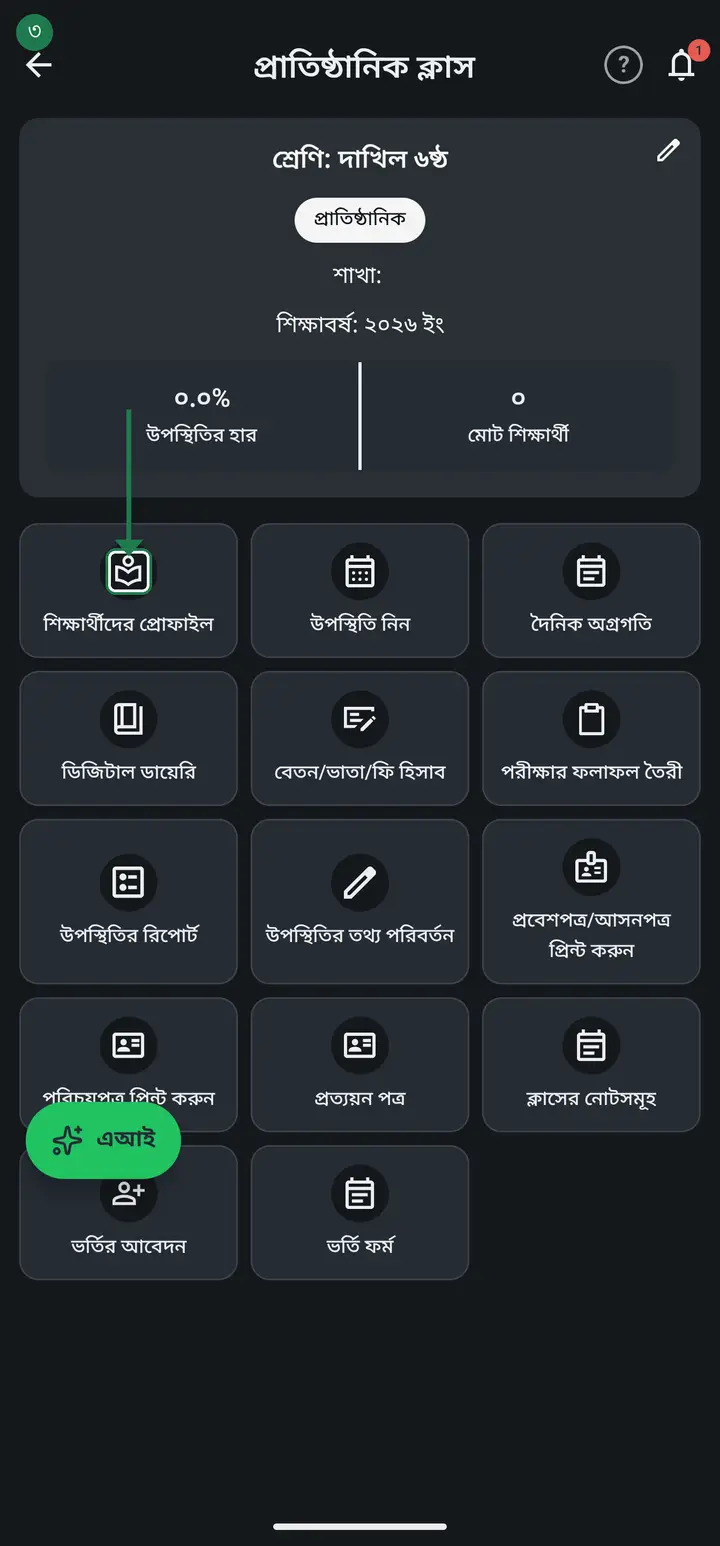
Tap "দেখুন" (View) on the class card, then "শিক্ষার্থীদের প্রোফাইল" (Student profiles).
-
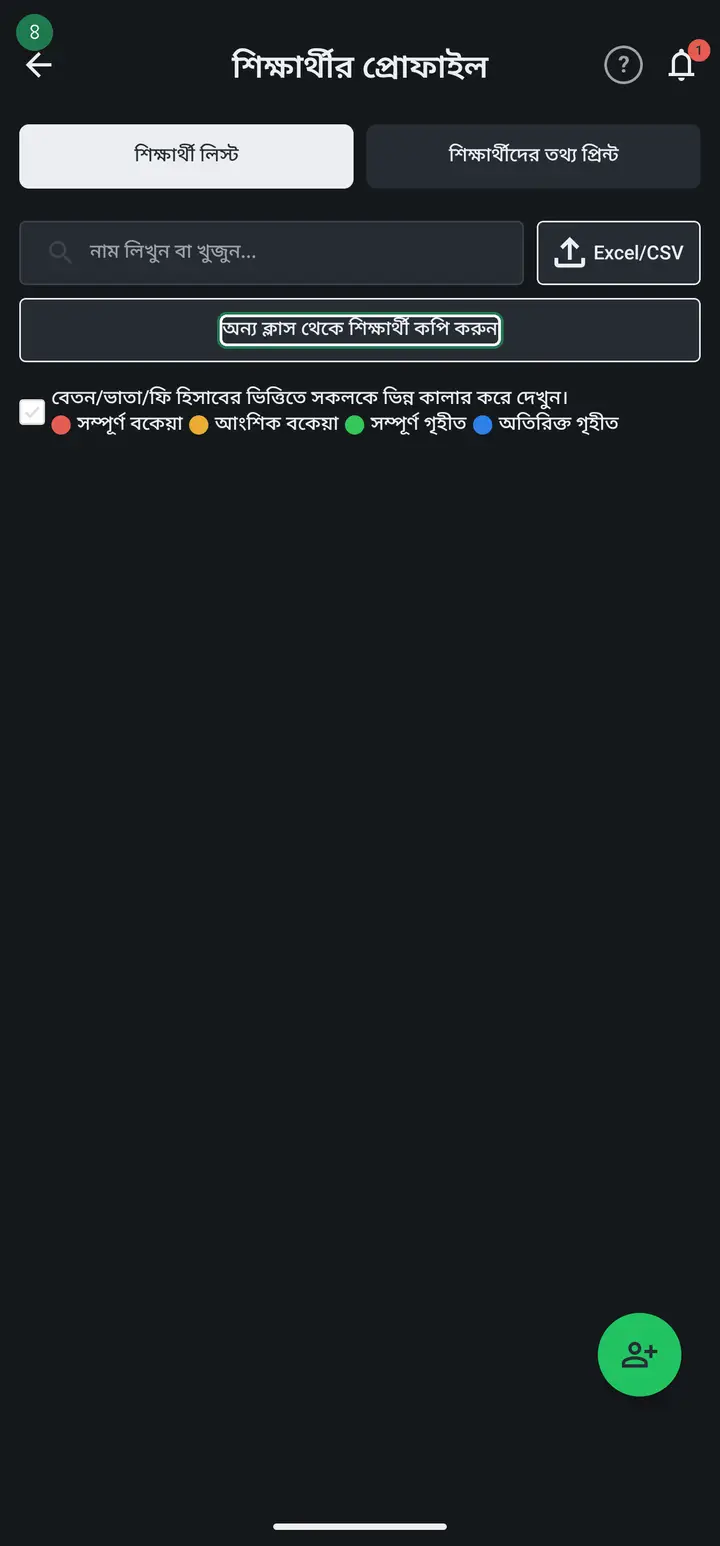
"অন্য ক্লাস থেকে শিক্ষার্থী কপি করুন" (Copy students from another class) — this is the old button, still here, and it still creates a new student. To promote a student, use "অন্য ক্লাসে সরান" (Move to another class) instead — this page only shows how to recover the data for students already copied this way in the past.
-
Pick the class the student is coming from. Both personal and institution classes appear in the list.
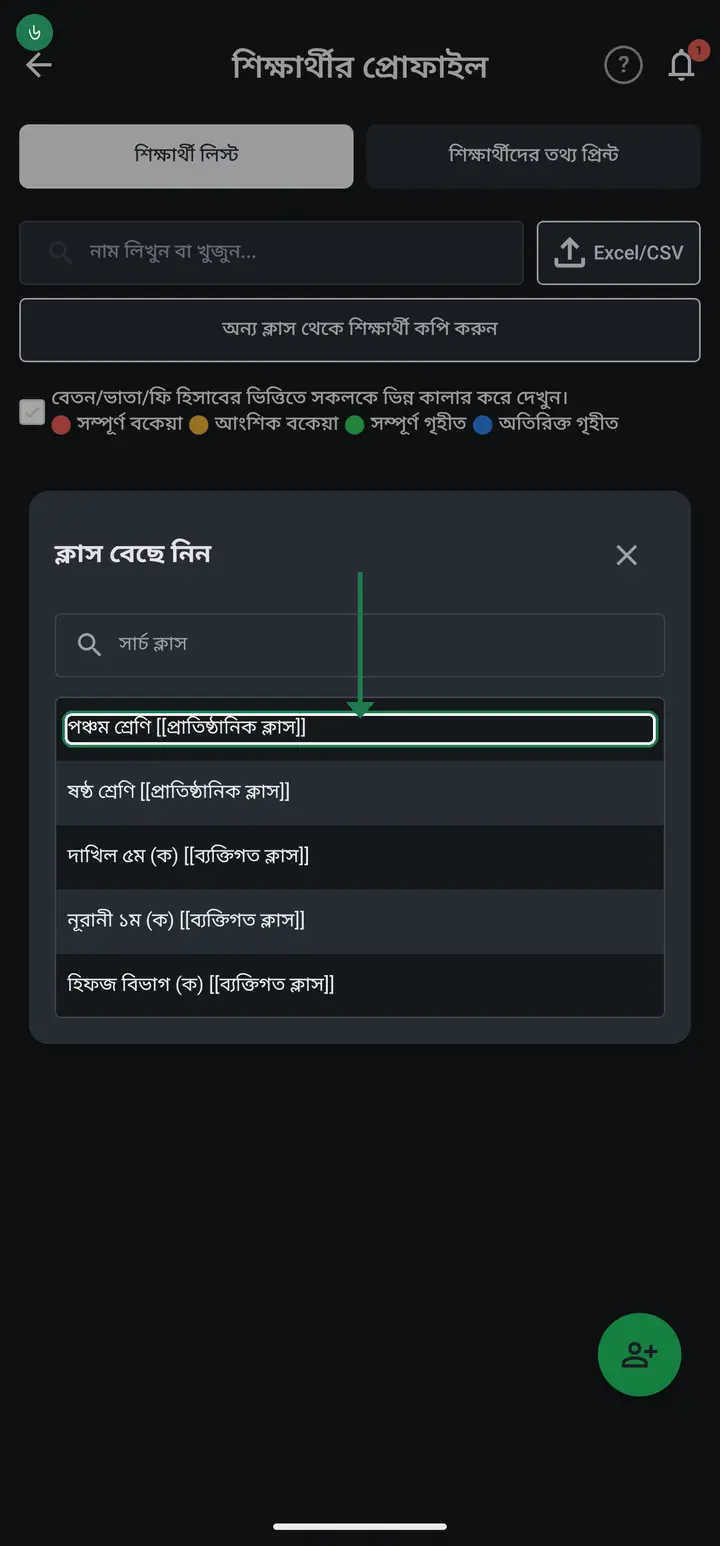
Remember which kind of class you copied from. A student copied from a PERSONAL class has their prior record sitting only on the phone that created that class — it cannot be opened from any other phone or institution, and the "আগের রেকর্ড" button will say exactly that. Copying from an institution class does not have this problem.
-
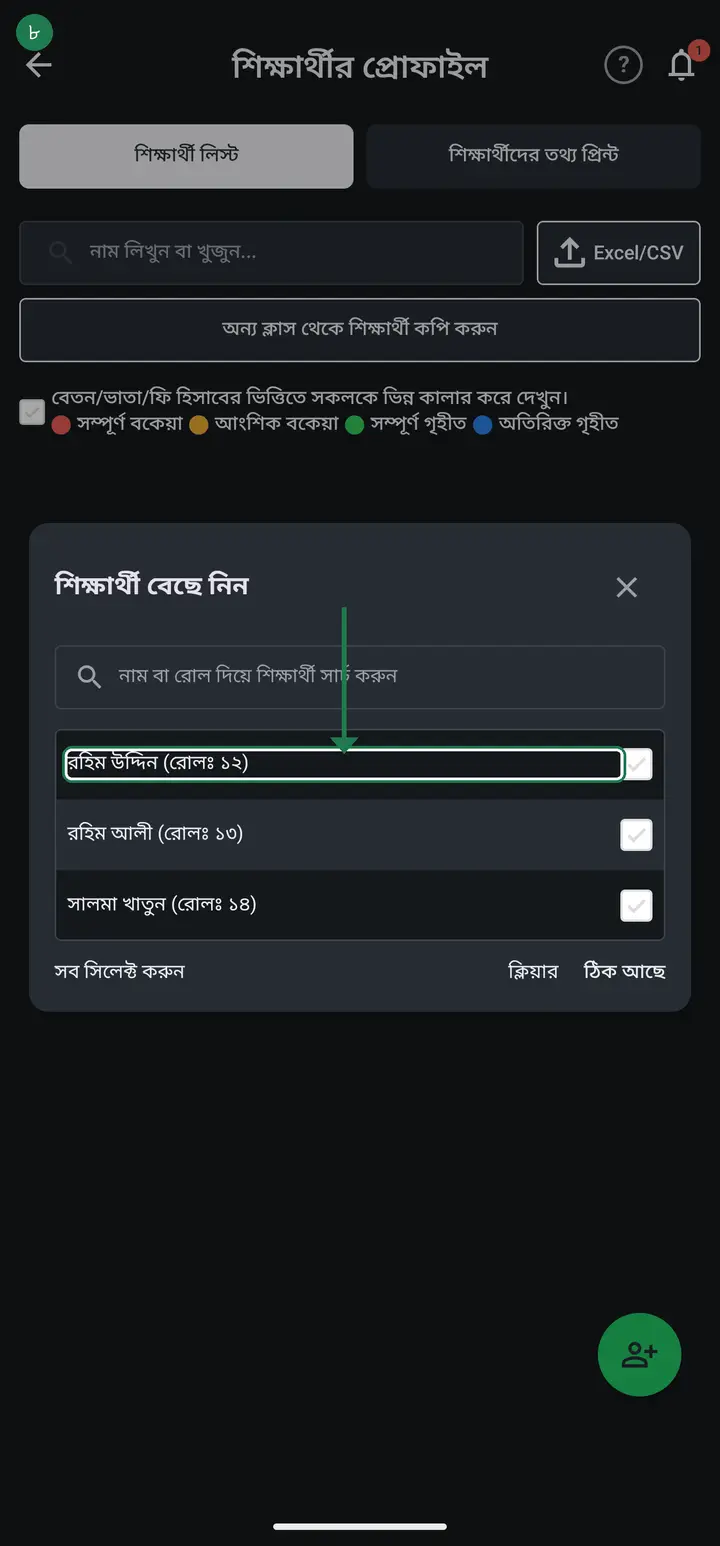
Pick the student.
-
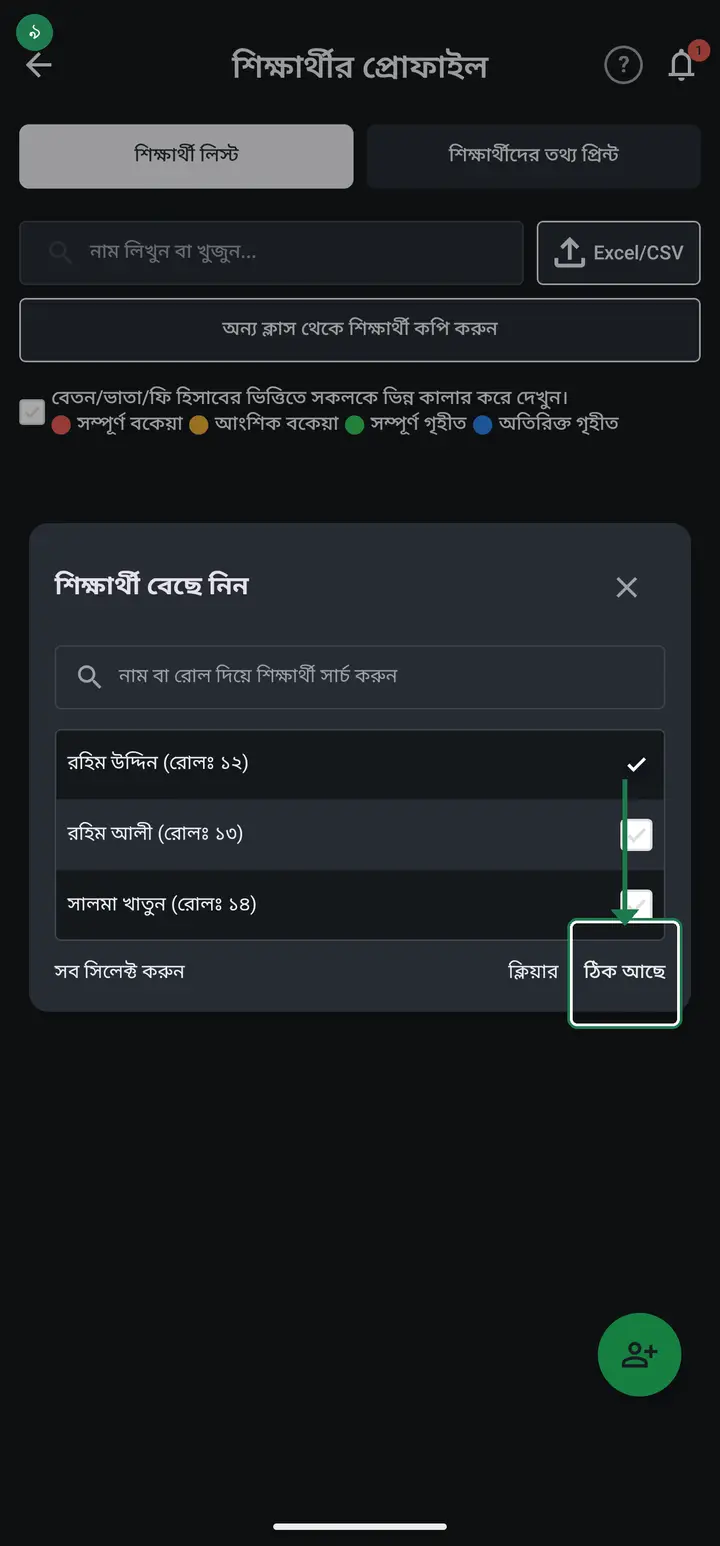
Tap "ঠিক আছে" (OK) and the copy is made.
-
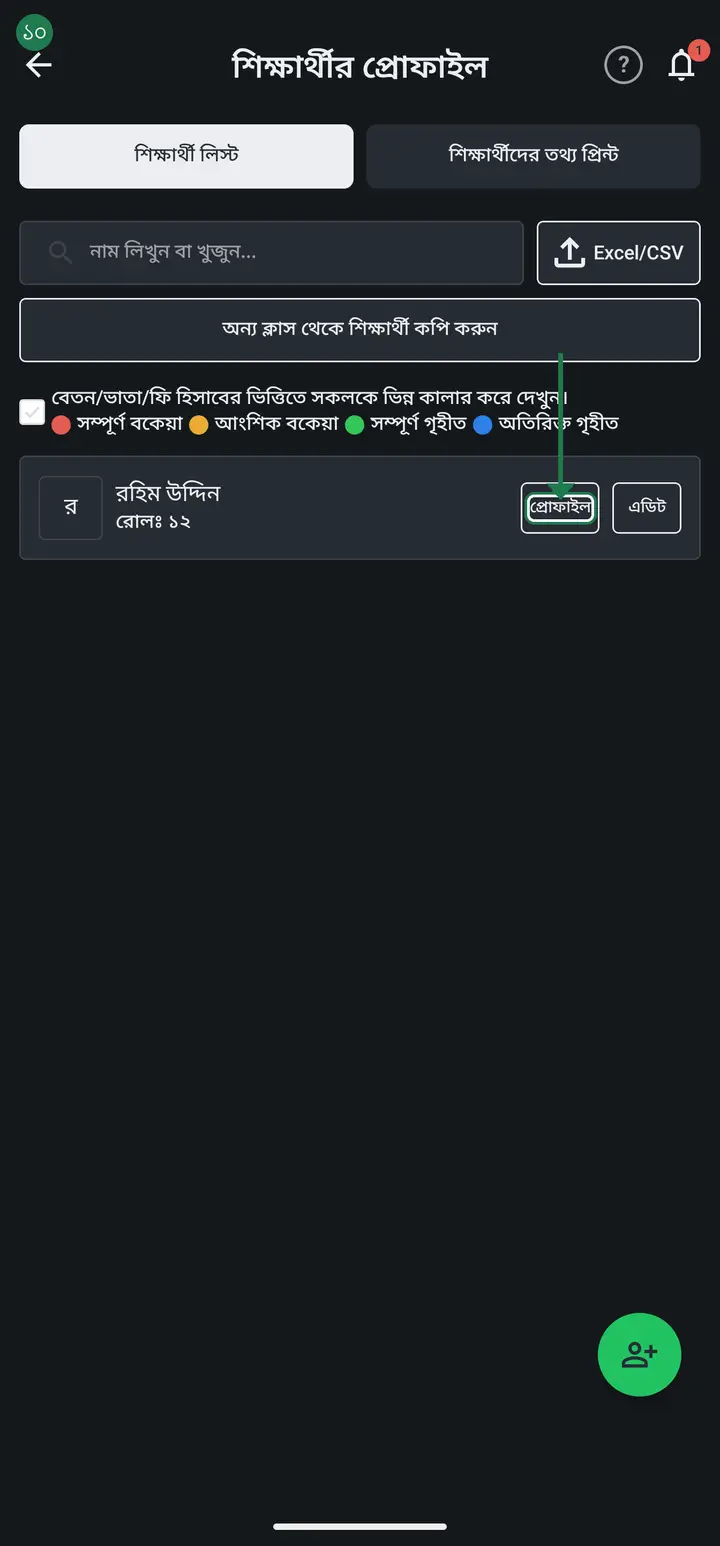
Open the profile of the just-copied student — brand new, "০ মোট ক্লাস" (0 total classes). There is no old attendance or fee record here, because this is really a NEW student — same name, but a separate record.
-
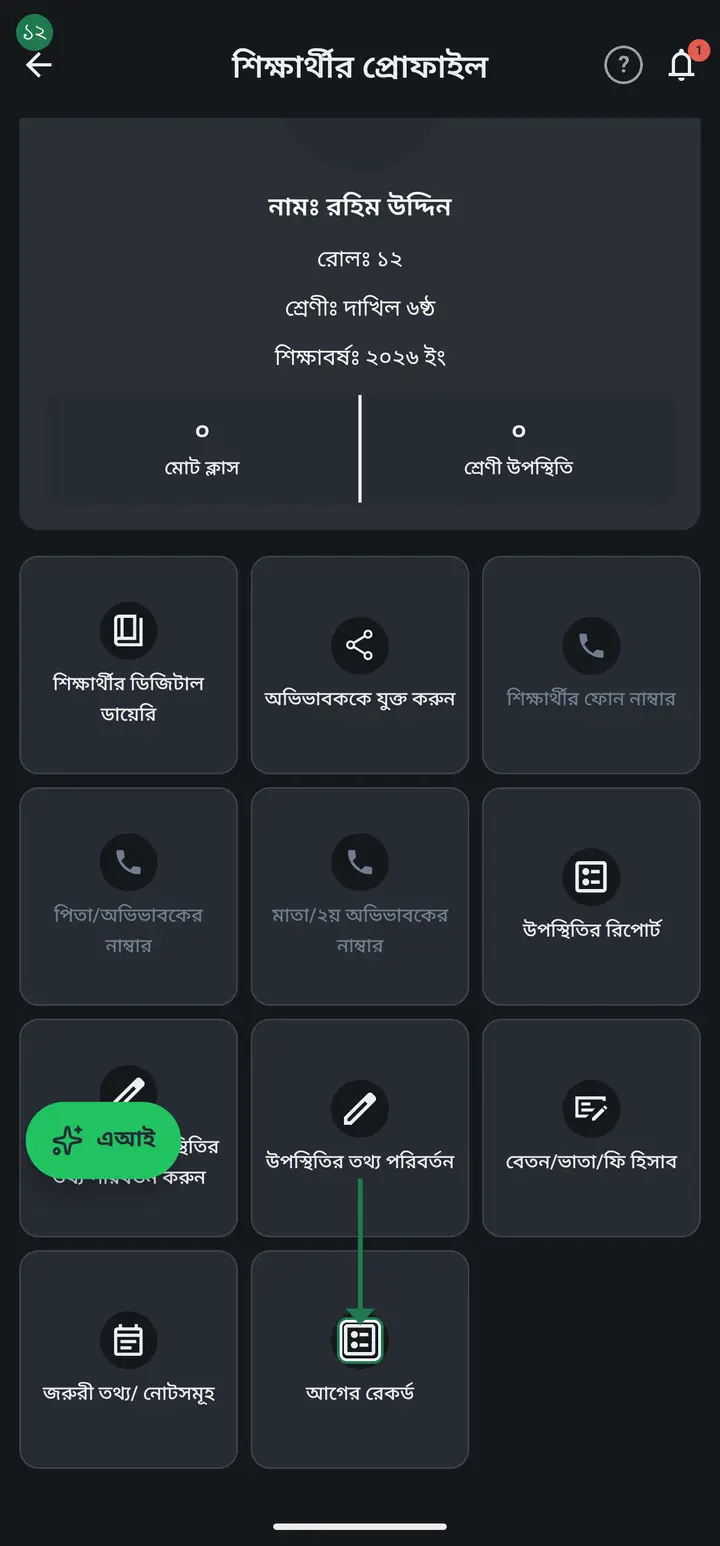
Scroll the page down. At the very bottom there is a button called "আগের রেকর্ড" (Prior record). This only appears when the student was actually copied from somewhere — it will not show on a student who was added directly.
-
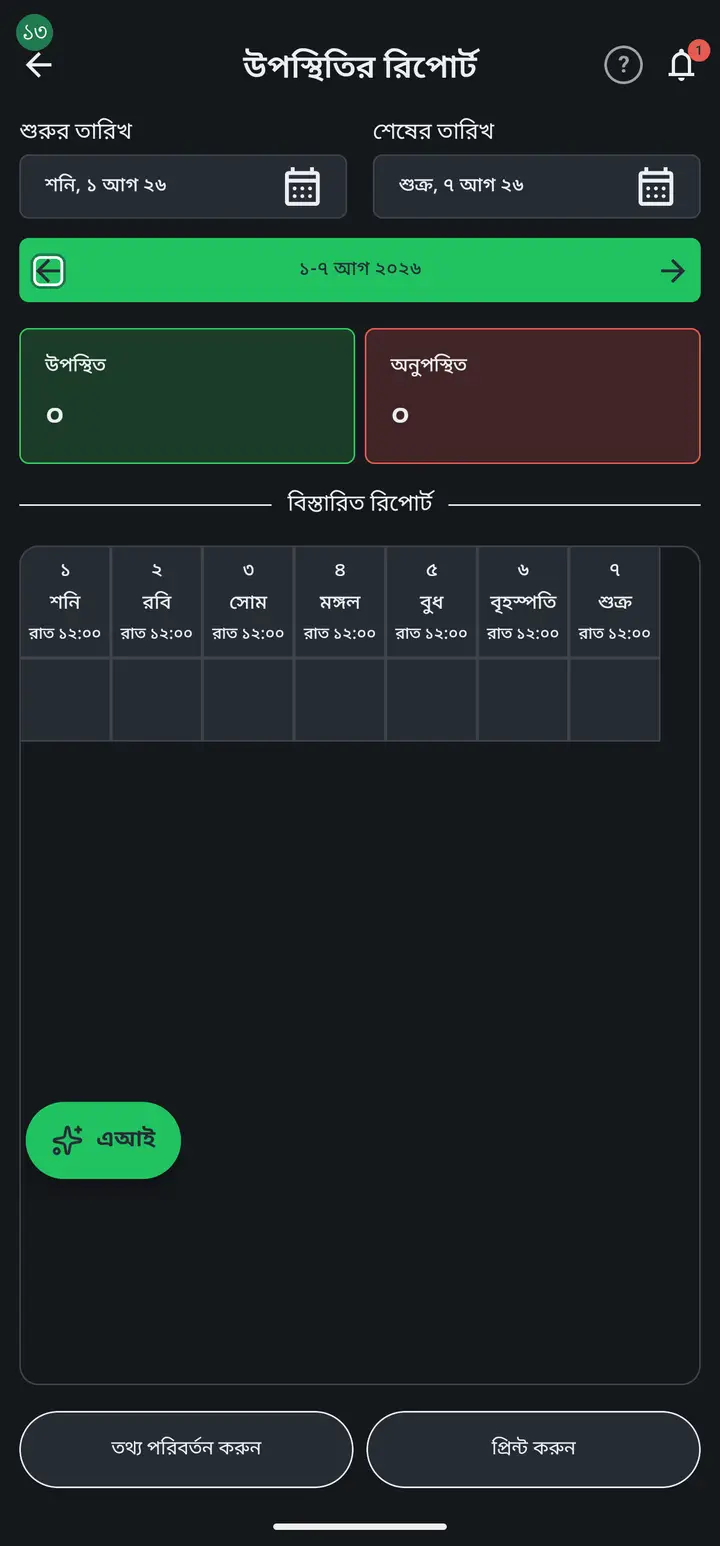
Tapping it opens the OLD class's attendance report for that same student — not the new copy's, the real old record's. Tap "Previous" to look at earlier weeks.
-
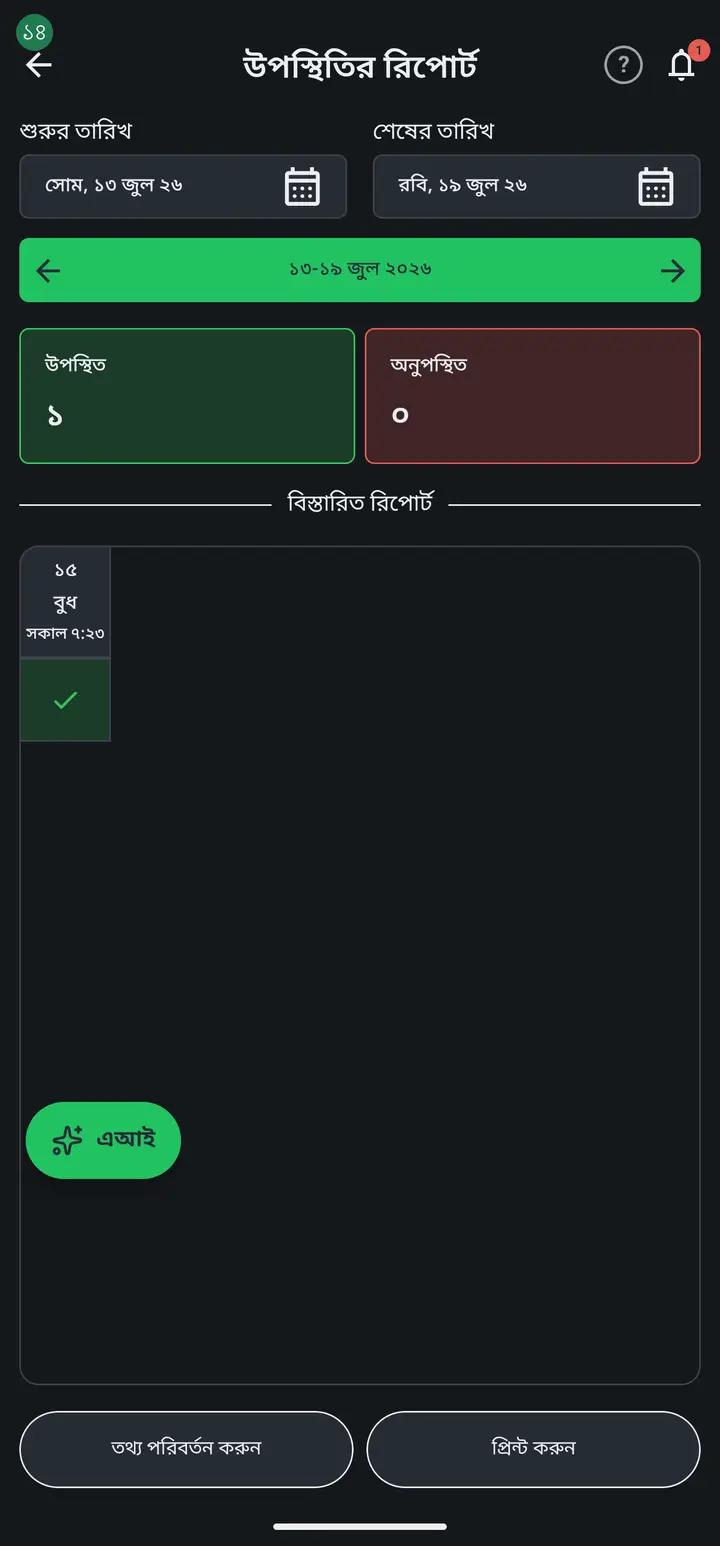
There it is — the days they were present in the old class are all still here, even though the new copy has none. This report is READ-ONLY — nothing can be changed from it, and nothing needs to be. Their old fee records are reachable the same way, from their own বেতন/ভাতা/ফি (fees) page.
Common questions
Does tapping "আগের রেকর্ড" merge the old and new student into one?
No. It only opens the old record to look at — it does not change or merge anything. The two profiles stay separate — one stays active in the new class, the other can only be opened to read.
I do not see "আগের রেকর্ড", but I know this student was copied here before.
A few reasons. One, the button is at the very bottom of the profile — scroll further down. Two, the button was added in version 3.2.195 and has reached every up-to-date app — so if it is missing, yours is an old build; update once from the Play Store. Either way your old data is safe, just do not delete the old class. Three, the student may have been added directly rather than copied — in that case there is no prior record to show.
Can I print or share the report I see through the old record?
Yes, using the report page's own "প্রিন্ট করুন" (Print) button — it works exactly like any attendance report, the data here just happens to be from the old class.
Is there really no way to recover a student copied from a personal class?
Not from here — a personal class's data lives only on the phone that created it, not on the institution's server, so it cannot be opened anywhere else. Check the original phone, if it still has the app and that old class on it — the attendance and fees are still there.
From now on, should I use Copy or Move to promote a student?
Use Move — that is the correct way now, it carries attendance, fees and the guardian link along and creates no second record. Copy is only for when you genuinely want a separate, new student. Full steps are on the Moving a student to another class page.
Ask AI about this page
Ask an AI app to explain this page in simple language.
Copied — now paste it
Get Hazira Khata free on Google Play
More tutorials
- How to sign in Signing in for the first time with your phone number. No email or password needed.
- Add a second way to sign in to one account Add Gmail to an account created with a phone number. It stays one account and nothing inside it changes.
- How to mark your own attendance As a teacher you can record your own daily attendance — it takes one tap.
- Check your salary and sign "received" When your school records your salary, the app tells you. Check the receipt and tap "বেতন বুঝে পেয়েছি" (Salary received) to leave your own digital signature — proof for both sides.
- How to create a class Before you can take attendance you create the class once. A one-time job.
- Make receipts and results look right — font and size Documents printing in an ugly font? Change it in one place and the receipt, result slip and certificate all change together.
- How to add students Enter each student's name and roll once. After that, daily attendance is just ticking boxes.
- How to add a whole class at once You do not have to type 40 names one by one. Type or paste the list and add everyone at once — no computer needed.