
Keeping notes on one student
Notes kept against one student — illness, a talk with the guardian, discipline or praise. Different from class notes.
The screenshots show the app in Bangla, its main language. The buttons sit in the same places in English.
-
Tap "দেখুন" (View) on the class card.
-
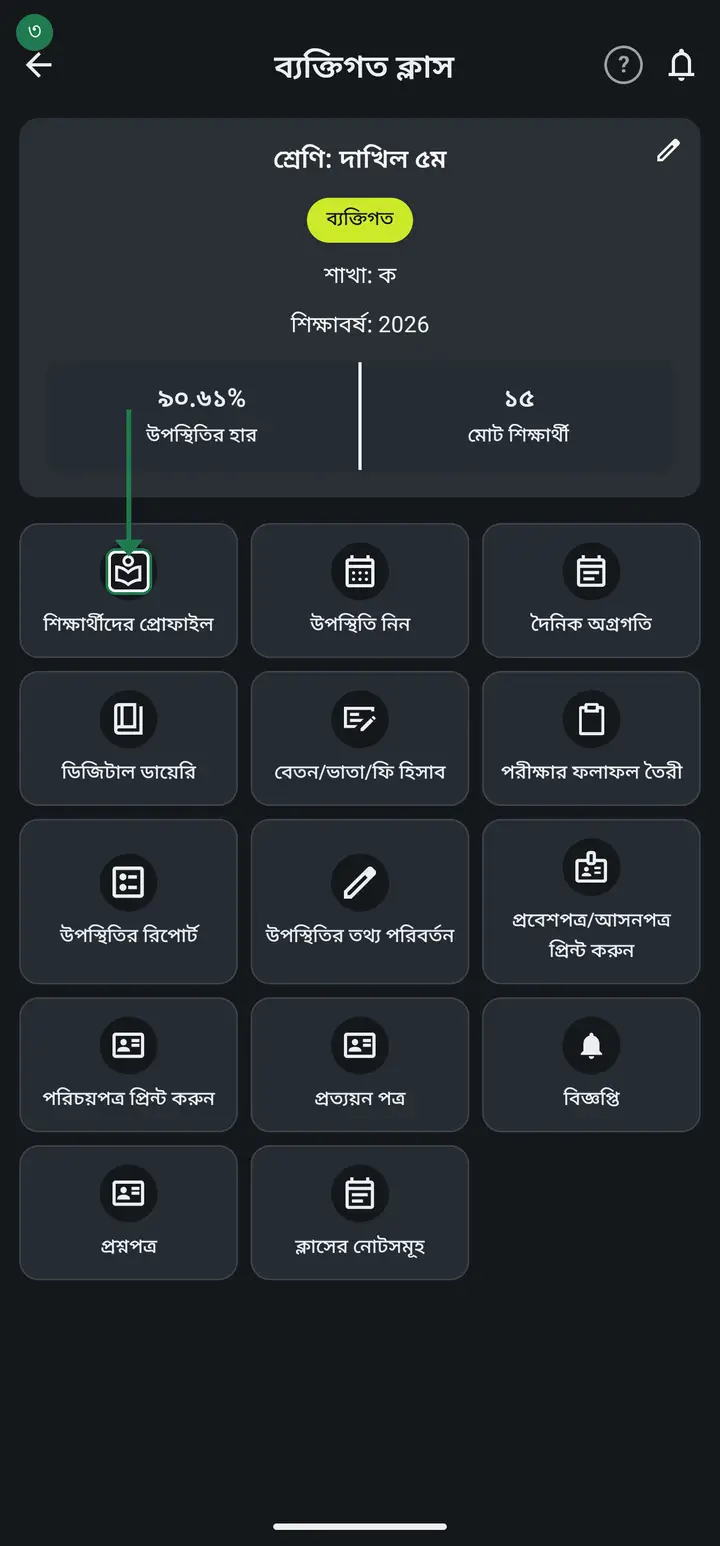
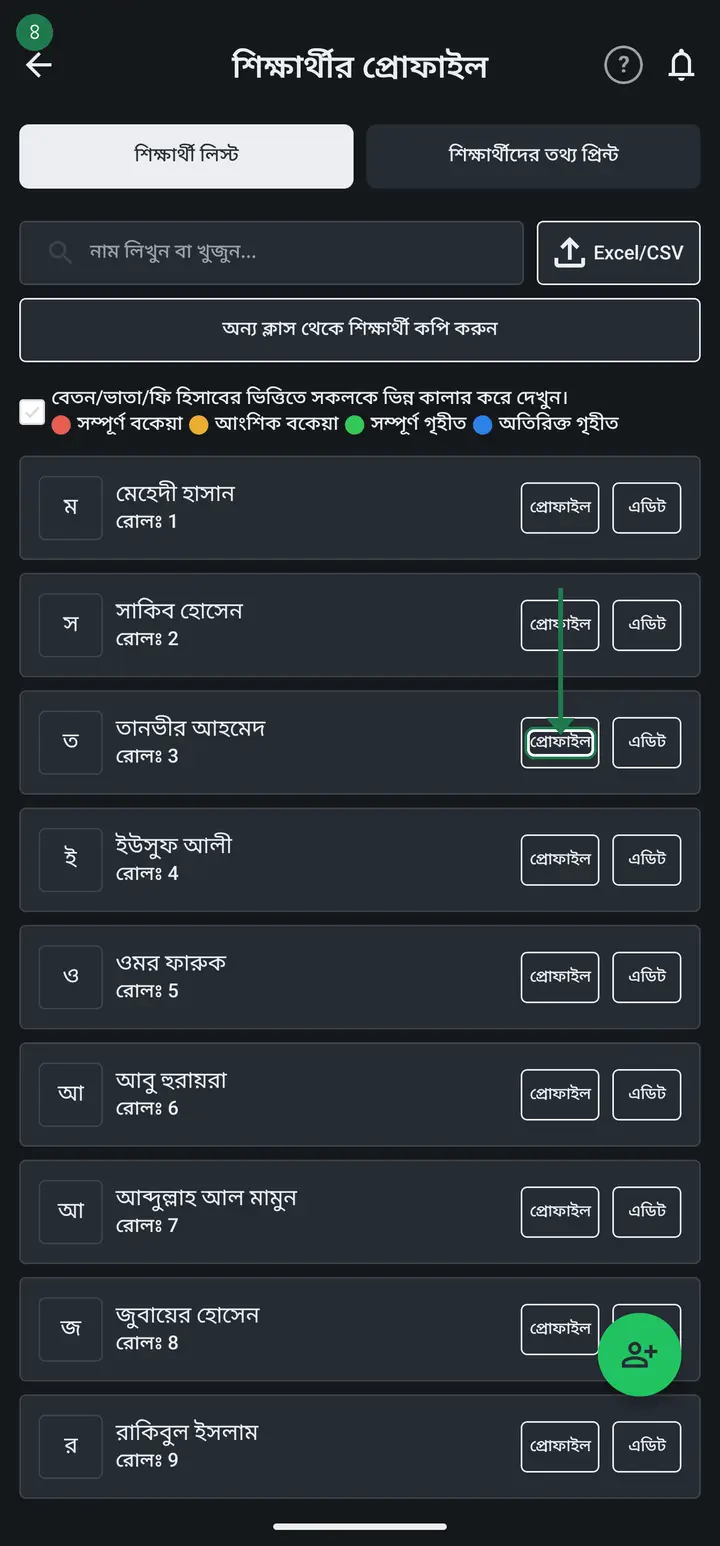
Tap "শিক্ষার্থীদের প্রোফাইল" (Student profiles), then tap the student you want to keep notes on.
-
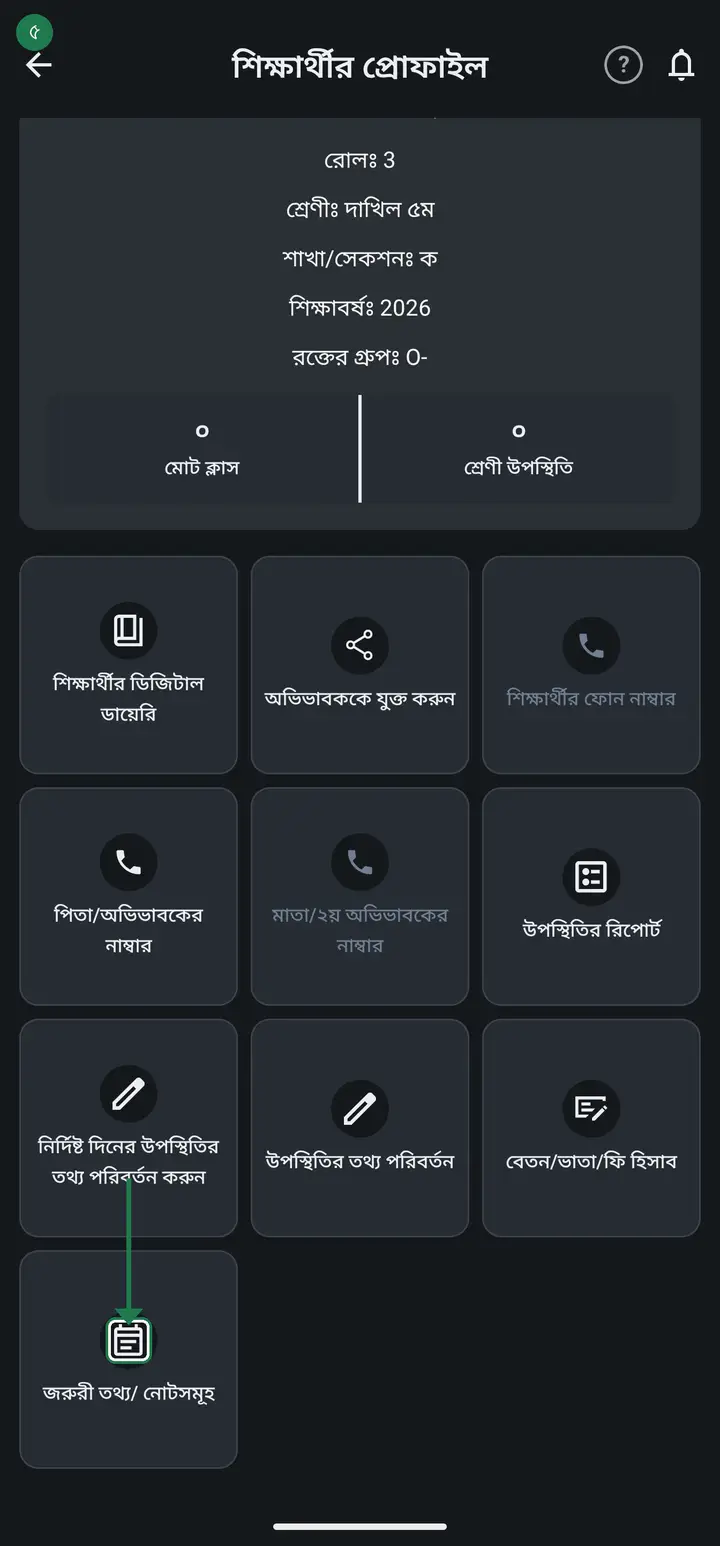
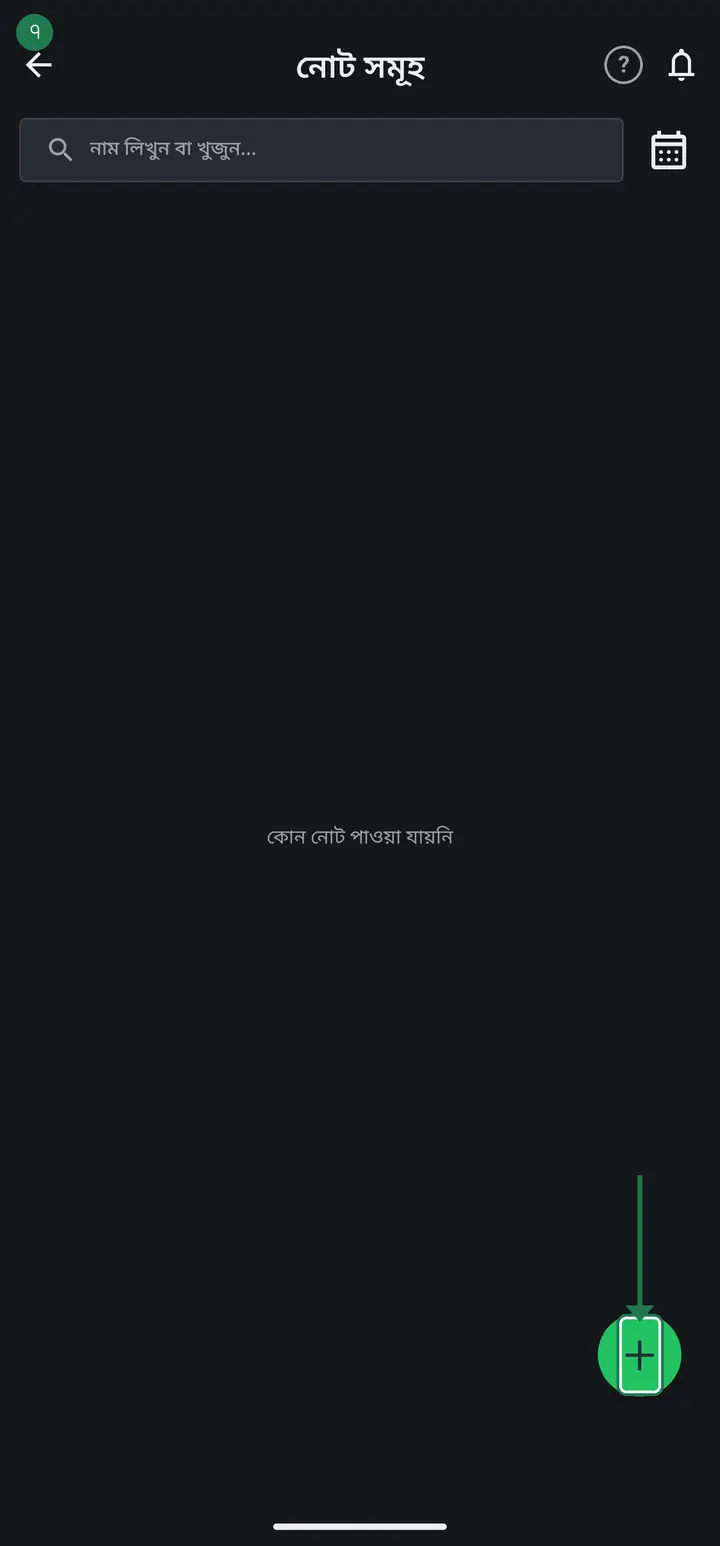
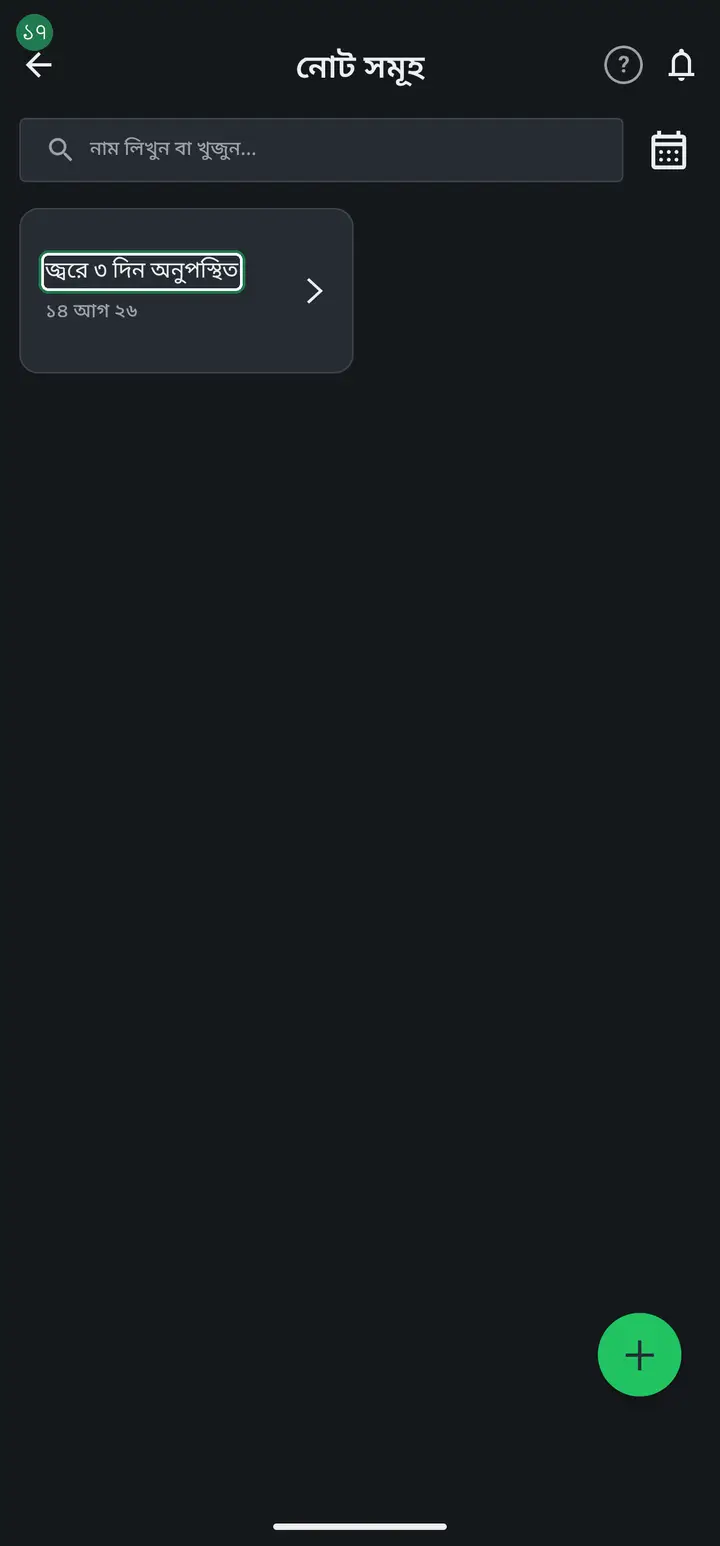
Tap "জরুরী তথ্য/ নোটসমূহ" (Emergency info / Notes). The "নোট সমূহ" page opens with this student's notes as cards. With none yet it says "কোন নোট পাওয়া যায়নি" (No notes found).
If the student is archived nothing opens — a small message says "এক্টিভ করে আবার চেষ্টা করুন" (Activate and try again). Activate the student first, then you can write notes.
-
Tap the plus (+) at the bottom right. The "নতুন নোট যুক্ত করুন" (Add a new note) box opens with three fields: "তারিখ*" (Date), "নোটের নাম*" (Note name) and "নোটের মূল অংশ" (Note body).
-
Put the subject in "নোটের নাম*" — for example "জ্বরে ৩ দিন অনুপস্থিত" (absent 3 days with fever) or "অভিভাবকের সাথে কথা" (spoke with the guardian). Details go in "নোটের মূল অংশ" below. If you do not pick a date, today's date is used — so change it when the note is about an earlier day.
Leave the name empty and write only the body, and the app makes a name from the first 20 characters of what you wrote. Leave both empty and it will not save — it says "নোটটি খালি। দয়া করা অন্তত শিরোনামটি ইনপুট দিন সেভ করার আগে।"
-
Tap "যুক্ত করুন" (Add). The note appears as a card under that student.
-
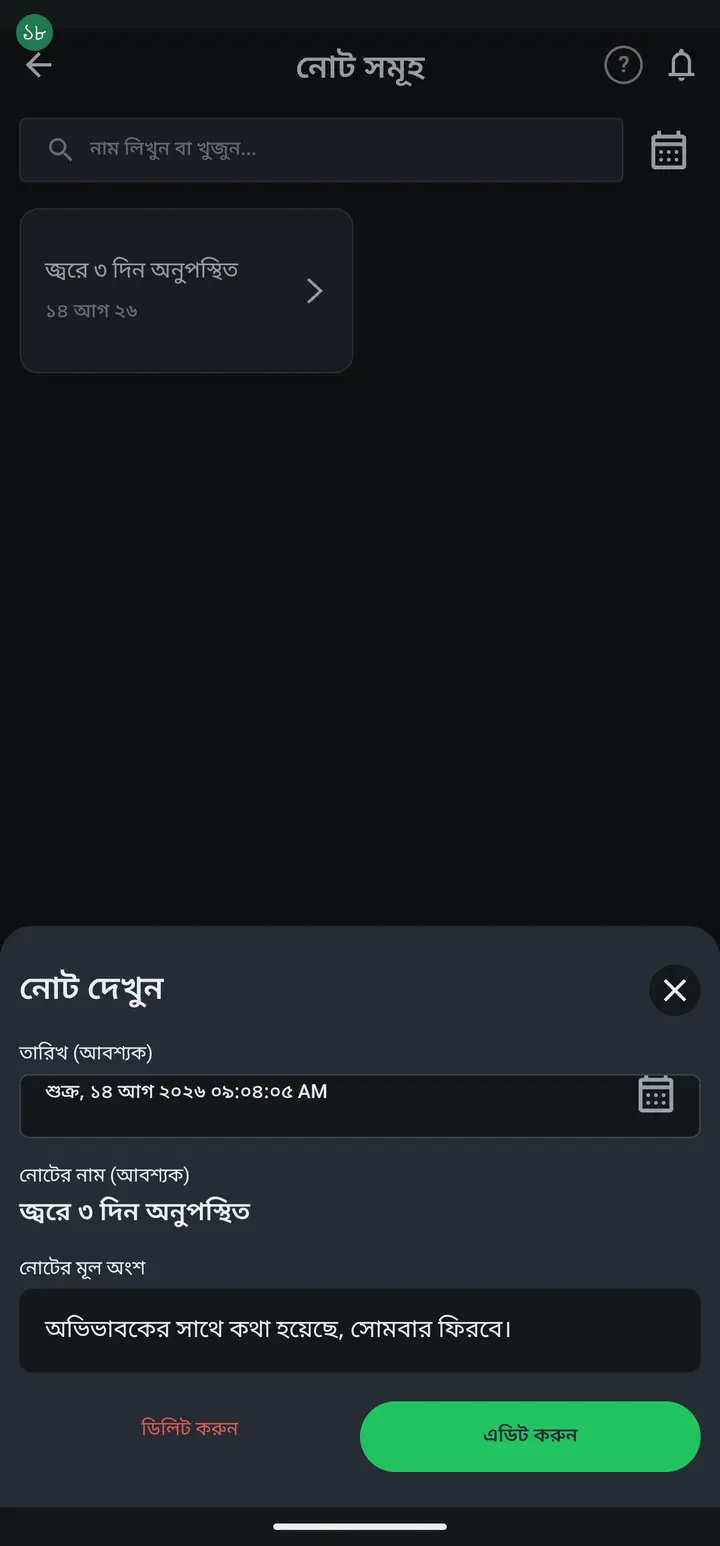
To read an old note tap its card — "নোট দেখুন" (View note) opens and is read-only. To change it tap "এডিট করুন" (Edit); "নোট এডিট করুন" opens, and after editing you tap "আপডেট" (Update).
-
Once there are many notes, search by name in "নাম লিখুন বা খুজুন..." at the top. Or tap the date icon and pick a day to see only that day's notes — a small dot appears on the icon. Tap the round (X) beside it to see them all again.
The search box looks inside note NAMES only, never inside the body. Searching a word you wrote in the body returns "কোন নোট পাওয়া যায়নি" even though the note is still there — which is why the name field is worth filling properly.
Common questions
What is the difference between this and "ক্লাসের নোটসমূহ"?
"ক্লাসের নোটসমূহ" belongs to the whole class and opens from inside the class. This one belongs to a single student, from their profile via "জরুরী তথ্য/ নোটসমূহ". Both show the same "নোট সমূহ" title at the top, which is why they get confused — but they are separate stores: a class note never appears on a student, and a student note never appears in the class list.
Can the guardian see these notes?
No. These notes do not reach guardians and do not appear in the Digital Diary. But for a student in an institutional class the note is stored in the institution's own records, so other teachers and admins there can see it. For a student in your personal class, only you see it. To tell a guardian something, use the Digital Diary, not a note.
Can a note be deleted?
Yes. Tap the card, tap "এডিট করুন" (Edit), then "ডিলিট করুন" (Delete) — it asks " আপনি কি ডিলেট করতে চান?" and "ডিলিট" removes it. A deleted note does not come back, so read it once before deleting.
If I move the student to another class, do the notes follow?
The correct way to move a student is on its own page — see "moving a student to another class". Moving by COPY gives the student a new identity and the notes stay behind with the old one. So when you need to move a student, follow that page.
Ask AI about this page
Ask an AI app to explain this page in simple language.
Copied — now paste it
Get Hazira Khata free on Google Play
More tutorials
- How to sign in Signing in for the first time with your phone number. No email or password needed.
- Add a second way to sign in to one account Add Gmail to an account created with a phone number. It stays one account and nothing inside it changes.
- How to mark your own attendance As a teacher you can record your own daily attendance — it takes one tap.
- Check your salary and sign "received" When your school records your salary, the app tells you. Check the receipt and tap "বেতন বুঝে পেয়েছি" (Salary received) to leave your own digital signature — proof for both sides.
- How to create a class Before you can take attendance you create the class once. A one-time job.
- Make receipts and results look right — font and size Documents printing in an ugly font? Change it in one place and the receipt, result slip and certificate all change together.
- How to add students Enter each student's name and roll once. After that, daily attendance is just ticking boxes.
- How to add a whole class at once You do not have to type 40 names one by one. Type or paste the list and add everyone at once — no computer needed.