
Making your institution's own website
Guardians ring up asking the same three things — is admission open, when is the exam, when is the holiday. A Facebook post is buried in two days. With an address of your own you write it once and anyone can look it up whenever they like.
Build a real website for your institution from inside Hazira Khata — free, no coding. Notices, teachers, admission news on one page, with a link you can send to guardians.
The screenshots show the app in Bangla, its main language. The buttons sit in the same places in English.
-
Tap the "প্রতিষ্ঠান" (Institution) tab.
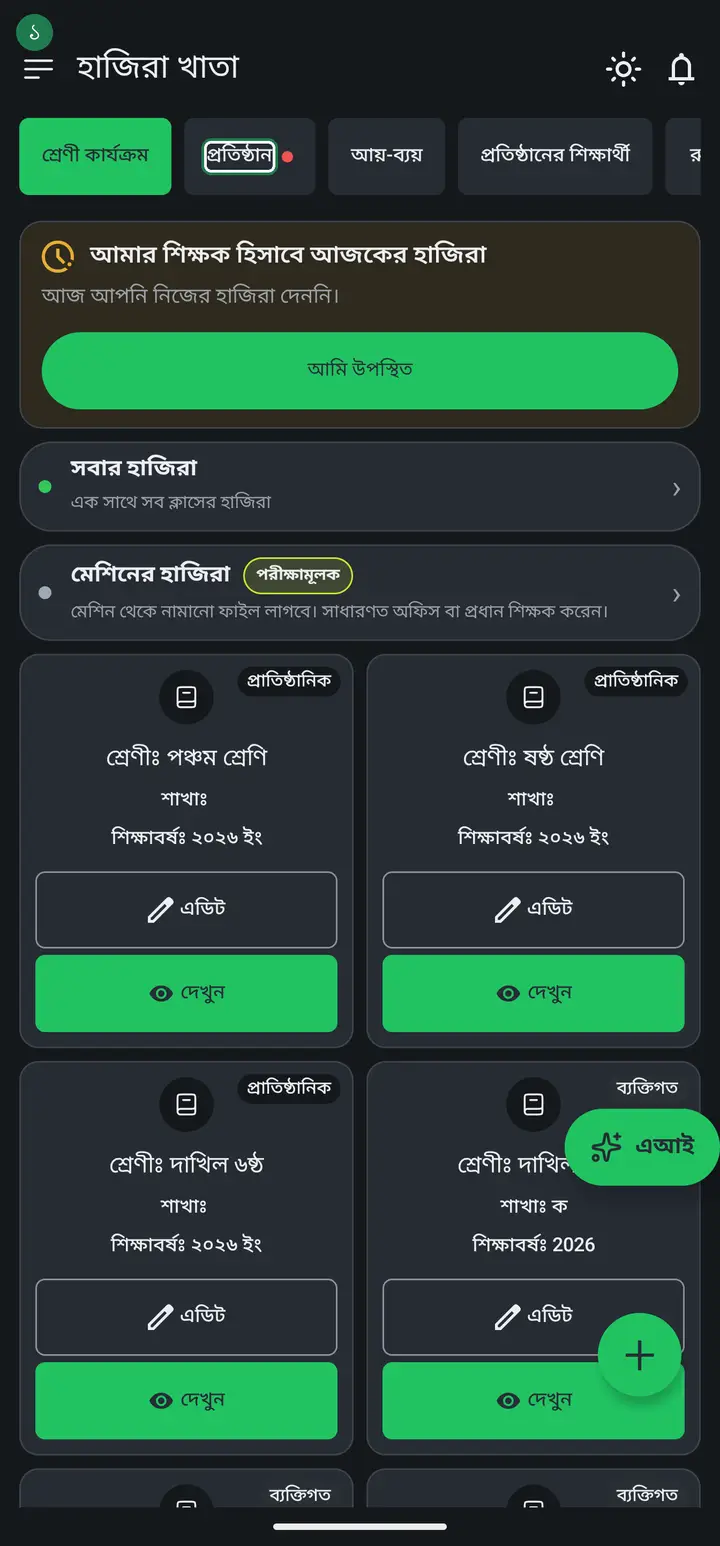
Only the institution's admin or head teacher can do this. On an ordinary teacher's phone the "ওয়েবসাইট" card does not appear at all — that is the rule, not a fault.
-
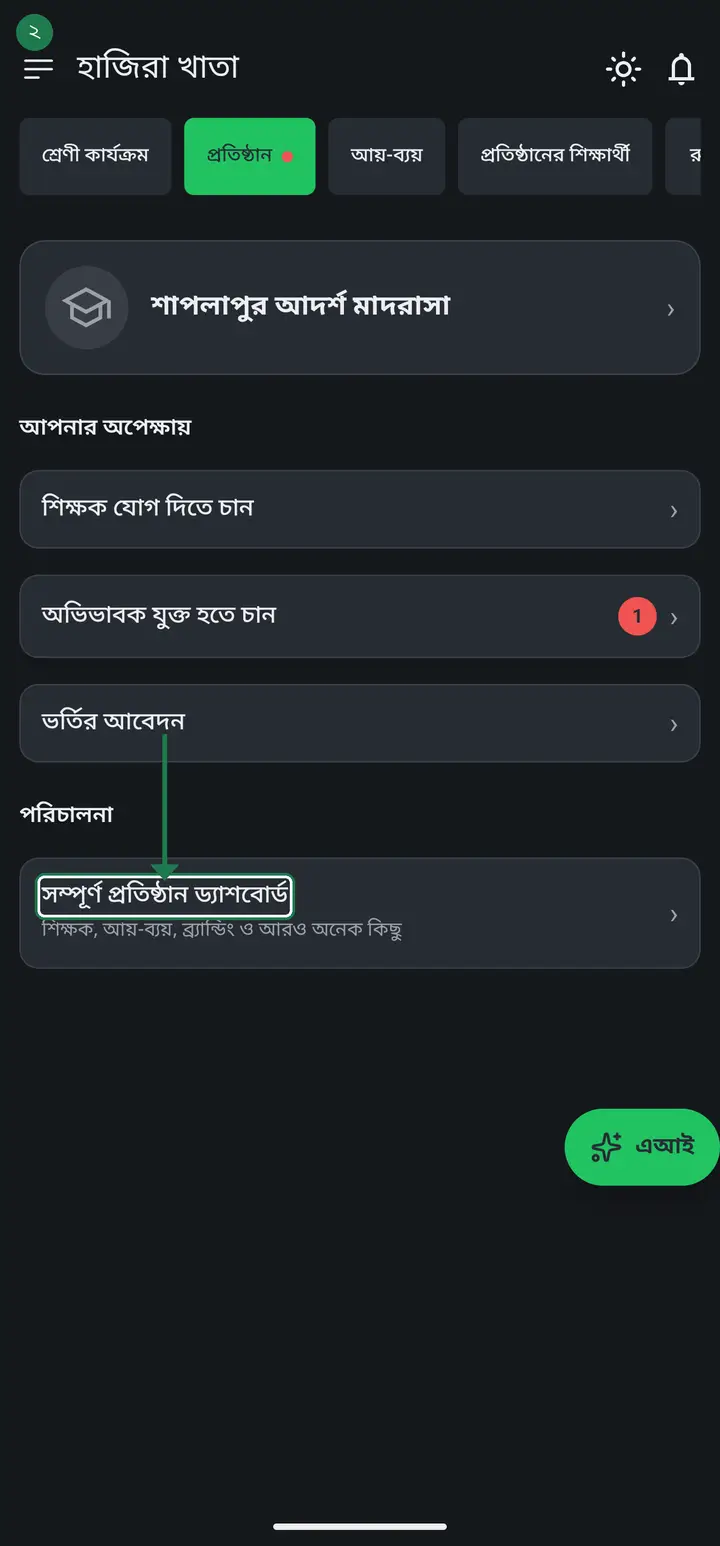
Tap "সম্পূর্ণ প্রতিষ্ঠান ড্যাশবোর্ড" (Full institution dashboard).
-
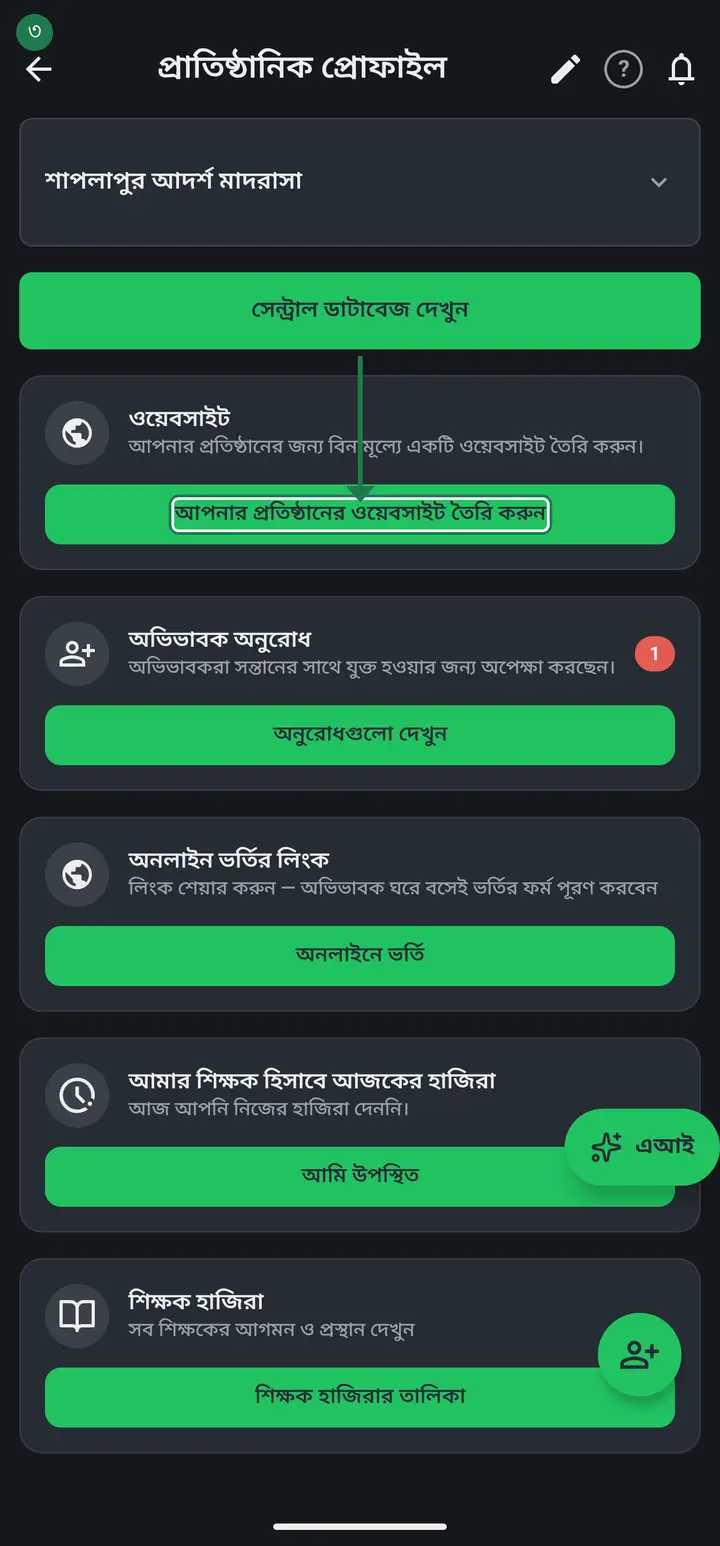
Scroll down a little to the "ওয়েবসাইট" (Website) card and tap "আপনার প্রতিষ্ঠানের ওয়েবসাইট তৈরি করুন" (Create your institution's website).
-
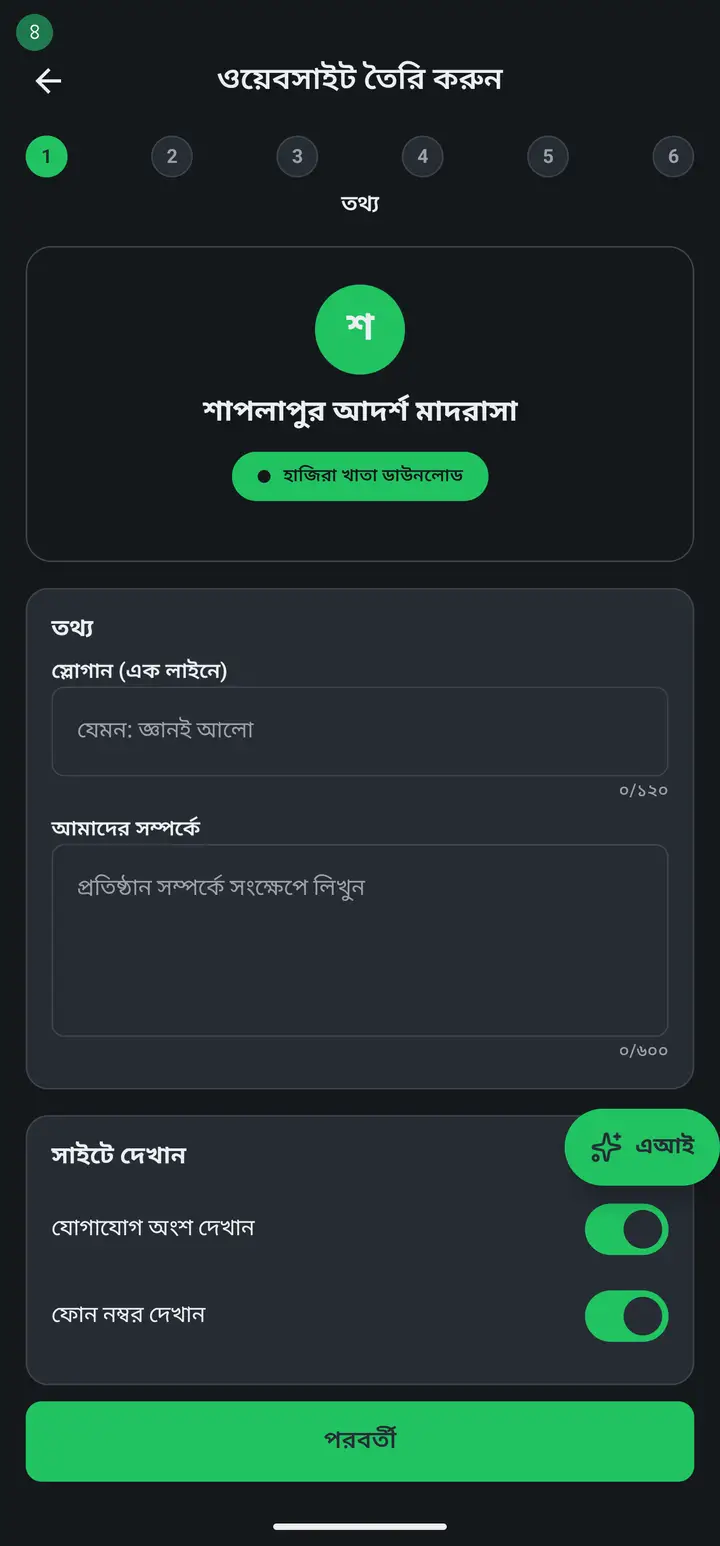
A six-step form opens. The circles 1 to 6 at the top show where you are. The first step is "তথ্য" (Info).
-
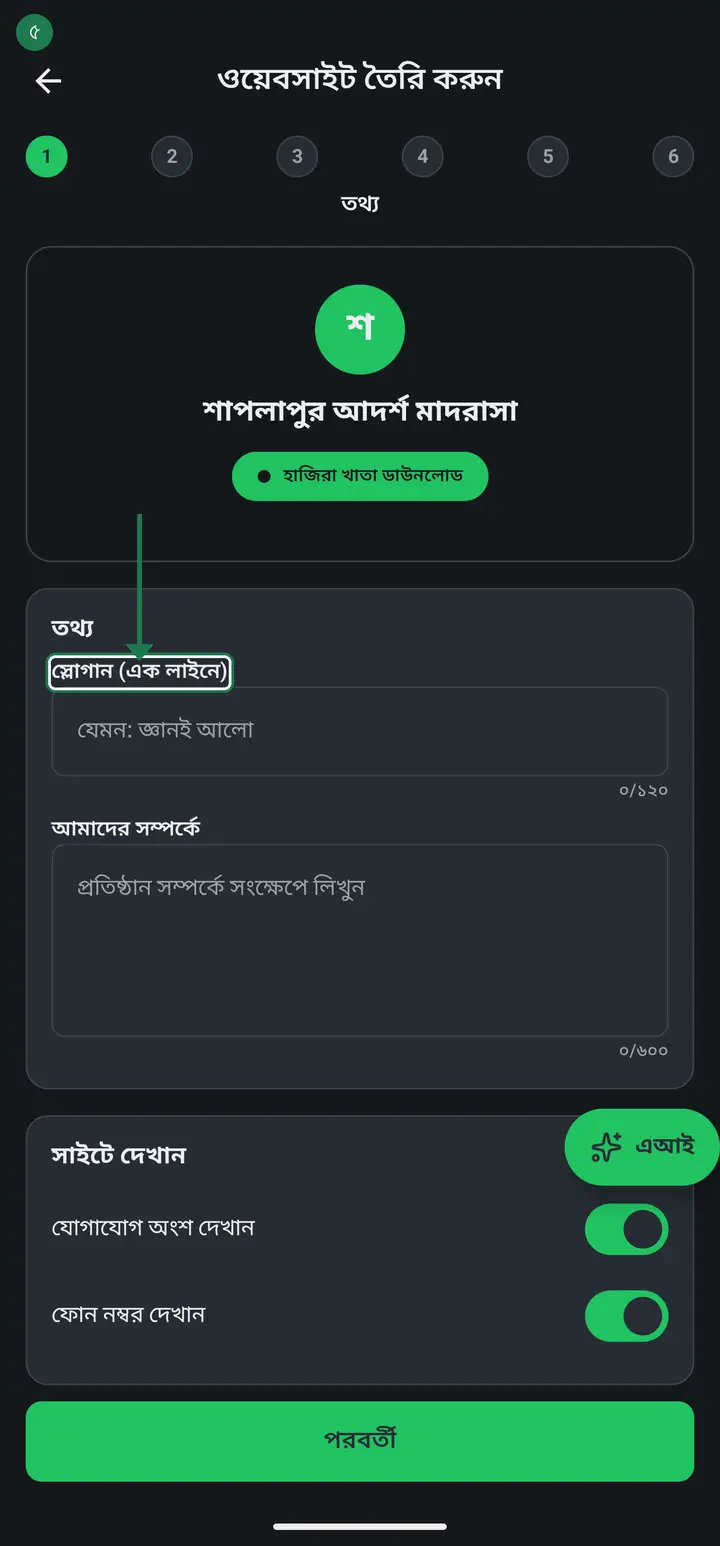
In "স্লোগান (এক লাইনে)" (Tagline, one line) write a single line for your institution — for example "জ্ঞানই আলো". It shows large, right under the name.
-
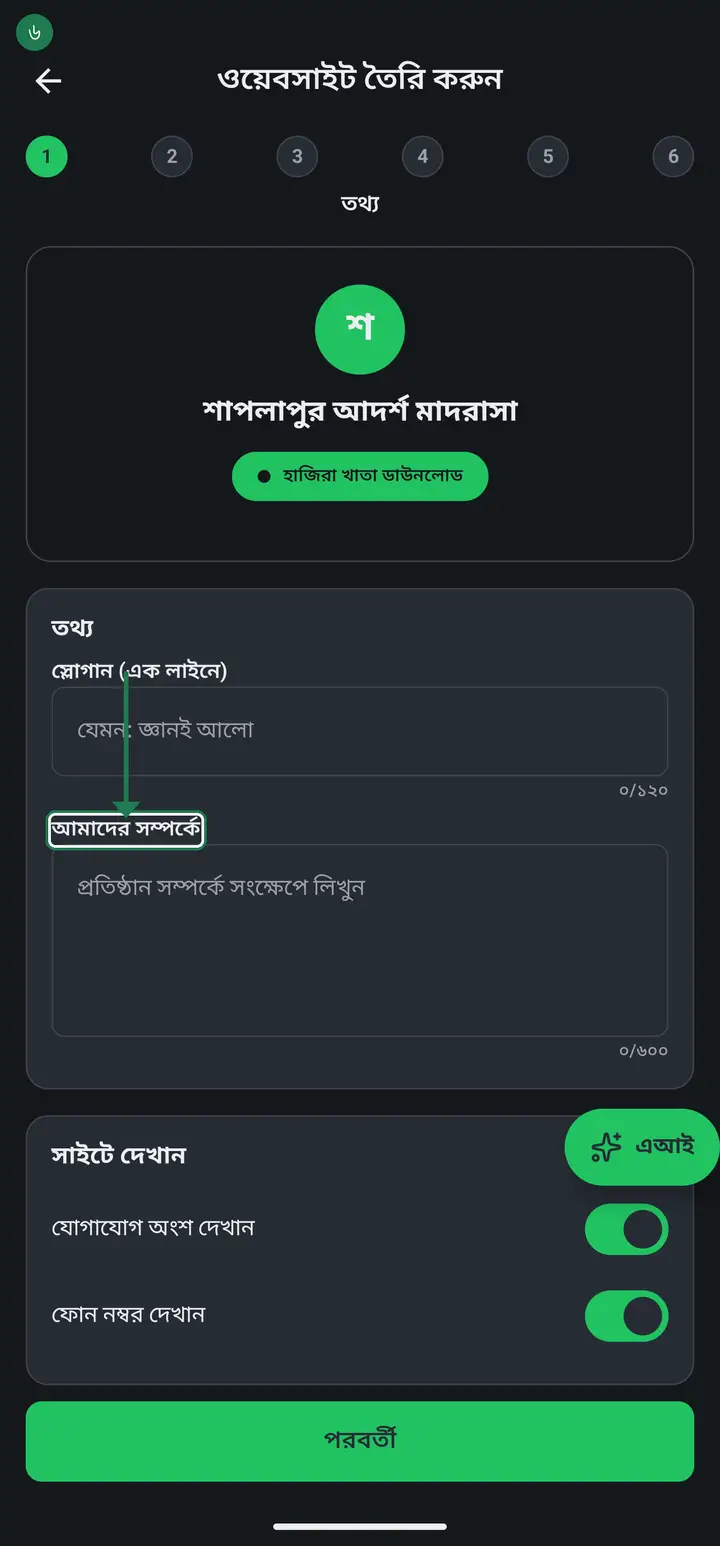
In "আমাদের সম্পর্কে" (About us) write a short description — when it was founded, which sections it has, who studies there. This is the first thing a guardian reads.
-
Below that is "সাইটে দেখান" (Show on site). These switches decide what appears on the page — the contact section, the phone number, class and student counts, the map. Turn off anything you would rather not publish.
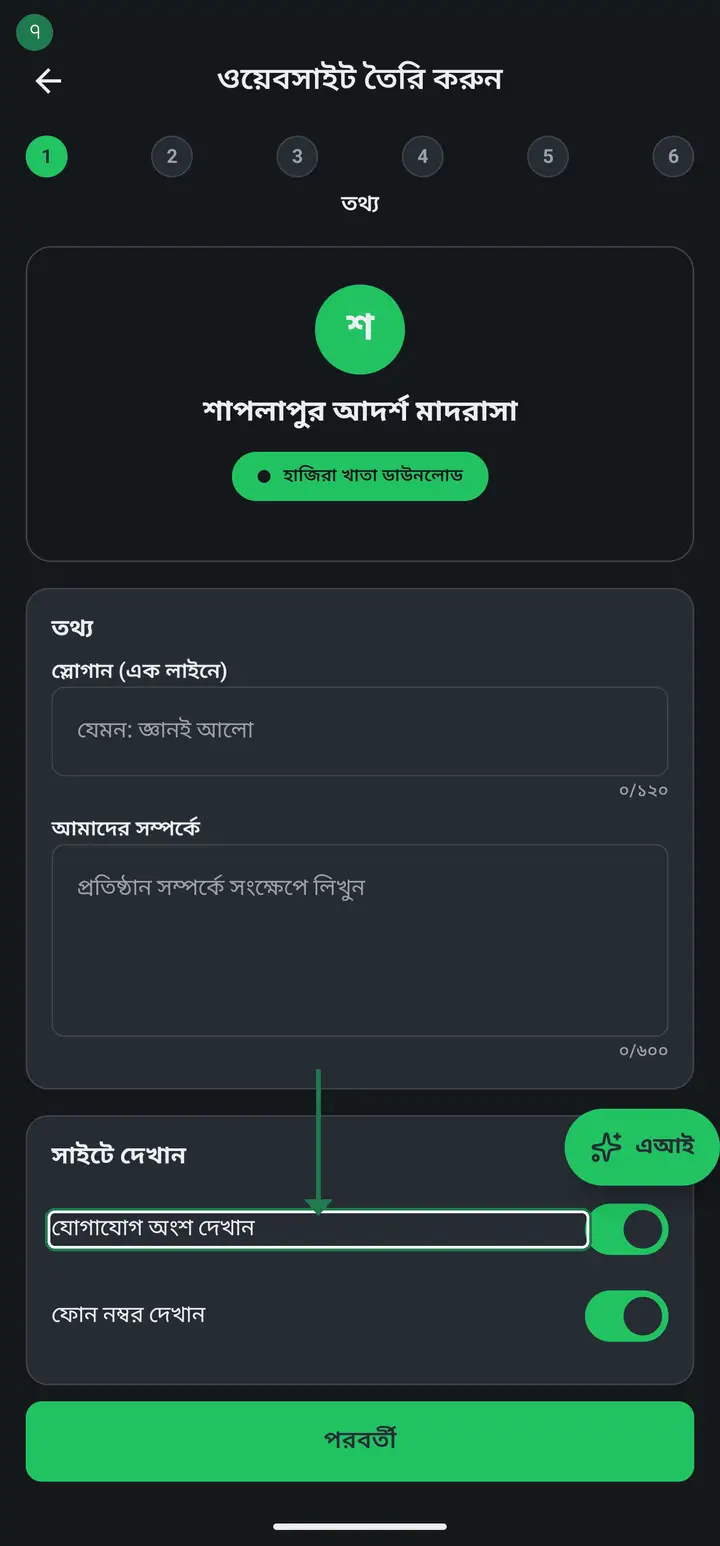
Think twice about the phone switch. With it on, the number is visible to the whole internet — not only guardians. Use the office number, not your personal one.
-
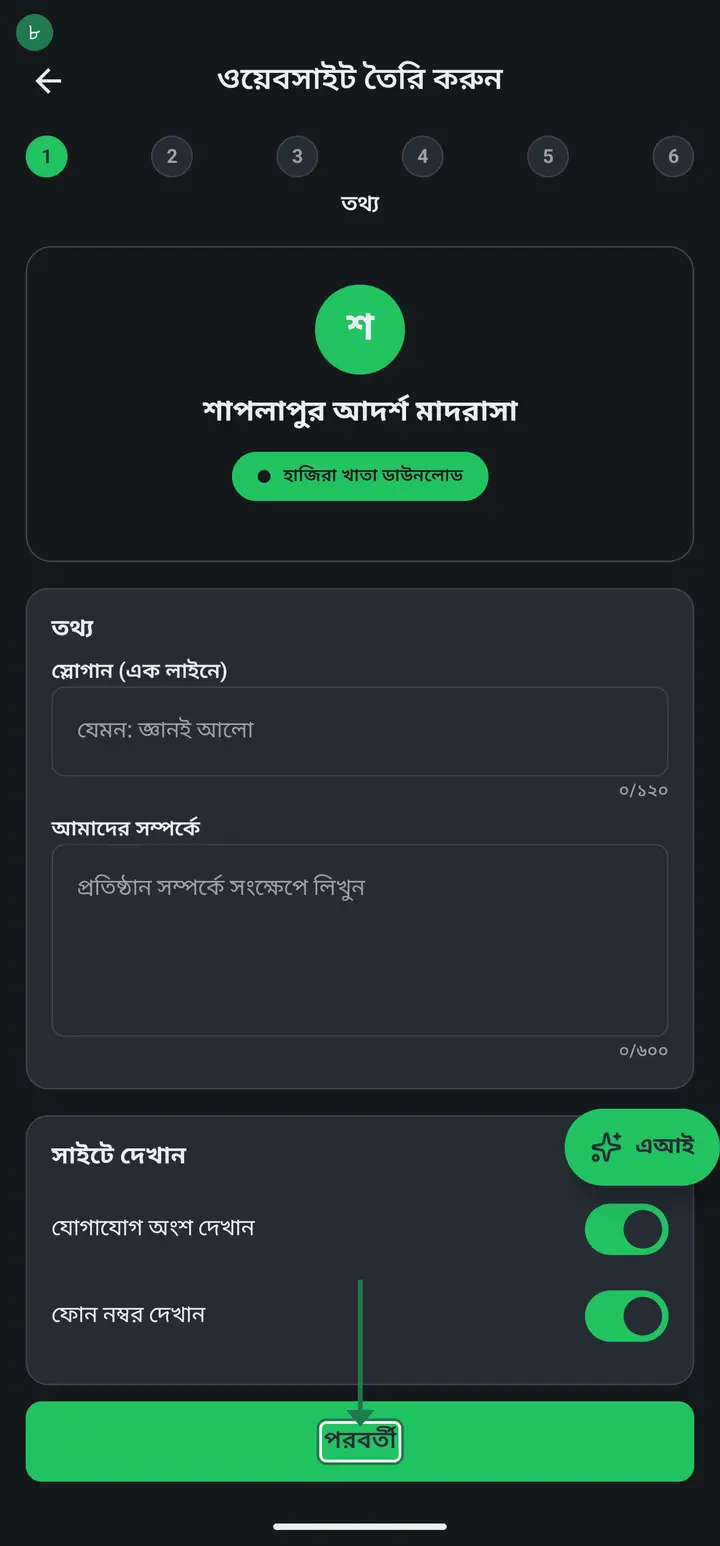
Tap the green "পরবর্তী" (Next) button. Step 2, "নোটিশ" (Notices), opens.
-
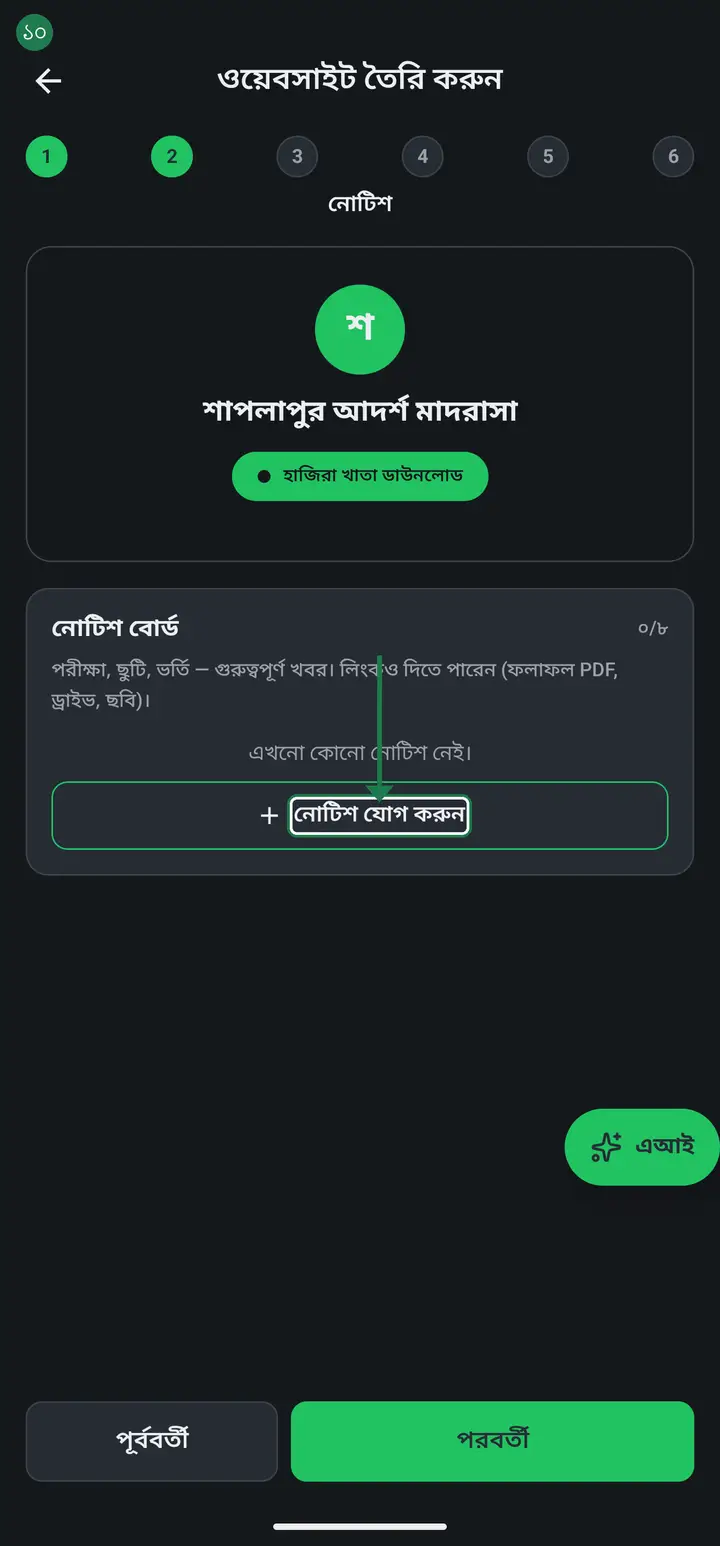
This is the notice board — admission, exams, holidays, any important news. Tap "নোটিশ যোগ করুন" (Add notice) and add them one by one. The title is required; date and details are optional.
-
A notice can carry a link too — a results PDF, a Drive file, an image. Up to 8 notices.
-
Tap "পরবর্তী" again. Step 3 is "শিক্ষক" (Teachers) — put in each teacher's name and designation with "শিক্ষক যোগ করুন" (Add teacher).
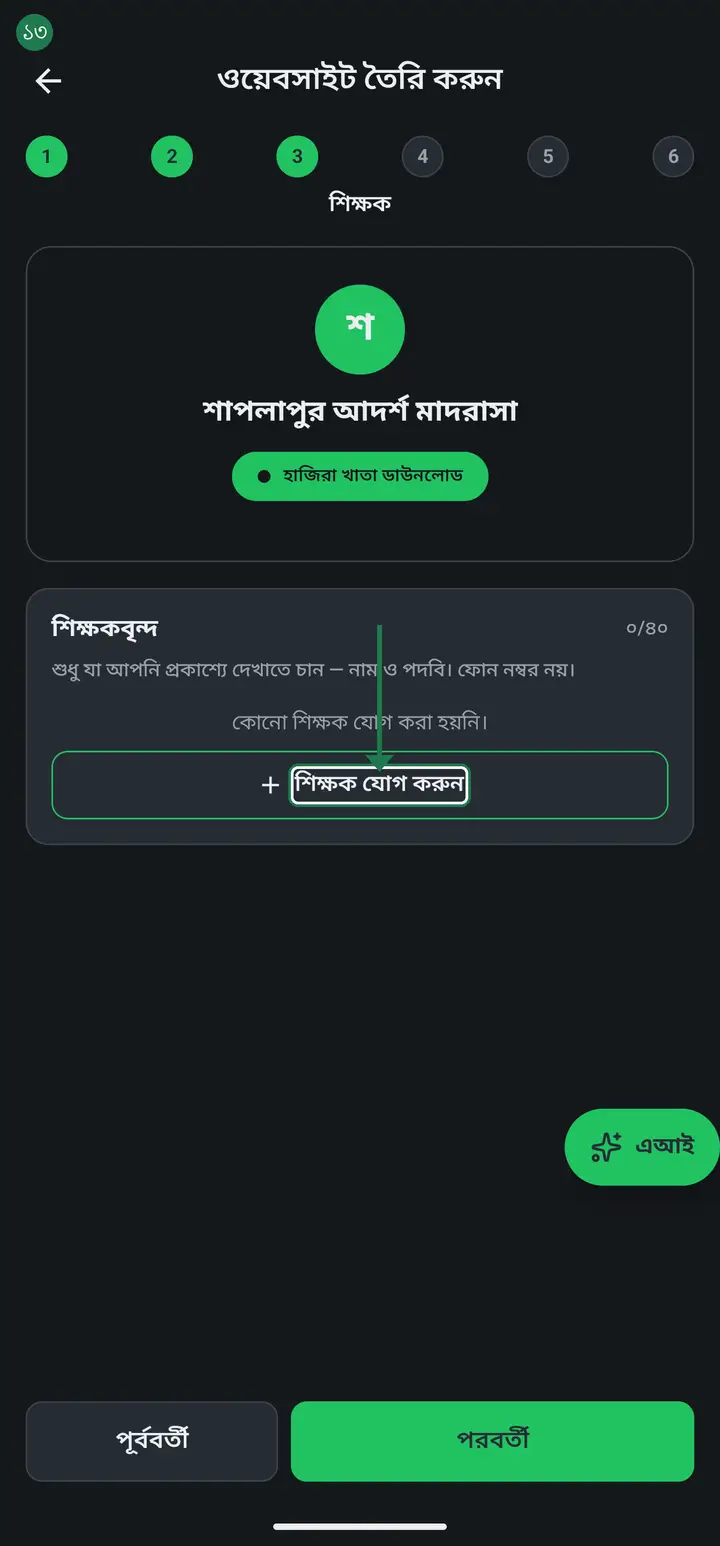
There is no field for a teacher's phone number here, deliberately. Name and designation only — nothing beyond what you chose to publish.
-
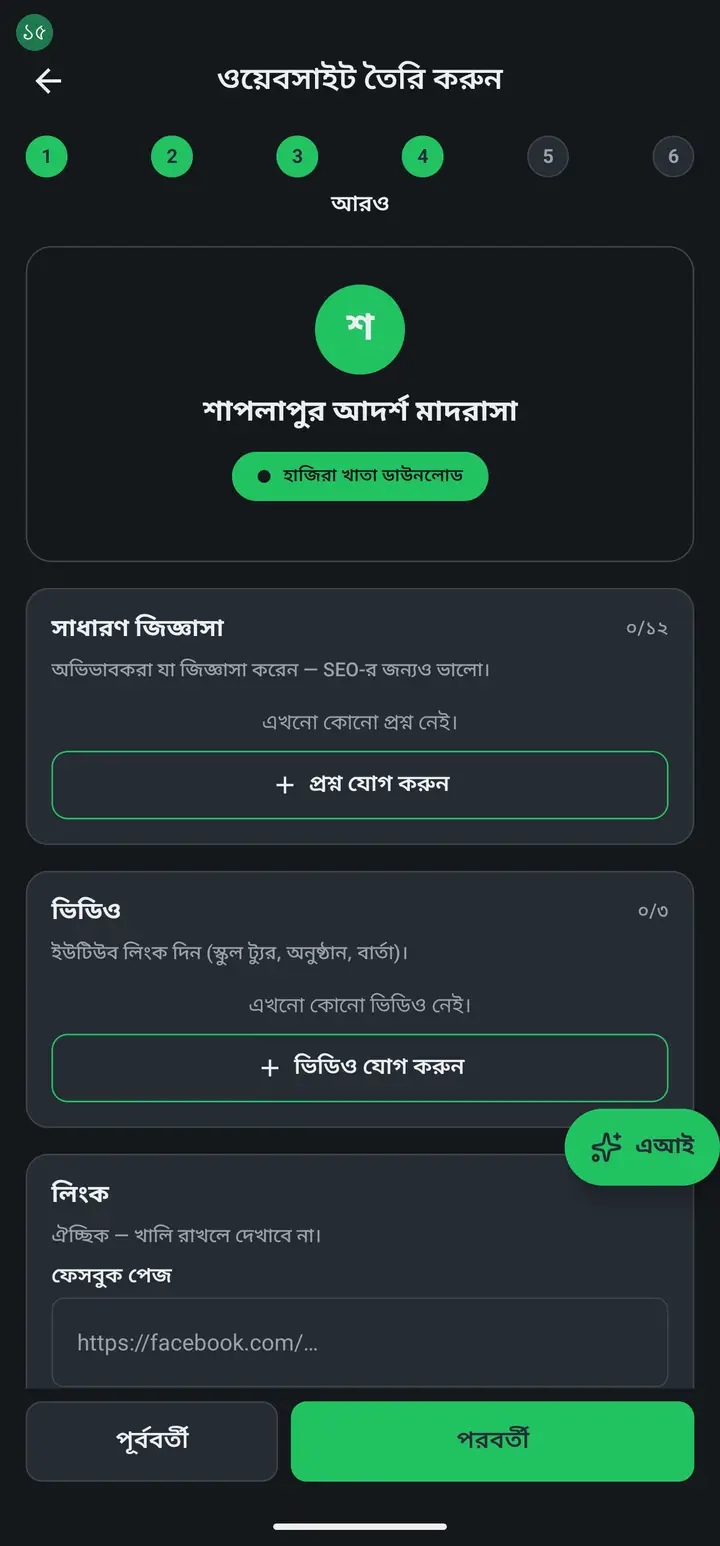
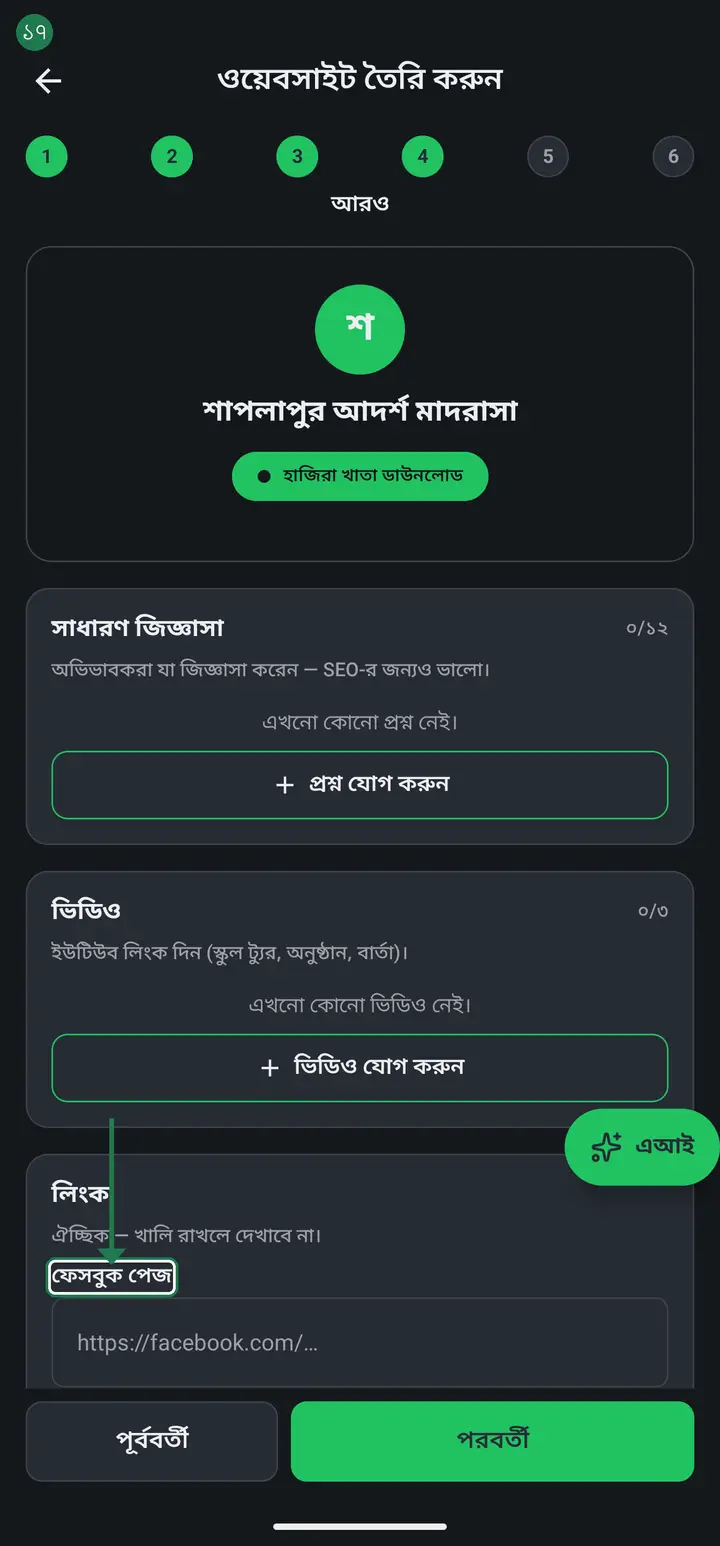
Step 4 is "আরও" (More) — three things: "সাধারণ জিজ্ঞাসা" (FAQ), "ভিডিও" (Videos) and "লিংক" (Links).
-
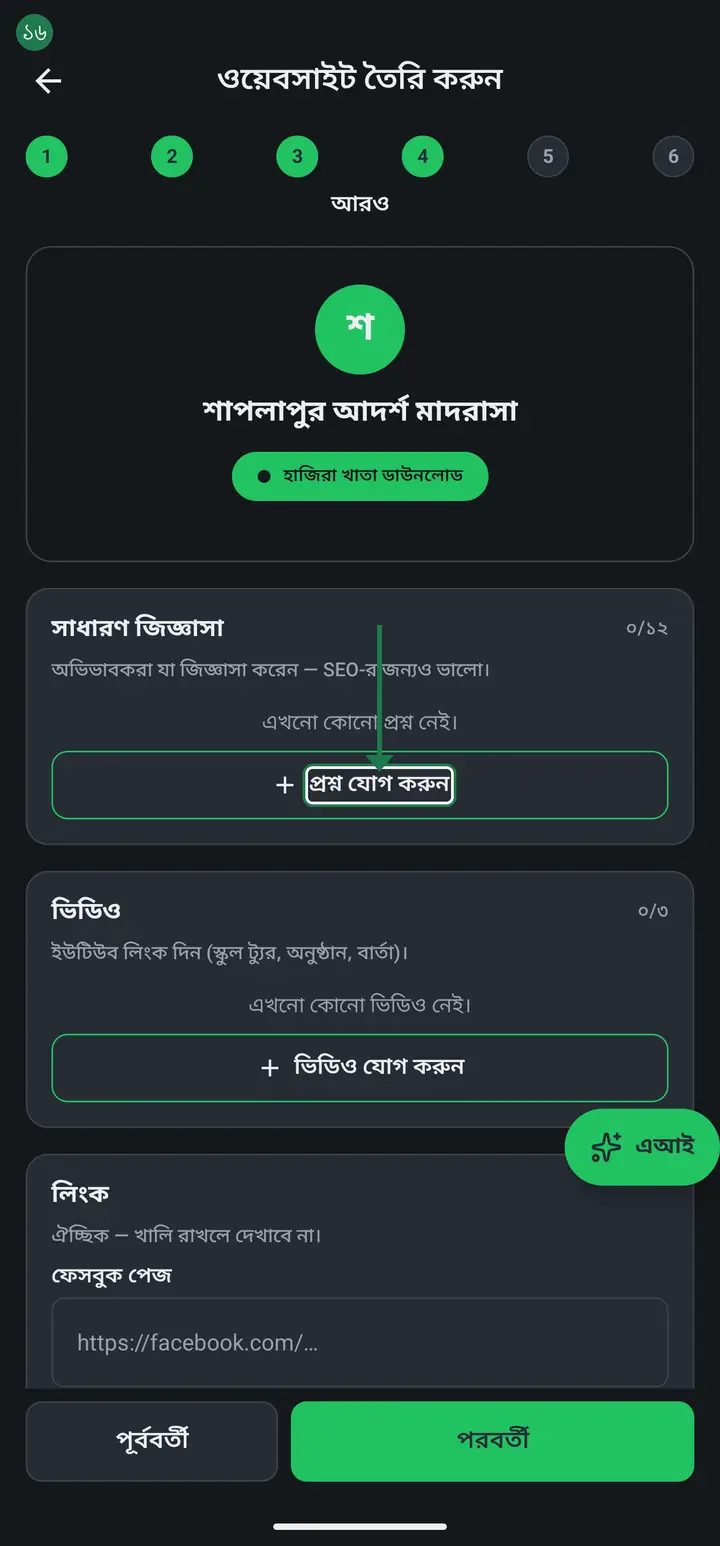
Write down the questions guardians keep ringing about, with "প্রশ্ন যোগ করুন" (Add question) — what papers admission needs, what the fees are, when the holidays fall. Fewer phone calls, and Google finds your institution more easily.
-
Below are boxes for a Facebook page, WhatsApp, imo and email. Leave blank whatever you do not have — an empty box simply does not show on the page.
-
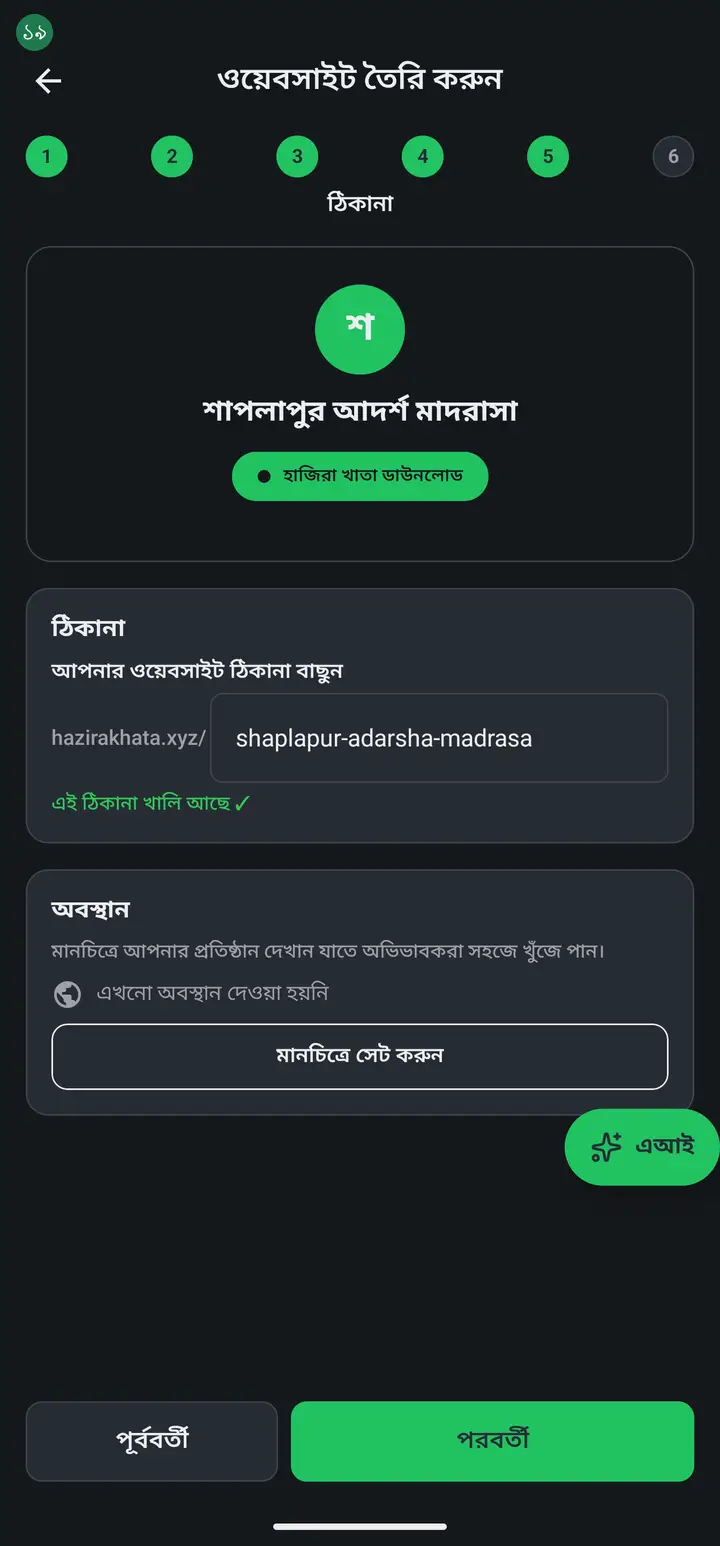
Step 5 is "ঠিকানা" (Address) — the most important one. The app has already suggested an address from your institution's name, like hazirakhata.xyz/shaplapur-adarsha-madrasa. Change it if you want something else.
-
Check for the green "এই ঠিকানা খালি আছে ✓" (This address is available) under the box. Green means nobody has taken it. If the text is red, try another name.
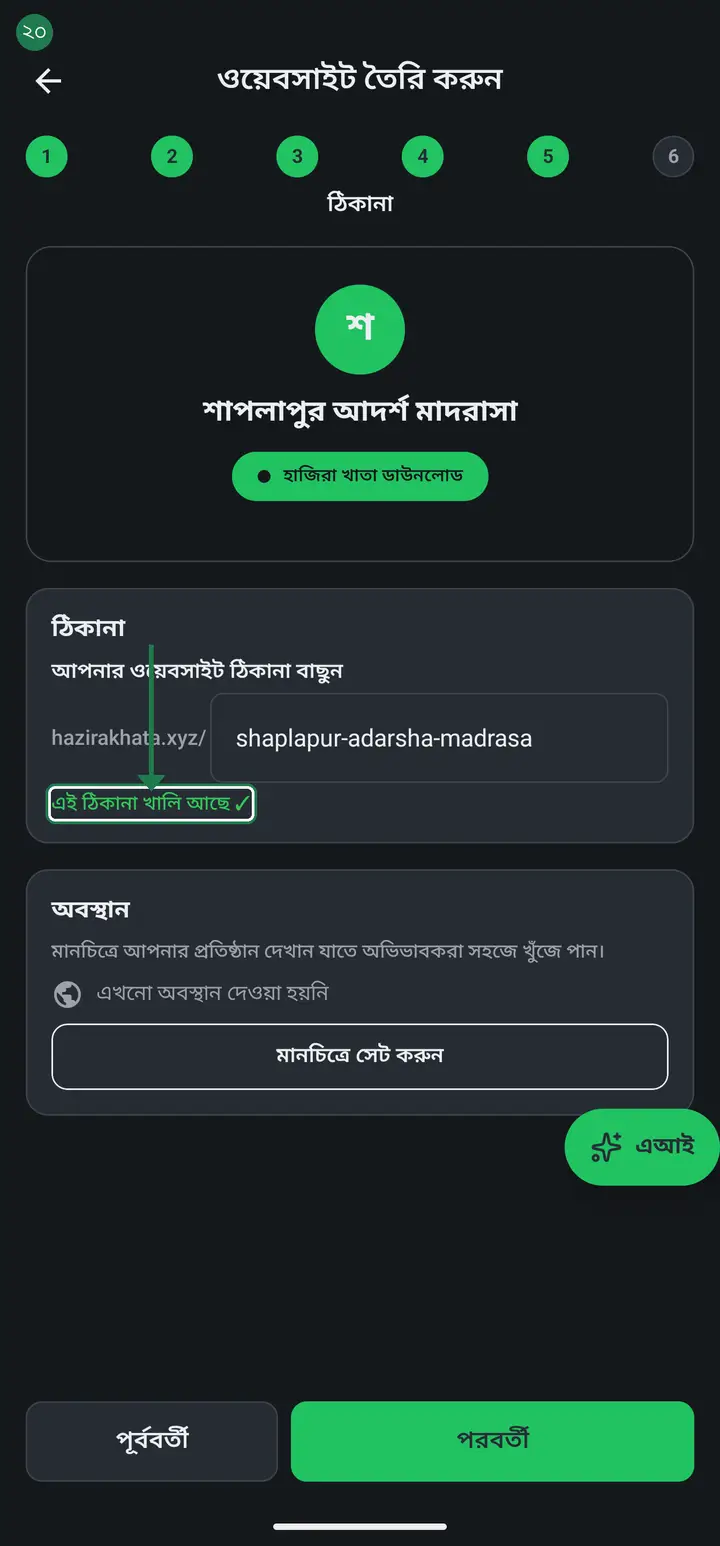
This address can NEVER be changed once created. So read it once more before you go on — is the spelling right, does it match the institution's name? Everything else can be edited later; this cannot.
-
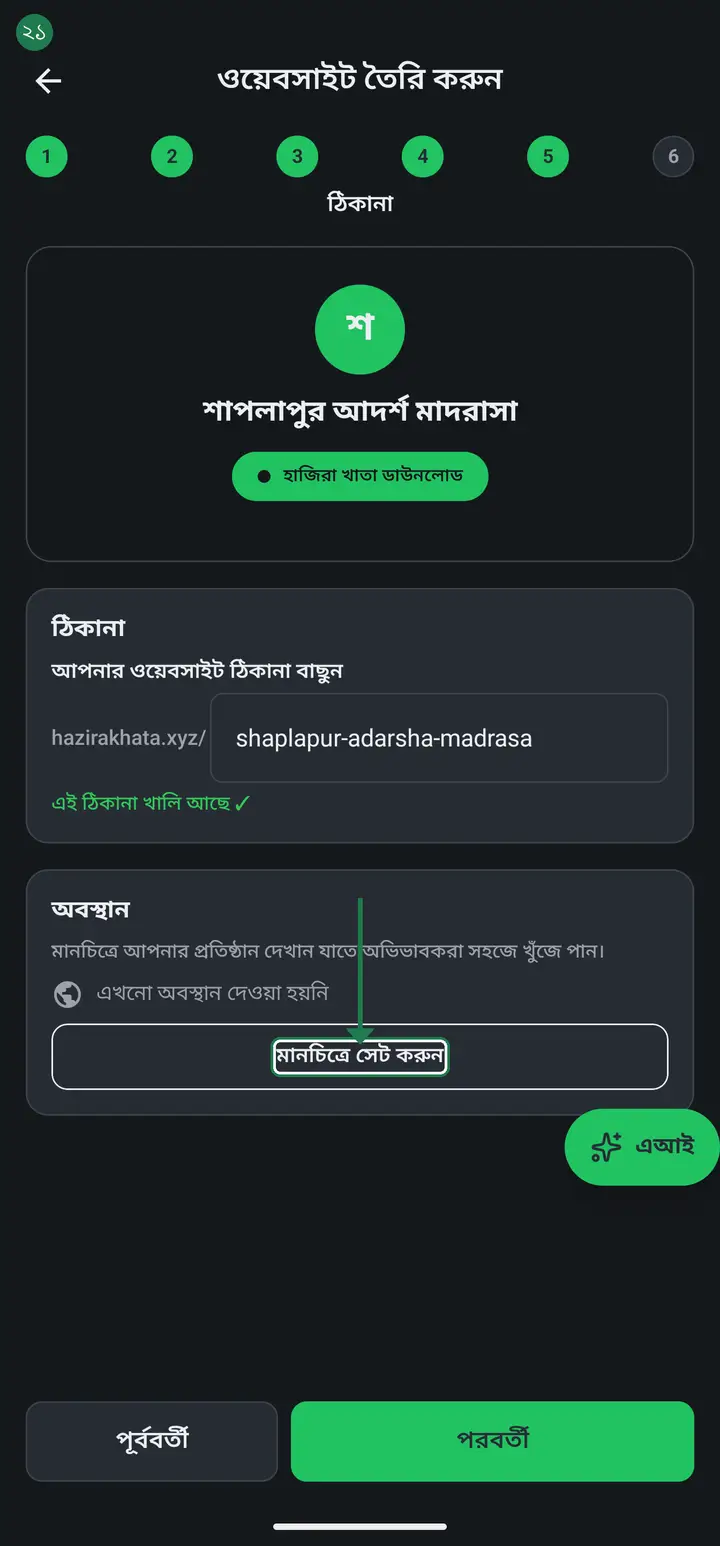
You can also tap "মানচিত্রে সেট করুন" (Set on map) to drop your institution on a map, so a new guardian can find the place. Skipping it is fine.
-
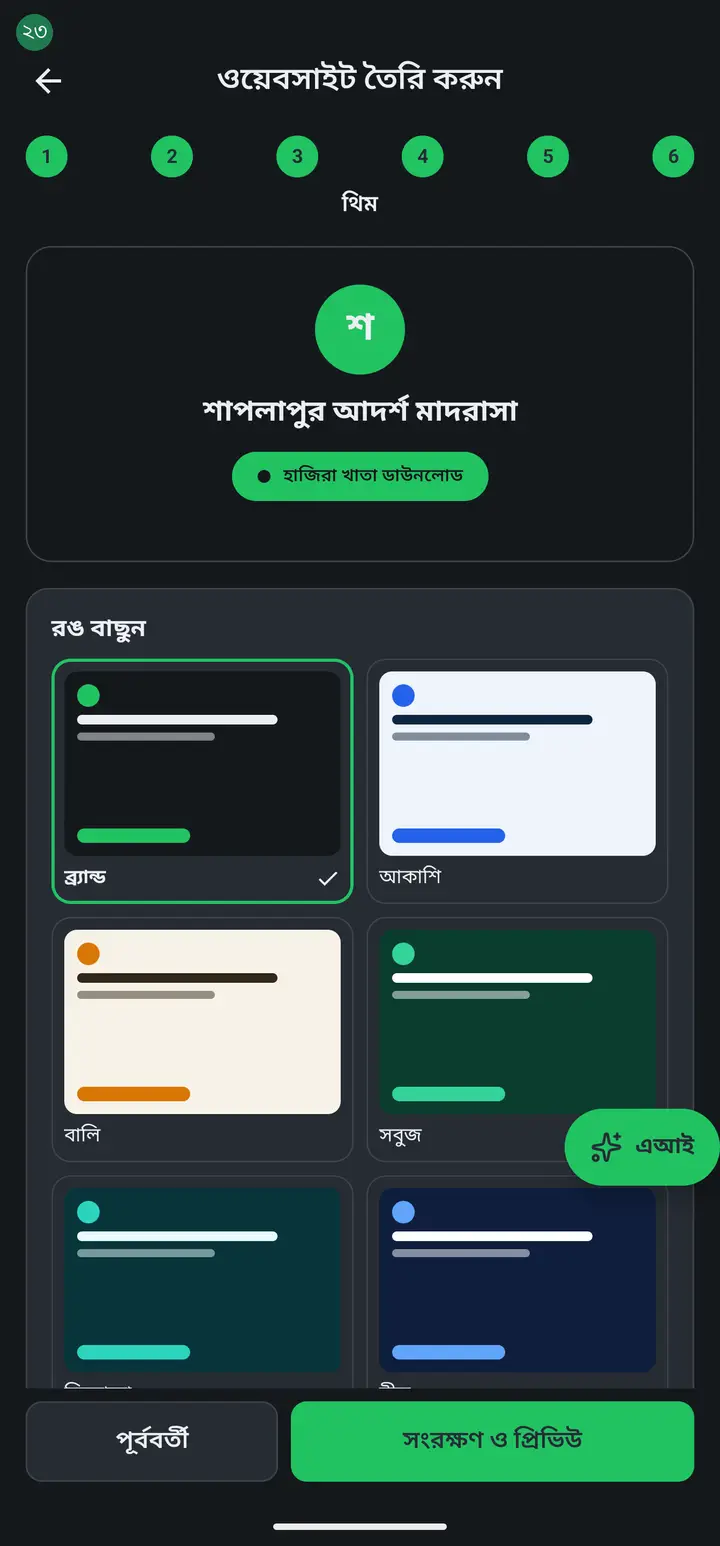
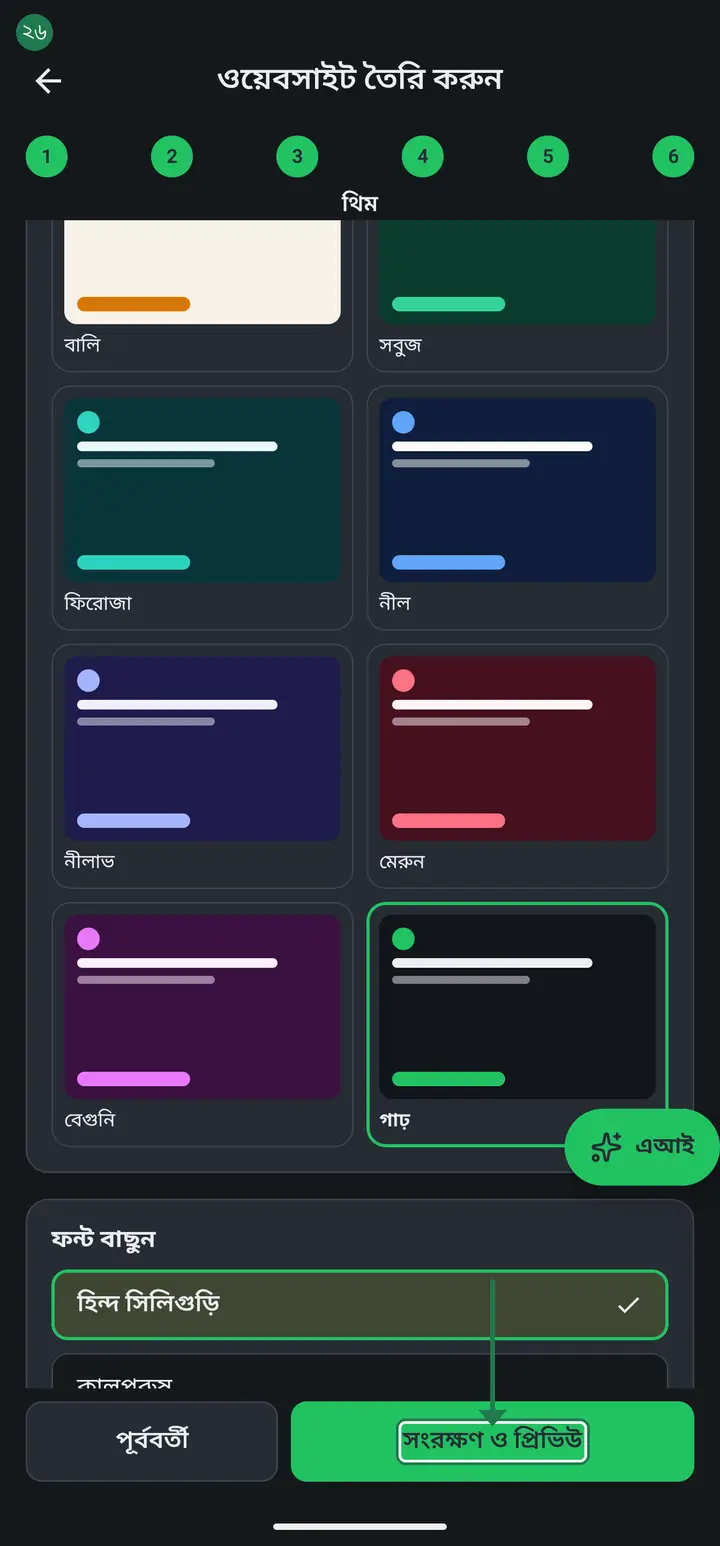
The last step is "থিম" (Theme) — pick a colour. Tap whichever of the ten you like. Scroll down and you can pick one of three Bangla fonts too.
-
When it all looks right, tap "সংরক্ষণ ও প্রিভিউ" (Save & preview). That tap claims the address for you, and a browser opens showing how the page turned out.
-
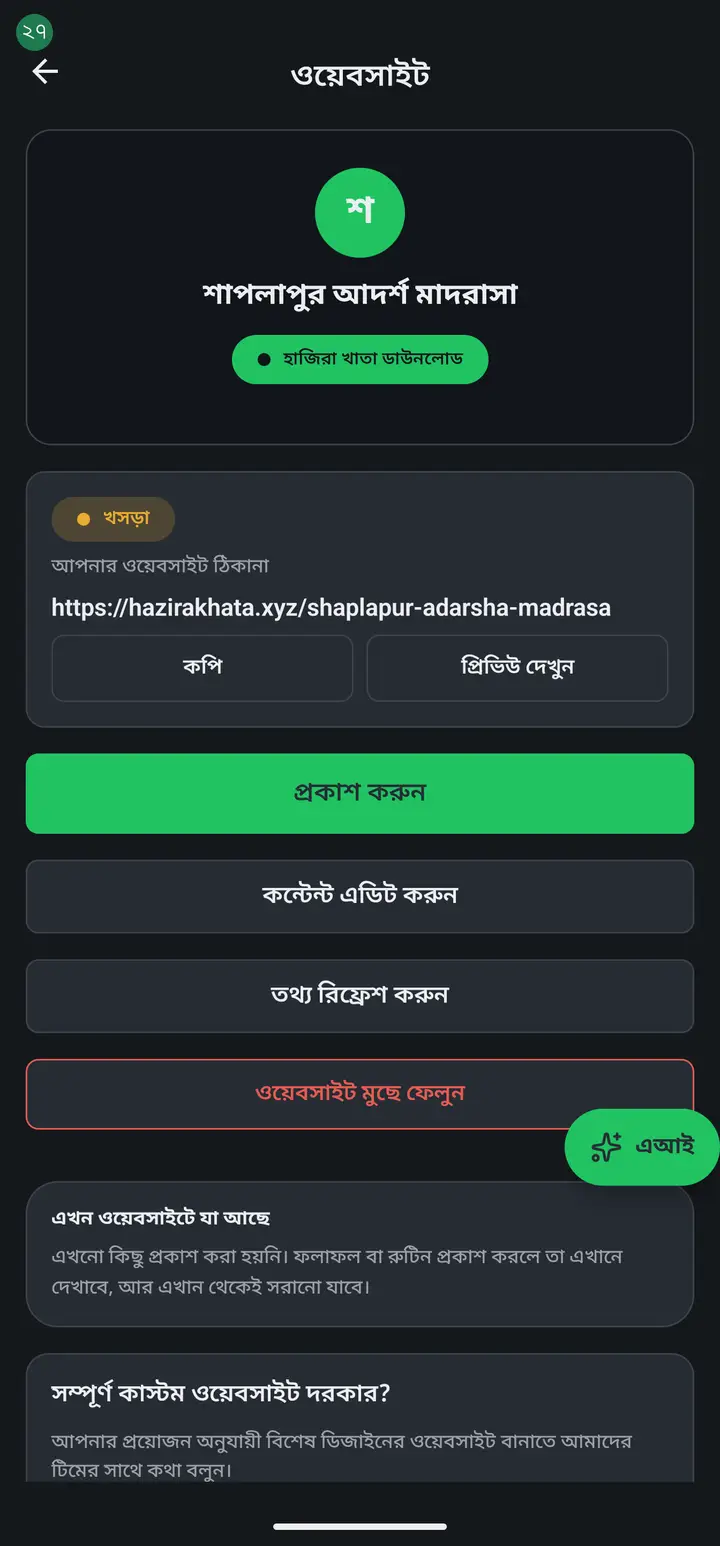
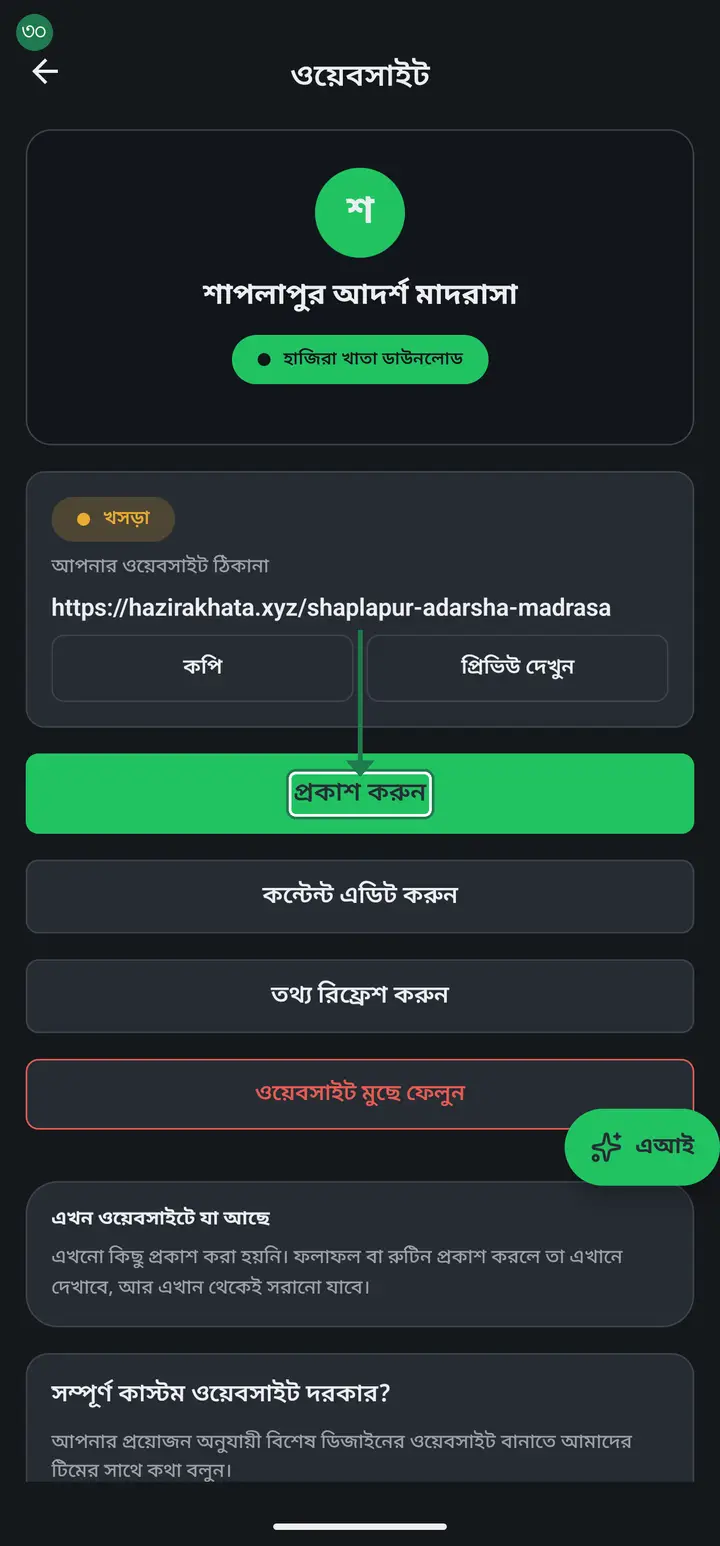
Press back from the browser to return to the app. The "ওয়েবসাইট" page now shows a grey "খসড়া" (Draft) at the top. Draft means only you can see it — even with the link, nobody else can open it.
-
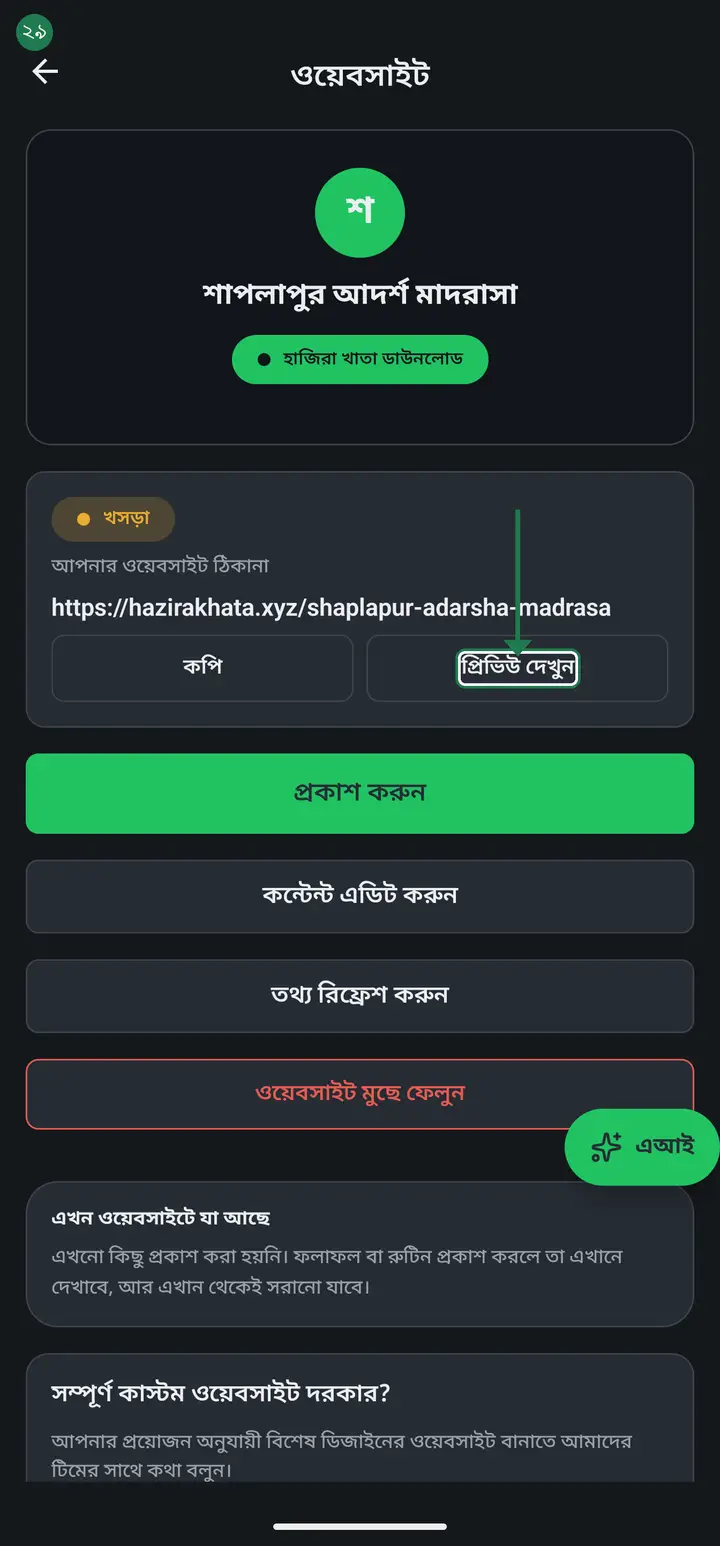
Tap "প্রিভিউ দেখুন" (See preview) and read it properly — spellings right? notices in the right place? You can still change anything.
-
When you are happy, tap "প্রকাশ করুন" (Publish). Now it is a real website — anybody in the world can open the link.
-
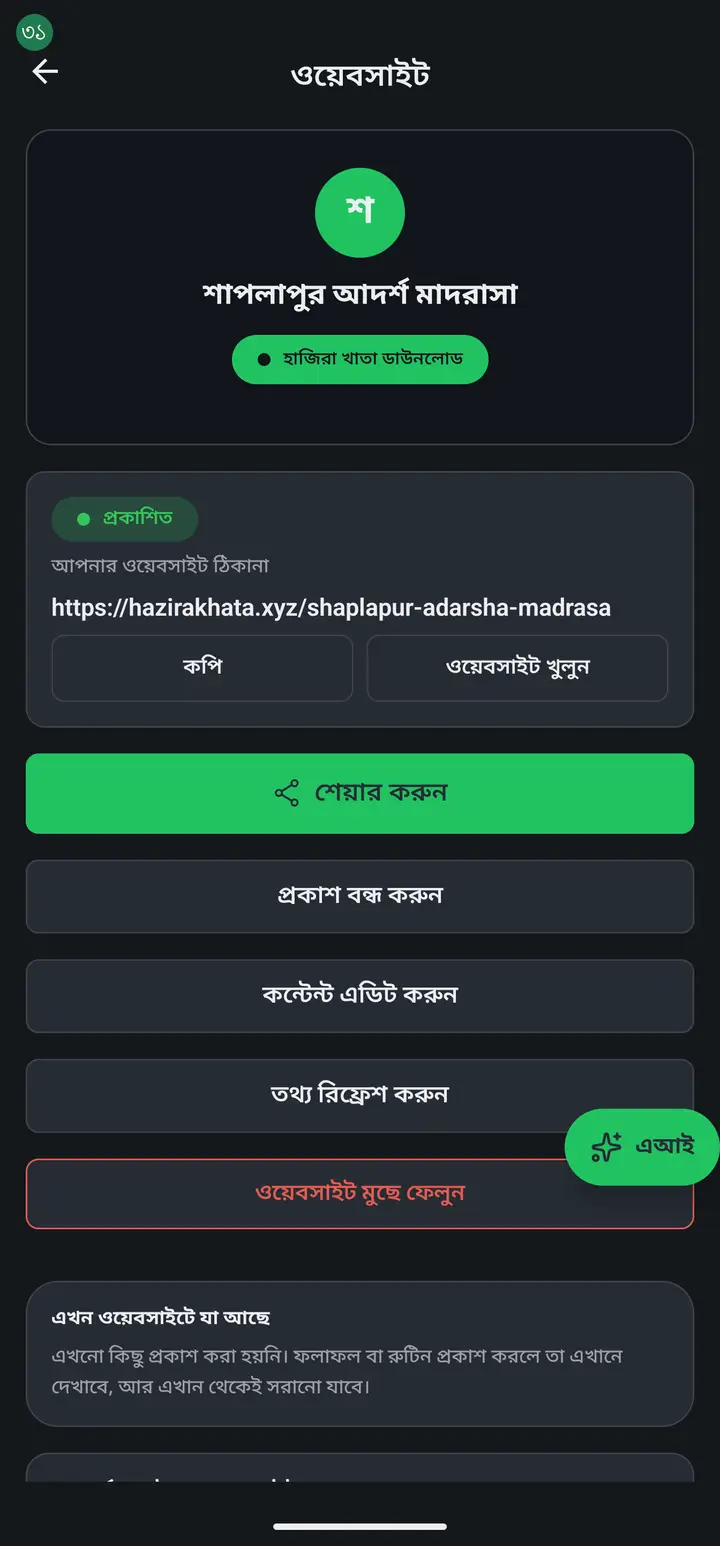
The label at the top is now a green "প্রকাশিত" (Published), with your address under it. "কপি" copies the link; "ওয়েবসাইট খুলুন" opens it.
-
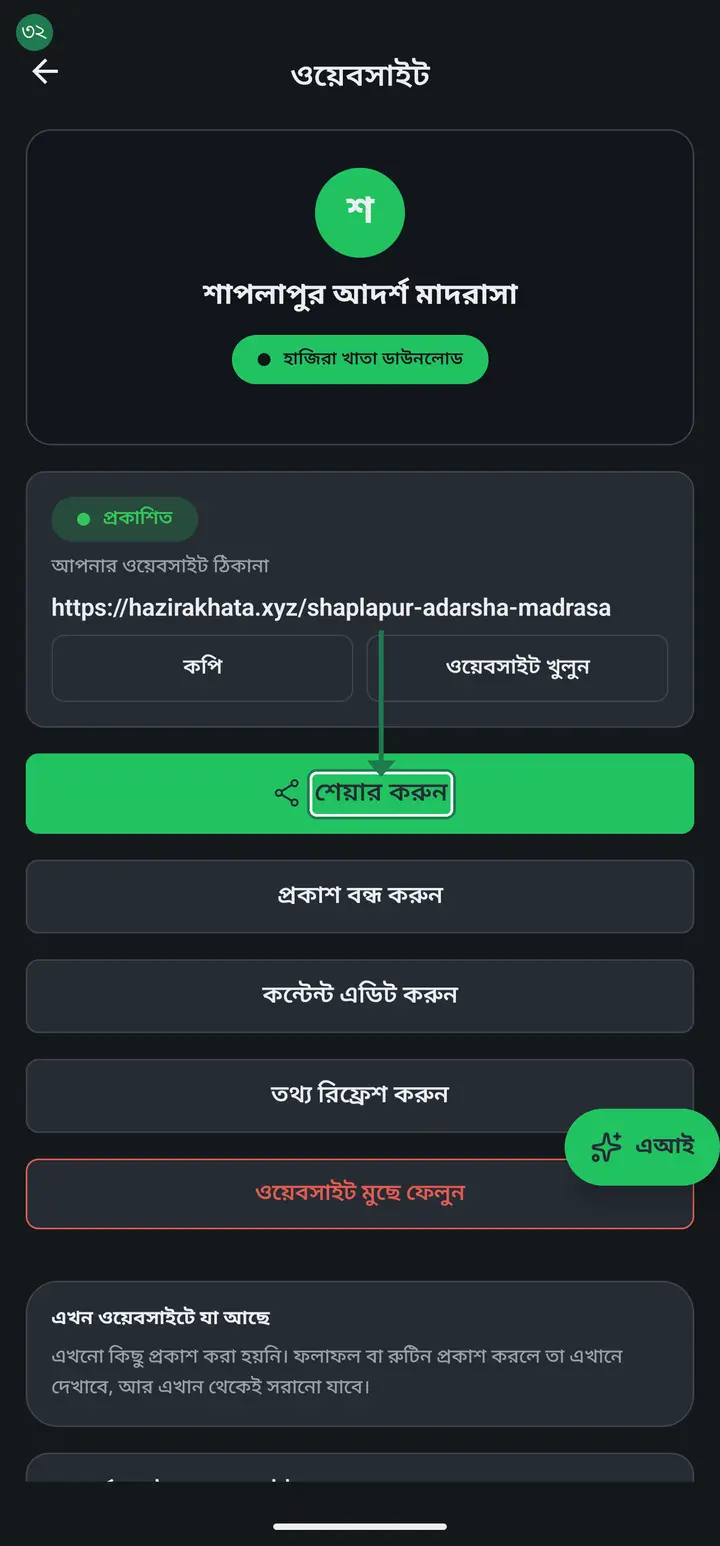
The share sheet opens by itself the moment you publish — send the link to guardians on WhatsApp, imo or Facebook from there. To send it again later, the "শেয়ার করুন" (Share) button is right there.
-
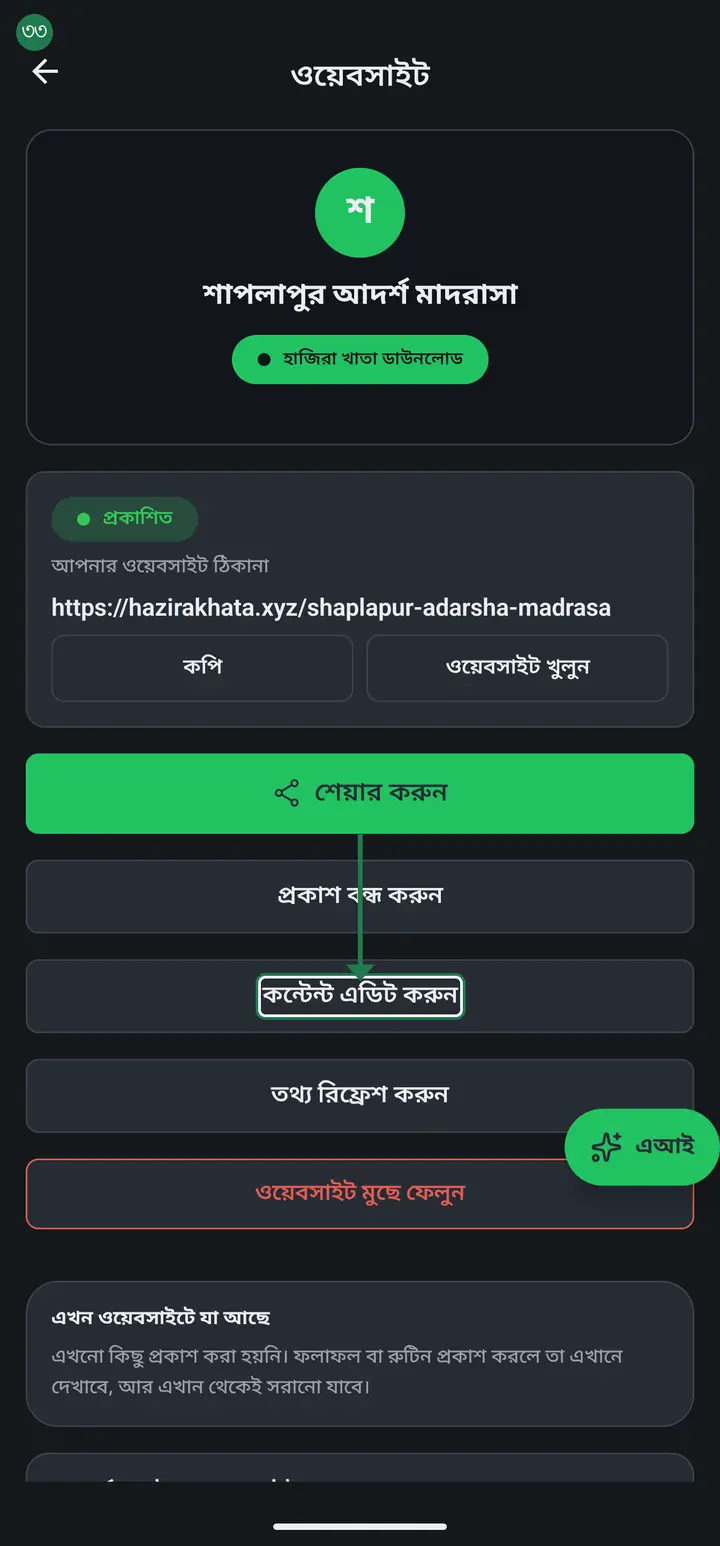
To change anything later, tap "কন্টেন্ট এডিট করুন" (Edit content) — the same six-step form opens with everything you wrote still in it. Add a notice, delete an old one, change the colour, all from here.
-
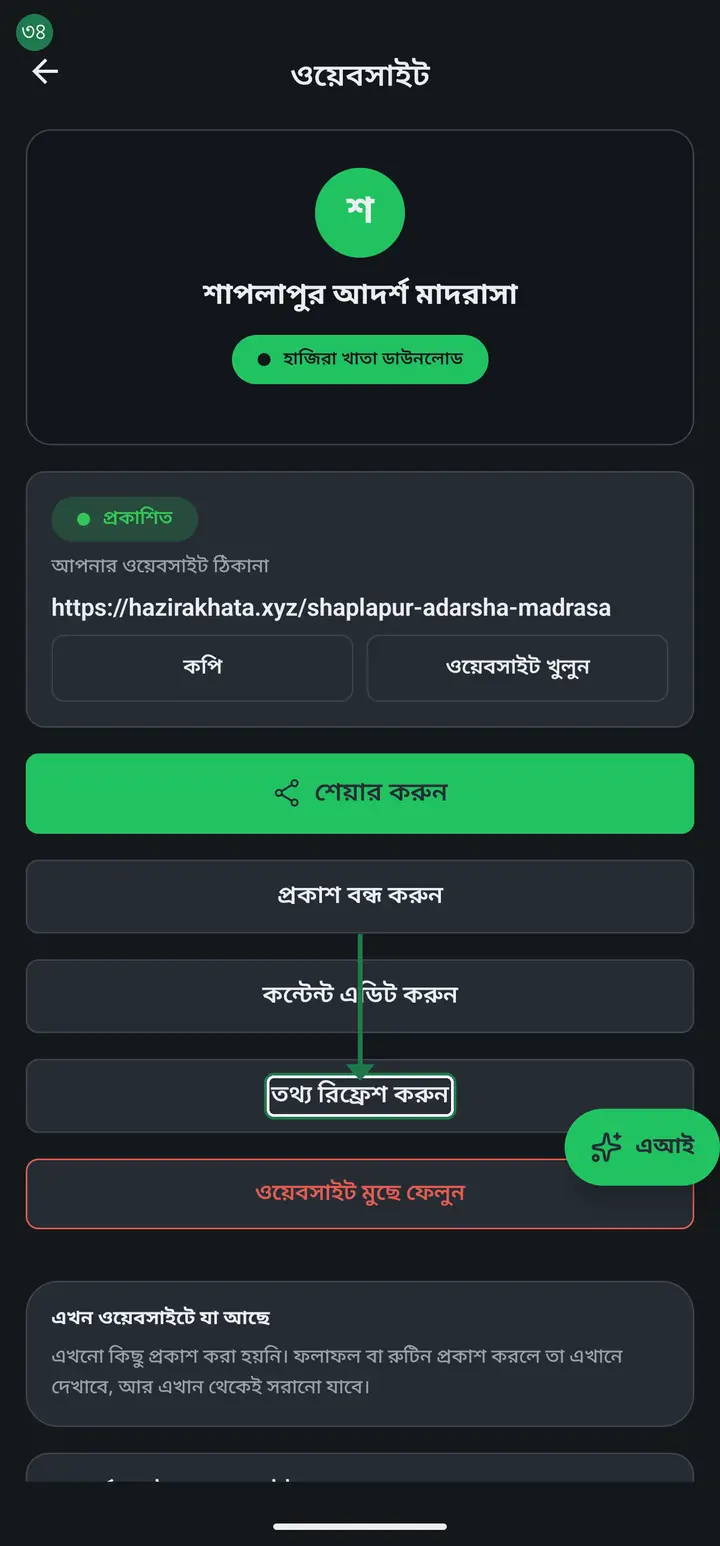
Changing the institution's name, address or phone inside the app does not change the website by itself. Tap "তথ্য রিফ্রেশ করুন" (Refresh details) and the new details go onto the page.
-
The red "ওয়েবসাইট মুছে ফেলুন" (Delete website) at the very bottom — leave it alone unless you really mean it.
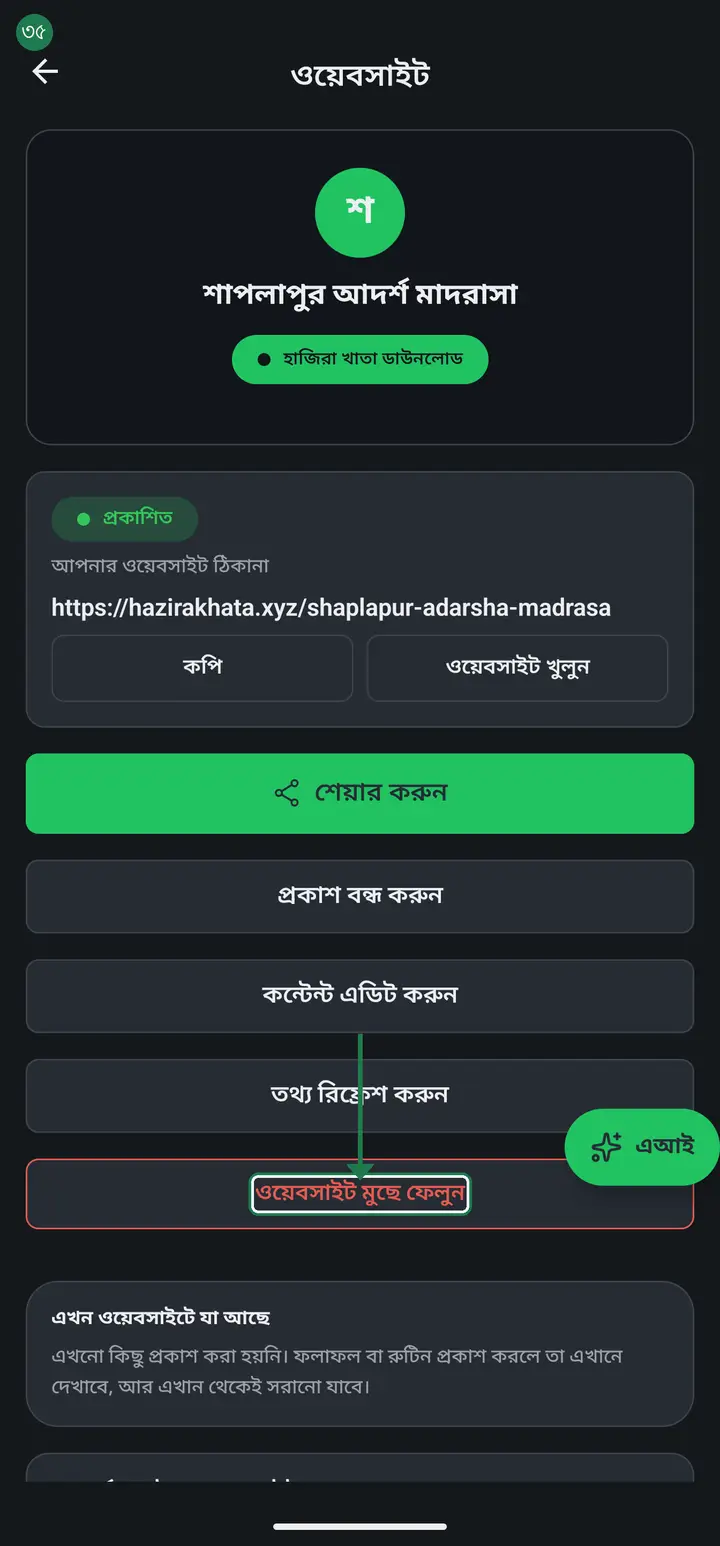
Deleting frees the address, and any other institution can then take it — you will not get it back. If you only want to hide the page for a while, do not delete: tap "প্রকাশ বন্ধ করুন" (Unpublish) and the address stays yours.
Common questions
Does this cost money?
No. The website is free inside Hazira Khata. No domain to buy, no hosting — the address lives under hazirakhata.xyz.
I want my own domain, like www.myschool.com — is that possible?
Not from inside the app. For your own domain and a custom design, tap "আমাদের সাথে যোগাযোগ করুন" (Contact us) in the "সম্পূর্ণ কাস্টম ওয়েবসাইট দরকার?" card — the WhatsApp message is written for you, you only press send.
Is the address really impossible to change?
Really. Once created it stays. The only way round it is deleting the whole site and building it again on a new address — but after deleting, somebody else can take the old one, and everyone you already gave the old link to will find nothing there. Better to think it through the first time.
Can exam results or the class routine show on this page?
Yes — but from their own screens, not this form: results from the marksheet page, routines from the routine page, using "প্রতিষ্ঠানের ওয়েবসাইটে দিন" (Show on the institution website). Whatever you published appears in the "এখন ওয়েবসাইটে যা আছে" (What is on the website now) card, and "সরান" (Remove) takes it back down.
Who can see a published result?
Anyone. Every student's roll, name, marks, grade and position in that class is visible to whoever opens the link — not only guardians. The app asks you to confirm this before publishing. You can take it down again at any time with "সরান".
Can teachers change the website too?
No — only the institution's admin or head teacher. On another teacher's phone the website card does not appear at all, so nothing can be changed by accident.
Is there a sample page I can look at?
Yes — hazirakhata.xyz/shaplapur-adarsha-madrasa. It is a fictional sample institution, and the screenshots in this tutorial are from it. Open it and you will see what your own page will look like.
Ask AI about this page
Ask an AI app to explain this page in simple language.
Copied — now paste it
Get Hazira Khata free on Google Play
More tutorials
- How to set up your institution Once your institution profile exists you can add other teachers, and everyone sees the same classes and students.
- Inviting and approving teachers Adding a teacher to your institution — share the code, then approve the request with one tap.
- Assign a teacher to a class (make them a class teacher) Teacher joined the institution but sees nothing? This one job fixes it — 2 minutes.
- Who can see what — designations and permissions How your other teachers sign in, how much power to give each one through designations — and now, more precisely for one person, through permissions too.
- A teacher has left — removing a member Somebody has resigned, or you approved the wrong person. Take the name off in one tap without losing any of the attendance or fees they recorded — and how to leave an institution yourself.
- Record a teacher's salary and send the receipt After paying a teacher, send them a receipt right from the app — instantly if they use WhatsApp, and as a shareable picture even if they don't.
- Leaving my old institution to open my own Want to leave your old school, or open your own? The red "এই প্রতিষ্ঠান ছাড়ুন" at the very bottom of the প্রতিষ্ঠান tab changes nothing until you confirm. After leaving, open your own.
- Taking admissions online Make one link and share it. Guardians fill the form from home, the applications land in your app, and approving one adds the student straight into a class.